

After 7 months of development, the release of the Linux distribution Zorin OS 18 has been published, based on the Ubuntu 24.04 package base. The target audience for the distribution is beginner users accustomed to working in Windows. To manage the appearance, the distribution offers a special configurator that allows the desktop to resemble various versions of Windows and macOS, and includes a selection of programs similar to those familiar to Windows users. The sizes of the downloadable ISO images are 3.6 GB and 7.6 GB.
Zorin OS uses GNOME as the basis for its desktop, along with a set of custom extensions and a panel based on Dash to Panel and Dash to Dock. To integrate the desktop with smartphones, the Zorin Connect application (based on KDE Connect) is included. In addition to packages in deb format and Ubuntu repositories, support for Flatpak, AppImage, and Snap formats is included by default, allowing for the installation of programs from the Flathub and Snap Store directories.
In the new version:
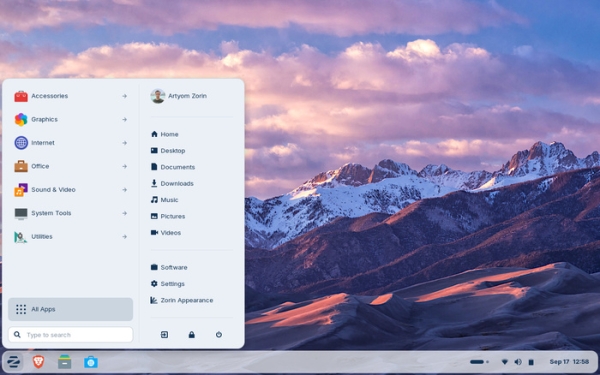
- The default theme has been updated. More rounded shapes have been employed, the dark background on buttons in the menu has been removed, lighter colors have been used for some elements, and the background saturation has been increased. It was:

- By default, a floating style for the bottom panel with rounded corners is used. The button for navigating through open windows has been transformed into a desktop indicator, simplifying task switching.

- By default, a new manager for mosaic window arrangement is in use, allowing users to avoid memorizing complex keyboard combinations. Simply drag a window to the top of the screen and select the desired layout from the pop-up window. Custom mosaic layouts can be created, automatic arrangements used, and the mosaic mode behavior changed (Zorin Appearance → Windows → Advanced Window Tiling).

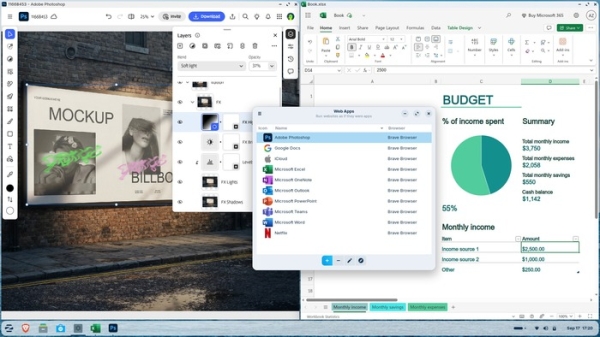
- Seamless integration with web applications has been provided, allowing them to coexist alongside traditional programs. For example, web applications can be used on the desktop with services such as Microsoft Office/365, MS Teams, Google Docs, and Adobe Photoshop. A Web Apps utility has been added to convert any website into an application. Created web applications immediately appear in the start menu and can be accessed like regular programs.

- The 'Online Accounts' application, designed for managing connections to external services, has added support for connecting to the Microsoft OneDrive service and viewing saved files through the file manager's sidebar.

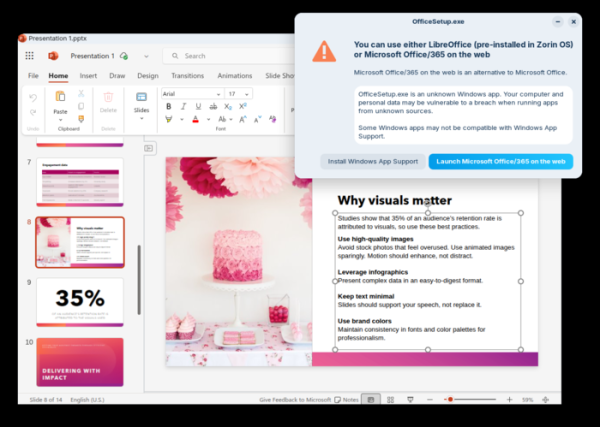
- The built-in database for identifying installers of popular Windows applications has been expanded to cover more than 170 programs. The information display regarding alternative options has been improved. For instance, when attempting to launch the Microsoft Office installer, a dialog will suggest running the web version of the office suite or using LibreOffice.

- Two new color schemes have been added: Yellow and Brown.

- The Zorin OS 18 Education build now includes programs such as Gradebook (grades journal), Spedread (speed reading system), and TurboWarp (programming education).

- The toolset for launching programs compiled for Windows has been updated to Wine 10.
- In the Nautilus file manager (GNOME Files), the sidebar design has been refreshed and control elements have been reorganized. A 'Search Everywhere' button has been added to the top left of the sidebar for global file and document searching by name or content (searching can be carried out simultaneously in multiple predefined locations in the settings).
- In the configurator, the settings panels have been redesigned and regrouped.
- A new sidebar summarizing events for the month has been added to the calendar-planner.
- The Cheese application has been replaced with the GNOME Snapshot program for taking photos and videos, which allows easy switching between different cameras.
- The interface of the Evolution email client has been modernized.
- Support for multi-monitor mode has been added to the Zorin Menu, allowing the panel to be visible on more than one screen, and touchscreen management has been improved.
- Support for remote desktop connection using the RDP protocol has been added (Settings app → System → Remote Desktop → Remote Login).
- Windows are now centered by default on the screen (the old mode can be restored in the configurator — Appearance → Windows → New Window Placement).
- A multimedia sound profile is used by default for sound management. server PipeWire.
- A new set of system sounds is now enabled by default.






Source: opennet.ru
