

Today we will discuss bash scripts. These are , written for the bash shell. There are other shells, such as zsh, tcsh, ksh, but we will focus on bash. This material is intended for everyone interested, with the only requirement being knowledge of the Linux.
Command line scripts are sets of the same commands that can be entered via the keyboard, gathered into files and united by a common purpose. The results of command execution may have independent value or serve as input for other commands. Scripts are a powerful way to automate frequently performed tasks.
So, speaking of the command line, it allows you to execute multiple commands at once by entering them separated by semicolons:
pwd ; whoami In fact, if you tried this in your terminal, you have already written your first bash script that involves two commands. It works like this. First, the command pwd displays information about the current working directory, then the command whoamishows information about the user you are logged in as.
Using a similar approach, you can combine as many commands in one line as you want, limited only by the maximum number of arguments that can be passed to a program. This limit can be determined using the following command:
getconf ARG_MAXThe command line is a great tool, but commands have to be entered each time they're needed. What if you write a set of commands in a file and simply call that file to execute them? In fact, the file we're talking about is called a command line script.
How Bash Scripts Work
Create an empty file using the command touchIn the first line, you need to specify which shell you intend to use. We are interested in bash, so the first line of the file will look like this:
#!/bin/bash In other lines of this file, the hash symbol is used to denote comments that the shell does not process. However, the first line is a special case; here, the hash followed by an exclamation mark (this sequence is called ) and the path to bash, indicate to the system that the script is specifically intended for bash.
Shell commands are separated by a newline, and comments are marked with a hash. Here's how it looks:
#!/bin/bash
# This is a comment
pwd
whoami
Here, just like in the command line, commands can be written in one line, separated by a semicolon. However, if you write commands on different lines, the file is easier to read. In any case, the shell will process them.
Setting permissions for the script file
Save the file with the name myscript, and the work on creating the bash script is nearly finished. Now, you just need to make this file executable; otherwise, when you try to run it, you will encounter the error Permission denied.

Attempting to run a script file with improperly set permissions
Let's make the file executable:
chmod +x ./myscriptNow let's try to execute it:
./myscriptAfter setting the permissions, everything works as intended.
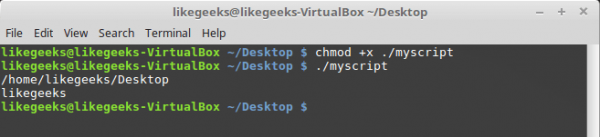
Successful execution of the bash script
Output messages
To output text to the Linux console, the command echois used. Let’s utilize this knowledge and edit our script by adding explanations to the data that the existing commands output:
#!/bin/bash
# our comment is here
echo "The current directory is:"
pwd
echo "The user logged in is:"
whoami
Here's what you'll get after running the updated script.
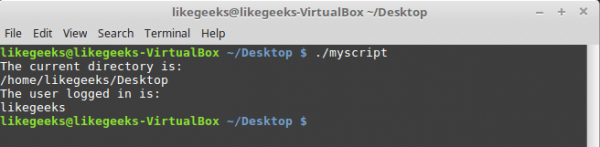
Output messages from the script
Now we can display explanatory labels using the command echo. If you don’t know how to edit a file using Linux tools or haven’t encountered the command echo, take a look at material.
Using variables
Variables allow you to store information in the script file, for example — the results of command executions for use by other commands.
There is nothing wrong with executing individual commands without storing their results, but the capabilities of such an approach are quite limited.
There are two types of variables that can be used in bash scripts:
- Environment variables
- User-defined variables
Environment variables
Sometimes, in shell teams, you need to work with certain system data. Here’s how to display the home directory of the current user:
#!/bin/bash
# display user home
echo "Home for the current user is: $HOME"
Note that we can use the system variable $HOME in double quotes; this will not prevent the system from recognizing it. Here’s what happens when you execute the above script.

Using an environment variable in a script
What if we want to print a dollar sign on the screen? Let’s try this:
echo "I have $1 in my pocket" The system will detect the dollar sign in the quoted string and assume that we are referring to a variable. The script will attempt to display the value of an undefined variable $1. This is not what we need. What to do?
In such a situation, using an escape character, the backslash, before the dollar sign will help:
echo "I have $1 in my pocket"Now the script will output exactly what is expected.

Using an escape sequence to print the dollar sign
User-defined variables
In addition to environment variables, bash scripts allow you to define and use your own variables in the script. Such variables hold their value until the script execution is completed.
As with system variables, you can access user-defined variables using the dollar sign:
TNW-CUS-FMP — a promo code for a 10% discount on our services, available for activation within 7 days
#!/bin/bash
# testing variables
grade=5
person="Adam"
echo "$person is a good boy, he is in grade $grade"
Here’s what happens after running such a script.

User-defined variables in a script
Command substitution
One of the most useful features of bash scripts is the ability to extract information from command output and assign it to variables, allowing you to use this information anywhere in the script file.
This can be done in two ways.
- Using the backtick character «`»
- Using the construct
$()
With the first approach, make sure not to confuse the backtick with a single quote. You need to enclose the command in two such characters:
mydir=`pwd`In the second approach, the same is written like this:
mydir=$(pwd)And the script might look like this:
#!/bin/bash
mydir=$(pwd)
echo $mydir
During its execution, the command output pwdwill be saved in the variable mydir, the contents of which, using the command echo, will be sent to the console.

A script that saves the results of a command in a variable
Mathematical Operations
To perform mathematical operations in the script file, you can use the following structure: $((a+b)):
#!/bin/bash
var1=$(( 5 + 5 ))
echo $var1
var2=$(( $var1 * 2 ))
echo $var2 
Mathematical Operations in the Script
Control Structure if-then
In some scripts, it is necessary to control the flow of command execution. For example, if a certain value is greater than five, one action needs to be executed; otherwise, a different action should be taken. This applies in many situations, and here we can use the control structure if-then. In its simplest form, it looks like this:
if command
then
commands
fi
Here is a working example:
#!/bin/bash
if pwd
then
echo "It works"
fi
In this case, if the execution of the command pwdis successful, the text "it works" will be output to the console.
Let's use our existing knowledge and write a more complex script. For instance, we need to find a certain user in /etc/passwd, and if we were able to find them, we should report that they exist.
#!/bin/bash
user=likegeeks
if grep $user /etc/passwd
then
echo "The user $user Exists"
fi
Here is what happens after executing this script.
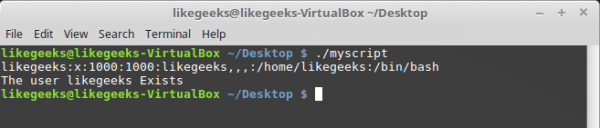
User Search
Here, we used the command grepto search for a user in the file /etc/passwd. If the command grepis unfamiliar to you, its description can be found .
In this example, if the user is found, the script will output a corresponding message. But what if the user couldn't be found? In this case, the script will simply finish execution without informing us. We would like it to tell us about this too, so let's improve the code.
Control Structure if-then-else
To enable the program to report on the results of both a successful search and a failure, we will use the structure if-then-else. Here is how it is structured:
if command
then
commands
else
commands
fi
If the first command returns zero, which indicates its successful execution, the condition will be true, and execution will not proceed down the elsebranch. Conversely, if something other than zero is returned, indicating failure or a false result, the commands located after will be executed. else.
Let's write such a script:
#!/bin/bash
user=anotherUser
if grep $user /etc/passwd
then
echo "The user $user Exists"
else
echo "The user $user doesn’t exist"
fi
Its execution went down the branch else.

Executing the script with the if-then-else construct
Well then, let's continue and pose the question about more complex conditions. What if we need to check not just one condition but several? For example, if the required user is found, we should display one message; if another condition is met, another message, and so on. In such situations, nested conditions will help us. It looks like this:
if command1
then
commands
elif command2
then
commands
fi
If the first command returns zero, indicating its successful execution, the commands in the first block will be executed. then, otherwise, if the first condition is false and if the second command returns zero, the second block of code will be executed.
#!/bin/bash
user=anotherUser
if grep $user /etc/passwd
then
echo "The user $user Exists"
elif ls /home
then
echo "The user doesn’t exist but anyway there is a directory under /home"
fi
In such a script, for example, you can create a new user using the command useradd, if the search yields no results, or do something else useful.
Comparing Numbers
In scripts, numerical values can be compared. Below is a list of corresponding commands.
n1 -eq n2Returns true ifn1is equal ton2.
n1 -ge n2Returns true ifn1is greater than or equal ton2.
n1 -gt n2Returns true ifn1is greater thann2.
n1 -le n2Returns true ifn1is less than or equal ton2.
n1 -lt n2Returns true if n1 is less thann2.
n1 -ne n2Returns true ifn1is not equal ton2.
For example, let's test one of the comparison operators. Note that the expression is enclosed in square brackets.
#!/bin/bash
val1=6
if [ $val1 -gt 5 ]
then
echo "The test value $val1 is greater than 5"
else
echo "The test value $val1 is not greater than 5"
fi
Here's what this command will output.

Number Comparison in Scripts
The variable value val1is greater than 5, so the comparison operator's branch executes, and the corresponding message is printed to the console. thenString Comparison
In scripts, string values can also be compared. The comparison operators are quite simple, but there are certain peculiarities of string comparison that we will address below. Here’s a list of the operators.
str1 = str2
Checks the strings for equality, returning true if the strings are identical.s
tr1 != str2Returns true if the strings are not identical.str1 < str2
Returns true ifstr1is less thanstr2str1 > str2.
is greater thanstr1is less than-n str1str1 > str2.
Returns true if the lengthis greater than zero.is less than-z str1
is equal to zero.is greater than zero.is less thanHere’s an example of string comparison in a script:
As a result of executing the script, we will get the following.
#!/bin/bash
user ="likegeeks"
if [$user = $USER]
then
echo "The user $user  is the current logged in user"
fi
String Comparison in Scripts

Comparing strings in scripts
There is one particular aspect of string comparison worth mentioning. Specifically, the ">" and "<" operators need to be escaped with a backslash; otherwise, the script will not work correctly, although no error messages will appear. The script interprets the symbol ">" as a command for output redirection.
Here's how working with these operators looks in code:
#!/bin/bash
val1=text
val2="another text"
if [ $val1 > $val2 ]
then
echo "$val1 is greater than $val2"
else
echo "$val1 is less than $val2"
fi
Here are the results of the script's execution.

String comparison, warning displayed
Note that the script, although it runs, outputs a warning:
.\/myscript: line 5: [: too many arguments To eliminate this warning, let's enclose $val2 in double quotes:
#!/bin/bash
val1=text
val2="another text"
if [ $val1 > "$val2" ]
then
echo "$val1 is greater than $val2"
else
echo "$val1 is less than $val2"
fi
Now everything works as it should.

In scripts, string values can also be compared. The comparison operators are quite simple, but there are certain peculiarities of string comparison that we will address below. Here’s a list of the operators.
Another aspect of the ">" and "<" operators is how they handle uppercase and lowercase characters. To understand this feature, let's prepare a text file with the following content:
Likegeeks
likegeeks
We'll save it with the name myfile, after which we'll execute the command in the terminal:
sort myfileIt will sort the lines from the file like this:
likegeeks
Likegeeks
The command sort, by default, sorts lines in ascending order, meaning that the lowercase letter in our example is considered less than the uppercase letter. Now, let's prepare a script that will compare the same lines:
#!/bin/bash
val1=Likegeeks
val2=likegeeks
if [ $val1 > $val2 ]
then
echo "$val1 is greater than $val2"
else
echo "$val1 is less than $val2"
fi
If it is run, it will turn out that everything is reversed—the lowercase letter is now greater than the uppercase letter.
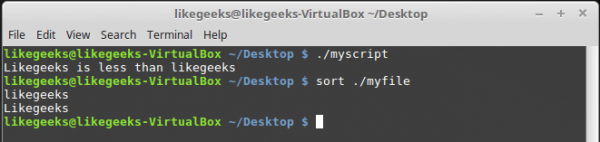
The sort command and string comparison in the script
In comparison commands, uppercase letters are considered less than lowercase ones. String comparison here is performed by comparing the ASCII codes of the characters; consequently, the sort order depends on these codes.
The command sort, in turn, uses the sort order defined in the system language settings.
File checks
Perhaps the commands listed below are most commonly used in bash scripts. They allow checking various conditions related to files. Here's a list of these commands.
-d fileChecks if a file exists and whether it is a directory.
-e fileChecks if a file exists.
-f fileChecks if a file exists and whether it is a regular file.
-r fileChecks if a file exists and whether it is readable.
-s fileChecks if a file exists and whether it is not empty.
-w fileChecks if a file exists and whether it is writable.
-x fileChecks if a file exists and whether it is executable.
file1 -nt file2Checks if it is newer thanfile1, thanfile2.
file1 -ot file2Checks if it is older thanfile1, thanfile2.
-O fileChecks if the file exists and if the current user is its owner.
-G fileChecks if the file exists and if its group ID matches the current user's group ID.
These commands, like many others we've discussed today, are easy to remember. Their names, being abbreviations of various words, clearly indicate the checks they perform.
Let's try one of the commands in practice:
#!/bin/bash
mydir=/home/likegeeks
if [ -d $mydir ]
then
echo "The $mydir directory exists"
cd $ mydir
ls
else
echo "The $mydir directory does not exist"
fi
This script will output the contents of an existing directory.
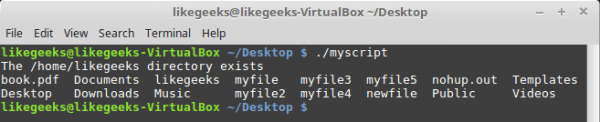
Directory contents output
We assume you can experiment with the other commands on your own; they all apply the same principle.
Summary
Today we discussed how to start writing bash scripts and covered some basics. In reality, the topic of bash programming is vast. This article is a translation of the first part of a large series of 11 materials. If you want the continuation right now — here is the list of the original materials, which includes the one you just read.
- — this covers how to start creating bash scripts, the use of variables, conditional structures, calculations, number comparisons, string comparisons, and checking file information.
- — here we reveal the features of working with for and while loops.
- — this material is dedicated to command line parameters and flags that can be passed to scripts, handling data entered by users, and reading from files.
- — this talks about file descriptors and how to work with them, input, output and error streams, and output redirection.
- — this material is about Linux signals, handling them in scripts, and scheduling scripts.
- — here you can learn about creating and using functions in scripts, and developing libraries.
- — this article is dedicated to working with the stream text editor sed.
- — this material is about programming in the awk data processing language.
- — here you can read about using regular expressions in bash scripts.
- — this section provides techniques for working with messages that can be sent to users, as well as methods for monitoring disk space.
- — this material is dedicated to the Expect tool, which can automate interaction with interactive utilities. In particular, it discusses expect scripts and their interaction with bash scripts and other programs.
We believe one of the valuable properties of this series of articles is that, starting from the simplest concepts suitable for users of any level, it gradually leads to more serious topics, giving everyone a chance to advance in the field of Linux command line scripting.
Dear readers! We ask bash programming gurus to share how they reached the heights of mastery and to share their secrets, while those who have just written their first script are encouraged to share their impressions.
Only registered users can participate in the survey. , please.
Should we translate the other parts of the article series?
Yes!
No, that's not necessary.
1030 users voted. 106 users abstained.
Source: habr.com
