

Hello! Let's take a look at the new features in — . Remember, the functionality of DataGrip is also included in our other paid IDEs, except for WebStorm.
Support for new databases
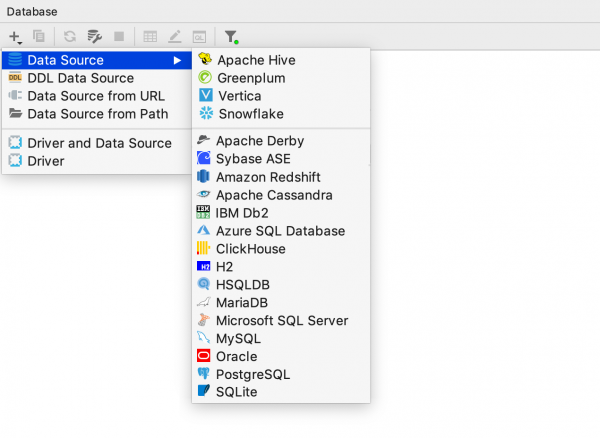
In this release, four databases received official support in our tools:
Apache Hive – a database management system based on the Hadoop platform.
Greenplum – an analytical DBMS for data warehouses based on PostgreSQL.
Vertica. – a columnar database for big data analysis.
Snowflake – a cloud data warehouse. When it comes to relational databases, Snowflake . In this release, we only supported SQL; introspection will be released later.
Connection
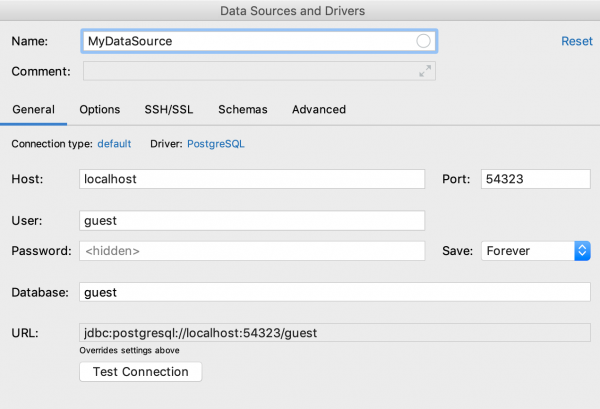
We made changes to the database connection dialog: we aimed to make it clearer and more convenient.
General
This tab mainly underwent refactoring.
Field Connection type was previously called URL type and was at the very bottom. However, since the value in this field defines the subsequent process, it is now at the top.
Field Database placed after entering the username and password, because authentication is needed to display the list of databases by Ctrl/Cmd+Space.
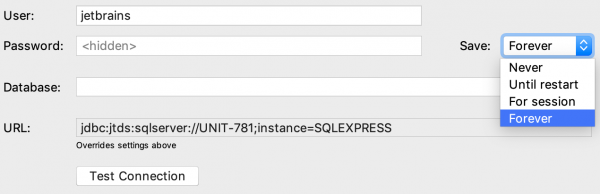
In the comments to the previous post password saving. We added new options and created a dropdown list. The values in this list are:
- Do not save the password.
- Save until DataGrip restarts (this is how the 'do not save' option used to work).
- Save for the session: until you disconnect from the data source.
- Save forever.
To avoid confusion, enter an empty password through the context menu.

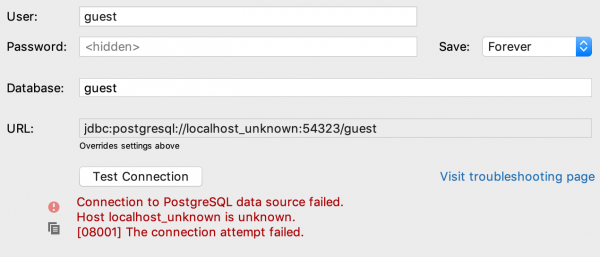
Results Test Connection now shows directly in the window, with no extra clicks or dialogs.
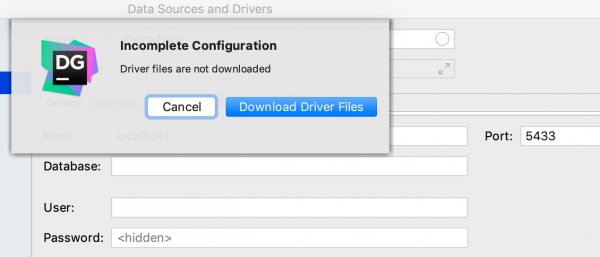
And if the drivers are not downloaded, DataGrip will suggest doing so. Previously the button Test Connection was disabled in such cases, which confused users.
Options
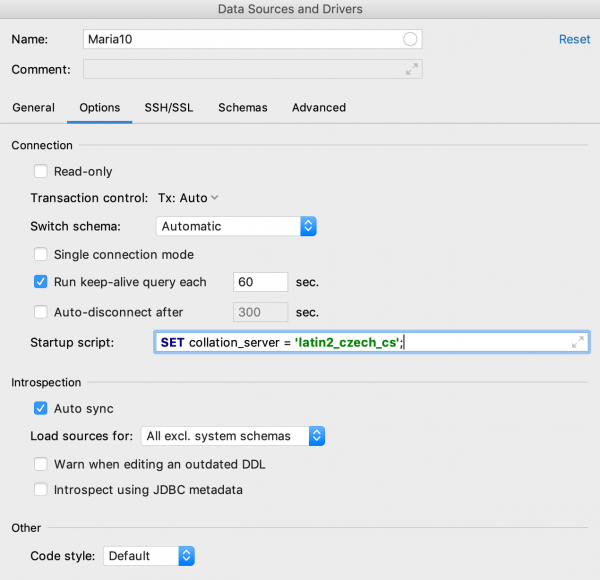
Settings moved from the General tab Read-only, Auto-sync, Transaction control.
New:
– Run keep-alive query every N seconds: will ping the data source every N seconds. For databases that we do not support, you can write your own keep-alive query. This is done in the driver settings.
– Auto-disconnect after N seconds: the value entered here in seconds will tell DataGrip how long to automatically disconnect from the data source.
– Startup script: Here you can write a query that will execute every time a connection is created. Remember, if Single connection
mode is not enabled, a new connection is created for each new console.
Schemas
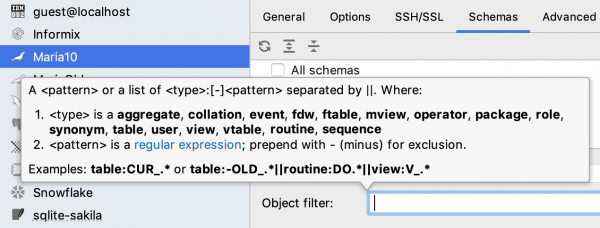
The filter for displaying objects in the tree has moved here.
Navigation and Search
Recent Locations List
The new Recent Locations window shows where you've been recently. The list items are small pieces of code that you edited or viewed lately. This is useful if you remember the context but not the file name. In DataGrip, this often happens because all consoles are similarly named 🙂 Default shortcut:
Ctrl/Cmd+Shift+E.
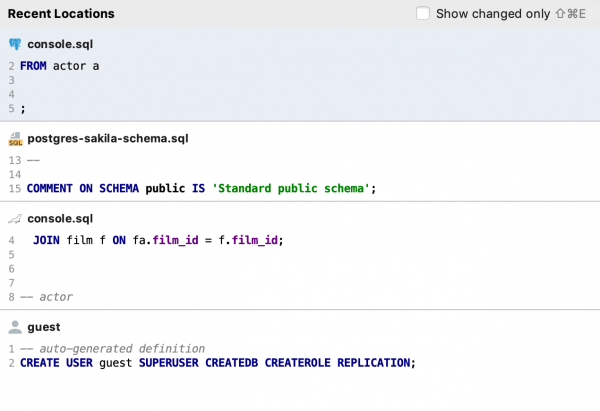
If you previously used this shortcut to show the list of recently changed files, please now use a double press of Ctrl/Cmd+E.
Find in Path
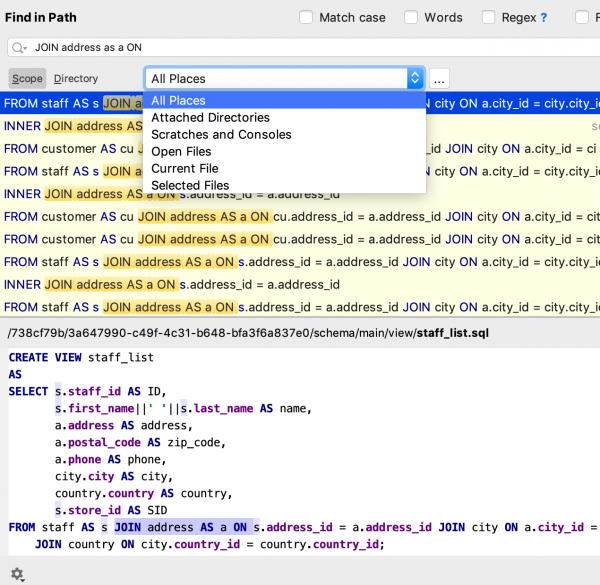
We have removed unnecessary options that were inherited from the platform: Module and Project. Now by default Find in Path in DataGrip searches everywhere. We also added a new search area Attached Directories — it includes only files and folders from the Files panel.
Actions from Navigation Results
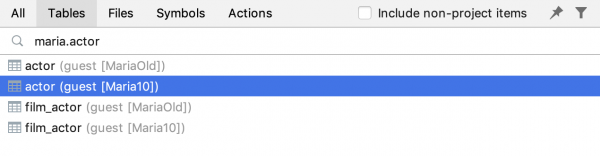
Now actions applicable to objects in the code or tree can be executed from the navigation results. For example, you're searching for a table. Here’s what you can do from the results window.
- View DDL: Ctrl/Cmd+B.
- Open Data: F4.
- Open Modify Table Window: Ctrl/Cmd+F6.
- Show in Another Context: Alt+F1 (for example, show in the tree).
- See General Information: Ctrl+Q/F1.
- Generate SQL: Ctrl/Cmd+Alt+G.
Working with Code
Combined Elements in Autocomplete
For CREATE and DROP autocomplete suggests combined options.
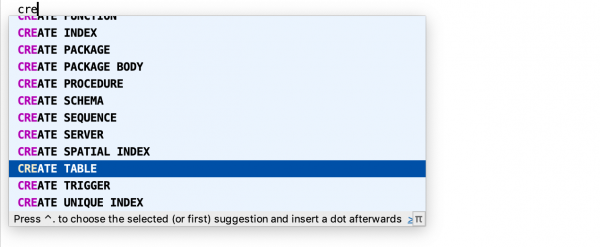
Don't forget about abbreviations.

New Inspections
DataGrip will warn you if you're using a cursor that you haven't opened.
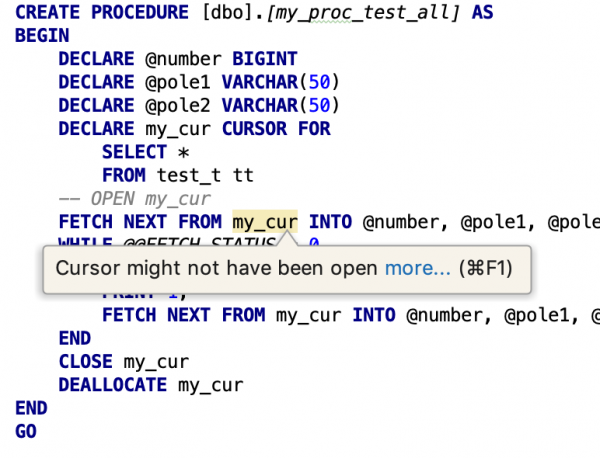
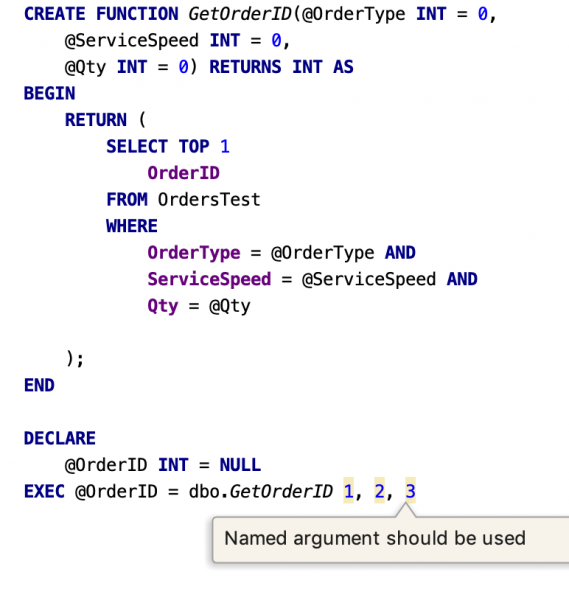
The following two inspections are disabled by default, but some may need them.
If you use unnamed arguments, this will be highlighted.
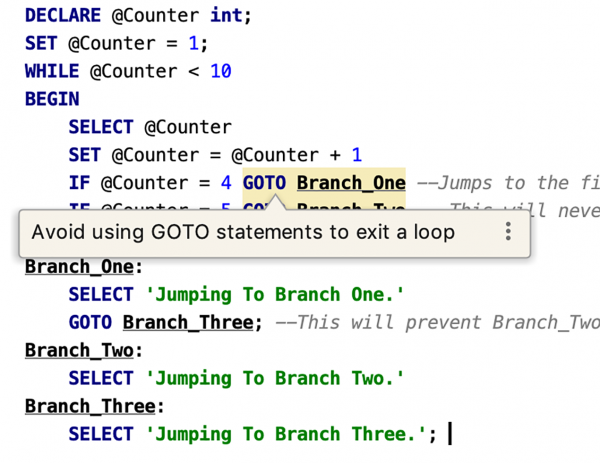
Inspection that warns about the GOTO statement.
File handling
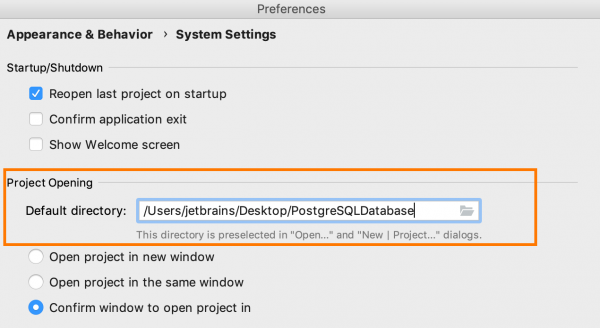
We've added a setting for the default project folder. New projects will be created in this folder.
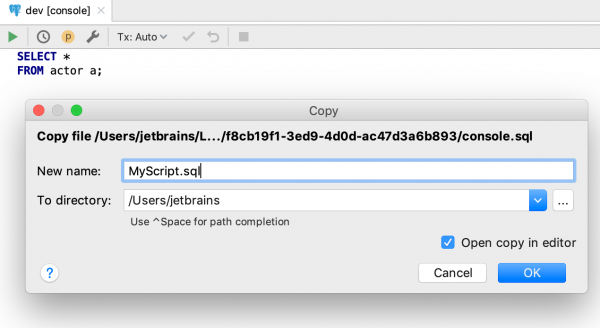
Action Save as… for the console now:
- Suggests the default project folder.
- Remembers the last choice.
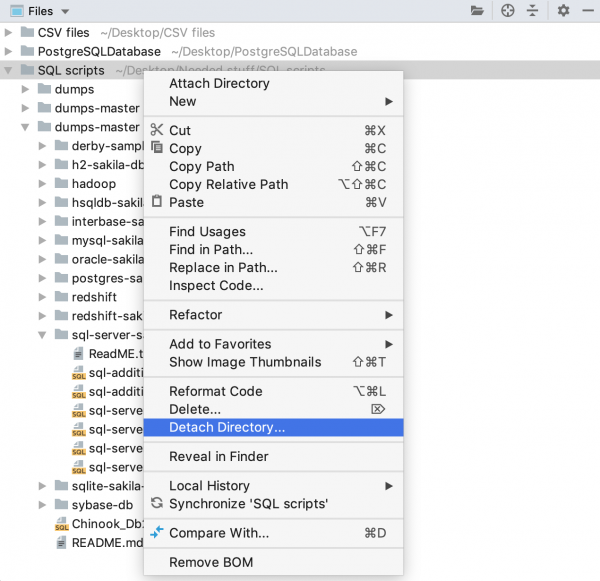
Added action in the file tree Detach Directory: detach the folder. Previously, to detach a folder (that is, to hide it from this tree), you had to press Delete, and DataGrip would ask: do you want to delete or detach? This was inconvenient and unclear 🙂
Database Tree
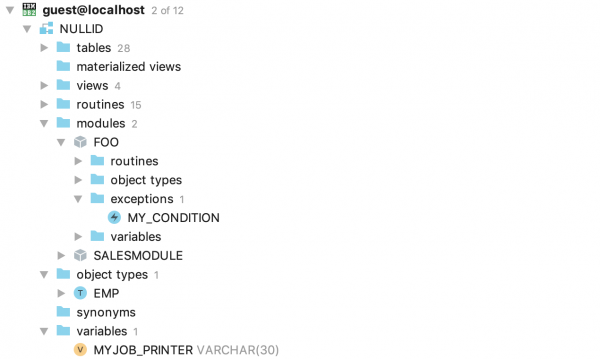
We have developed our introspection for DB2. This means that information about database objects is obtained through queries, rather than through the JDBC driver as before. As a result, the tree now contains objects that weren't there before: triggers, types, methods, modules, counters, roles, and others.
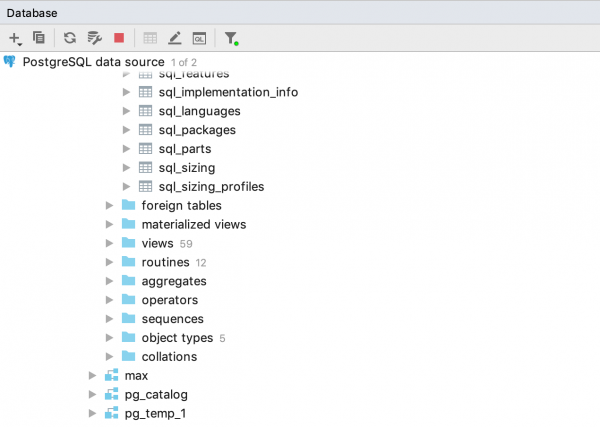
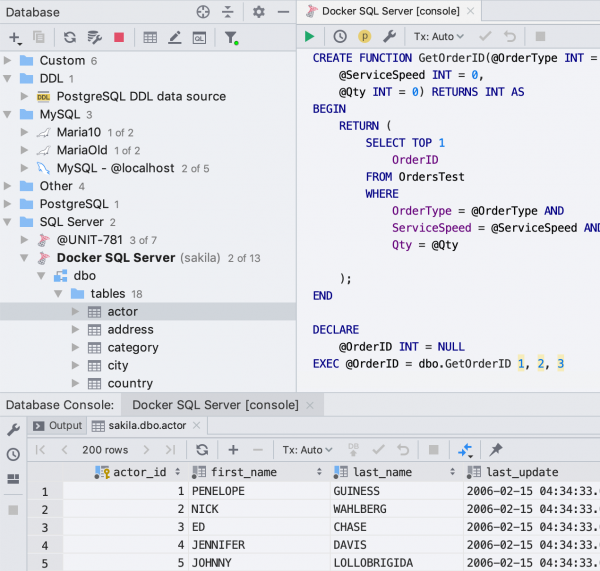
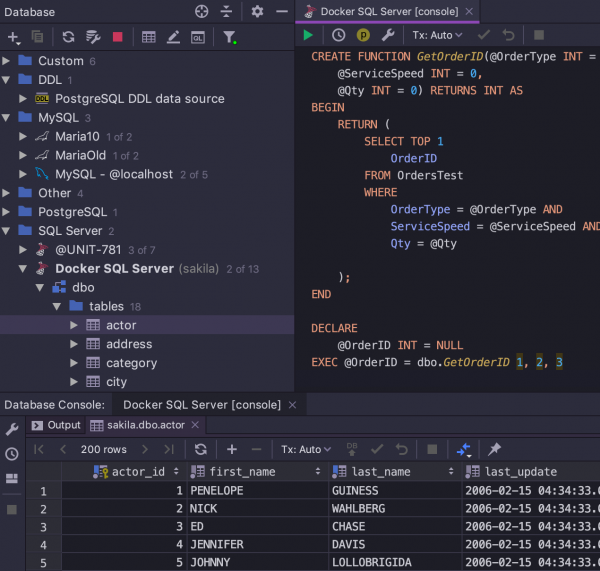
The tree retains context: the data source name sticks at the top.
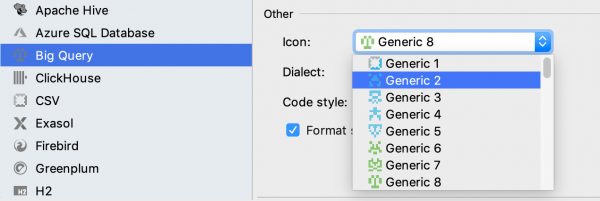
For unsupported databases, we created icons: those whose data sources are created for such databases will no longer be confused.
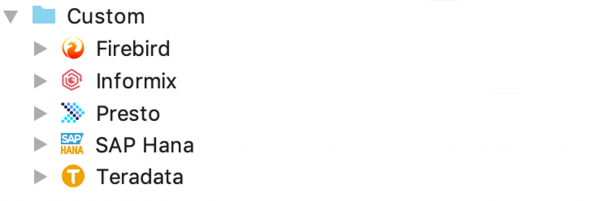
We also created abstract icons that can be used in driver settings.
Others
Custom themes
DataGrip users now have the ability to create any color schemes. A new scheme is a plugin that needs to be installed from the Plugins section in the settings.
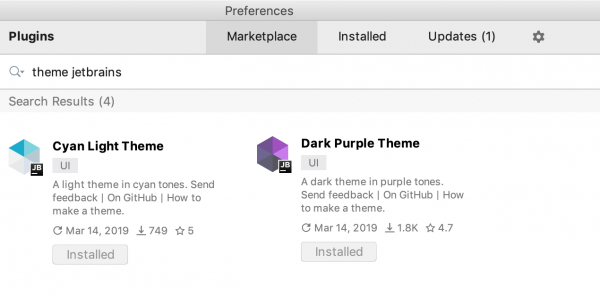
To learn how to create your own themes, read here:
.
We tried making a couple of new ones ourselves. They look like this:
Cyan
Dark purple
Data editor
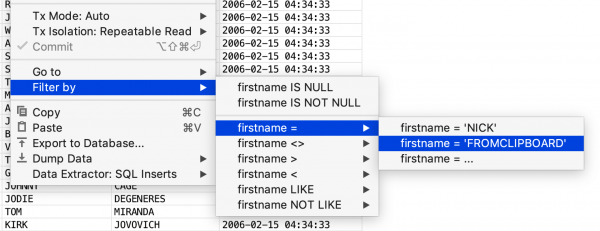
The filter suggests values from the clipboard.
That's it!
- Email that we read: datagrip@jetbrains.com
- Comments we read ↓↓↓
DataGrip team
Source: habr.com
