

R is filled with a variety of functions. Below, I will outline ten of the most interesting ones that many may not know about. This article came about after I discovered that my discussions about some capabilities of R that I use in my work were enthusiastically received by fellow programmers. If you already know all of this, I apologize for wasting your time. At the same time, if you have anything to share, please suggest something useful in the comments.
Skillbox recommends: Practical Course .
Reminder: for all readers of 'Habr' - a discount of 10,000 rubles when enrolling in any Skillbox course with the promo code 'Habr'.
The switch function
I really, really like switch(). It's essentially a convenient shorthand for the if operator when selecting a value based on another variable's value. I find this especially useful when writing code that needs to load a specific dataset based on a prior selection. For example, if there's a variable named animal and you need to select a specific dataset depending on whether the animal is a dog, cat, or rabbit, you would write it like this:
data <- read.csv(
switch(animal,
"dog" = "dogdata.csv",
"cat" = "catdata.csv",
"rabbit" = "rabbitdata.csv")
)
This capability will be useful in Shiny applications, where you need to load different datasets or environment files based on one or more input menu items.
Keyboard Shortcuts for RStudio
This hack is less about R and more about the RStudio IDE. Nevertheless, keyboard shortcuts are always very convenient, saving time when typing. My favorites are Ctrl+Shift+M for the %>% operator and Alt+- for the <- operator.
To view all keyboard shortcuts, simply press Alt+Shift+K in RStudio.
The flexdashboard Package
When you need to quickly launch a Shiny dashboard, there is nothing better than the dashboard package. It provides the ability to work with HTML shortcuts, which in turn allows for easy and seamless creation of sidebars, rows, and columns. There is also the option to use a title bar, which allows placing it on different pages of the application, leaving icons, links to GitHub, email addresses, and much more.
The package allows you to work within Rmarkdown, so you can place all applications in a single Rmd file instead of distributing them across different servers and UI files, as is done, for example, with shinydashboard. I always use flexdashboard when I need to create a simple prototype of a dashboard before starting to work on something complex. This feature allows for a prototype to be created within an hour.
Functions req and validate in R Shiny
Development in R Shiny can be confusing, especially when you keep receiving strange error messages that don't help you understand what's going on. However, over time Shiny is evolving and improving, and more and more functions are being introduced that help identify the cause of the error. For instance, req() addresses the issue of a 'silent' error, where it's unclear what the problem is. You can display UI elements related to previous actions with it. Let's clarify with an example:
output$go_button < — shiny::renderUI({
# only display button if an animal input has been chosen
shiny::req(input$animal)
# display button
shiny::actionButton("go",
paste("Conduct", input$animal, "analysis!")
)
})
validate() checks everything before rendering and allows you to display an error message — for example, that the user uploaded an incorrect file:
# get csv input file
inFile < — input$file1
data < — inFile$datapath
# render table only if it is dogs
shiny::renderTable({
# check that it is the dog file, not cats or rabbits
shiny::validate(
need("Dog Name" %in% colnames(data)),
"Dog Name column not found — did you load the right file?"
)
data
})
You can find more detailed information about all these functions .
Storing your credentials in the system environment
If you plan to share code where access data is required, use the system environment to avoid placing your credentials on GitHub or another service. Example of placement:
Sys.setenv(
DSN = "database_name",
UID = "User ID",
PASS = "Password"
)
You can now log in using environment variables:
db < — DBI::dbConnect(
drv = odbc::odbc(),
dsn = Sys.getenv("DSN"),
uid = Sys.getenv("UID"),
pwd = Sys.getenv("PASS")
)
It's even more convenient (especially if the data is used frequently) to set them as environment variables directly in the operating system. This way, they will always be available, and you won't have to specify them in the code.
Tidyverse automation with styler
Cleaning up code can be aided by the styler package, which has many features for automatically formatting code in the tidyverse. All you need to do is run styler::style_file() on your problematic script. The package will do a lot (but not everything) to tidy things up.
Parameterizing R Markdown documents
So you've created a great R Markdown document where you analyze various facts about dogs. Then you think it would be better to do the same work, but with cats instead. No problem, you can automate the creation of cat reports with just one command. You just need to parameterize your R Markdown document.
This can be done by setting parameters for the YAML header in the specified document, and then the values for those parameters.
— title: "Animal Analysis"
author: "Keith McNulty"
date: "21 March 2019"
output:
html_document:
code_folding: "hide"
params:
animal_name:
value: Dog
choices:
— Dog
— Cat
— Rabbit
years_of_study:
input: slider
min: 2000
max: 2019
step: 1
round: 1
sep: »
value: [2010, 2017]
—
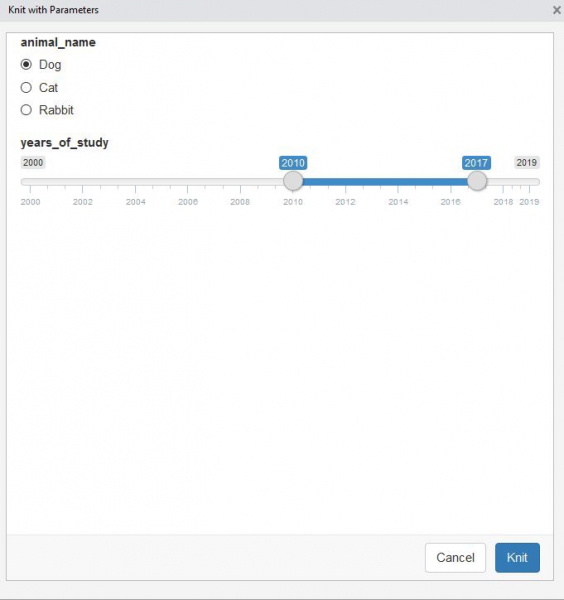
You can now reference all variables in the document code as params$animal_name and params$years_of_study. Then use the dropdown menu in Knit (or knit_with_parameters()) and get the ability to select parameters.
revealjs
revealjs is a package that allows you to create excellent HTML presentations with embedded R code, intuitive navigation, and slide menus. HTML shortcuts enable you to quickly create a nested slide structure with different style options. Moreover, HTML will run on any device, so the presentation can be opened on every phone, tablet, or laptop. Information disclosure can be configured by installing the package and calling it in the YAML header. Here's an example:
— title: "Exploring the Edge of the People Analytics Universe"
author: "Keith McNulty"
output:
revealjs::revealjs_presentation:
center: yes
template: starwars.html
theme: black
date: "HR Analytics Meetup London — 18 March, 2019"
resource_files:
— darth.png
— deathstar.png
— hanchewy.png
— millenium.png
— r2d2-threepio.png
— starwars.html
— starwars.png
— stormtrooper.png
—
The source code for the presentation , and the presentation <a href="'>is here.

HTML tags in R Shiny
Most programmers do not take full advantage of the HTML tags available in R Shiny. There are only 110 tags that provide the opportunity to create a short call for HTML functions or media playback. For instance, I recently used tags$audio to play a "winning" sound that alerted the user when the task was completed.
The praise package
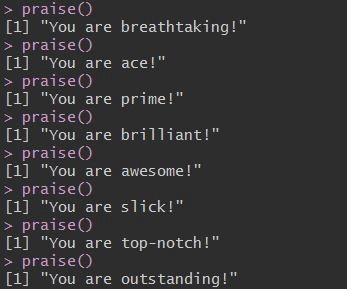
Using this package is very easy, and it is meant to provide praise to the user. It may seem strange, but they actually love it.
Skillbox recommends:
- Two-Year Practical Course .
- Online Course .
- Practical Year Course .
Source: habr.com
