

Today, I am pleased to present you with useful insights from my colleague Evgeny Ivanov, the team lead of Veeam's technical support. This time, Zhenya has shared recommendations for working with backups and replicas. I hope these tips help you avoid common mistakes and ensure that your replicas and backups are never the 'weak link' in the recovery process, should the need arise.
So, welcome to the details.
In my previous we explored how to optimize the load on the components of the backup infrastructure and discussed common configuration mistakes. Now, we move on to another important topic – the proper preparation and execution of recovery. We will also examine this through real examples encountered by the technical support team.
A Backup Without Testing is Money Down the Drain
We regularly hear from users who find themselves in similar difficult situations: they need to perform a recovery from a backup, but upon attempting to do so, they encounter an insurmountable problem. And this problem is not due to a lack of a backup, CryptoLocker activity, or anything similar. It is merely a lack of attention paid to verifying the recoverability of backups and replicas. Many often focus solely on the backup creation process, forgetting that just having a backup is not a cure-all for potential issues. It is essential to understand that recovery is an entirely different process with its own nuances that must be monitored and tested before going live. Here are some illustrative examples for you:
- A critical virtual machine with a size of 20 TB experienced a failure. Downtime, of course, is unacceptable, and the admin initiates the instant recovery process (VM instant recovery) – within 5 minutes the machine is up. However, we remember that this state of the machine can only be temporary – it must be migrated to the production datastore. In this case, it turned out that the infrastructure couldn't handle copying 20 TB of data in a reasonable time. In the settings for the instant recovery process, it was chosen to save changes to disk. C: Veeam Backup & Replication servers (unlike vSphere snapshots) – as a result, of course, the free space on the disk quickly filled up. By the time the user contacted support, the VM had changes that couldn't be ignored. This means we have a situation where it is impossible to quickly finalize the instant recovery process of a critical machine – so how do we save the data?
To be honest, I can’t remember all the details of the conclusion after so many years, but I do remember that we ultimately didn’t come up with anything brilliant. The clients on their side managed to somewhat resolve this issue by expanding drive C: from the reserves, copied the most important files, and only then powered off the VM to migrate it. In general, no miracle occurred.
- In the user’s infrastructure, there was a single domain controller, and all Veeam Backup & Replication components were configured using DNS. Yes, indeed, you heard that right. There were at least a hundred possible scenarios, but here’s how it actually went: people scheduled maintenance and decided to switch to the replica of their domain controller. They initiated the planned switch, which is generally recommended in such situations. At first, everything went smoothly, but during the second phase, the original VM was briefly powered off to transfer any remaining data. Naturally, the switch task immediately failed due to DNS no longer working.
Fortunately, we managed to handle the situation by manually enabling the replica from vSphere (this operation is generally not recommended to perform on your own, as you will see from the next example). However, as you can understand, the maintenance process was interrupted and postponed. Additionally, we had to manually enter host names into the file C:WindowsSystem32driversetchosts on the Veeam Backup & Replication server to ensure correctness during the failback.
- Another client had their entire backup infrastructure built around magnetic tape drives, and only short chains of files were stored on disk. When they needed to restore several files from a large file server, it turned out that no machine could be used as a helper repository for recovery from tape, as none had enough free space. (You can read about restoring from magnetic tape directly and using a helper repository (currently in English)).
I believe that in all three examples, users were, so to speak, under the illusion – they assumed that if the backup was successful, there would be no problems with recovery. But as you understand, this is not always the case, and therefore recovery must be prepared for as thoroughly as backup. To start, it is worth studying , which contains fairly detailed information about the various types of recovery. At the beginning of each paragraph, the requirements, preparatory actions, and possible limitations are listed. Descriptions of recovery from magnetic tapes or from hardware snapshots of storage systems can be found in the documentation sections and in our on Habr. Additionally, actions for preparing application object recovery using Veeam Explorers tools are described in the 'Planning and preparation' section for each of the tools. I recommend taking a close look at them – this will help you properly prepare the system for recovery if necessary. Instructions for restoring SQL Server database are provided Why should we not work with replicas from the vSphere console? .
Why you shouldn't work with replicas from the vSphere console?
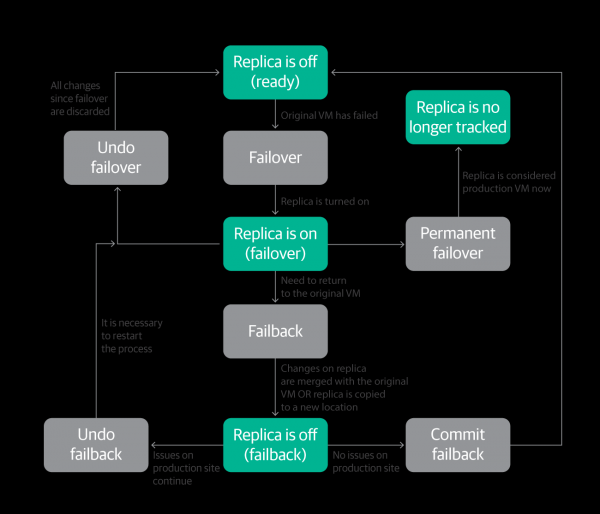
In theory, Veeam replicas are just ordinary virtual machines, which seemingly makes it logical to work with them using vSphere tools, particularly the vSphere client. However, we do not recommend doing this, and here's why: switching to a replica in Veeam Backup & Replication is a quite complex process that requires a strictly sequential execution of steps (so you can revert to a previous step if necessary) and proper final actions – just take a look at the illustration depicting the process:
If you decide to power on the replica from the vSphere client, you will likely face a series of problems down the line:
- The mechanism for switching to the replica from Veeam Backup & Replication (shown in the diagram) will no longer work for this machine.
- The data in the Veeam Backup database will not correspond to the real state of the VM. In the worst case, you may need to edit the database to fix it.
- Data loss is also possible, as in the following example: a user manually powered on the replica in the vSphere client and decided to continue working with it. After some time, they noticed that the replica still appeared in the Veeam Backup & Replication console and decided to remove it as it was no longer needed. They right-clicked on it and issued the command “Delete from disk”. Veeam Backup & Replication immediately deleted the replica from the disk, which, by the way, was already actively being used as a regular VM and contained necessary and valuable data.
Of course, there are situations where one still has to power on a replica from the vSphere client – usually, these are cases when the Veeam server is down, and the replica needs to be turned on with a delay. But if the Veeam server is functioning properly, replicas should only be managed from its console.
Additionally, you should not delete replicas using the vSphere client. Veeam Backup & Replication will remain unaware of such changes, which can lead to errors and outdated data. If you no longer need a replica, remove it using the Veeam console, not as a VM from the vSphere client. This way, you will always have an up-to-date list of replicas.
“Oh” – be careful, updates!
Here we are referring, of course, to updates for hypervisors and various applications that are backed up using Veeam. Looking at them from the perspective of Veeam Backup & Replication, updates can be conditionally divided into two categories: major, significant updates that bring a lot of changes, and minor updates.
Let's first consider the first category.
The most important updates are those intended for the hypervisor. Before installing such an update, it is essential to ensure that it is supported by Veeam Backup & Replication. These updates introduce numerous changes to the libraries and API interfaces used by Veeam Backup & Replication, so to officially declare support for them, it is necessary to update the Veeam Backup & Replication code and conduct thorough testing.
It's also important to keep in mind that, for example, VMware does not provide early access to the latest versions of vSphere for software vendors, so Veeam developers and testers receive the new version at the same time as the rest of the progressive world—therefore, a certain amount of time usually passes between the VMware release and the official announcement of support. The quantity and variety of necessary changes are such that a simple hotfix is unlikely to accommodate them—official support is typically announced alongside the release version of Veeam Backup & Replication.
As a result, there is that awkward moment when after the release of a new version of vSphere, the number of support requests sharply increases, as users rush to install the new version, and their backups, of course, immediately stop working. We, the Veeam support team, have to explain to users what exactly they did wrong, ask them to roll back (if possible), or devise convoluted solutions to get out of the impasse. Therefore, before installing a major update, be sure to check its compatibility with the software you are using, I really urge you!
All of the above applies to applications that you back up and plan to restore using Veeam. The Veeam Explorers toolset also has a list of supported versions of corresponding applications, which is updated with each release of Veeam Backup & Replication. Therefore, before installing a new version of your application – whether it's Exchange, Oracle, or SharePoint – be sure to read the relevant section. .
I categorize minor updates as the second category, such as new versions of VMware Tools, cumulative updates for Exchange, security updates for vSphere, etc. Typically, they do not involve significant modifications, and in most cases, Veeam Backup & Replication does not face any issues with them. (That’s why there are no public announcements about official support for them in the product.) However, in our experience, there have been instances where even such updates significantly altered the usual workflow, leading to errors in Veeam Backup & Replication. In such situations, after confirming the issue, Veeam engineers strive to release a hotfix promptly.
For those who are proficient in technical EnglishIf you want to stay updated on what engineers are working on and what system architects and support specialists encounter, I recommend subscribing to . Every week, a newsletter titled ‘Word from Gostev’ authored by . In it, Anton Gostev, head of the product management department, discusses recently discovered issues (not only on the Veeam side), plans for new versions, and news from the IT world. If you need more information, you can scour the forum topics – if any clients discover a problem with the product after an update, they’ve likely already posted about it on the forum.
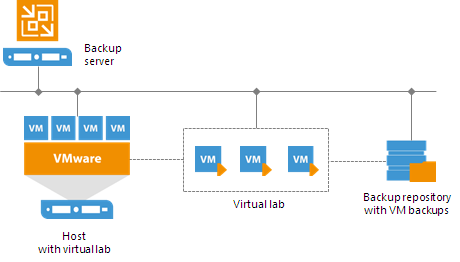
As you understand, patches and updates can lead to problems not only with backups but also with the applications for which these backups are made. This is where virtual labs — Veeam DataLabs — can help. You have probably heard about the SureBackup functionality designed for backup verification. It is based precisely on the use of DataLabs, creating an isolated environment where you can test updates before deploying them in production. I highly recommend doing this – it will save you a lot of stress. And if anyone is not yet familiar with SureBackup, I suggest reading up on it. .
Well, that's all for today, thank you for your attention!
What else to read
Articles on Habr:
Source: habr.com
