

If you found this page through a search, you are probably trying to solve a problem with starting bash.
It is possible that in your environment bash is not setting the environment variable and you don't understand why. Perhaps you have inserted something into various bash startup files or profiles, or into all files at random until it worked.
In any case, the purpose of this note is to explain the process of starting bash as simply as possible so that you can deal with the issues.
Diagram
This flowchart summarizes all the processes involved in starting bash.
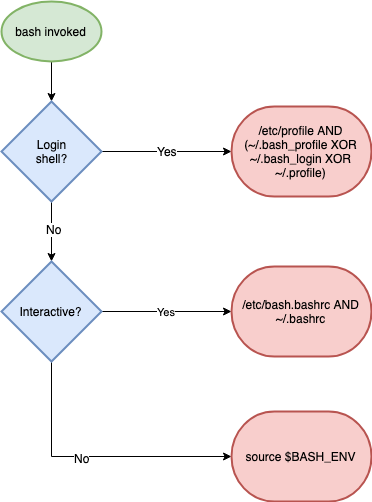
Now let’s take a closer look at each part.
Login Shell?
First, you need to determine whether you are in a login shell or not.
A login shell is the first shell you get into when you log in to the system for an interactive session. The login shell does not require a username and password. You can force the login shell to start by adding the flag --login when calling bash, for example:
bash --login
The login shell sets up the basic environment when the bash shell is first started.
Interactive?
Next, you establish whether the shell is interactive or not.
You can check this by the presence of the variable PS1 (it sets the command input function):
if [ "${PS1-}" ]; then
  echo interactive
else
  echo non-interactive
fi
Or check if the option -i, is set, using the special dash variable - in bash, for example:
$ echo $-
If the output contains the character i, then the shell is interactive.
In a login shell?
If you are in a login shell, then bash looks for the file /etc/profile and runs it if it exists.
Then it looks for any of these three files in the following order:
~/.bash_profile
~/.bash_login
~/.profile
When it finds one, it runs it and skips the others.
In an interactive shell?
If you are in a non-login interactive shell, it is assumed that you have already been in a login shell, the environment is set up and will be inherited.
In this case, the following two files are executed in order if they exist:
/etc/bash.bashrc
~/.bashrc
No option?
If you are neither in a login shell nor in an interactive shell, then your environment will indeed be empty. This causes a lot of confusion (see below about cron jobs).
In this case, bash looks at the variable BASH_ENV of your environment and creates the corresponding file specified there.
Typical troubles and empirical rules
Cron jobs
In 95% of cases, debugging a bash startup is related to the cron job not working as expected.
This cursed task works fine when I run it in the command line, but fails when executed in crontab..
Here two reasons:
- Cron jobs are not interactive.
- Unlike scripts in the command line, cron jobs do not inherit the shell environment.
Usually, you don't notice or care that a shell script isn't interactive because the environment is inherited from an interactive shell. This means that everything PATH and alias is set up as you expect.
That's why often you have to set a specific PATH for the cron job, like here:
* * * * * PATH=${PATH}:\/path\/to\/my\/program\/folder myprogramScripts calling each other
Another common issue is when scripts mistakenly set up to call each other. For example, /etc/profile calls ~/ .bashrc.
This usually happens when someone tried to fix a bug, and it seemed to work. Unfortunately, when you need to separate these different types of sessions, new problems arise.
Docker image in the sandbox
To experiment with shell startup, I created a Docker image that can be used for debugging shell startup in a safe environment.
Starting:
$ docker run -n bs -d imiell\/bash_startup
$ docker exec -ti bs bash
The Dockerfile is located .
To force a login and simulate a login shell:
$ bash --login To check the variable set BASH_ENV:
$ env | grep BASH_ENV For debugging crontab a simple script will run every minute (in /root/ascript):
$ crontab -l
$ cat \/var\/log\/script.log
Source: habr.com
