

In this article, we will discuss the basics of capturing and analyzing SIP traffic generated by the 3CX PBX. This article is aimed at beginner system administrators or regular users responsible for managing telephony. For a deeper understanding of the topic, we recommend taking the .
3CX V16 allows you to capture SIP traffic directly through the server's web interface and save it in the standard Wireshark PCAP format. You can attach the capture file when contacting technical support or download it for independent analysis.
If 3CX is running on Windows, you need to manually install Wireshark on the 3CX server. Otherwise, when trying to capture, the following message will appear.

On Linux systems, the tcpdump utility is automatically installed when 3CX is installed or updated.
Traffic Capture
To start capturing, go to the interface section Home > SIP Events and select the interface on which the capture should be made. Traffic can also be captured on all interfaces simultaneously, except for the IPv6 tunneling interfaces.
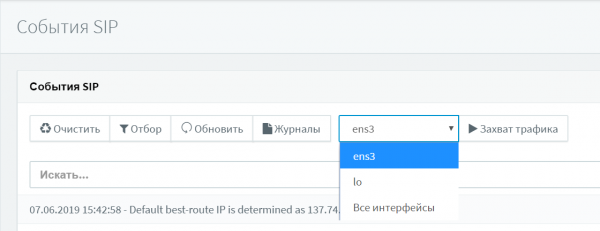
In 3CX for Linux, traffic capture can be performed for the local host (lo). This capture is used to analyze the connections of SIP clients using the .
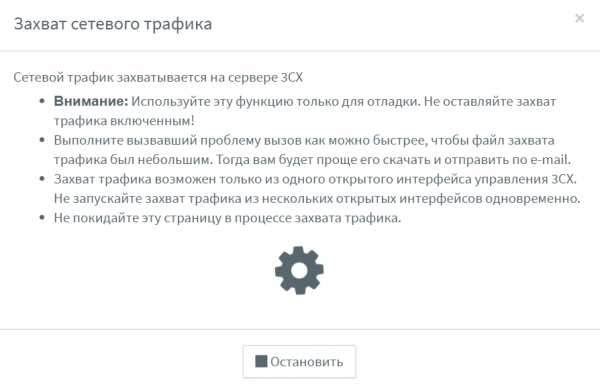
The 'Capture Traffic' button launches Wireshark on Windows or tcpdump on Linux. At this moment, you must quickly reproduce the problem, as the capture puts a load on the CPU and takes up considerable disk space.
Pay attention to the following call parameters:
- The number you called from, the number you called to, and other numbers/participants in the call.
- The exact time the problem occurred according to the 3CX server clock.
- The route taken by the call.
Try not to click anywhere else in the interface other than the 'Stop' button. Also, do not navigate to other links in this browser window. Otherwise, the traffic capture will continue in the background and lead to additional load on the server.
Obtaining the Capture File
The 'Stop' button halts the capture and saves the capture file. You can download the file to your computer for analysis in the Wireshark utility or generate a special file for , which will include this capture and other debugging information. After downloading or including it in the support package, the capture file is automatically deleted from the 3CX server for security reasons.
On the 3CX server, the file is located in the following path:
- Windows: C:ProgramData3CXInstance1DataLogsdump.pcap
- Linux: /var/lib/3cxpbx/Instance/Data/Logs/dump.pcap
To avoid excessive server load or packet loss during capture, the capture period is limited to 2 million packets. After this, the capture stops automatically. If you need a longer capture, use a separate utility like Wireshark, as described below.
Traffic capture using Wireshark
If you're interested in a deeper analysis of network traffic, capture it manually. Download the Wireshark utility for your OS. . After installing the utility on the 3CX server, go to the Capture > Interfaces section. Here, all the OS network interfaces will be displayed. The IP addresses of the interfaces may be shown in the IPv6 standard. To see the IPv4 address, click on the IPv6 address.
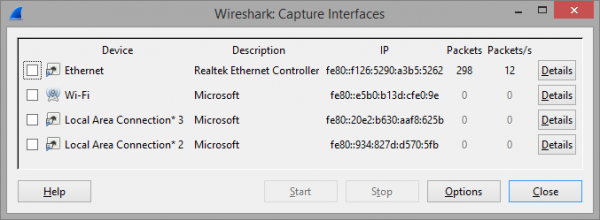
Select the interface for capture and click the Options button. Uncheck Capture Traffic in promiscuous mode, leaving the other settings unchanged.
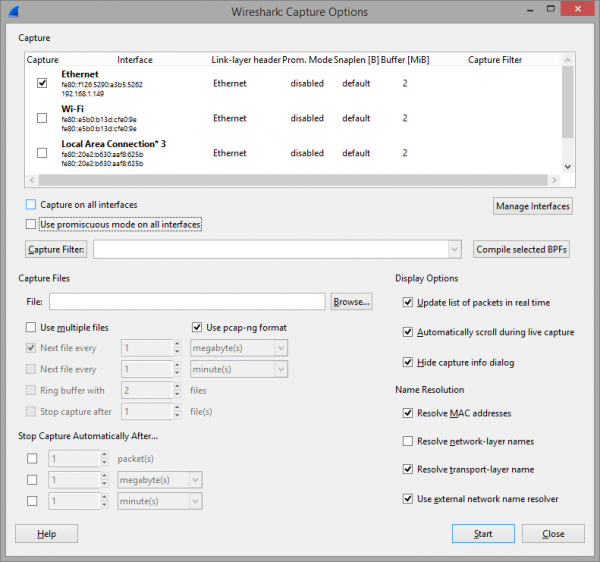
Now, you should reproduce the problem. Once the problem has been reproduced, stop the capture (menu Capture > Stop). You can filter SIP messages in the Telephony > SIP Flows menu.
Basics of traffic analysis - SIP INVITE message
Let's examine the main fields of the SIP INVITE message, which is sent to establish a VoIP call, i.e., it is the starting point for analysis. Usually, a SIP INVITE includes 4 to 6 fields with information that is used by end SIP devices (phones, gateways) and telecommunication operators. Understanding the content of the INVITE and the following messages often helps to identify the source of the problem. Moreover, knowing the fields of INVITE assists in connecting SIP operators to 3CX or integrating 3CX with other SIP PBXs.
In the INVITE message, users (or SIP devices) are identified by URI. Typically, a SIP URI consists of the user's phone number + the SIP server address. A SIP URI is very similar to an email address and is written as sip:x@y:Port.
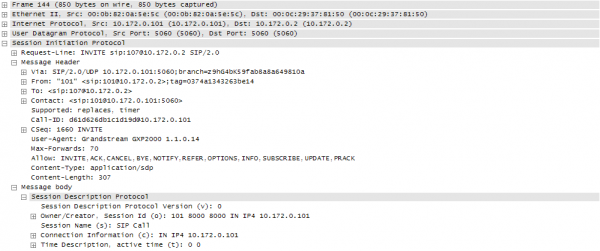
Request-Line-URI:
Request-Line-URI - the field contains the recipient of the call. It holds the same information as in the To field, but without the displayed user name (Display Name).
Via:
Via — each SIP server (proxy) that processes the INVITE request adds its IP address and port at the top of the Via list, where the message was received. The message is then forwarded along its path. When the final recipient responds to the INVITE request, all transit nodes 'check' the Via header and return the message to the sender along the same route. At this point, the transit SIP proxy removes its data from the header.
From:
From — the header indicates the initiator of the request from the perspective of the SIP server. The header is constructed similarly to an email address (user@domain, where user is the extension number of the 3CX user, and domain is the local IP address or SIP domain of the 3CX server). Like the To header, the From header contains a URI and, optionally, a Display Name. The From header indicates how to process this SIP request.
According to the SIP standard RFC 3261, if the Display Name is not provided, the IP phone or VoIP gateway (UAC) should use the Display Name 'Anonymous', for example, From: 'Anonymous' .
To:
To — this header indicates the recipient of the request. This can be either the final recipient of the call or an intermediate point. Typically, the header contains a SIP URI, but other schemes are also possible (see RFC 2806 [9]). However, the SIP URI must be supported in all implementations of the SIP protocol, regardless of the equipment manufacturer. The To header may also contain a Display Name, for example, To: 'Name Surname' ).
Typically, the To field contains a SIP URI indicating the first (next) SIP proxy that will handle the request. It does not necessarily have to be the ultimate recipient of the request.
Contact:
Contact — the header contains the SIP URI through which the sender of the INVITE request can be contacted. This is a mandatory header that must contain only one SIP URI. It is part of the two-way communication corresponding to the original SIP INVITE request. It is very important that the Contact header contains accurate information (including IP address) through which the sender expects a response. The Contact URI is also used in further communications after the communication session has been established.
Allow:
Allow — this field contains a list of parameters (SIP methods) separated by commas. They describe which SIP protocol capabilities are supported by this sender (device). The complete list of methods is: ACK, BYE, CANCEL, INFO, INVITE, NOTIFY, OPTIONS, PRACK, REFER, REGISTER, SUBSCRIBE, UPDATE. More details on SIP methods are provided. .
Source: habr.com
