

So, I had a situation that made me sweat, as I couldn't find detailed instructions anywhere. I created my own problem.
I went abroad with just one bag; the only tech I had was my phone. I thought I'd buy a laptop there to avoid carrying too much. In the end, I bought my first, what I considered a decent MacBook Pro 8,2 from 2011, i7-2635QM, DDR3 8GB, 256SSD. Before that, I had regular laptops on BIOS with Windows, which I was quite familiar with, and decided to switch to Apple, as I've been very satisfied with my phone. High Sierra was installed; I don't remember the version, but that's not important. I figured that some stuff was still left from the previous owner, like passwords and such. I thought I'd reset everything to zero., like on the phone. I presumed I could just go into settings and choose to erase all settings and content, but there was no such function... Well, I'm an Admin after all, and challenges don't stop me. I went online to read how to reset a Mac. I found some article, and without fully reading it, I started to follow the steps:
- Enter Recovery mode (Command (⌘) – R)
- Open Disk Utility
- Select the HDD and erase it...
Then I got distracted for a moment, and when I returned, the laptop was already turned off. I started it up, and the Apple logo was missing; the OS was wiped. I thought, great, now I'll continue the installation from Recovery mode. I entered Recovery mode, but it was different; it turned out that when I erased the HDD, I also erased the Recovery area for High Sierra, and a version for my laptop, Recovery Lion, downloaded from the Internet. I thought, fine, it will be the original system, it won't lag)) I found out online how to install the OS, in case I messed up again. I clicked to install OS X Lion, got to the authorization step, entered my Apple ID and password, and then the problems started) First, I have two-factor authentication. A code comes to my phone, but the window for entering it doesn't appear on the laptop; it only shows that the password is incorrect. I received this message:
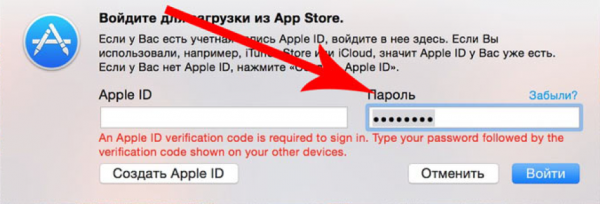
I search online again, and it turns out the issue isn't new, and there's a solution; I need to get the code on my phone (https://support.apple.com/ru-ru/HT204974). I did this in 'Settings → [your name] → Password & Security → Get Verification Code'.
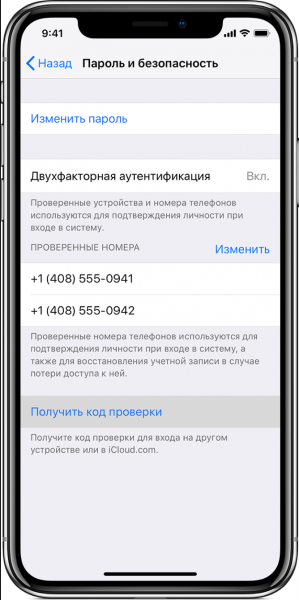
After receiving the verification code, you need to re-enter your Apple ID credentials and password on the laptop, but the password should be entered in a modified form. For example, if your password is 12345678 and the verification code is 333-333, then you should enter the password as 12345678333333, without spaces or dashes. So, I solved this problem and am now waiting for the new system to install, and here comes the surprise, another problem: 'This item is temporarily unavailable. Please try again later.'
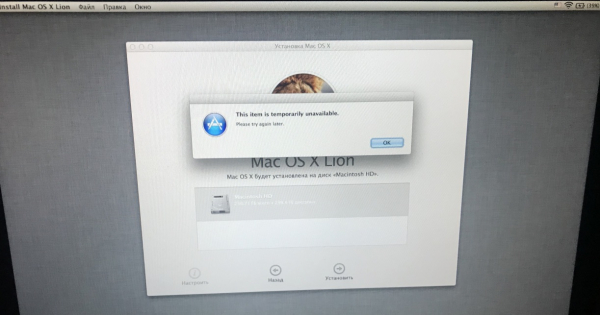
The installation cannot continue; I remind you that I only have a Mac and an iPhone. I am looking for how to fix this bug. There are only 4 options:
- Try using the Apple ID that was first logged into this MacBook (I immediately discarded this option, as I didn't want to bother the previous owner, since I was 90% sure it wouldn't work, either he is not the first owner, or even if I log in, it would be pointless...)
- Change the date through the terminal (I checked, the date is fine; I tried changing it, and it was also pointless)
- Log into iCloud.com with your Apple ID via Safari in Recovery mode and try to continue the installation again. I tried that, but Apple says the browser is not supported.
- Internet Recovery, the mode I am in...
So that's where the options run out. I'm already frustrated, sitting here looking at how to restore my MacBook, finding only options to create a USB with MacOS using Windows as a workaround, and trying to install it. I wasn't satisfied with this option; firstly, I had no way to get another computer, and secondly, I didn't want to use an unofficial OS.
For several days, I searched the internet for how to install MacOS without a second MacBook or PC at hand. I read a ton of articles and found one that was quite close to my situation, but the guy had a second laptop; however, I partially used the installation principle he described (https://habr.com/ru/post/199164/). I downloaded the system files from the official Apple website and found official links for the installer files online. I entered the entire address bar manually.
So, here's what I did (I will describe a way to do everything without a flash drive; I figured this out later when I understood the system better):
1. I went and bought a 32GB flash drive; a 16GB one would also work (it is needed for the installer).
2. We boot into Internet Recovery mode (Command (⌘) – Option (⌥) – R).
3. We launch 'Disk Utility' and format our hard drive (My hard drive is named Macintosh HD) and the flash drive with the following settings.
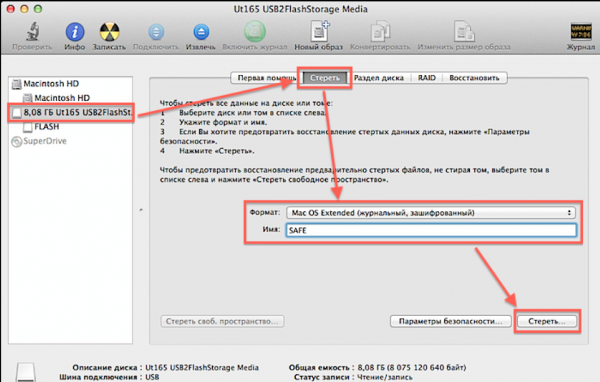
4. Next, it would have been possible to download the image from the terminal, but unfortunately, the Recovery mode of MacOS Lion does not support the basic command "curl" for downloading files from the internet, so I found another solution.
Open Safari, in the top menu go to "Safari → Preferences → File Download Location", and select our HDD.
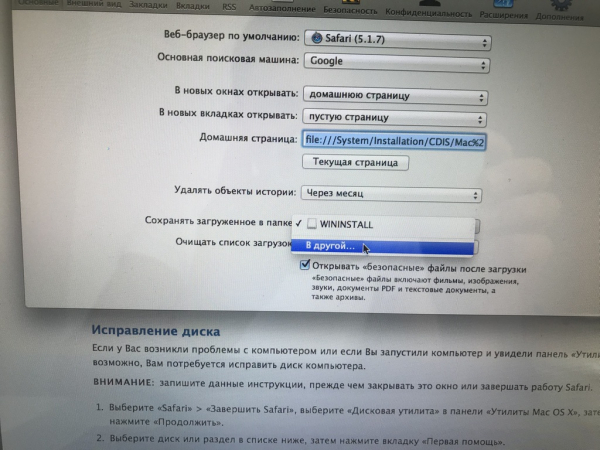
5. Close the settings and enter the address in the address bar:
Press "Enter" and wait for the necessary image to download.
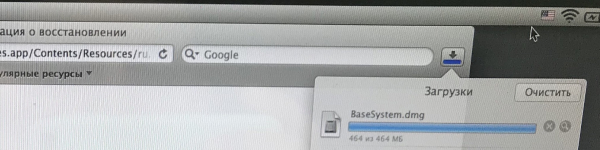
6. Close Safari from the top menu "Safari → Quit Safari" and open "Utilities → Terminal"
7. Next, we mount the image "OS X Base System". Enter the following command in the terminal:
hdiutil mount /Volumes/Macintosh HD/BaseSystem.dmg
(slightly deviating from the topic, the forward slash means space in the name, so this command can also be entered like this: hdiutil mount "/Volumes/Macintosh HD/BaseSystem.dmg")
Wait for the image to mount.
8. Then from the top menu "Terminal → Quit Terminal"
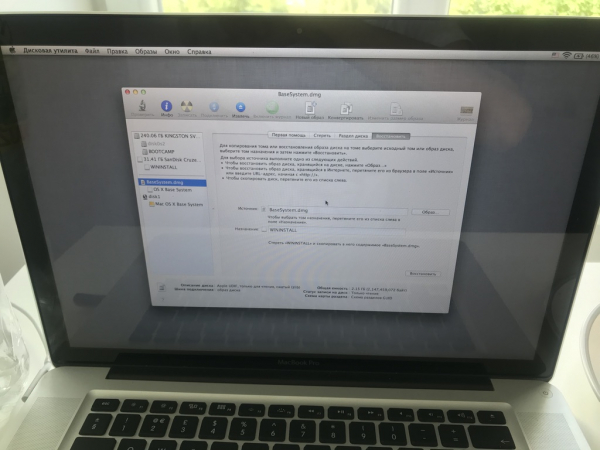
9. Again, open "Disk Utility" and restore the bootloader to our flash drive as shown in the screenshot (Note that when restoring we choose the source as the image, not the partition, and the destination – the flash drive partition):
10. Well, we have prepared the flash drive and we can restart the laptop while holding the Option (⌥) key; our flash drive will appear in the list, and we will boot from it.
11. We enter Recovery mode, but now in Mac OS High Sierra, and simply select "Install macOS".
Everything from here should go smoothly, and no problems should arise.
A version for those who cannot buy a flash drive.
The actions are identical, only in Disk Utility we split our HDD into two partitions, one making it 16 GB for the installer, preferably at the end of the HDD if there is such an option. Then the actions are the same, we download the image to the main partition, mount it, restore it not to a flash drive, but instead select the created 16GB partition on the HDD. After rebooting while holding the Option (⌥) key, our recovery partition will appear in the list, we will boot from it and install OS on the main partition.
Have a nice day (or night). I hope my article will be useful.
P.S.: Screenshots were taken after installation, so there are more partitions now.
Source: habr.com
