

In I described the process of importing products into Magento 2 using the standard method — through models and repositories. The standard method is characterized by a very low data processing speed. On my laptop, it resulted in about one product per second. In this continuation, I consider an alternative method of product import — direct recording into the database, bypassing the standard Magento 2 mechanisms (models, factories, repositories). The sequence of steps to ensure product import can be adapted for any programming language capable of working with MySQL.
Disclaimer: Magento has built-in functionality for and, most likely, it will be sufficient for you. However, if you need more complete control over the import process, not limited to preparing a CSV file for what exists — welcome under the cut.

The code resulting from writing both articles can be found in the Magento module "". Here are some limitations I followed to simplify the demo module code:
- Products are only created, not updated.
- One warehouse
- Only category names are imported, without their structure
- Data structures correspond to version 2.3
JSON for importing a single product:
{
  "sku": "MVA20D-UBV-3",
  "name": "Sealing plug for VA47-29 IEK",
  "desc": "Providing access to devices ...",
  "desc_short": "The sealing plug for VA47-29 IEK is designed for ...",
  "price": 5.00,
  "qty": 25,
  "categories": ["Category 1", "Category 2"],
  "image_path": "mva20d_ubv_3.png"
}
Overview of the main stages of import
- product registration
- product and website connection
- basic product attributes (EAV)
- inventory data (product quantity in stock)
- media (images)
- connection to catalog categories
Product registration
Basic product information is found in catalog_product_entity:
CREATE TABLE `catalog_product_entity` (
  `entity_id` int(10) unsigned NOT NULL AUTO_INCREMENT COMMENT 'Entity Id',
  `attribute_set_id` smallint(5) unsigned NOT NULL DEFAULT '0' COMMENT 'Attribute Set ID',
  `type_id` varchar(32) NOT NULL DEFAULT 'simple' COMMENT 'Type ID',
  `sku` varchar(64) DEFAULT NULL COMMENT 'SKU',
  `has_options` smallint(6) NOT NULL DEFAULT '0' COMMENT 'Has Options',
  `required_options` smallint(5) unsigned NOT NULL DEFAULT '0' COMMENT 'Required Options',
  `created_at` timestamp NOT NULL DEFAULT CURRENT_TIMESTAMP COMMENT 'Creation Time',
  `updated_at` timestamp NOT NULL DEFAULT CURRENT_TIMESTAMP ON UPDATE CURRENT_TIMESTAMP COMMENT 'Update Time',
  PRIMARY KEY (`entity_id`),
  KEY `CATALOG_PRODUCT_ENTITY_ATTRIBUTE_SET_ID` (`attribute_set_id`),
  KEY `CATALOG_PRODUCT_ENTITY_SKU` (`sku`)
)
The minimally required information to create an entry in the product registry:
attribute_set_idsku
additional:
type_id— if not specified, ‘simple’ will be used
For direct database writing, I use Magento's own DB adapter:
function create($sku, $typeId, $attrSetId)
{
    /** @var MagentoFrameworkAppResourceConnection $this->resource */
    /** @var MagentoFrameworkDBAdapterPdoMysql $conn */
    $conn = $this->resource->getConnection();
    $table = $this->resource->getTableName('catalog_product_entity');
    $bind = [
        'sku' => $sku,
        'type_id' => $typeId,
        'attribute_set_id' => $attrSetId
    ];
    $conn->insert($table, $bind);
    $result = $conn->lastInsertId($table);
    return $result;
}
After registering the product in catalog_product_entity it becomes visible in the admin panel, in the product grid (Catalog / Products).

Product and Website Connection
The connection of the product to the website determines in which stores and on which displays the product will be available on the frontend.
function linkToWebsite($prodId, $websiteId)
{
    /** @var MagentoFrameworkAppResourceConnection $this->resource */
    /** @var MagentoFrameworkDBAdapterPdoMysql $conn */
    $conn = $this->resource->getConnection();
    $table = $this->resource->getTableName('catalog_product_website');
    $bind = [
        'product_id' => $prodId,
        'website_id' => $websiteId
    ];
    $conn->insert($table, $bind);
}
Basic Product Attributes
A newly registered product does not have a name or description yet. All of this is done through . Here is a list of basic product attributes needed for the product to display adequately on the frontend:
namepricedescriptionshort_descriptionstatustax_class_idurl_keyvisibility
An additional attribute to the product is added like this (omitting details of getting the identifier and attribute type by its code):
public function create($prodId, $attrCode, $attrValue)
{
    $attrId = /* get attribute ID by attribute code */
    $attrType = /* get attribute type [datetime|decimal|int|text|varchar] by attribute code */
    if ($attrId) {
        /** @var MagentoFrameworkAppResourceConnection $this->resource */
        /** @var MagentoFrameworkDBAdapterPdoMysql $conn */
        $conn = $this->resource->getConnection();
        $tblName = 'catalog_product_entity_' . $attrType;
        $table = $this->resource->getTableName($tblName);
        $bind = [
            'attribute_id' => $attrId,
            'entity_id' => $prodId,
            /* put all attributes to default store view with id=0 (admin) */
            'store_id' => 0,
            'value' => $attrValue
        ];
        $conn->insert($table, $bind);
    }
}
By the attribute code, we determine its id and data type (datetime, decimal, int, text, varchar), then write the data for the admin display into the corresponding table (store_id = 0).
After adding the attributes mentioned above to the product, the admin panel shows the following information:

Inventory data
Starting from version 2.3 in Magento, two sets of tables exist in parallel to ensure the storage of inventory information (product quantity):
cataloginventory_*: old structure;inventory_*: new structure (MSI — Multi Source Inventory);
Inventory data must be added to both structures, as the new structure is still not completely independent from the old one (it seems that for default the warehouse in the new structure, the table cataloginventory_stock_status as inventory_stock_1).
cataloginventory_
When deploying Magneto 2.3, we initially have 2 records in store_website, which corresponds to two sites — the admin and the main customer site:
website_id|code |name        |sort_order|default_group_id|is_default|
----------|-----|------------|----------|----------------|----------|
         0|admin|Admin       |         0|               0|         0|
         1|base |Main Website|         0|               1|         1|
In the table cataloginventory_stock we have only one record:
stock_id|website_id|stock_name|
--------|----------|----------|
       1|         0|Default   |
That is, we have only one ‘warehouse’ (stock) in the old structure, and it is linked to the admin website. Adding new sources/stocks in MSI (new structure) does not lead to the appearance of new records in cataloginventory_stock.
Inventory data for products in the old structure are originally stored in the tables:
cataloginventory_stock_itemcataloginventory_stock_status
cataloginventory_stock_item
function createOldItem($prodId, $qty)
{
    $isQtyDecimal = (((int)$qty) != $qty);
    $isInStock = ($qty > 0);
    /** @var MagentoFrameworkAppResourceConnection $this->resource */
    /** @var MagentoFrameworkDBAdapterPdoMysql $conn */
    $conn = $this->resource->getConnection();
    $table = $this->resource->getTableName('cataloginventory_stock_item');
    $bind = [
        'product_id' => $prodId,
        /* we use one only stock in 'cataloginventory' structure by default */
        'stock_id' => 1,
        'qty' => $qty,
        'is_qty_decimal' => $isQtyDecimal,
        'is_in_stock' => $isInStock,
        /* default stock is bound to admin website (see `cataloginventory_stock`) */
        'website_id' => 0
    ];
    $conn->insert($table, $bind);
}
cataloginventory_stock_status
function createOldStatus($prodId, $qty)
{
    $isInStock = ($qty > 0);
    /** @var MagentoFrameworkAppResourceConnection $this->resource */
    /** @var MagentoFrameworkDBAdapterPdoMysql $conn */
    $conn = $this->resource->getConnection();
    $table = $this->resource->getTableName('cataloginventory_stock_status');
    $bind = [
        'product_id' => $prodId,
        /* we use one only stock in 'cataloginventory' structure by default */
        'stock_id' => 1,
        'qty' => $qty,
        'stock_status' => MagentoCatalogInventoryApiDataStockStatusInterface::STATUS_IN_STOCK,
        /* default stock is bound to admin website (see `cataloginventory_stock`) */
        'website_id' => 0
    ];
    $conn->insert($table, $bind);
}
inventory_
Initially, the new structure for storing inventory data contains 1 ‘source» (inventory_source):
source_code|name          |enabled|description   |latitude|longitude|country_id|...|
-----------|--------------|-------|--------------|--------|---------|----------|...|
default    |Default Source|      1|Default Source|0.000000| 0.000000|US        |...|
and one ‘warehouse» (inventory_stock):
stock_id|name         |
--------|-------------|
1|Default Stock|«Source» represents a physical storage for products (the record contains physical coordinates and postal address). «Warehouse» is a logical union of several "sources" (inventory_source_stock_link)
link_id|stock_id|source_code|priority|
-------|--------|-----------|--------|
      1|       1|default    |       1|
at the level where the connection to the sales channel occurs (inventory_stock_sales_channel)
type   |code|stock_id|
-------|----|--------|
website|base|       1|
Based on the data structure, various types of sales channels are assumed, but by default only the connection "stock«-«website» (the link to the website goes by the website code — base).
One "warehouse» can be linked to multiple "sources«, and one "source» — to multiple "warehouses» (a "many-to-many" relationship). Exceptions are the default "source" and "warehouse«. They are not re-linked to other entities (code-level restriction — an error occurs: "Can not save link related to Default Source or Default Stock«). More details about the MSI structure in Magento 2 can be found in the article "«.
I will use the default configuration and add all inventory information to the source default, which is involved in the sales channel associated with the website with the code base (corresponds to the client side of the store — see. store_website):
function createNewItem($sku, $qty)
{
    \/** @var MagentoFrameworkAppResourceConnection $this->resource *\/\n    \/** @var MagentoFrameworkDBAdapterPdoMysql $conn *\/\n    $conn = $this->resource->getConnection();\n    $table = $this->resource->getTableName('inventory_source_item');\n    $bind = [\n        'source_code' => 'default',\n        'sku' => $sku,\n        'quantity' => $qty,\n        'status' => MagentoInventoryApiApiDataSourceItemInterface::STATUS_IN_STOCK\n    ];\n    $conn->insert($table, $bind);\n}
After adding inventory data to the product in the admin panel, the following image is displayed:

Media
When adding images to the product manually through the admin panel, the corresponding information is recorded in the following tables:
catalog_product_entity_media_gallery: media registry (images and video files);catalog_product_entity_media_gallery_value: linking media to products and showcases (localization);catalog_product_entity_media_gallery_value_to_entity: linking media only to products (presumably, default media content for the product);catalog_product_entity_varchar: roles in which the image is used are stored here;
and the images themselves are saved in the catalog .\/pub\/media\/catalog\/product\/x\/y\/, where x and y — the first and second letters of the image file name. For example, the file image.png must be saved as ./pub/media/catalog/product/i/m/image.png, so the platform can use it as an image when describing products from the catalog.
catalog_product_entity_media_gallery
Registering the hosted in .\/pub\/media\/catalog\/product\/ media file (the process of file placement is not covered in this article):
function createMediaGallery($imgPathPrefixed)
{
    $attrId = /* get attribute ID by attribute code 'media_gallery' */
    /** @var MagentoFrameworkAppResourceConnection $this->resource */
    /** @var MagentoFrameworkDBAdapterPdoMysql $conn */
    $conn = $this->resource->getConnection();
    $table = $this->resource->getTableName('catalog_product_entity_media_gallery');
    $bind = [
        'attribute_id' => $attrId,
        'value' => $imgPathPrefixed,
        /* 'image' or 'video' */
        'media_type' => 'image',
        'disabled' => false
    ];
    $conn->insert($table, $bind);
    $result = $conn->lastInsertId($table);
    return $result;
}
When registering, a new media file is assigned an identifier.
catalog_product_entity_media_gallery_value
Linking the registered media file with the corresponding product for the default display:
function createGalleryValue($mediaId, $prodId)
{
    /** @var MagentoFrameworkAppResourceConnection $this->resource */
    /** @var MagentoFrameworkDBAdapterPdoMysql $conn */
    $conn = $this->resource->getConnection();
    $table = $this->resource->getTableName('catalog_product_entity_media_gallery_value');
    $bind = [
        'value_id' => $mediaId,
        /* use admin store view by default */
        'store_id' => 0,
        'entity_id' => $prodId,
        'label' => null,
        /* we have one only image */
        'position' => 1,
        'disabled' => false
    ];
    $conn->insert($table, $bind);
}
catalog_product_entity_media_gallery_value_to_entity
Linking the registered media file with the corresponding product without binding to any specific display. It is unclear where exactly this data is used and why one cannot refer to the data from the previous table, but this table exists and data is written to it when adding an image to the product. Hence, this is how it works.
function createGalleryValueToEntity($mediaId, $prodId)
{
    /** @var MagentoFrameworkAppResourceConnection $this->resource */
    /** @var MagentoFrameworkDBAdapterPdoMysql $conn */
    $conn = $this->resource->getConnection();
    $table = $this->resource->getTableName('catalog_product_entity_media_gallery_value_to_entity');
    $bind = [
        'value_id' => $mediaId,
        'entity_id' => $prodId
    ];
    $conn->insert($table, $bind);
}
catalog_product_entity_varchar
A media file can be used with different roles (the corresponding attribute code is indicated in parentheses):
- Base (
image) - Small Image (
small_image) - Thumbnail (
thumbnail) - Swatch Image (
swatch_image)
The binding of roles to a media file occurs in catalog_product_entity_varchar. The binding code is similar to the code in the section "Basic Product Attributes«.
After adding an image to the product in the admin panel, it looks like this:

Categories
The main tables that contain data on categories:
catalog_category_entity: the category registry;catalog_category_product: the product-category relationship;catalog_category_entity_*: EAV attribute values;
Initially, an empty Magento application contains 2 categories in the category registry (I've shortened the column names: key — created_at, upd — updated_at):
entity_id|attribute_set_id|parent_id|crt|upd|path|position|level|children_count|
---------|----------------|---------|---|---|----|--------|-----|--------------|
        1|               3|        0|...|...|1   |       0|    0|             1|
        2|               3|        1|...|...|1/2 |       1|    1|             0|
The category with id=1 is the root of the entire Magento catalog and is not accessible either in the admin panel or on the front end. The category with id=2 (Default Category) is the root category for the main store of the main website (Main Website Store), created when deploying the application (see Admin / Stores / All Stores). Moreover, the root category of the store is also not accessible on the front end, only its subcategories.
Since the topic of this article is still about importing product data, I will not use direct database writing when creating categories, but will use the classes provided by Magento itself (models and repositories). Direct database writing is only used to link the imported product with a category (the mapping is done by the category name, retrieving the category id during mapping):
function create($prodId, $catId)
{
    /** @var MagentoFrameworkAppResourceConnection $this->resource */
    /** @var MagentoFrameworkDBAdapterPdoMysql $conn */
    $conn = $this->resource->getConnection();
    $table = $this->resource->getTableName('catalog_category_product');
    $bind = [
        'category_id' => $catId,
        'product_id' => $prodId,
    ];
    $conn->insert($table, $bind);
}
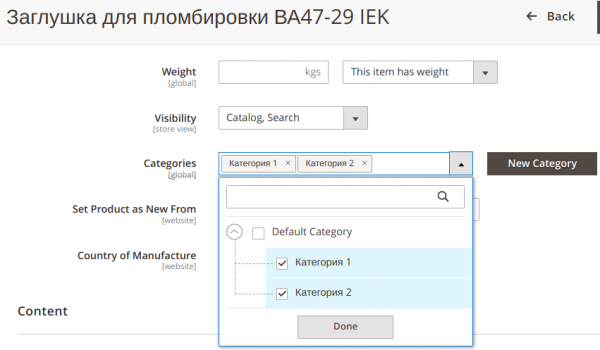
After linking the product with categories "Category 1" and "Category 2", the product details in the admin panel look approximately like this:
Additional Actions
After completing the data import, the following additional actions must be performed:
- data indexing: console call
./bin/magento indexer:reindex; - URL regeneration for products/categories: the extension "«
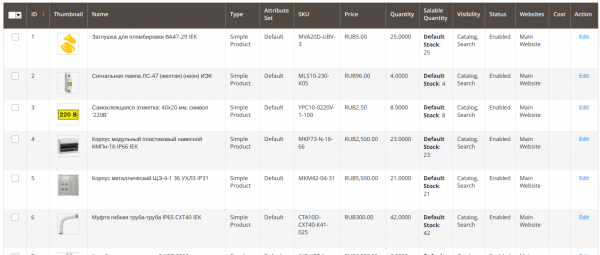
Products in the admin panel after performing additional actions:
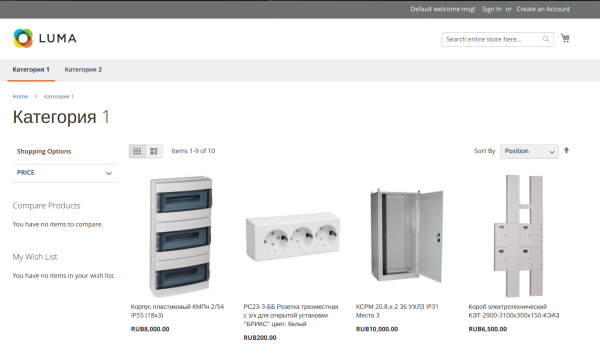
and on the front end:
Summary
The same set of products (10 pieces), as in the previous article, is imported at least ten times faster (1 second instead of 10). For a more accurate speed assessment, a larger number of products is needed — several hundreds, or better thousands. However, even with such a small amount of input data, one can conclude that using the tools provided by Magento (models and repositories) significantly (I emphasize — significantly!) accelerate the development of the required functionality, but at the same time, significantly (I emphasize — significantly!) reduce the speed at which data enters the database.
As a result, the water turned out to be wet, and this is no revelation. Nevertheless, now I have the code to experiment further and perhaps draw more interesting conclusions.
Source: habr.com
