

Hello everyone. We are sharing the translation of the final part of the article, specially prepared for the students of the course . You can find the first part .
Apache Beam and DataFlow for Real-Time Pipelines

Setting up Google Cloud
Note: I used Google Cloud Shell to run the pipeline and publish the custom log data because I encountered issues running the pipeline in Python 3. Google Cloud Shell uses Python 2, which works better with Apache Beam.
To run the pipeline, we need to dig a little into the settings. For those of you who haven’t used GCP before, you should follow the next 6 steps provided on this .
After that, we will need to upload our scripts to Google Cloud Storage and copy them to our Google Cloud Shell. Uploading to Cloud Storage is quite trivial (instructions can be found ). To copy our files, we can open Google Cloud Shell from the toolbar by clicking the first icon on the left in Figure 2 below.

Figure 2
The commands we need to copy files and install the necessary libraries are listed below.
# Copy file from cloud storage
gsutil cp gs://<YOUR-BUCKET>/ * .
sudo pip install apache-beam[gcp] oauth2client==3.0.0
sudo pip install -U pip
sudo pip install Faker==1.0.2
# Environment variables
BUCKET=<YOUR-BUCKET>
PROJECT=<YOUR-PROJECT>
Creating our database and table
Once we have completed all the setup steps, the next thing we need to do is create a dataset and table in BigQuery. There are several ways to do this, but the easiest is to use the Google Cloud console, starting by creating a dataset. You can follow the steps provided in the next , to create a table with a schema. Our table will have 7 columns, corresponding to the components of each custom log. For convenience, we will define all columns as strings (type string), except for the timelocal variable, and name them according to the variables we generated earlier. The schema of our table should look like in Figure 3.
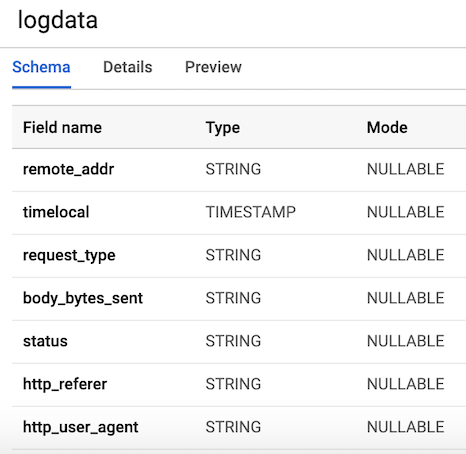
Figure 3. Table schema
Publishing custom log data
Pub/Sub is a critical component of our pipeline as it enables multiple independent applications to interact with each other. Specifically, it acts as a mediator, allowing us to send and receive messages between applications. The first thing we need to do is create a topic. It's straightforward to go to Pub/Sub in the console and click CREATE TOPIC.
The code below invokes our script to generate the log data defined above, and then connects and sends the logs to Pub/Sub. The only thing we need to do is create an object. PublisherClient, specify the topic path using the method topic_path and call the function publish with topic_path with the data. Note that we are importing generate_log_line from our script stream_logs, so make sure these files are in the same folder; otherwise, you'll get an import error. We can then run this through our Google console using:
python publish.pyfrom stream_logs import generate_log_line
import logging
from google.cloud import pubsub_v1
import random
import time
PROJECT_ID="user-logs-237110"
TOPIC = "userlogs"
publisher = pubsub_v1.PublisherClient()
topic_path = publisher.topic_path(PROJECT_ID, TOPIC)
def publish(publisher, topic, message):
data = message.encode('utf-8')
return publisher.publish(topic_path, data=data)
def callback(message_future):
# When timeout is unspecified, the exception method waits indefinitely.
if message_future.exception(timeout=30):
print('Publishing message on {} threw an Exception {}.'.format(
topic_name, message_future.exception()))
else:
print(message_future.result())
if __name__ == '__main__':
while True:
line = generate_log_line()
print(line)
message_future = publish(publisher, topic_path, line)
message_future.add_done_callback(callback)
sleep_time = random.choice(range(1, 3, 1))
time.sleep(sleep_time)Once the file runs, we will be able to observe the log data output on the console, as shown in the figure below. This script will work until we use and responding, to terminate it.

Figure 4. Output publish_logs.py
Writing the code for our pipeline
Now that we have everything prepared, we can move on to the most interesting part—writing the code for our pipeline using Beam and Python. To create a Beam pipeline, we need to create a pipeline object (p). After we've created the pipeline object, we can apply several functions one after the other using the operator pipe (|). Overall, the workflow looks like the figure below.
[Final Output PCollection] = ([Initial Input PCollection] | [First Transform]
             | [Second Transform]
             | [Third Transform])
In our code, we will create two custom functions. The function regex_clean, which scans the data and extracts the relevant string based on the list of PATTERNS using the function re.search. The function returns a comma-separated string. If you're not an expert in regular expressions, I recommend checking out this and practice in the notebook to test the code. After that, we define a custom ParDo function called Split, which is a variant of the Beam transformation for parallel processing. In Python, this is done in a special way — we need to create a class that inherits from the Beam DoFn class. The Split function takes a parsed string from the previous function and returns a list of dictionaries with keys corresponding to the names of the columns in our BigQuery table. There’s one thing to note about this function: I had to import datetime inside the function for it to work. I was getting an error message when importing at the beginning of the file, which was strange. This list is then passed to the WriteToBigQuery, which simply adds our data to the table. The code for the Batch DataFlow Job and Streaming DataFlow Job is shown below. The only difference between the batch and streaming code is that in the batch processing, we read the CSV from src_path, using the ReadFromText function from Beam.
Batch DataFlow Job (batch processing)
import apache_beam as beam
from apache_beam.options.pipeline_options import PipelineOptions
from google.cloud import bigquery
import re
import logging
import sys

PROJECT='user-logs-237110'
schema = 'remote_addr:STRING, timelocal:STRING, request_type:STRING, status:STRING, body_bytes_sent:STRING, http_referer:STRING, http_user_agent:STRING'


src_path = "user_log_fileC.txt"

def regex_clean(data):

    PATTERNS =  [r'(^S+.[S+.]+S+)s',r'(?<=[).+?(?=])',
           r'"(S+)s(S+)s*(S*)"',r's(d+)s',r"(?> beam.io.textio.ReadFromText(src_path)
      | "clean address" >> beam.Map(regex_clean)
      | 'ParseCSV' >> beam.ParDo(Split())
      | 'WriteToBigQuery' >> beam.io.WriteToBigQuery('{0}:userlogs.logdata'.format(PROJECT), schema=schema,
        write_disposition=beam.io.BigQueryDisposition.WRITE_APPEND)
   )

   p.run()

if __name__ == '__main__':
  logger = logging.getLogger().setLevel(logging.INFO)
  main()
Streaming DataFlow Job (stream processing)
from apache_beam.options.pipeline_options import PipelineOptions
from google.cloud import pubsub_v1
from google.cloud import bigquery
import apache_beam as beam
import logging
import argparse
import sys
import re


PROJECT="user-logs-237110"
schema = 'remote_addr:STRING, timelocal:STRING, request_type:STRING, status:STRING, body_bytes_sent:STRING, http_referer:STRING, http_user_agent:STRING'
TOPIC = "projects/user-logs-237110/topics/userlogs"


def regex_clean(data):

    PATTERNS =  [r'(^S+.[S+.]+S+)s',r'(?<=[).+?(?=])',
           r'"(S+)s(S+)s*(S*)"',r's(d+)s',r"(?> beam.io.ReadFromPubSub(topic=TOPIC).with_output_types(bytes)
      | "Decode" >> beam.Map(lambda x: x.decode('utf-8'))
      | "Clean Data" >> beam.Map(regex_clean)
      | 'ParseCSV' >> beam.ParDo(Split())
      | 'WriteToBigQuery' >> beam.io.WriteToBigQuery('{0}:userlogs.logdata'.format(PROJECT), schema=schema,
        write_disposition=beam.io.BigQueryDisposition.WRITE_APPEND)
   )
   result = p.run()
   result.wait_until_finish()

if __name__ == '__main__':
  logger = logging.getLogger().setLevel(logging.INFO)
  main()
Start the pipeline
We can run the pipeline in several different ways. If we wanted, we could simply run it locally from the terminal by logging into GCP remotely.
python -m main_pipeline_stream.py
 --input_topic "projects/user-logs-237110/topics/userlogs"
 --streaming
However, we are going to run it using DataFlow. We can do this with the command provided below by setting the following required parameters.
project— Your GCP project ID.runner— The pipeline runner that will parse your program and construct your pipeline. To run in the cloud, you must specify DataflowRunner.staging_location— The path to Cloud Dataflow's cloud storage for indexing the necessary code packages for the workers executing the job.temp_location— The path to Cloud Dataflow's cloud storage for storing temporary job files created during the pipeline execution.streaming
python main_pipeline_stream.py
--runner DataFlow
--project $PROJECT
--temp_location $BUCKET/tmp
--staging_location $BUCKET/staging
--streaming
While this command is running, we can switch to the DataFlow tab in the Google Console and view our pipeline. By clicking on the pipeline, we should see something similar to Figure 4. For debugging purposes, it can be very helpful to go to the logs and then to Stackdriver for detailed log viewing. This has helped me troubleshoot pipeline issues on several occasions.
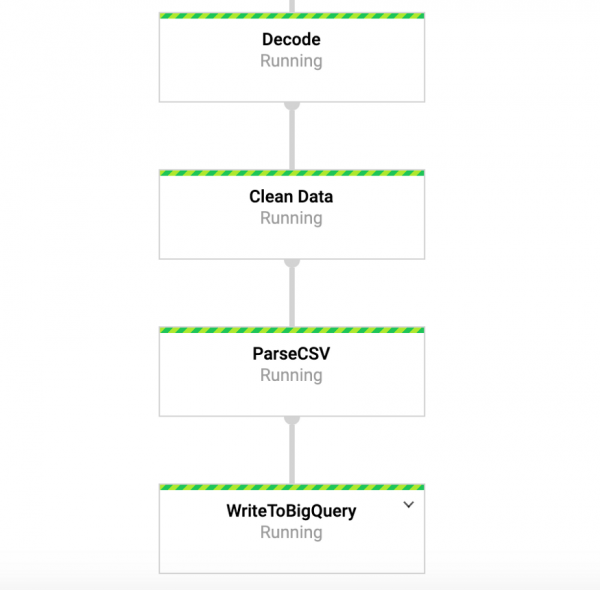
Figure 4: Beam Pipeline
Accessing Our Data in BigQuery
So, we should already have a pipeline running with data flowing into our table. To check this, we can go to BigQuery and view the data. After running the command below, you should see the first few rows of the dataset. Now that we have data stored in BigQuery, we can conduct further analysis, share the data with colleagues, and start answering business questions.
SELECT * FROM `user-logs-237110.userlogs.logdata` LIMIT 10; 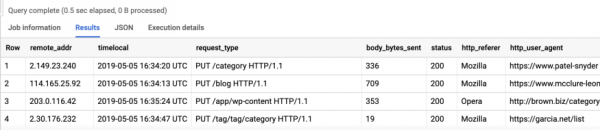
Figure 5: BigQuery
Conclusion
We hope this post serves as a useful example of creating a streaming data pipeline and finding ways to make data more accessible. Storing data in this format provides us with many advantages. Now we can start answering important questions, such as how many people are using our product? Is the user base growing over time? What aspects of the product are people interacting with the most? Are there errors where there shouldn't be? These are the questions that will be of interest to the organization. Based on insights derived from the answers to these questions, we can enhance the product and increase user engagement.
Beam is indeed useful for such types of exercises and has a range of other interesting use cases. For instance, you can analyze real-time stock ticker data and make trades based on that analysis, or perhaps you have sensor data coming from vehicles and want to calculate traffic levels. You might also be a gaming company collecting user data and using it to create dashboards for tracking key metrics. Alright, folks, that topic is for another post, thanks for reading, and for those who want to see the complete code, here’s the link to my GitHub.
That's all. .
Source: habr.com
