


TL;DRHaiku is an operating system specifically designed for PCs, which has a few tricks up its sleeve that make its working environment much better than others. But how does it work?
I discovered Haiku, an unexpectedly good system. I am still amazed by how smoothly it operates, especially compared to Linux work environments. Today, I will take a look under the hood. Where necessary for a deeper understanding, I will compare it with the original Macintosh, Mac OS X, and Linux work environments (the XDG standard from freedesktop.org).
Resources in ELF files
Yesterday I learned that IconOMatic can save icons in rdef resources within ELF executable files. Today, I want to see how it actually works.
Resources? from , the original author of the Macintosh Finder and 'father' of the Macintosh Resource Manager:
I am concerned about the rigid nature of traditional code writing. To me, the very idea of an application frozen in code with no possibility of changing anything dynamically is utterly nonsensical. There should be the ability to modify as much as possible at runtime. Of course, the application's code itself can't be changed, but can't something be altered without recompiling the code?
On the original Macintosh, it was arranged so that these files had a 'data section' and a 'resource section,' which greatly simplified saving various things, such as icons, translations, etc., in executable files.
On Mac, this is done using , a graphical program for—surprisingly—editing resources.
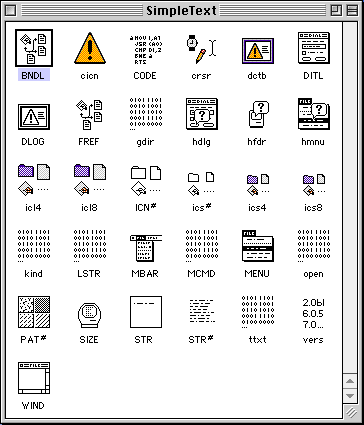
ResEdit on the original Macintosh
As a result, it became possible to edit icons, menu items, translations, and more relatively easily; however, they still 'travel' with applications.
In any case, this approach had a major drawback: it only worked on Apple file systems, which was one of the reasons Apple abandoned the 'resource section' when transitioning to Mac OS X.
On Mac OS X, Apple wanted a solution independent of the file system, so they adopted the concept of bundles (from NeXT), directories treated by the file manager as 'opaque objects,' similar to files rather than directories. Any bundle with an application in the .app format contains, among other things, a file Info.plist (in a JSON or YAML-like format from Apple), containing application metadata.
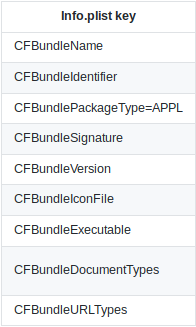
Keys of the Info.plist file from a Mac OS X application package.
Resources, such as icons, UI files, and others, are stored in the package as files. This concept has effectively returned to its roots in NeXT.
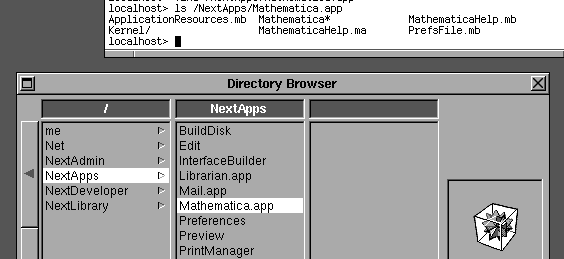
Mathematica.app on NeXTSTEP 1.0 in 1989: appears as a folder with files in the terminal, but as a single object in the graphical file manager.
Let's go back to BeOS, on which the concepts of Haiku are based. Its developers, when transitioning from PEF (PowerPC) to ELF (x86) (the same used on Linux), decided to add a resource section at the end of the ELF files. They did not use a proper ELF section; it was simply appended to the end of the ELF file. As a result, programs like strip and others from binutils, which are unaware of this, just truncated it. Therefore, when adding resources to the ELF file on BeOS, it's better not to work with it using Linux tools.
So what is happening with Haiku now? Essentially, more or less the same.
In theory, resources could be placed in the appropriate ELF section. According to the developers on the #haiku channel in the irc.freenode.net network:
An ELF section would make more sense ... the only reason we don't do this is because that’s how it was done in BeOS.
And changing it now is not advisable.
Resource Management
Resources are written in a structured 'resource' format: essentially, it's a list of resources with sizes followed by their content. It reminds me of .
How to check resources in Haiku? Is there something like ResEdit?
According to :
To view resources supplied in the application package, you can drag the executable file onto a program like . You can also go to the terminal and run the command
listres filename..
Resourcer is available in HaikuDepot, but for me, it just crashes.
How to manage resources in ELF files? Using rsrc and rdef. rdef files are assembled into rsrc. The file rdef is stored in a regular text format, making it much easier to work with. The file in the rsrc format is appended to the end of the ELF file. Let's try playing around:
~> rc -h
Haiku Resource Compiler 1.1
To compile an rdef script into a resource file:
    rc [options] [-o ] ...
To convert a resource file back into an rdef script:
    rc [options] [-o ] -d ...
Options:
    -d --decompile       create an rdef script from a resource file
       --auto-names      construct resource names from ID symbols
    -h --help            show this message
    -I --include    add  to the list of include paths
    -m --merge           do not erase existing contents of output file
    -o --output          specify output file name, default is out.xxx
    -q --quiet           do not display any error messages
    -V --version         show software version and license
You can use the program xres to check and manage:
/> xres
Usage: xres ( -h | --help )
       xres -l <file> ...
       xres <command> ...The first form prints this help text and exits.The second form lists the resources of all given files.The third form manipulates the resources of one or more files according to
the given commands.
(...)
Okay, shall we try?
/> xres -l /Haiku/system/apps/WebPositive/Haiku/system/apps/WebPositive resources:type           ID        size  name
------ ----------- -----------  --------------------
'MIMS'           1          36  BEOS:APP_SIG
'APPF'           1           4  BEOS:APP_FLAGS
'MSGG'           1         421  BEOS:FILE_TYPES
'VICN'         101        7025  BEOS:ICON
'VICN'         201          91  kActionBack
'VICN'         202          91  kActionForward
'VICN'         203         300  kActionForward2
'VICN'         204         101  kActionStop
'VICN'         206         243  kActionGoStart
'MSGG'         205        1342  kActionGo
'APPV'           1         680  BEOS:APP_VERSION
More about resources and format rdef can be read .
Standard resource types
Although you can put anything in resources, there are several specific standard types:
app_signature: MIME type of the application, for mapping open files, launching, IPC, etc.app_name_catalog_entry: Since the application name is usually in English, you can specify the locations where translated names are stored, so users of different languages can see the translated application name if needed.app_version: exactly what you thinkapp_flags: indicatesregistrarhow to handle the application. I think there is more to it than meets the eye. For example, there isB_SINGLE_LAUNCH, which forces the system to launch a new process of the application every time the user requests it (this is the same principle used for most applications on Linux). There isB_MULTIPLE_LAUNCH, which prompts the system to launch a process for each file.Finally, there isB_EXCLUSIVE_LAUNCH, which causes the system to run only one process at a time, regardless of how often users attempt to launch it (for example, that’s how Firefox runs on Linux; the same result can be achieved in Qt applications using the function ). Applications withB_EXCLUSIVE_LAUNCHare notified when the user tries to launch them again: for example, they receive the file path that the user wishes to open with them.vector_icon: The vector icon of the application (In BeOS there were no vector icons, most applications instead had two raster icons in their executable files).
Of course, you can add resources with any desired IDs and types, and then read them in the application itself or other applications using the class BResources. But for now, let's focus on the exciting topic of icons.
Vector icons in Haiku style
Of course, not only Haiku chose the best icon format; the situation with Linux desktop environments is far from ideal:
me@host:~$ ls /usr/share/icons/hicolor/
128x128  256x256  512x512           index.theme
160x160  28x28    64x64             scalable
16x16    32x32    72x72             symbolic
192x192  36x36    8x8
22x22    42x42    96x96
24x24    48x48    icon-theme.cache
Just looking at this already gives an idea of what this piece is.
Of course, there is scalable, which contains, as one might understand, vector icons. So, why is there anything else? Because the output of rendering vector graphics at small sizes can be worse than ideal. There is a desire to have various options optimized for different sizes. In Linux desktop environments, this is achieved by spreading icons of different sizes across the file system.
me@host:~$ find /usr/share/icons/ -name 'firefox.*'
/usr/share/icons/HighContrast/16x16/apps/firefox.png
/usr/share/icons/HighContrast/22x22/apps/firefox.png
/usr/share/icons/HighContrast/24x24/apps/firefox.png
/usr/share/icons/HighContrast/256x256/apps/firefox.png
/usr/share/icons/HighContrast/32x32/apps/firefox.png
/usr/share/icons/HighContrast/48x48/apps/firefox.png
/usr/share/icons/elementary-xfce/apps/128/firefox.png
/usr/share/icons/elementary-xfce/apps/16/firefox.png
/usr/share/icons/elementary-xfce/apps/22/firefox.png
/usr/share/icons/elementary-xfce/apps/24/firefox.png
/usr/share/icons/elementary-xfce/apps/32/firefox.png
/usr/share/icons/elementary-xfce/apps/48/firefox.png
/usr/share/icons/elementary-xfce/apps/64/firefox.png
/usr/share/icons/elementary-xfce/apps/96/firefox.png
/usr/share/icons/hicolor/128x128/apps/firefox.png
Note: There is no concept of different versions of Firefox. Thus, the situation with the presence of multiple versions of the application in the system cannot be refined.

Different Firefox icons in different versions. So far, it's impossible to handle this in Linux without various workarounds.
Mac OS X handles it a bit more elegantly:
Mac:~ me$ find /Applications/Firefox.app | grep icns
/Applications/Firefox.app/Contents/MacOS/crashreporter.app
/Contents/Resources/crashreporter.icns
/Applications/Firefox.app/Contents/MacOS/updater.app/Contents/Resources/updater.icns
/Applications/Firefox.app/Contents/Resources/document.icns
/Applications/Firefox.app/Contents/Resources/firefox.icns
It's clear that there is one file firefox.icns in the package Firefox.app, containing all sizes, so different versions of the same application have different icons.
Much better! Icons travel with the application; all resources are in one file.
Let's return to Haiku. A stunning solution, with no exceptions. According to :
A special, highly optimized format for small sizes and fast rendering called HVIF was developed. Therefore, our icons are largely much smaller than in raster or the widely used SVG format.
And they are indeed optimized:
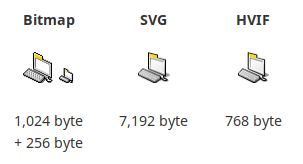
Icon sizes in HVIF compared to other formats.
The difference is an order of magnitude!
But the magic doesn’t stop here. The same HVIF can show different levels of detail depending on the displayed size, despite being a vector format.
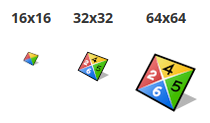
Different levels of detail (LOD) depending on the rendering size
Now about the drawbacks: you can't just take an SVG, throw it into ImageMagick and call it a day; several cycles are needed to create an icon in HVIF format. explanations. However, IconOMatic may imperfectly import SVG; about 90% of SVG details are imported with some probability, the remaining 10% will need to be adjusted and changed manually. Read more about how HVIF does its magic. in the blog
Adding an icon to the application
Now I can add the icon to the package created , taking into account all the information received.
Since I don't really feel like drawing my own icon for my 'Hello, World' QtQuickApp—I'm pulling it from Qt Creator.
/Haiku/home> xres /Haiku/system/apps/QtCreator/bin/Qt Creator -o /Haiku/home/QtQuickApp/QtQuickApp -a VICN:101:BEOS:ICON /Haiku/system/apps/QtCreator/bin/Qt CreatorLet's check if the icon is copied:
/Haiku/home> xres -l /Haiku/home/QtQuickApp/QtQuickApp/Haiku/home/QtQuickApp/QtQuickApp
resources:type           ID        size  name
------ ----------- -----------  --------------------
'VICN'         101      152238  BEOS:ICON
It looks good, but why, when the new icon is copied, doesn't it display?
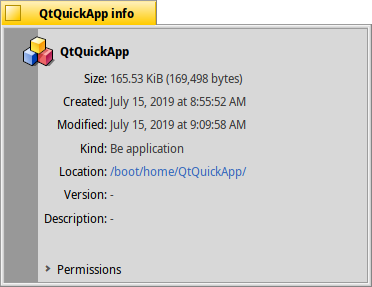
The copied VICN:101:BEOS:ICONs is not yet used as the icon for the application in the file manager
What did I miss?
Developer's comment:
Need to create a file
rdefwith all resources, then execute the commandrc name.rdef, this will create the file.rsrc. After that, you need to execute the commandresattr -o bin_name name.rsrc. At a minimum, I use such commands to add icons to my scripts.
Well, I wanted to create a resource, not an attribute. I'm really confused.
Smart caching using the filesystem
Opening and reading ELF attributes is slow. As I mentioned earlier, the icon is written as a resource in the file itself. This method is more reliable, allowing surviving copying to another filesystem. However, it is also copied into the filesystem attribute, for example BEOS:ICON. This only works on certain filesystems, like BFS. The icons shown by the system (in Tracker and Deskbar) are read from this extended attribute because this solution works quickly. In some cases (where speed is not critical, such as in the typical 'About' window), the system retrieves the icon directly from the resource in the file. But this is not the end. Remember, on Mac, users could replace application, folder, and document icons with their own since Mac allows doing these 'important' things, for example, In Haiku, the resource (in the file) should be seen as the default icon supplied with the application, while the attribute (in the BFS filesystem) is something that allows the user to make changes if desired (although, as a hint, the graphical interface for overlaying a custom icon on top of the default icon has not yet been implemented).
Checking filesystem attributes
Using resaddr there's an option to check and set filesystem attributes.
/> resattr
Usage: resattr [ <options> ] -o <outFile> [ <inFile> ... ]

Reads resources from zero or more input files and adds them as attributes
to the specified output file, or (in reverse mode) reads attributes from
zero or more input files and adds them as resources to the specified output
file. If not existent the output file is created as an empty file.
(...)
Essentially, it's a 'glue' that performs transformations back and forth between (reliable) resources and (fast) filesystem attributes. And since the system is designed to retrieve resources and perform copying automatically, I won't worry about it further.
The magic of hpkg packages
Currently, packages are most often used to obtain programs on Haiku. .hpkgDon't be deceived by the simple name: the .hpkg format works quite differently from other formats with similar names that you may have encountered; it has real superpowers.
With traditional package formats, I was often frustrated by the fact that you download one (package), but something different (files inside the package) gets installed in the system. It's quite challenging to manage the files (for example, to delete them) when a package is installed in the traditional way. This is because the contents of the package is scattered throughout the filesystem, including locations where a regular user may not have write access. This gives rise to an entire class of programs — package managers. Transferring already installed software, for example, to another machine, a removable disk, or a file server becomes even more difficult, if not completely impossible. In a typical Linux-based system, there can easily be hundreds of thousands to millions of isolated files. Naturally, this is both fragile and slow, for instance during the initial installation of the system, when installing, updating, and removing traditional packages, as well as when copying the boot volume (root partition) to another medium.
I am working on the AppImage project, a partial workaround for end-user applications. This is a software distribution format that bundles the application and all of its dependencies into a single filesystem image, mounted at runtime. It greatly simplifies things since ImageMagick suddenly becomes a single file managed in the file manager by regular users. The proposed method only works for software, as reflected in the project's name, and also has its own set of quirks, as people involved in software distribution for Linux always shift the blame onto me.
Let's return to Haiku. Were we able to find the optimal balance between traditional package systems and image-based software delivery? Its packages .hpkg are essentially compressed filesystem images. When the system boots, the kernel mounts all installed and active packages with messages similar to the following in the kernel logs:
KERN: package_daemon [16042853:   924] active package: "gawk-4.2.1-1-x86_64.hpkg"
KERN: package_daemon [16043023:   924] active package: "ca_root_certificates_java-2019_01_23-1-any.hpkg"
KERN: package_daemon [16043232:   924] active package: "python-2.7.16-3-x86_64.hpkg"
KERN: package_daemon [16043405:   924] active package: "openjdk12_default-12.0.1.12-1-x86_64.hpkg"
KERN: package_daemon [16043611:   924] active package: "llvm_libs-5.0.0-3-x86_64.hpkg"
Cool, right? Hold on, it's going to get even better!
There is a very special package:
KERN: package_daemon [16040020: 924] active package: "haiku-r1~beta1_hrev53242-1-x86_64.hpkg"It contains a very minimalistic operating system, including the kernel. Believe it or not, even the kernel itself is not extracted from the boot volume (the root partition) but is carefully loaded into place from the package. .hpkgWow! I already mentioned that, in my opinion, part of the overall sophistication and consistency of Haiku is due to the fact that the entire system, from the kernel to the basic user space, as well as package management and environment infrastructure, is developed together by one team. Just imagine how many different groups and teams it would take to launch something similar based on Linux. [I can imagine the PuppyLinux project, — translator's note]Then imagine how long it will take for this approach to be implemented in distributions. There is a saying: take a simple task, divide it among different executors, and it becomes so complicated that it can no longer be resolved. Haiku opened my eyes in this case. I think this is exactly what is happening with Linux now (Linux here is a collective term referring to the Linux/GNU/dpkg/apt/systemd/Xorg/dbus/Gtk/GNOME/XDG/Ubuntu stack).
System rollback using hpkg
How often does the following situation occur: an update goes smoothly, and then it turns out that something doesn't work as it should? When using ordinary package managers, it is challenging to return the system state to the moment before new package installations (for example, when something goes wrong). Some systems offer workarounds in the form of filesystem snapshots, but they are quite cumbersome and are not used in all systems. In Haiku, this is resolved through packages. .hpkg. Whenever packages in the system change, old packages are not removed, but stored in the system in subdirectories of the type /Haiku/system/packages/administrative/state-<...>/ constantly. Incomplete operations store their data in subdirectories /Haiku/system/packages/administrative/transaction-<...>/.
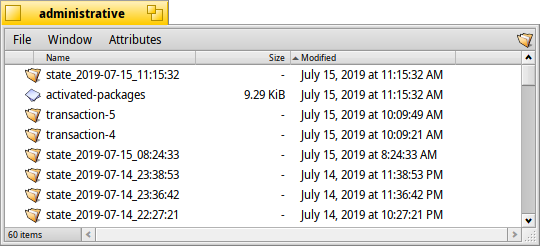
Contents /Haiku/system/packages/administrative. The directories 'state...' contain text files with the names of active packages, 'transaction...' contains the packages themselves.
'Old active state', i.e. the list .hpkg of packages active before the changes, is recorded after each operation in the file manager in a text file. /Haiku/system/packages/administrative/state-<...>/activated-packages. Similarly, the new 'active state' is written to a text file /Haiku/system/packages/administrative/activated-packages.
The directory /Haiku/system/packages/administrative/state-<...>/ that contains only a text file with a list of the active packages in that state (in cases of package installations without deletions), and if packages were removed or updated, the state directory contains old versions of the packages.
When booting the system, a decision is made regarding the activation (mounting) of packages based on the package list. It's that simple! If something goes wrong during boot, you can instruct the boot manager to use another, older list. The task is solved!
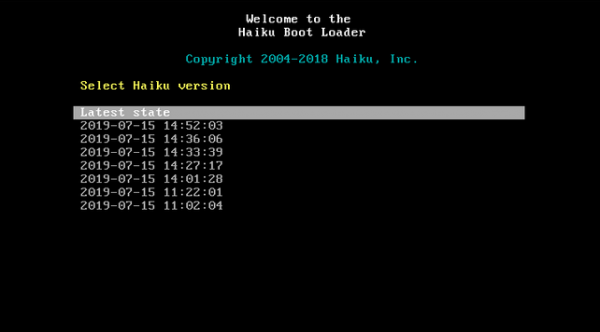
Haiku bootloader. Each entry point reflects the corresponding 'active state'
I like the approach of using simple text files as the 'active state' list, which contain easily understandable names .hpkg. This sharply contrasts with machine-oriented formats. from OSTree or Flatpak in the file system (at the same level as Microsoft GUID).
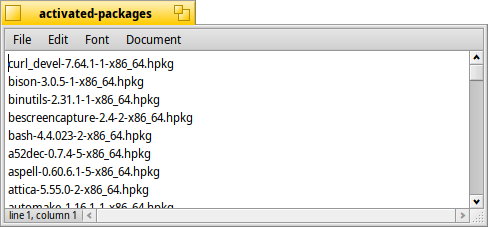
A list of active packages for each moment in time
Configuration data
Apparently, the directory /Haiku/system/packages/administrative/writable-files contains configuration files for the packages, but writable ones. After all, as you remember, .hpkg they are mounted read-only. Thus, these files should be copied from the packages before writing. It makes sense.
GUI integration for the .hpkg system
Now, let's look at how these shiny packages .hpkg handle integration into the user workspace (UX). After all, Haiku is designed for personal use, ultimately. Personally, I set a high bar by comparing the user experience with packages .app on Macintosh with the same experience on .hpkg. I won’t even compare the situation with desktop environments on Linux, because it is absolutely awful compared to any others.
The following scenarios come to mind:
- I want to view the contents of a package
.hpkg - I want to install a package
- I want to remove a package
- I want to remove something that came into the system as part of a package
- I want to copy something that came into the system as part of a package
- I want to download all dependencies of a package that cannot be part of every Haiku installation (for instance, I have a physically isolated machine without Internet access.)
- I want to move my packages (or part of them) separately to another location, separate from the boot volume (root partition) (because, for example, I am short on space on it).
This should cover most of the main cases from my daily work. Well, let's get started.
Checking package contents
On Mac I just right-click on the package to open it and view its contents in Finder. After all, it's really just a disguised directory! (I know there are packages .pkg for system parts that aren’t applications, but regular users rarely interact with them).
On Haiku I right-click on the package, then click on 'Contents' to see what’s inside. But here there’s just a list of files without the ability to open them with a double click.
It would be much better if there were a way to (temporarily) mount the package. .hpkg to view through the file manager, and the user wouldn't need to worry about implementation details. (By the way, you can open .hpkg the package in Expander, which can unpack it just like any other archive).
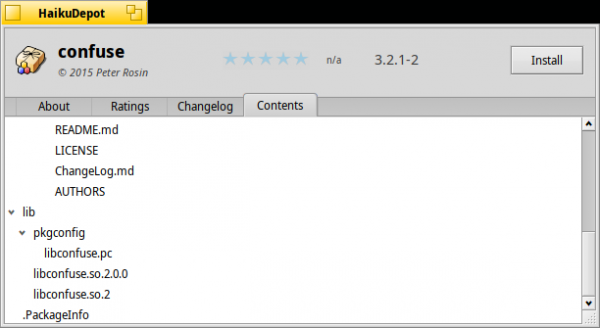
In the HaikuDepot interface, you can view the list of package files, but there's no way to view the content by double-clicking on README.md, for example.
In this category, Mac wins, but adding the necessary functionality to HaikuDepot shouldn't be too difficult.
Installing a package via GUI
On Mac, most disk images .dmg contain packages .app. We open the disk image by double-clicking it, then copy the package by dragging it to /Applications in Finder. It seems obvious to me, but I've heard that some beginners may struggle with this. By default, Apple 'offers' a system-wide directory /Applications (on NeXT it was networked, as well as personal), but you can easily place your applications on a file server or in a subdirectory $HOME/Applications, if you prefer that.
On Haiku, double-click the package, then click 'Install', it's that simple. I'm curious about what happens if the package has dependencies available in HaikuPorts but are not yet installed. Linux really doesn't know what to do in this situation, but the solution is obvious — ask the user if they want to download and install the dependencies. Exactly what Haiku does.
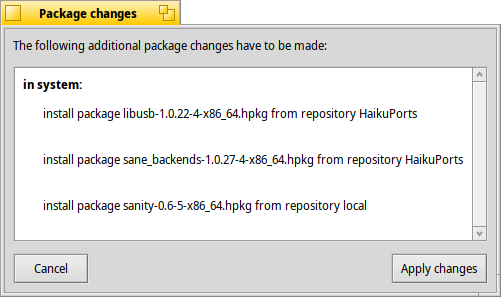
I manually downloaded the 'sanity' package and clicked on it; the package manager knows where to find its dependencies (provided the repositories are already configured in the system). Not every Linux distribution can do that.
Another way is to use the file manager; just drag .hpkg the package either to /Haiku/system/packages for system-wide installation (by default), or to /Haiku/home/config/packages for personal installation; it's not available when double-clicking — the word 'config' in this context still annoys me, as it is synonymous with 'settings' for me). Yet the concept of multiple users is not even available for Haiku (perhaps that's why everything is so simple — I don't know, maybe multi-user capabilities would complicate things for a personal computer working environment).
In this category, Haiku wins because it can work not only with applications but also with system programs.
Removing a package from the GUI
On Mac, you need to drag the application icon to the trash, and that’s it. Easy!
On Haiku, first, you need to find where the package is located in the system, because you rarely install it where it should be (the system does everything). Usually, you need to look in /Haiku/system/packages (in a system-wide default installation), or in /Haiku/home/config/packages (I already mentioned that 'config' is the wrong name?). Then the application is simply dragged to the trash, and that’s it.
Easy! However, I wouldn’t say so. Here’s what actually happens:
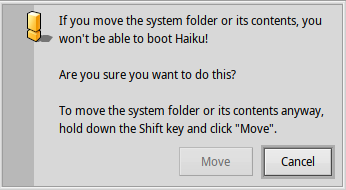
Here’s what happens if you drag the application to the trash from /Haiku/system/packages
I simply tried to move my yesterday's application 'Hello, World' on QtQuickApp to the trash. I didn't try to move the system directory, and since all packages are installed in the system directory — it's impossible to delete the package .hpkg without altering 'its contents'. An average user would be scared, hit the 'Cancel' button, which is set by default.
Explains :
This message is over 10 years old. Most likely, we need to configure it so that the warning only appears when moving the package itself. Regular users don't need to do this anyway.
Okay, maybe I should do it using HaikuDepot? I double-click on the package in /Haiku/system/packages, expecting a button to appear for 'Uninstall'. Nope, there's only 'Install'. 'Uninstall', where are you?
Just for fun, I tried to see what happens if I click 'Install' for an already installed package. It ends up like this:
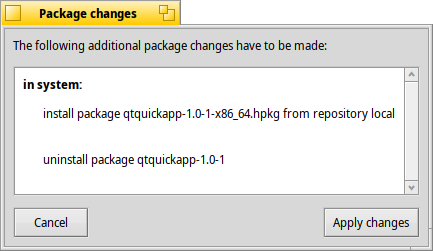
This is what happens if you try to install an already installed package.
Next appears:
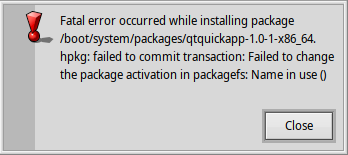
If you click 'Apply changes' in the previous window — it ends up like this.
I assume this is a bug, a link to the ticket already exists. [the author did not provide a link, — note from the translator]
Quick solution: Add an 'Uninstall' button if the package is already in
/Haiku/system/packages, or in/Haiku/home/config/packages.
When viewing the list of packages installed in HaikuDepot, I see my package in the list and can delete it.
In this category, Mac wins. But I can imagine that with proper setup, the user experience on Haiku could be better than on Mac. (One of the developers evaluated it like this: 'Less than an hour to add the specified functionality to HaikuDepot, if you know a bit of C++', are there any volunteers?)
Removing something from the package
Let's try to delete the application itself, not the package. .hpkg, from which it originated (I doubt there is any difference for 'ordinary mortals').
On Mac, the user usually interacts with the file .dmg, where the application package comes from .app. Usually, images .dmg are accumulated in the downloads directory, while packages are copied by the user to /Applications. There’s an opinion that many users do not know what they are doing themselves, a hypothesis confirmed by a former Apple employee. (One of the things I dislike about Mac. For instance, with AppImage, there is no difference between the application and the package it came in. Dragged the icon to the trash = that’s it. Easy!)
On Haiku, there is also a distinction between apps/ and packages/, so I doubt it has made anything clearer for users. And this is what happens if you drag an application from apps/ to the trash:

Here’s what happens when trying to delete an application taken from the file .hpkg
Technically, it’s correct (after all, the application is placed in a read-only file system primarily), but it’s not very helpful for the user.
Quick solution: instead, offer to remove it via the GUI
.hpkg
For fun, I tried duplicating the application by pressing Alt+D. I received a message 'Cannot move or copy objects on a read-only volume'. And that’s because /system (besides /system/packages and /system/settings) is the mount point for packagefs (remember how it appears in the output of df?). К сожалению, вывод команды mount does not clarify the situation (as mentioned in one of the previous articles), mountvolume does not display what is sought (apparently, packages mounted via loop are not counted as 'volumes'), and I also forgot the alternative commands. .hpkg In this category, no one has won, except for AppImage (but honestly, that’s a biased opinion). However, one can imagine that after tuning, the user experience on Haiku will be better than on Mac.
Note: it’s necessary to clarify what a 'volume' means in relation to 'section'. Probably, it's akin to the relationship between 'folder' and 'directory': most directories appear in the file manager as folders, but not all of them do (for example, packages treated as files). Do such statements officially make me a nerd?
Copying the contents of a package to another system
, I just drag the package
On Mac, and since the dependencies within the package - they move together. .app, I drag the application, but the dependencies are not processed at all.
On HaikuI'm dragging the application, but the dependencies are not being processed at all.
Quick Solution: Let’s propose dragging the package `.hpkg` entirely, along with its dependencies if available.
In this category, Mac definitely wins. At least for me, as a fan of its paradigm. Haiku should copy this. .hpkg instead of the application, but the system doesn’t offer me that…
Downloading the package with all its dependencies.
Not every machine is connected to the network all the time. Conversely, some machines (yes, I’m looking at you, modern Windows, Mac, and Linux) forget about it. For me, it’s important that I can go to an Internet café, download software onto a removable drive, insert that drive into my home computer, and be confident that everything will work [a risky guy, doing that on Windows… — translator's note].
As a result, slightly more often than not, I usually end up with unsatisfied dependencies on Windows and Linux.
On Mac it’s usually one file, all you need is to download it. .dmgMost often it has no dependencies other than those provided by MacOS by default. An exception could be made for complex applications requiring a specific runtime environment, such as Java.
On Haiku download the package .hpkg for, say, the same Java application, may turn out to be insufficient, as Java may either be present or absent on the target machine. Is there a way to download all the dependencies for this package .hpkg, other than those that are installed in Haiku by default and, therefore, must be in every Haiku system?
In this category, Mac wins by a narrow margin.
Commented by mr. waddlesplash:
To write a program to gather all the dependencies of an application as a set of packages
.hpkgfor someone familiar with the inner workings of Haiku, takes about 15 minutes. Adding support for this isn’t so difficult if there’s real need. But for me, it’s a rare situation.
Let’s hold our breath until the next article in this cycle.
Moving packages to a designated location
As I mentioned earlier, I want to put my packages .hpkg (or part of them) to a special location, separate from the usual storage on the boot volume (root partition). Typically (not just theoretically), the reason for this is that my (internal) disks are constantly running out of free space, regardless of how large they are. I usually connect external drives or network resources where my applications are located.
On Mac I simply move packages .app to a removable disk or network folder in Finder, and that's it. I can still double-click to open the application just like I did from the boot volume. Easy!
On Haiku, as I was told, this can be achieved by moving my .hpkg packages to a removable disk or network folder, but then I need to use some undocumented commands in the console to mount them in the system. I don’t know how to do that using just the GUI.
In this category, Mac wins.
According to Mr. waddlesplash:
This is optimized for typical usage. If demand exceeds that of a single user, we will implement it. There is always the possibility of third-party implementation.
We will discuss this in the next article.
Speaking of network folders: it would be great (I assume LAN parties) to have simple, discoverable, network-wide applications (like via Zeroconf) that can be copied to the local computer or run directly from the local network. Of course, developers can opt out through app_flags.
Final report on the integration of the hpkg with the GUI
I think that primarily due to its relative novelty, the integration .hpkg with the GUI still leaves much to be desired. In any case, there are several things that can be improved in terms of UX...
Another thing: Kernel Debug Land
It would be great to be able to enter commands during a kernel panic, for example, syslog | grep usb. Well, on Haiku, this is possible thanks to Kernel Debug Land. How can you see this magic in action if everything is working fine without encountering a kernel panic? Easily, by pressing Alt+PrintScn+D (the mnemonic Debug). It reminds me of , which allowed the original Macintosh developers to enter the debugger (if it was installed, of course).
Conclusion
I'm beginning to understand that the sophistication of the Haiku system comes from the fact that it is developed by a small team that is clearly focused on the working environment while being accessible to all layers of the system.
The sharp contrast with the world of Linux/GNU/dpkg/apt/systemd/Xorg/dbus/Gtk/GNOME/XDG/Ubuntu, where everything is broken down into such small pieces that abstraction sits on abstraction and is pushed along with crutches.
I've also come to an understanding of how the system .hpkg combines the best practices of traditional package managers, Snappy, Flatpak, AppImage, even btrfs, and mixes them with the 'just works' principle from Mac.
As if something has 'switched' in my mind, I realized how the system .hpkg is capable of rolling back—just by looking at it. But it is not me, but the beauty and simplicity of the system. Much here is infused with the spirit of the original Mac.
Yes, browsing pages in the browser can be jerky and work like a snail, there may be a lack of applications (no Gtk, Electron—the developers concluded that they don't mesh well with sophistication), video acceleration and 3D may be completely absent, but I still like this system. After all, these things can be fixed and they will appear sooner or later. It is only a matter of time and perhaps a bit of red eye.
I can't offer help, but I think this is where the year of Haiku on the desktop will begin..
Random issues
Maybe there are already requests, or should I open them?
- BeScreenCapture should have the ability to export to GIF, like Peek. This can be done with ffmpeg, which is already available for Haiku. .
- The screen capture program cannot take a snapshot of a modal window, instead capturing the entire screen.
- Screenshots cannot be cropped using the cropping tool in WonderBrush, and then save the result to a file.
- I'm not particularly fond of the hand cursor in Haiku, but I think it's related to warm nostalgic feelings. This is especially annoying when using the cropping tool in Krita, as it results in inaccurate cropping (see screenshots with modal dialogs in this article). A crosshair cursor would be wonderful. .
Try it yourself! After all, the Haiku project provides images for download from DVD or USB, created . To install, simply download the image and write it to a flash drive using
Have questions? We invite you to our Russian-speaking .
Error Overview:
From translation: this is the sixth article in the Haiku series.
List of Articles:
Source: habr.com
