

— Oh no, nothing is working, help me!
— Don't worry, we'll sort it out. Please tell me the name of your computer…
(a classic scenario from tech support calls)
It's good if you have a tool like BgInfo or if your users know about the shortcut Windows+Pause/Break and can use it. There are even rare cases where users have learned their machine's name. But often, in addition to their main problem, the caller has a second one: finding out the computer's name/IP address. Often, solving this second problem takes much longer than the first (when all they needed was to change the wallpaper or restore a missing shortcut :).
It would be much nicer to hear something like:
— Tatyana Sergeyevna, don't worry, I'm connecting now…
And it doesn't take much to achieve this.
A tech support specialist only needs to memorize the names of the machines and remember who works on which one.
Before detailing the solution we are currently using, I will briefly review other options to critique them explain my choice.
- , and similar tools. If you have a lot of money, there are also paid options. The point is that technical information is displayed on the desktop: machine name, IP address, login, etc. In Desktop Info, you can even display performance graphs on half of the screen.
What bothers me is that for the same BgInfo, for example, users need to minimize windows to see the required data. My colleagues and I have often observed with BgInfo , where new text appears over the old one.
Some users find it annoying that admins draw the alarming 192.168.0.123 on the stretched-out cat on their desktop, ruining the aesthetic of the background image, and, of course, this seriously demotivates and completely kills the work mood. - A shortcut like "Who am I" (don't try to add a question mark at the end :). A classic desktop shortcut that hides a neat or not-so-neat script, displaying the needed information in a dialog box. Sometimes, instead of a shortcut on the desktop, they place the script itself, which IMHO is a faux pas.
The drawback is that to launch the shortcut, just like in the first case, you need to minimize all open windows (we won't consider those lucky ones who have only one Solitaire window open on their workstation). By the way, do your users know where to click to minimize all windows? Right, they need to poke the admin in the eye.
The captain also suggests that both methods described above have a major flaw: the user, who may be somewhat blind, foolish, or could just lie, is involved in obtaining the information.
I won't consider the option of increasing computer literacy, where everyone knows where to find their computer name in Windows; it is a noble cause, but very challenging. And if the company has high employee turnover, it is utterly pointless. Let's face it, in most cases, they don't even remember their own login.
I've poured out my soul, now let's get down to business.
The idea was based on a concept from a Habrahabr user. from .
The essence of the idea is that when a user logs into Windows, a logon script records the necessary information (time and computer name) in a specific user account attribute. And upon logging out, a similar logoff script executes.
I liked the idea itself, but there were some issues with its implementation.
- The group policy that specifies the logon and logoff scripts for users is applied to the entire domain, so the scripts will run on any machine that users log into. If you are using terminal solutions (like Microsoft RDS or Citrix products) alongside workstations, this approach will not be convenient.
- Data is recorded in the Department attribute of the user account, which the ordinary user has read-only access to. In addition to the user account attribute, the script also changes the Department attribute of the computer account, which users also cannot modify by default. Therefore, to make the solution work, the author suggests changing the standard security settings for AD objects.
- The date format depends on the localization settings on the end machine; hence, from one machine we may get 10 November 2018 14:53, while from another, 11/10/18 2:53 p.m.
To address these shortcomings, the following was done.
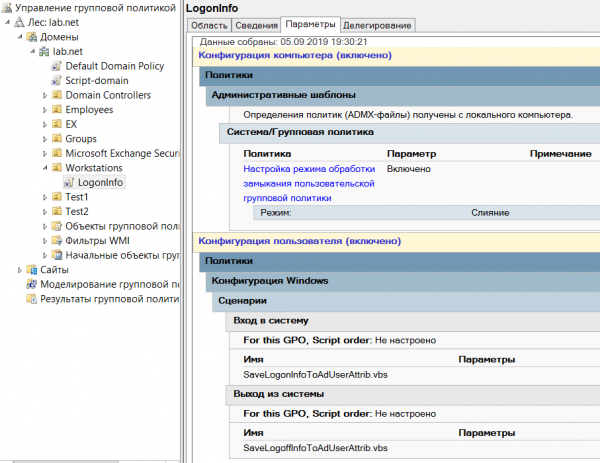
- GPO links not to the domain, but to the OU with the machines (I separate users and machines into different OUs and advise others to do the same). In this case, the is set to merge.
- The script will log data only into the user's account in the attribute Info, which the user can modify independently for their account.
- A piece of code has been changed that generates the attribute value
Now the scripts look like this:
SaveLogonInfoToAdUserAttrib.vbs
On Error Resume Next
Set wshShell = CreateObject("WScript.Shell")
strComputerName = wshShell.ExpandEnvironmentStrings("%COMPUTERNAME%")
Set adsinfo = CreateObject("ADSystemInfo")
Set oUser = GetObject("LDAP://" & adsinfo.UserName)
strMonth = Month(Now())
If Len(strMonth) < 2 then
  strMonth = "0" & strMonth
End If
strDay = Day(Now())
If Len(strDay) < 2 then
  strDay = "0" & strDay
End If
strTime = FormatDateTime(Now(),vbLongTime)
If Len(strTime) < 8 then
  strTime = "0" & strTime
End If
strTimeStamp = Year(Now()) & "/" & strMonth & "/" & strDay & " " & strTime
oUser.put "info", strTimeStamp & " " & " @ " & strComputerName
oUser.Setinfo
SaveLogoffInfoToAdUserAttrib.vbs
On Error Resume Next
Set wshShell = CreateObject("WScript.Shell")
strComputerName = wshShell.ExpandEnvironmentStrings("%COMPUTERNAME%")
Set adsinfo = CreateObject("ADSystemInfo")
Set oUser = GetObject("LDAP://" & adsinfo.UserName)
strMonth = Month(Now())
If Len(strMonth) < 2 then
  strMonth = "0" & strMonth
End If
strDay = Day(Now())
If Len(strDay) < 2 then
  strDay = "0" & strDay
End If
strTime = FormatDateTime(Now(),vbLongTime)
If Len(strTime) < 8 then
  strTime = "0" & strTime
End If
strTimeStamp = Year(Now()) & "/" & strMonth & "/" & strDay & " " & strTime
oUser.put "info", strTimeStamp & " " & " @ " & strComputerName
oUser.Setinfo
Whoever finds all the differences between the logon and logoff scripts first will earn some karma. 🙂
Also, a small PS script was created for a visual overview:
Get-UsersByPCsInfo.ps1
$OU = "OU=MyUsers,DC=mydomain,DC=com"
Get-ADUser -SearchBase $OU -Properties * -Filter * | Select-Object DisplayName, SamAccountName, info | Sort DisplayName | Out-GridView -Title "Logon Information" -Wait
In total, everything is set up quickly:
- we create an GPO with the necessary settings and link it to the organizational unit with the users' workstations:

- we go for tea (if AD has a large number of users, a lot of tea is needed 🙂
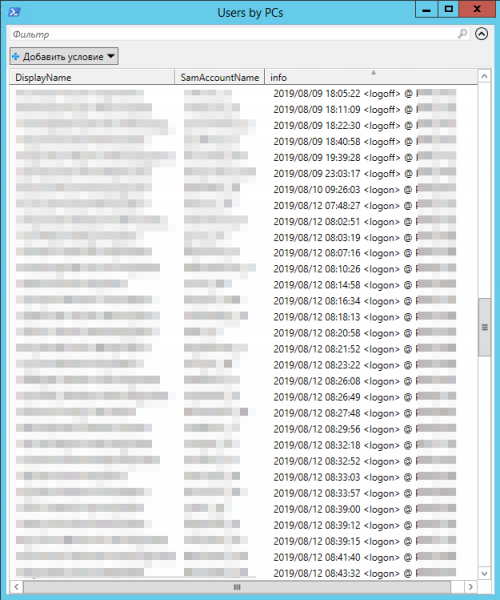
- we run the PS script and get the result:

There is a convenient filter at the top of the window that allows you to select data by the values of one or multiple fields. Clicking on the table columns sorts the records by the values of the corresponding fields.
We can nicely 'package' our solution.

To do this, we will add a shortcut for running the script for the technical support specialists, with something like this in the 'object' field:
powershell.exe -NoLogo -ExecutionPolicy Bypass -File "servershareScriptsGet-UsersByPCsInfo.ps1"
If there are many support staff, you can distribute the shortcut using .
A few final remarks.
- The Active Directory module for PowerShell must be installed on the machine from which the PS script is executed (to do this, it's sufficient to add the AD administration tools in the Windows components).
- Most attributes of their account cannot be edited by the user by default. Keep this in mind if you decide to use an attribute other than Info.
- Inform all involved colleagues about which attribute you will be using. For example, the same Info is used for interactively adding notes to the user's mailbox in the Exchange Server admin interface and someone can easily overwrite it, or was disappointed when the information they added was overwritten by your script.
- If you have multiple Active Directory sites, account for replication delays. For example, if you want to obtain current information about users from AD site A, and you're executing the script from a machine in AD site B, you can do it this way:
Get-ADUser -Server DCfromSiteA -SearchBase $OU -Properties * -Filter * | Select-Object DisplayName, SamAccountName, info | Sort DisplayName | Out-GridView -Title "User Information" -Wait
DCfromSiteA — the name of the domain controller for site A (by default, the Get-AdUser cmdlet connects to the nearest domain controller)

I would appreciate it if you could take the short survey below.
Only registered users can participate in the survey. , please.
What do you use?
bginfo, Desktop info etc. (free software)
paid alternatives to bginfo
I will do it as described in the article
not applicable, since I use VDI/RDS etc.
I’m not using anything for now, but I’m considering it
I don’t need to collect such data
other (please share in comments)
112 users voted. 39 users abstained.
Source: habr.com
