

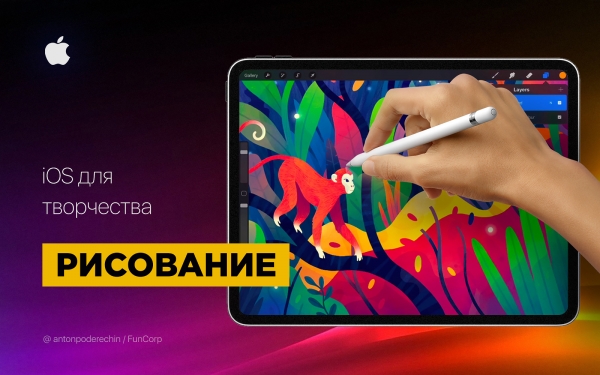
Hello! In In this article, I reviewed the capabilities of iOS for music creation, and today's topic is drawing.
I will tell you about Apple Pencil and other applications for working with raster and vector graphics, pixel art and other types of drawing.
We will talk about apps for iPad, but some of them are also available for iPhone.
The iPad became interesting to artists as a professional tool after the emergence of Apple Pencil, so I will start my review with it.
Apple Pencil

Source:
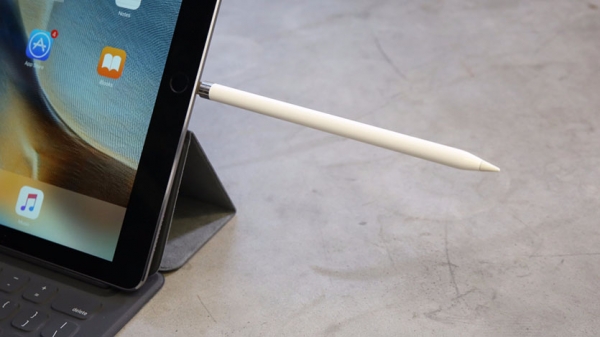
Apple Pencil is a stylus for the iPad Pro and several other iPad models released by Apple. My subjective impressions of using it can be described as "it's really cool"! But it’s best to try it out for yourself (there are Apple resellers that offer this opportunity).
In some applications, the latency when drawing is so low that it feels like you are drawing with a pencil on paper. The sensitivity to pressure and tilt angles is comparable to professional tablets.
For sketching and raster illustrations, the iPad has replaced my computer: I only return to my Wacom Intuos for complex vector graphics, and even then reluctantly.
For many artists, the iPad has become a part of the process the illustration creation process. For example, at FunCorp, some illustrations are created entirely on it using Apple Pencil.
Source:
The way of charging the stylus raised questions, but this was fixed in the second version of Apple Pencil. In fact, in the first version, it turned out not to be a big deal: 10 seconds of charging is enough for half an hour of use, so its inconvenience is not very obstructive.
For serious work, you need not only a stylus, but also of the program apps for working with different types of graphics. There are quite a few for iOS.
Raster graphics
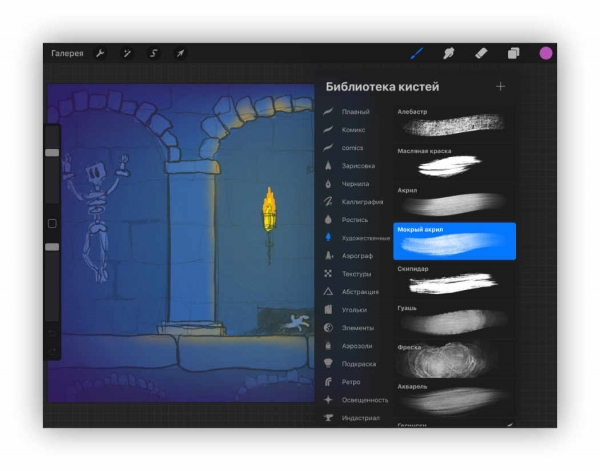
Raster graphics is when the application stores and can change information about the color of each pixel individually. This allows for very natural images, but pixels will be visible upon magnification.
One of the most popular applications for working with raster graphics is Procreate. It includes all the essential drawing features: layers, blending modes, transparency, brushes, shapes, color correction, and much more.
You may also want to check out these applications: Tayasui Sketches, Adobe Photoshop Sketch, Paper by WeTransfer.
Vector graphics
Vector graphics is when an application works with curves and geometric shapes. Such images typically have fewer details, but they can be scaled up without losing quality.
There are many vector editors for iOS, but I will highlight two of them. The first is Affinity Designer.
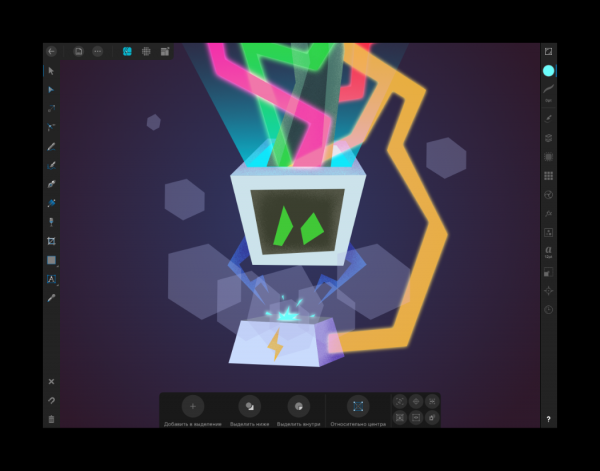
This vector editor contains a multitude of features and nearly replicates the functionality of its desktop version. You can create illustrations as well as design interfaces for mobile applications.
An interesting feature is the mode that works with raster graphics. It allows you to draw raster layers that can be combined with vector geometry. This can be very convenient for adding texture to illustrations.
Affinity Designer can handle: layers, various curves, masks, raster layer overlays, blending modes, art export modes for publication, and much more. Its capabilities are comparable to Adobe Illustrator.

The second is Adobe Illustrator Draw. This is a very simple application for drawing with vector brushes. It does not simplify the geometry of the drawn lines and responds well to pressure sensitivity. It does little, but what it does, it does well. Our illustrator at FunCorp uses it regularly for work.
Pixel art
Pixel art is a visual style where pixels in images are clearly visible, reminiscent of old games and computers with low screen resolution.
You can draw pixel art even in a regular raster editor at high zoom. However, there may be difficulties with brushes, snapping, and other elements. Therefore, there are several dedicated applications for pixel art.
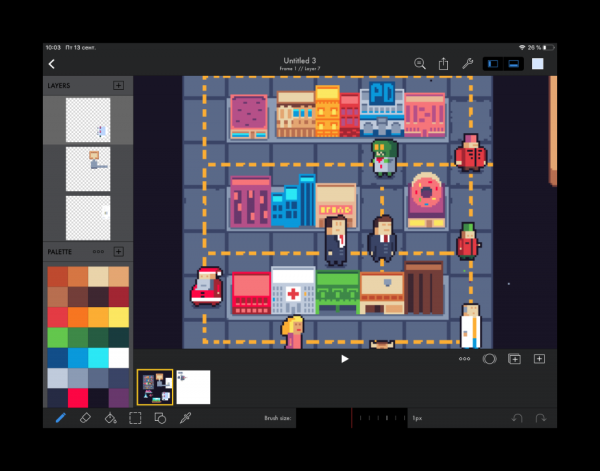
I use Pixaki. It supports palette creation, pixel brushes, customizable grids, animations, correct pixel lines, and a lot more.
Voxel art
Voxel art is similar to pixel art, but it involves drawing with 3D cubes. People do something like this in the game Minecraft. An example made on a computer:
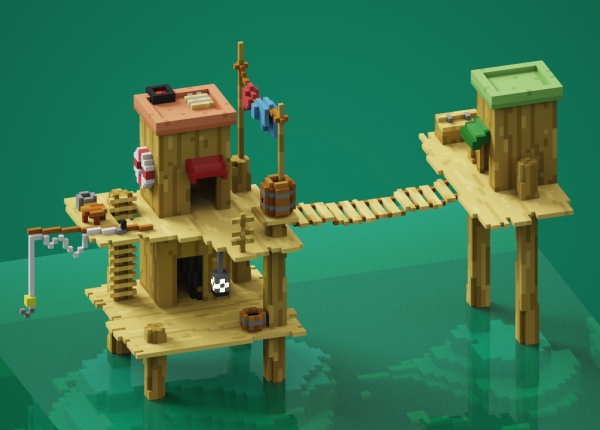
Source:
I'm not sure if you can recreate something like this on the iPad, but you can try the app Goxel. I haven't used it myself, but if any of you have experience with it, please share in the comments.
3D graphics
You can also try full 3D graphics on the iPad. For engineers and industrial designers There is an application Shapr3D.
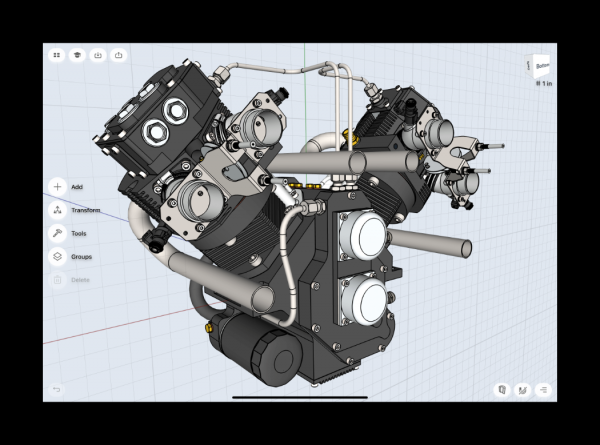
Source:
There are also several sculpting applications. Sculpting is something like clay modeling, but instead of hands, you use a virtual brush to add or remove volume and achieve the desired shape. Examples of such applications include: Sculptura, Putty 3D.
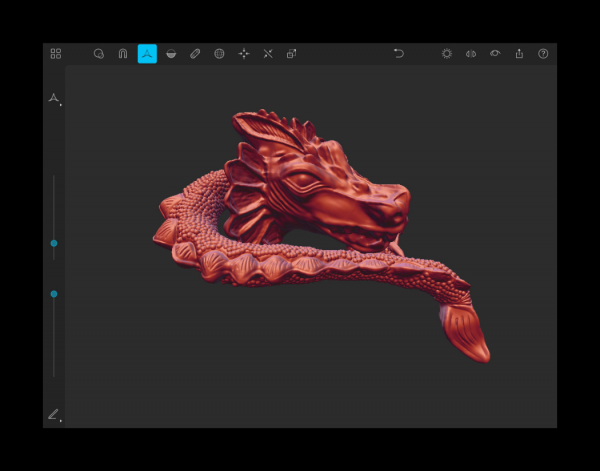
Source:
Animations
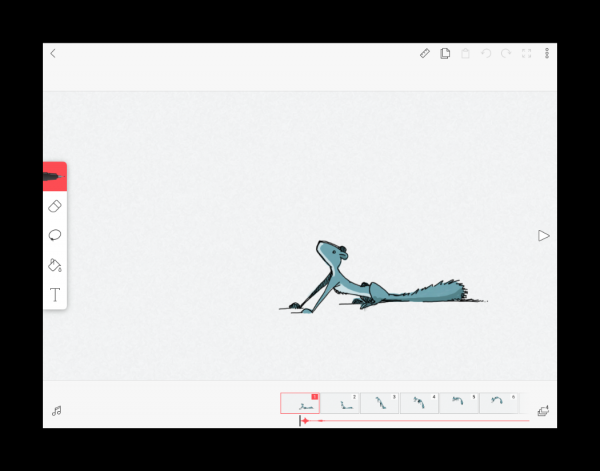
You can create animations on the iPad. So far, I haven't encountered anything that matches Adobe Animate's capabilities, but you can play around with simple animations. Here are a few applications that can help you with this: DigiCell FlipPad, Animation & Drawing by Do Ink, FlipaClip.
Connecting to a PC
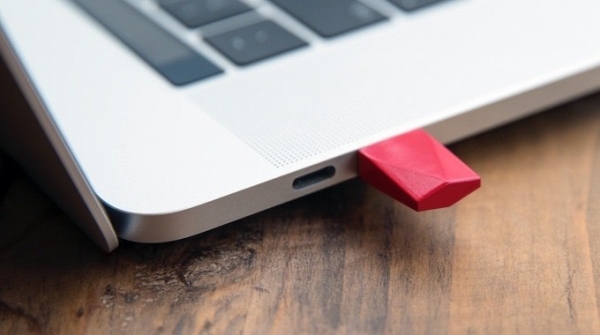
There are also several ways to connect the iPad to a computer and use it as a second monitor for drawing. You can use the application Astropad. It has gesture controls, optimization to reduce drawing lag, and other features. The downside is: it duplicates the image from the screen to the iPad but does not allow the tablet to be used as a second screen. To connect the iPad as a second monitor, you'll need a device from the same developers — Luna Display.
Source:
Apple announced that in macOS Catalina and iPadOS, it will be possible to use the iPad as a second screen, and this feature will be called Sidecar. It seems that the need for Astropad and similar applications will disappear, but we will see how this rivalry ends. If anyone has already tried Sidecar, please share your impressions in the comments.
In conclusion
The iPad has become a professional tool for artists and illustrators. You can find many videos on YouTube showcasing the creation of high-quality illustrations entirely on the iPad.
With the Apple Pencil, it is very pleasant to make sketches, drawings, and illustrations.
The tablet can be taken to a cafe or on the road and you can draw not only at home. Unlike a paper notebook, you can color your sketch using layers and other tools.
The downsides, of course, are price. The cost of the iPad plus the Apple Pencil is comparable to professional solutions from Wacom, and it might be too expensive for a sketchbook for use on the go.
In this article, I have not covered all the applications and possibilities of the iPad, as there are many. I would be happy if you comments share how you use the iPad for drawing and your favorite applications.
Thank you for your attention, and good luck in your creative endeavors!
Source: habr.com
