

Due to changes in legislation regarding trust services ("On Electronic Trust Services" Ukraine), the need arose for several departments to work with keys located on tokens (at the moment, the question of the number of hardware keys is still open).
As the lowest cost tool (free of charge), the choice immediately fell on . The server on Ubuntu 18.04 started working thanks to the publication of and was successfully tested on several flash drives (due to the lack of tokens at that time). No significant problems were identified, except for monopolistic ownership (reservation per user) at that moment. It is clear that to organize access for several users (at least two, to start), it is necessary to divide their access in time and make them work in turn.
The question arose: How to ensure that everyone can work with the least hassle…
Brute force approach

Option I. Several shortcuts to bat files, namely
a) Connecting the access key.
b) Intentional disconnection.
Item “b” is controversial, so it was decided to allow a working time of 3 minutes with the key.
The peculiarity of the usbip client is that after launching, it hangs in the console, and without interrupting the console session, the connection can be closed “brutally” from both the client and the server side.
Here is what worked well for us:
first: connection on.bat
usbip -a 172.16.12.26 4-1
msg * "Token/signature unavailable or busy"
second: disconnection off.bat
ping 127.0.0.1 -n 180
taskkill /IM usbip.exe /F
not relying on user awareness, the scripts were combined into token.bat
on.bat | off.batWhat happens: all files are in one folder, launched by the token.bat file; if the connection is closed, the user immediately receives a message about the unavailability of the key; otherwise, only after 180 pings. The provided lines of code can be equipped with "@ECHO OFF" and direction of the console to "> nul" to avoid shocking the user too much, but for testing launch it is not necessary. The initial "run" on the USB drive showed that everything works predictably, reliably, and accurately. Moreover, no manipulations are needed from the server side.

Naturally, when working directly with the token, things did not go as expected: when physically connected in the device manager, the token registers as 2 devices (WUDF and smart card), while over the network it registers only as WUDF (although this is sufficient for the PIN request).
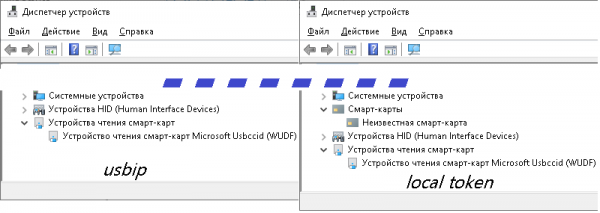
It also turned out that the ruthless 'taskkill' is not so harsh, and closing the connection on the client side is problematic, and even if this is achieved, it does not guarantee closure for it on the server.
Giving up all consoles on the client side, the second script took the form:
ping 127.0.0.1 -n 180 > nul
taskkill /IM usbip.exe /F /T > nul
ping 127.0.0.1 -n 10 > nul
taskkill /IM conhost.exe /F /T > nul
although its effectiveness is less than 50%, since the server stubbornly continued to consider the connection open.
The connection problems led to thoughts of upgrading the server part.
Server part
What is needed:
- Disconnect inactive users from the service.
- See who is currently using (or still occupying) the token.
- See if the token is connected to the computer itself.
These tasks were decided to be addressed using crontab and apache services. The granularity of the state results monitoring for points 2 and 3 indicates that the file system can be placed on a ramdrive. A line was added in /etc/fstab
tmpfs /ram_drive tmpfs defaults,nodev,size=64K 0 0
A folder named script was created at the root for scripts: unmounting-mounting token usb_restart.sh
usbip unbind -b 1-2
sleep 2
usbip bind -b 1-2
sleep 2
usbip attach --remote=localhost --busid=1-2
sleep 2
usbip detach --port=00
Getting the list of active devices usblist_id.sh
usbip list -r 127.0.0.1 | grep ':' | awk -F ":" '{print $1}' | sed s/' '//g | grep -v "^$" > /ram_drive/usb_id.txtGetting the list of active IPs (with further modifications to display user identifiers) usbip_client_ip.sh
netstat -an | grep :3240 | grep ESTABLISHED | awk '{print $5}' | cut -f1 -d":" > /ram_drive/usb_ip_cli.txtThe crontab looks like this:
* /5 * * * * /!script/usb_restart.sh > /dev/null 2>&1
* * * * * ( sleep 30 ; /!script/usblist_id.sh > /dev/null)
* * * * * (sleep 10 ; /!script/usbip_client_ip.sh > /dev/null)
So we have: every 5 minutes a new user can connect, regardless of who worked with the token. The folder /ramdrive is connected to the HTTP server via a symlink, which saves 2 text files indicating the status of the usbip server.
Next part: 'Ugly in wrapping'
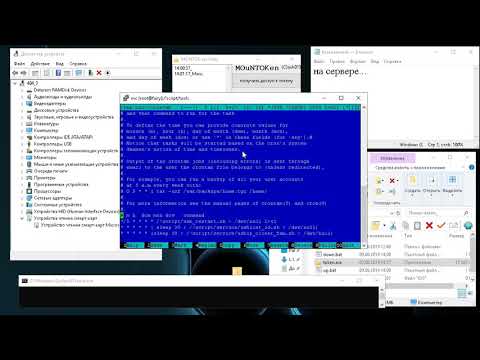
II option. To provide users with a somewhat less intimidating interface. Considering that users have different versions of Windows with various frameworks and permissions, a less problematic approach than I could not find (I'm certainly for C#, but not in this case). You can run bat files from the interface in the background, minimized, but without proper testing, I personally believe: it's necessary to visualize to gather user complaints.

The interface and software components addressed the following tasks:
- Displaying whether the token is currently in use.
- On the first launch, initial setup is carried out with the generation of 'correct' bat files that implement starting and stopping the token's session with the server. On subsequent launches, the implementation of 'service' mode via password.
- Checking for connectivity to the server, the results of which determine whether the server is queried about its usage or messages about issues are displayed. Upon resuming connectivity, the program automatically starts working in normal mode.
Working with the WEB server is implemented using the additional module fphttpclient.
There are also further thoughts on the subject of the article, as well as partial initial enthusiasm for the VirtualHere product with its features...
Source: habr.com
