


HPE InfoSight is a cloud service by HPE that allows for proactive identification of potential reliability and performance issues with HPE Nimble and HPE 3PAR arrays. The service can also recommend solutions to address these issues immediately, and in some cases, problems can be resolved proactively and automatically.
We've already discussed HPE InfoSight on HABR, see for example, or .
In this post, I want to talk about a new feature of HPE InfoSight — the Resource Planner.
HPE InfoSight Resource Planner is a new powerful tool that helps customers determine whether they can add new workloads or applications to their arrays, considering existing workloads. Will the array handle the increased load, or will a new array be required? If a new array is needed, which one? The predictive modeling of Resource Planner helps accurately understand needs and properly size the upgrade of the existing array or the sizing of a new array.
The Resource Planner allows for the following:
- model potential changes to existing workloads;
- assess the impact on array resources such as: CPU, capacity, and cache;
- view results across various array models.
By gathering statistics and parametric information about the performance of arrays (across the entire installed base) and analyzing different workloads in many client environments, we can identify certain causal and quantitative relationships. For example, we know how deduplication impacts CPU usage across different array models. We know that Virtual Desktop environments deduplicate and compress better than SQL. We know that Exchange applications generally have a higher percentage of sequential (as opposed to random) read operations than Virtual Desktop. Using such information, we can model the impact of changing workloads to predict resource needs for a specific array model.
Let's see how the Planner works in the following examples.
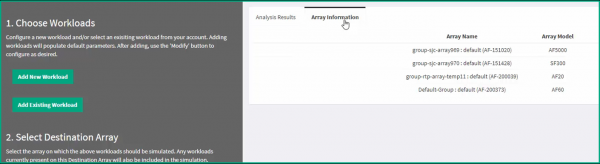
Resource Planner is launched on the HPE InfoSight portal in the LABS section. Let's begin by selecting a new workload – Add New Workload (in addition to the existing one). Another option we will consider later is Add Existing Workload (modifying an existing workload).
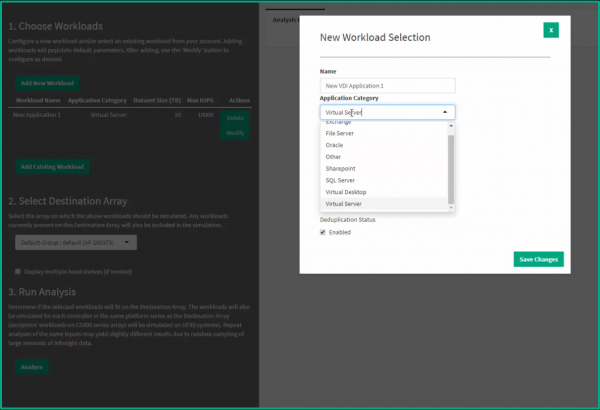
Select the workload/application category:
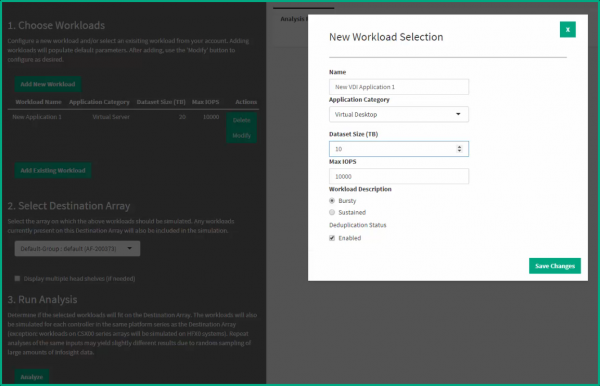
If necessary, various changes can be made to the new workload: data volume, IOPs, workload type, and deduplication mode.
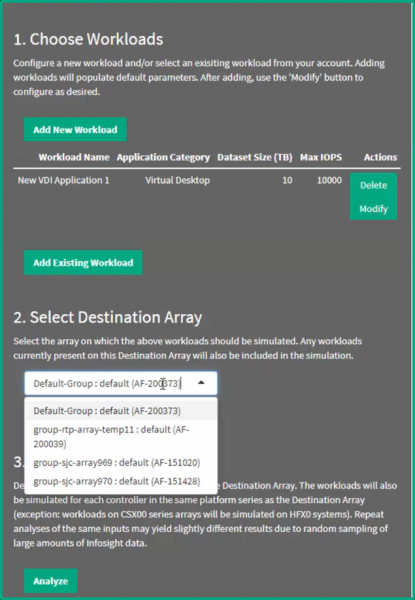
Next, select the storage array (from those available to the customer) for which we want to model this new workload and press the Analyze button.
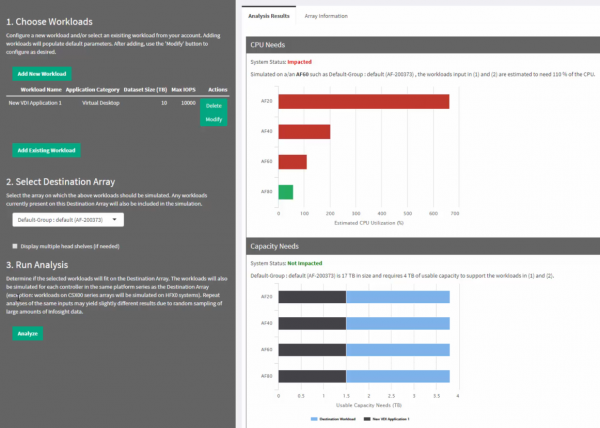
As a result, we receive the impact of this new proposed workload (in addition to the current workload) on CPU resources and capacity. If we had chosen a hybrid flash array, we would also see the impact on the array's cache, but in this case, we have an all-flash AF60 array, for which the concept of cache (on SSD) does not apply.
We see (on the right, in the upper diagram – CPU needs) that the AF60 array, for which we planned the new workload, does not have enough CPU resources to handle the new workload: with the addition of the new load, CPU utilization will reach 110%. In the lower diagram (Capacity needs), it is clear that there is enough capacity for the new load. Besides the AF60 array, other models of arrays are also shown in both diagrams – for comparison with what it would be like if we had another array.
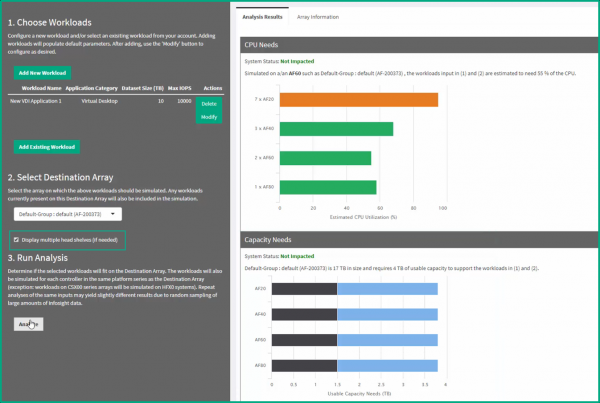
The next image shows what happens when we check the display multiple head shelves option (a choice when selecting the source array). This option allows for analysis of multiple identical arrays. It is evident that for the total (new and existing) load, one AF80 array, or two AF60 arrays, or three AF40 arrays are sufficient.
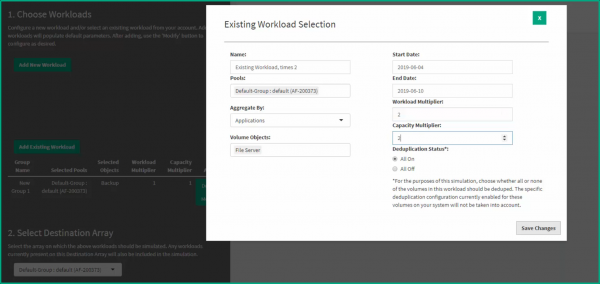
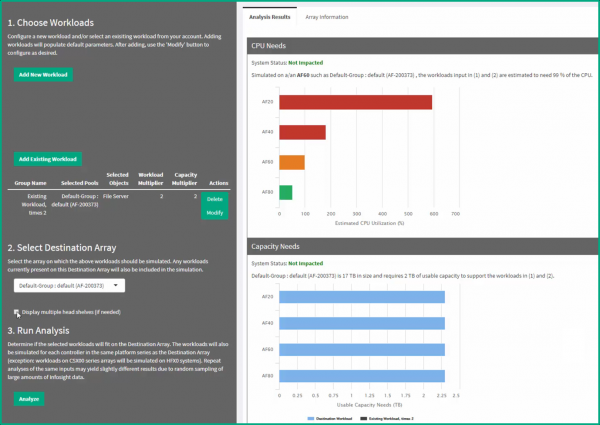
With the resource planner, it is also possible to model changes to the existing workload only. For this, in the first step, you need to select add existing workload (instead of add new workload – as we did at the beginning). Next, you can model changes to the existing workload and see the outcomes. In the example below, the scenario models doubling the load and capacity for File Server-type applications (i.e., in this example, we do not increase the entire load on the array, but only increase the load for a specific type of applications).
In this case, it is clear that the resources of the array allow for a doubling of the load for File Server applications, but not more than double, as CPU resources will be utilized at 99%.
Source: habr.com
