

I often read opinions that keeping the RDP (Remote Desktop Protocol) port open on the Internet is quite unsafe and should be avoided. Instead, RDP access should be provided either through a VPN or only from certain 'whitelisted' IP addresses.
I administer several Windows Servers for small companies, where I've been tasked with ensuring remote access to Windows Server for accountants. This is a modern trend—working from home. I quickly realized that forcing accountants to use a VPN is a thankless job, and gathering all the IP addresses for whitelisting is impractical due to people having dynamic IP addresses.
Therefore, I took the simplest route—I exposed the RDP port externally. Now, accountants need to launch RDP and enter the hostname (including the port), username, and password.
In this article, I will share my experiences (both positive and negative) and recommendations.
Risks
What risks do you face by opening the RDP port?
1) Unauthorized access to sensitive data
If someone cracks the RDP password, they could gain access to information you want to keep private: account statuses, balances, client data, …
2) Data loss
For example, due to the actions of ransomware.
Or a deliberate attack by an attacker.
3) Loss of workstation
Employees need to work, and if the system is compromised, it must be reinstalled/restored/configured.
4) Compromise of the local network
If an attacker gains access to a Windows computer, they can then access systems that are not available from outside, from the Internet. For example, to file shares, network printers, etc.
I had a case where a Windows Server contracted ransomware
and this ransomware first encrypted most of the files on the C: drive and then started encrypting files on the NAS over the network. Since the NAS was a Synology with configured snapshots, I restored the NAS in 5 minutes, while I had to reinstall the Windows Server from scratch.
Observations and Recommendations
I monitor Windows Servers using , which sends logs to ElasticSearch. In Kibana, there are several visualizations, and I have set up a custom dashboard.
Monitoring itself does not provide protection but helps identify necessary measures.
Here are some observations:
a) RDP will be brute-forced.
On one of the servers, I set up RDP not on the standard port 3389, but on 443 — to kind of disguise it as HTTPS. Changing the port from the standard one is probably a good idea, but it doesn't help much. Here's the statistics from that server:
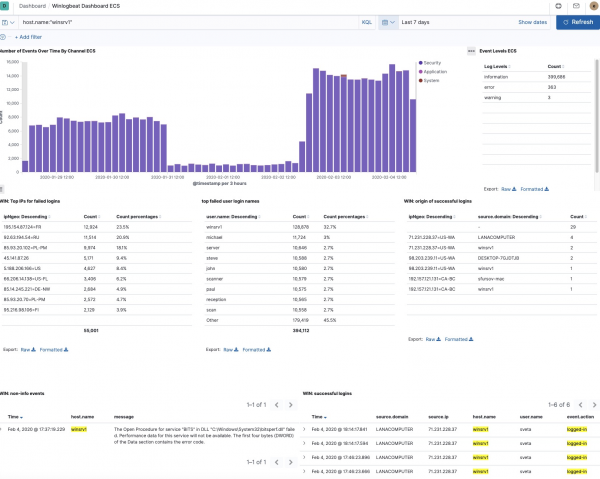
You can see that there were almost 400,000 failed attempts to access via RDP over the week.
It's evident that the access attempts came from 55,001 IP addresses (some IP addresses had already been blocked by me).
This clearly suggests that I need to install fail2ban, but
there isn't such a utility for Windows.
There are a couple of abandoned projects on GitHub that seem to do this, but I haven't tried installing them:
There are also paid utilities, but I haven’t considered them.
If you know of an open-source utility for this purpose, please share in the comments.
Update: Comments suggested that port 443 is a poor choice, and it's better to choose higher ports (32000+), as 443 is scanned more frequently, making it easy to identify RDP on this port.
Update: Comments indicated that such a utility exists:
b) There are certain usernames that attackers prefer
It’s clear that the brute force is going through a dictionary of various names.
But here's what I've noticed: a significant number of attempts involve using the server name as the login. Recommendation: do not use the same name for the computer and the user. Moreover, sometimes it seems like the server name is being parsed: for example, for a system with the name DESKTOP-DFTHD7C, the most attempts come with the name DFTHD7C:
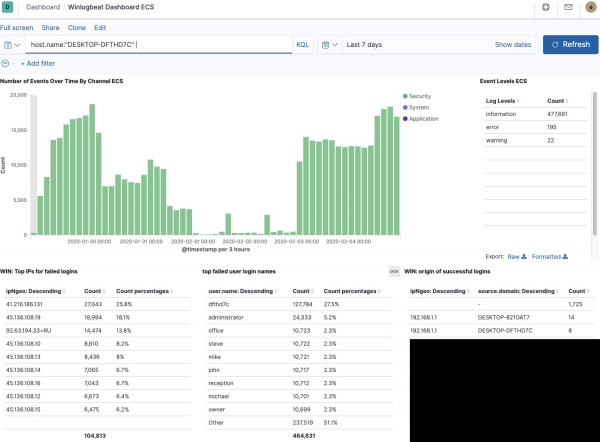
Correspondingly, if you have a computer DESKTOP-MARIA, there will probably be attempts to log in as user MARIA.
Additionally, what I noticed from the logs: on most systems, the majority of attempts to log in is with the name "administrator." This is not accidental, as in many versions of Windows, this user exists. Moreover, it cannot be deleted. This simplifies the task for attackers: instead of guessing the username and password, they only need to guess the password.
By the way, the system that got hit by the ransomware had the user Administrator and the password Murmansk#9. I'm still not sure how that system was compromised, as I started monitoring right after that incident, but I think brute-forcing is likely.
So if the Administrator user can't be deleted, what should be done? You can rename it!
Recommendations from this point:
- do not use the username in the computer name.
- Make sure there are no users with the Administrator account on the system.
- Use strong passwords.
This is how I've been observing multiple Windows Servers under my control being brute-forced for about two years now, and without success.
How do I know they are unsuccessful?
Because in the screenshots above, there are logs of successful RDP logins that contain information:
- from which IP
- from which computer (hostname)
- username
- GeoIP information
And I check there regularly—no anomalies detected.
By the way, if some IP is brute-forcing particularly hard, individual IPs (or subnets) can be blocked like this in PowerShell:
New-NetFirewallRule -Direction Inbound -DisplayName "fail2ban" -Name "fail2ban" -RemoteAddress ("185.143.0.0/16", "185.153.0.0/16", "193.188.0.0/16") -Action BlockBy the way, besides Winlogbeat, Elastic also has , which can monitor files and processes on the system. There is also a SIEM (Security Information & Event Management) application in Kibana. I've tried both, but didn't find them particularly useful—Auditbeat seems to be more beneficial for Linux systems, and SIEM hasn't shown me anything clear yet.
And here are the final recommendations:
- make regular automatic backups.
- timely apply Security Updates.
Bonus: a list of 50 users that were most frequently used for RDP login attempts.
"user.name: Descending"
Count
dfthd7c (hostname)
842941
winsrv1 (hostname)
266525
ADMINISTRATOR
180678
administrator
163842
The administrator
53541
michael
23101
server
21983
steve
21936
john
21927
paul
21913
reception
21909
mike
21899
office
21888
scanner
21887
scan
21867
david
21865
chris
21860
owner
21855
manager
21852
administrateur
21841
brian
21839
administrador
21837
mark
21824
staff
21806
ADMIN
12748
ROOT
7772
ADMINISTRADOR
7325
SUPPORT
5577
SOPORTE
5418
USER
4558
admin
2832
TEST
1928
MySql
1664
Admin
1652
GUEST
1322
USER1
1179
SCANNER
1121
SCAN
1032
ADMINISTRATEUR
842
ADMIN1
525
BACKUP
518
MySqlAdmin
518
RECEPTION
490
USER2
466
TEMP
452
SQLADMIN
450
USER3
441
1
422
MANAGER
418
OWNER
410
Source: habr.com
