

This article describes the setup of an OpenVPN server to enable two-factor authentication with a Telegram bot that will send a confirmation request upon connection.
OpenVPN is a widely known, free, open-source VPN server that is commonly used to provide secure access for employees to an organization's internal resources.
Typically, authentication for connecting to a VPN server is done using a combination of a key and a username/password. In this case, the stored password on the client transforms the whole set into a single factor, failing to provide a sufficient level of security. If an attacker gains access to the client machine, they also gain access to the VPN server. This is particularly true for connections from machines running Windows.
Using a second factor reduces the risk of unauthorized access by 99% and does not complicate the connection process for users at all.
I should mention that implementing this will require connecting to an external authentication server multifactor.ru, where you can use the free plan for your needs.
Operating principle
- OpenVPN uses the openvpn-plugin-auth-pam plugin for authentication.
- The plugin checks the user password on the server and requests the second factor via the RADIUS protocol from the Multifactors service.
- Multifactors sends a confirmation message to the user via the Telegram bot.
- The user confirms the access request in the Telegram chat and connects to the VPN.
Setting up the OpenVPN server
There are many articles on the internet describing the process of installing and configuring OpenVPN, so we will not duplicate them. If you need assistance, there are several links to educational materials at the end of the article.
Setting up the Multifactors
Go to , go to the "Resources" section and create a new VPN.
After creation, you will have access to two parameters: NAS-Identifier and Shared Secret, which will be needed for subsequent configuration.
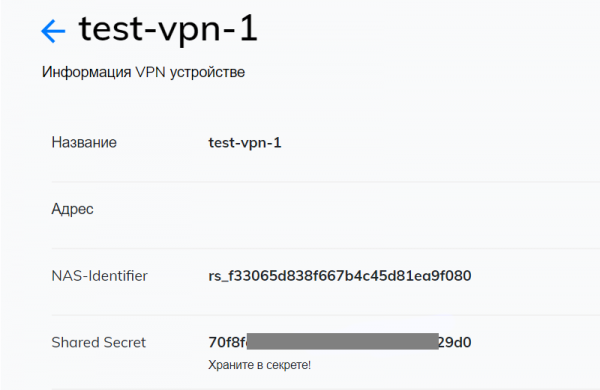
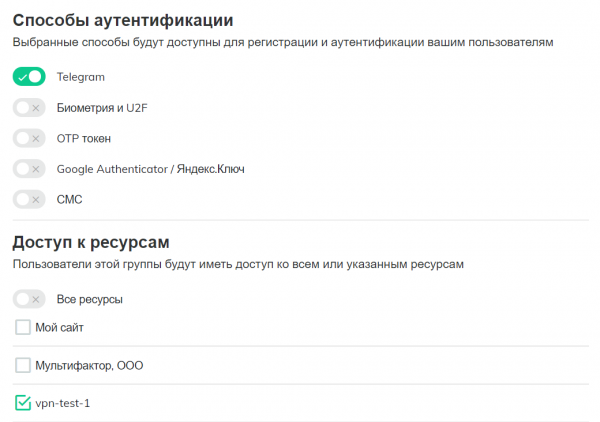
In the "Groups" section, go to the parameters of the "All users" group and uncheck the "All resources" flag so that only users of a specific group can connect to the VPN server.
Create a new group "VPN users", disable all authentication methods except Telegram, and specify that users have access to the created VPN resource.
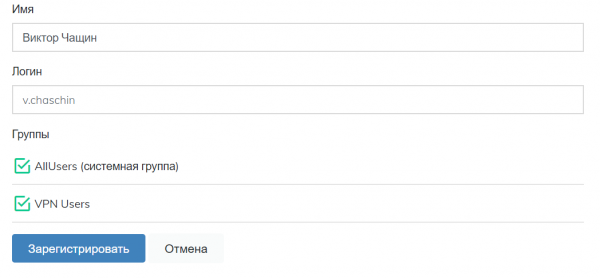
In the "Users" section, create users who will have access to the VPN, add them to the "VPN users" group, and send them a link to set up two-factor authentication. The username must match the username on the VPN server.
Setting up the OpenVPN server
Open the file /etc/openvpn/server.conf and add the authentication plugin using the PAM module
plugin /usr/lib64/openvpn/plugins/openvpn-plugin-auth-pam.so openvpnThe plugin may be located in the directory /usr/lib/openvpn/plugins/ or /usr/lib64/openvpn/plugins/ depending on your system.
Next, you need to install the pam_radius_auth module
$ sudo yum install pam_radiusOpen the file for editing /etc/pam_radius.conf and specify the address of the MFA RADIUS server
radius.multifactor.ru shared_secret 40where:
- radius.multifactor.ru is the server address
- shared_secret is to be copied from the corresponding parameter in the VPN settings
- 40 seconds is the timeout for waiting for a request, with a good margin
Other servers need to be removed or commented out (put a semicolon at the beginning)
Next, create a file for service-type openvpn
$ sudo vi /etc/pam.d/openvpnand write in it
auth required pam_radius_auth.so skip_passwd client_id=[NAS-IDentifier]
auth substack password-auth
account substack password-auth
the first line connects the PAM module pam_radius_auth with the parameters:
- skip_passwd disables the transmission of the user's password to the MFA RADIUS server (it does not need to know it).
- client_id — replace [NAS-Identifier] with the corresponding parameter from the VPN resource settings.
All possible parameters are described in .
The second and third lines include the system check for login, password, and user rights on your server along with the second factor of authentication.
Restart OpenVPN
$ sudo systemctl restart openvpn@serverClient Configuration
Enable in the client configuration file the request for the username and password of the user
auth-user-passCheck
Run the OpenVPN client, connect to the server, and provide your username and password. A request for access with two buttons will come from the Telegram bot.

One button grants access, the other blocks it.
You can now safely save the password on the client, as the second factor will reliably protect your OpenVPN server from unauthorized access.
If something is not working
Check sequentially that you haven't missed anything:
- There is a user with a set password on the OpenVPN server
- Access to UDP port 1812 is open on the server at radius.multifactor.ru
- The NAS-Identifier and Shared Secret parameters are correctly specified
- A user with the same login has been added to the Multifactor system and granted access to the VPN user group
- The user has configured the authentication method through Telegram
If you have not set up OpenVPN before, please read .
The guide includes examples on CentOS 7.
Source: habr.com
