

We continue to make using PVS-Studio more convenient. Our analyzer is now available on Chocolatey, a package manager for Windows. We believe this will simplify the deployment of PVS-Studio, particularly in cloud services. To keep it simple, let's check the source code of Chocolatey itself. Azure DevOps will serve as the CI system.
Here’s a list of our other articles on integrating with cloud systems:
I recommend paying attention to the first article about integrating with Azure DevOps, as some points are omitted in this case to avoid duplication.
So, the heroes of this article are:
— a static code analysis tool designed to detect errors and potential vulnerabilities in programs written in C, C++, C#, and Java. It operates in 64-bit systems on Windows, Linux, and macOS, and can analyze code intended for 32-bit, 64-bit, and embedded ARM platforms. If you're trying static code analysis for the first time to check your projects, we recommend reading the on how to quickly view the most interesting warnings from PVS-Studio and assess the capabilities of this tool.
— a set of cloud services jointly covering the entire development process. This platform includes tools such as Azure Pipelines, Azure Boards, Azure Artifacts, Azure Repos, and Azure Test Plans, allowing for faster software development and improved quality.
– an open-source package manager for Windows. The goal of the project is to automate the entire software lifecycle from installation to updating and removal in Windows operating systems.
About Using Chocolatey
You can see how to install the package manager itself in this . Comprehensive documentation on installing the analyzer is available in the 'Installation Using Chocolatey Package Manager' section. Briefly, I'll repeat some points from there.
Command to install the latest version of the analyzer:
choco install pvs-studioCommand to install a specific version of the PVS-Studio package:
choco install pvs-studio --version=7.05.35617.2075By default, only the core analyzer component—Core—is installed. All other flags (Standalone, JavaCore, IDEA, MSVS2010, MSVS2012, MSVS2013, MSVS2015, MSVS2017, MSVS2019) can be passed using --package-parameters.
Example command that will install the analyzer with the plugin for Visual Studio 2019:
choco install pvs-studio --package-parameters="'/MSVS2019'"Now let's look at an example of convenient use of the analyzer with Azure DevOps.
Settings
I remind you that registration of an account, creation of a Build Pipeline, and synchronization of the account with a project stored in a GitHub repository are covered separately. . Our setup will begin directly with writing the configuration file.
To start, let's set up the trigger indicating that we are triggering only for changes in master the branch:
trigger:
- master
Next, we need to choose a virtual machine. For now, this will be a Microsoft-hosted agent with Windows Server 2019 and Visual Studio 2019:
pool:
  vmImage: 'windows-latest'
Let's move on to the body of the configuration file (the segment steps). Although arbitrary software can't be installed on the virtual machine, I didn't add a Docker container. We can add Chocolatey as an extension for Azure DevOps. For that, let's go to . Click Get it free. Next, if you are already logged in, simply select your account, and if not, do the same after logging in.
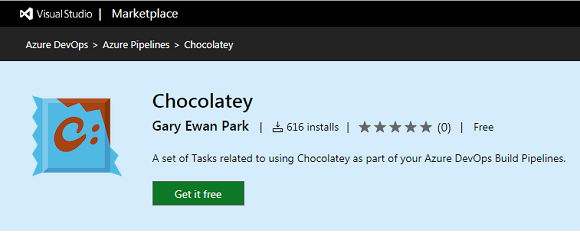
Here we need to choose where to add the extension and click the button Install.
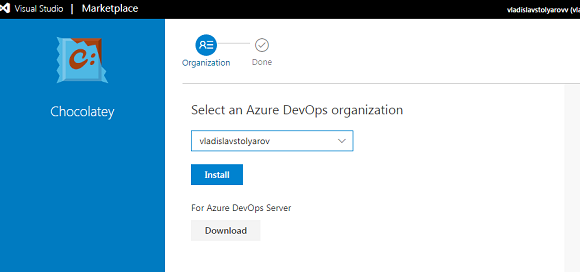
After successful installation, click Proceed to organization:
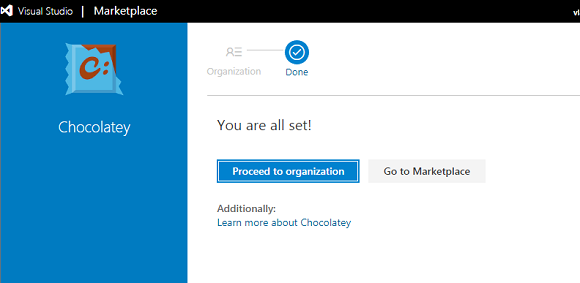
You can now see the template for the Chocolatey task in the tasks when editing the configuration file azure-pipelines.yml:
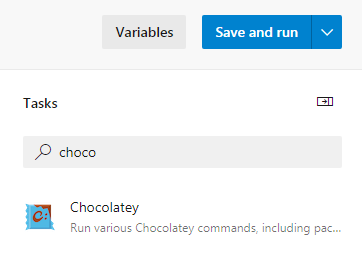
Click on Chocolatey and see the list of fields:
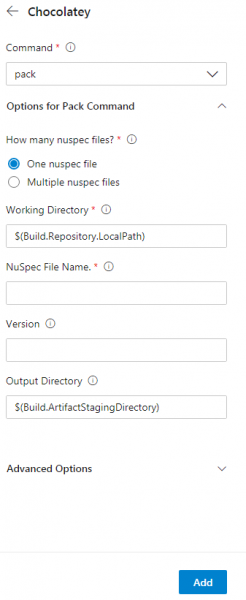
Here we need to select install in the command field. In the Nuspec File Name we will specify the name of the required package – pvs-studio. If you do not specify a version, the latest one will be installed, which is completely acceptable. Click the button add and we will see the formed task in the configuration file.
steps:
- task: ChocolateyCommand@0
  inputs:
    command: 'install'
    installPackageId: 'pvs-studio'
Next, we will move to the main part of our file:
- task: CmdLine@2
  inputs:
    script:
Now we need to create a file with the analyzer's license. Here PVSNAME and PVSKEY – are the variable names whose values we will specify in the settings. They will store the login and license key for PVS-Studio. To set their values, open the menu Variables->New variable. We will create variables PVSNAME for the login and PVSKEY for the analyzer key. Don't forget to check the box Keep this value secret for PVSKEY. Command code:
call "C:Program Files (x86)PVS-StudioPVS-Studio_Cmd.exe" credentials
–u $(PVSNAME) –n $(PVSKEY)
Let's build the project using the bat file located in the repository:
call build.batLet's create a folder where the results from the analyzer will be stored:
call mkdir PVSTestResultsWe will run the project analysis:
call "C:Program Files (x86)PVS-StudioPVS-Studio_Cmd.exe"
–t .srcchocolatey.sln –o .PVSTestResultsChoco.plog
We will convert our report to HTML format using the PlogConverter utility:
call "C:Program Files (x86)PVS-StudioPlogConverter.exe"
–t html –o PVSTestResults .PVSTestResultsChoco.plog
Now we need to create a task to upload the report.
- task: PublishBuildArtifacts@1
  inputs:
    pathToPublish: PVSTestResults
    artifactName: PVSTestResults
    condition: always()
The complete configuration file looks like this:
trigger:
- master

pool:
  vmImage: 'windows-latest'

steps:
- task: ChocolateyCommand@0
  inputs:
    command: 'install'
    installPackageId: 'pvs-studio'

- task: CmdLine@2
  inputs:
    script: |
      call "C:Program Files (x86)PVS-StudioPVS-Studio_Cmd.exe"
      credentials –u $(PVSNAME) –n $(PVSKEY)
      call build.bat
      call mkdir PVSTestResults
      call "C:Program Files (x86)PVS-StudioPVS-Studio_Cmd.exe"
      –t .srcchocolatey.sln –o .PVSTestResultsChoco.plog
      call "C:Program Files (x86)PVS-StudioPlogConverter.exe"
      –t html –o .PVSTestResults .PVSTestResultsChoco.plog

- task: PublishBuildArtifacts@1
  inputs:
    pathToPublish: PVSTestResults
    artifactName: PVSTestResults
    condition: always()
Let's click Save->Save->Run to start the task. We will upload the report by navigating to the task tab.
The Chocolatey project contains a total of 37,615 lines of C# code. Let's look at some of the detected errors.
Verification results
Warning N1
Analyzer warning: The ‘Provider’ variable is assigned to itself. CrytpoHashProviderSpecs.cs 38
public abstract class CrytpoHashProviderSpecsBase : TinySpec
{
  ....
  protected CryptoHashProvider Provider;
  ....
  public override void Context()
  {
    Provider = Provider = new CryptoHashProvider(FileSystem.Object);
  }
}
The analyzer detected that a variable is being assigned to itself, which makes no sense. Most likely one of these variables should be some other variable. Or it could be a typo, and the extra assignment can simply be removed.
Warning N2
Analyzer warning: [CWE-480] The ‘&’ operator evaluates both operands. Perhaps a short-circuit ‘&&’ operator should be used instead. Platform.cs 64
public static PlatformType get_platform()
{
  switch (Environment.OSVersion.Platform)
  {
    case PlatformID.MacOSX:
    {
      ....
    }
    case PlatformID.Unix:
    if(file_system.directory_exists("/Applications")
      & file_system.directory_exists("/System")
      & file_system.directory_exists("/Users")
      & file_system.directory_exists("/Volumes"))
      {
        return PlatformType.Mac;
      }
        else
          return PlatformType.Linux;
    default:
      return PlatformType.Windows;
  }
}
The difference between the operator & and the operator && is that if the left part of the expression is false, the right part will still be evaluated, which in this case implies unnecessary calls to the method system.directory_exists.
In the examined snippet, this is a minor flaw. Yes, this condition can be optimized by replacing the & operator with the && operator, but practically, it does not affect anything. However, in other cases, confusion between & and && can lead to serious issues when the right part of the expression operates on incorrect/invalid values. For example, in our collection of errors, , there is such a case:
if ((k < nct) & (s[k] != 0.0))Even if the index k is incorrect, it will be used to access the array element. As a result, an exception will be thrown IndexOutOfRangeException.
Warnings N3, N4
Analyzer warning: [CWE-571] Expression ‘shortPrompt’ is always true. InteractivePrompt.cs 101
Analyzer warning: [CWE-571] Expression ‘shortPrompt’ is always true. InteractivePrompt.cs 105
public static string
prompt_for_confirmation(.... bool shortPrompt = false, ....)
{
  ....
  if (shortPrompt)
  {
    var choicePrompt = choice.is_equal_to(defaultChoice) //1
    ?
    shortPrompt //2
    ?
    "[[{0}]{1}]".format_with(choice.Substring(0, 1).ToUpperInvariant(), //3
    choice.Substring(1,choice.Length - 1))
    :
    "[{0}]".format_with(choice.ToUpperInvariant()) //0
    :
    shortPrompt //4
    ?
    "[{0}]{1}".format_with(choice.Substring(0,1).ToUpperInvariant(), //5
    choice.Substring(1,choice.Length - 1))
    :
    choice; //0
    ....
  }
  ....
}
In this case, there is a strange logic in the ternary operator's operation. Let's consider it further: if the condition marked by me with number 1 is met, we proceed to condition 2, which is always true, which means line 3 will be executed. If, however, condition 1 turns out false, we will move to the line marked by number 4, whose condition is also always true, which means line 5 will be executed. Thus, the conditions marked with the comment 0 will never be executed, which may not be the logic the programmer intended.
Warning N5
Analyzer warning: [CWE-783] Perhaps the '?:' operator works differently than expected. Its priority is lower than that of other operators in its condition. Options.cs 1019
private static string GetArgumentName (...., string description)
{
  string[] nameStart;
  if (maxIndex == 1)
  {
    nameStart = new string[]{"{0:", "{"};
  }
  else
  {
    nameStart = new string[]{"{" + index + ":"};
  }
  for (int i = 0; i = 0 && j != 0 ? description [j++ - 1] == '{' : false);
    ....
    return maxIndex == 1 ? "VALUE" : "VALUE" + (index + 1);
  }
}
The diagnostics triggered on line:
while (start >= 0 && j != 0 ? description [j++ - 1] == '{' : false)Since the variable j is initialized to zero a few lines above, the ternary operator will return true. falseDue to this condition, the loop body will execute only once. I believe this code fragment does not work as the programmer intended.
Warning N6
Analyzer warning: [CWE-571] Expression 'installedPackageVersions.Count != 1' is always true. NugetService.cs 1405
private void remove_nuget_cache_for_package(....)
{
  if (!config.AllVersions && installedPackageVersions.Count > 1)
  {
    const string allVersionsChoice = "All versions";
    if (installedPackageVersions.Count != 1)
    {
      choices.Add(allVersionsChoice);
    }
    ....
  }
  ....
}
Here is a strange nested condition: installedPackageVersions.Count != 1, which will always be true. Such warnings often indicate a logical error in the code, and in other cases, just unnecessary checking.
Warning N7
Analyzer warning: There are identical sub-expressions 'commandArguments.contains("-apikey")' to the left and right of the '||' operator. ArgumentsUtility.cs 42
public static bool arguments_contain_sensitive_information(string
 commandArguments)
{
  return commandArguments.contains("-install-arguments-sensitive")
  || commandArguments.contains("-package-parameters-sensitive")
  || commandArguments.contains("apikey ")
  || commandArguments.contains("config ")
  || commandArguments.contains("push ")
  || commandArguments.contains("-p ")
  || commandArguments.contains("-p=")
  || commandArguments.contains("-password")
  || commandArguments.contains("-cp ")
  || commandArguments.contains("-cp=")
  || commandArguments.contains("-certpassword")
  || commandArguments.contains("-k ")
  || commandArguments.contains("-k=")
  || commandArguments.contains("-key ")
  || commandArguments.contains("-key=")
  || commandArguments.contains("-apikey")
  || commandArguments.contains("-api-key")
  || commandArguments.contains("-apikey")
  || commandArguments.contains("-api-key");
}
The programmer who wrote this block of code copy-pasted the last two lines and forgot to edit them. Because of this, Chocolatey users lost the ability to use the apikey in a couple of other ways. Similarly to the parameters above, I can suggest the following options:
commandArguments.contains("-apikey=");
commandArguments.contains("-api-key=");
Copy-paste errors are likely to occur sooner or later in any project with a large amount of source code, and one of the best ways to combat them is static analysis.
P.S. And as always, this error tends to occur at the end of a multi-line condition :). See the publication "".
Warning N8
Analyzer warning: [CWE-476] The 'installedPackage' object was used before it was verified against null. Check lines: 910, 917. NugetService.cs 910
public virtual ConcurrentDictionary get_outdated(....)
{
  ....
  var pinnedPackageResult = outdatedPackages.GetOrAdd(
    packageName,
    new PackageResult(installedPackage,
                      _fileSystem.combine_paths(
                        ApplicationParameters.PackagesLocation,
                        installedPackage.Id));
  ....
  if (   installedPackage != null
      && !string.IsNullOrWhiteSpace(installedPackage.Version.SpecialVersion)
      && !config.UpgradeCommand.ExcludePrerelease)
  {
    ....
  }
  ....
}
A classic error: the object is used before it is checked installedPackage is checked for null. This diagnosis indicates one of two problems in the program: either installedPackage is never equal to null, which is doubtful, and then the check is redundant, or we potentially have a serious error in the code – an attempt to access a null reference.
Conclusion
We have taken another small step – now using PVS-Studio has become even easier and more convenient. I would also like to say that Chocolatey is a good package manager with a few code errors, which could be even fewer with PVS-Studio.
We invite you to try PVS-Studio. Regular use of a static analyzer will improve the quality and reliability of the code developed by your team and help prevent many .
P.S.
Before publication, we sent the article to the developers of Chocolatey, and they received it well. Nothing critical was found by us, but they liked, for example, the bug we found related to the "api-key".
If you want to share this article with an English-speaking audience, please use the link to the translation: Vladislav Stolyarov. .
Source: habr.com
