

Why to reset the password through phpMyAdmin? Ситуаций может быть много — Вы забыли этот пароль и по каким-то причинам не можете вспомнить через электронную почту, Вас почему-то не пускают в админку, Вы забыли пароль от электронной почты или этим ящиком уже не пользуетесь, Ваш блог просто сломали и изменили пароль (не дай Бог) и т.д. Самым простым решением является сброс пароля через phpMyAdmin on the web hosting.
Recently, I worked with a blog that required direct database intervention and password reset, so I decided to write this post to provide you with some instructions on 'How to reset the WordPress admin password through phpMyAdmin on the hosting.'
So, in any case, you still have access to the hosting with control panel your site(s) and that's enough for us. Depending on which web hosting you are using, the type and appearance of the site management panel may differ, but every such panel has a 'phpMyAdmin' section, so look for that.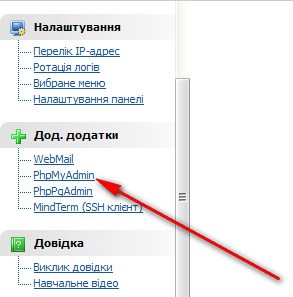
phpMyAdmin may be hidden, say, under a subsection 'Database Management', so carefully browse the control panel and find this application. Once found, we proceed directly to phpMyAdmin. You will see something like this:
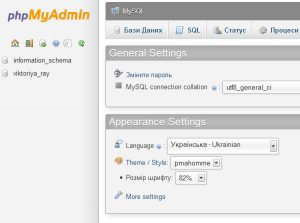
Here we have the ability to do everything we need with our databases, completely managing them. Now we need to find the database related to our blog. If you don't remember which database from the list (there can be several on the left side) is related to your resource, just check the wp-config.php file, where you wrote all this data.
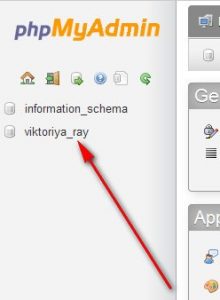
Find in this file the line:
define('DB_NAME', 'Your DB Name');
And select this database in phpMyAdmin.
Click on this database and you will see the complete structure, all the tables that we can modify. Right now we are interested in the tablewp_users.
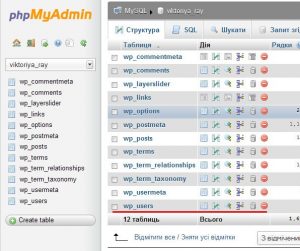
In this table, all users (if there are several) who have access to the blog management are recorded. Here is where we can change the password or delete a specific user — click on wp_users and the content of the entire table will open for us.
Here we need to edit the password. In the case of the blog I was working with, it was clear that besides the admin, another user was registered, and the owner told me that there should be only one user. It seems someone else was already there.
In the table, we need to click the pencil icon 'Edit' next to the username and change the password.
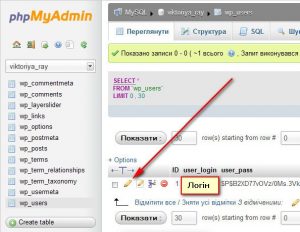
We will see the structure of this table, where we can view all the data related to this user. I won't go into detail on each entry — I'll just explain how to reset the password.
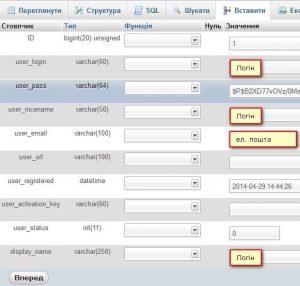
Currently, the password is encrypted using the MD5 method, so in the corresponding row we see incomprehensible characters.

To change password — we do the following: in the row user_pass we enter the new password in the password field, and in the field varchar (64) — we select the encryption method MD5.
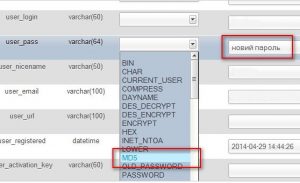
We make the changes and click the button “Next” at the very bottom and save the new password.
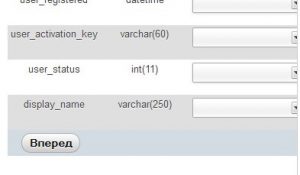
After saving all changes — the password you entered will again be in MD5, but it will be exactly as you need it. Now you can log into the blog dashboard with the new password.
Advice. NEVER use simple usernames admin and easy passwords — this will protect you from the unpleasant consequences of your resource being hacked. Change your access data to something more complex and 'strange'.
