

Many enterprises, especially in the CIS region, already have a well-established IT infrastructure in which management and user authentication often rely on tools like Microsoft's Active Directory. When these enterprises begin to plan the implementation of Zimbra Collaboration Suite, they often question whether ZCS can seamlessly fit into their infrastructure and utilize Microsoft AD for user authentication. Well, Zimbra is fully capable of working in conjunction with Active Directory, and now we will explain how to achieve this.
Let’s assume that in your enterprise's infrastructure, Active Directory is located in the domain domain.local, and Zimbra is intended to be installed on the domain mail.domain.com. During the integration of Zimbra and Active Directory, we will connect AD as an external LDAP for ZCS, and therefore we recommend immediately prohibiting users from changing their passwords. It's also worth noting that to verify the success of the integration between Zimbra and Active Directory, it is advisable to have at least one account with a known username/password pair for testing the successful connection of the two information systems. server Connecting AD to ZCS is done in the Zimbra admin console at
. Here, we will need to select the Configure option in the left sidebar, and then the sub-item Domains. In the list of domains, select the one we will use in tandem with AD, and by right-clicking on the selected domain, choose the ‘Configure Authentication’ option. After that, a dialog for configuring the external LDAP will appear on the screen, where we will ‘pair’ Zimbra with AD. mail.domain.comOn the Authentication Mode page, select the ‘External Active Directory’ option, after which, on the Authentication Settings page, enter the data for
with AD. You will need to enter the domain name, server IP address, and the port used to access AD, while the next page titled LDAP Bind should be left blank. server With AD. You will need to enter the domain name, the server IP address, and the port used to access AD, while we suggest leaving the next page titled LDAP Bind blank.
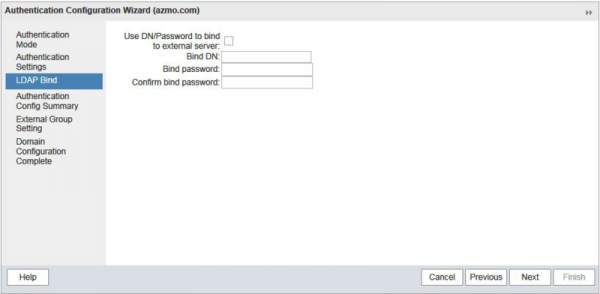
In the Authentification Config Summary window, you can verify the successful connection of Zimbra to AD by entering a valid username/password pair for any user. If the connection is successful, Zimbra will automatically calculate the Bind DN for that user. After this, you can leave the External Group Settings and Domain Configuration Complete pages unchanged. This completes the integration of Zimbra with AD, and we now need to create existing users from AD in Zimbra to successfully synchronize between the information systems.
If there are only a few accounts, this can be done manually, but if there are many accounts, it is best to automate this process using the Auto-provisioning feature. To do this, we will need to access the Zimbra server and perform a series of commands in the command line:
su zimbra
zmprov md domain.com zimbraAutoProvMode LAZY
zmprov md domain.com zimbraAutoProvLdapURL "ldap://domain.local:389"
zmprov md domain.com zimbraAutoProvLdapStartTlsEnabled FALSE
zmprov md domain.com zimbraAutoProvLdapAdminBindDn "zimbra@domain.local"
zmprov md domain.com zimbraAutoProvLdapAdminBindPassword PassworD
zmprov md domain.com zimbraAutoProvLdapSearchBase "ou=User,dc=domain,dc=local)"
zmprov md domain.com zimbraAutoProvLdapSearchFilter "(samAccountName=%u)"
zmprov md domain.com zimbraAutoProvLdapBindDn "%u@%d"
zmprov md domain.com zimbraAutoProvAccountNameMap sAMAccountName
zmprov md domain.com +zimbraAutoProvAttrMap "sn=sn" +zimbraAutoProvAttrMap "description=description" +zimbraAutoProvAttrMap "cn=displayName" +zimbraAutoProvAttrMap "givenName=givenName" +zimbraAutoProvAttrMap "zimbraMailAlias=mail"
zmprov md domain.com zimbraAutoProvNotificationFromAddress admin@domain.com
zmprov md domain.com zimbraAutoProvNotificationSubject "We are happy to welcome you aboard our mail server"
zmprov md domain.com zimbraAutoProvNotificationBody "Your account has been created automatically. Please read the email usage instructions by following this link"
zmprov md domain.com zimbraAutoProvBatchSize 20
zmprov md domain.com zimbraAutoProvAuthMech LDAP
zmcontrol restart
With this configuration, a user account will be automatically created on the Zimbra server at the first attempt to log in to the web client with the existing username/password pair. Note that in some cases, it may be necessary to change the port number from 389 to 3268 for auto-provisioning to work correctly.
After performing all these steps, your users will be able to log into their email on the Zimbra server using the username/password from AD, significantly simplifying IT infrastructure management for the enterprise.
Source: habr.com
