

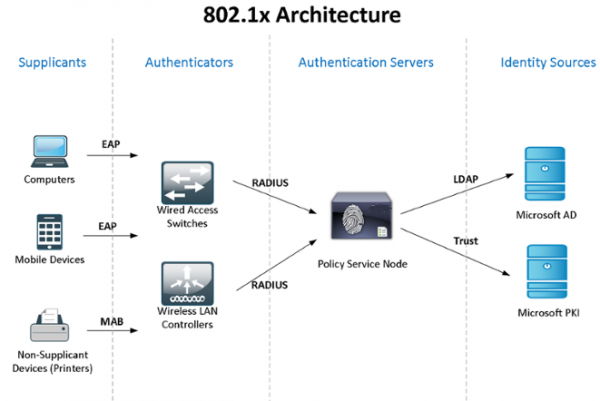
Let's explore the practical use of Windows Active Directory + NPS (2 servers for redundancy) + the 802.1x standard for access control and user authentication – domain computers – devices. You can familiarize yourself with the theory of the standard in Wikipedia, through the link:
Since my lab has limited resources, I will combine the roles of NPS and domain controller, but I recommend that you separate such critical services.
I am not aware of any standard ways to synchronize configurations (policies) for Windows NPS, so we will use PowerShell scripts that are triggered by the task scheduler (the author is my former colleague). For authenticating domain computers and for devices that cannot do so, 802.1x (phones, printers, etc.), a group policy will be configured and security groups will be created.
At the end of the article, I will discuss some nuances of working with 802.1x – how unmanaged switches, dynamic ACLs, etc. can be utilized. I will share information about encountered 'glitches'…
Let's start by installing and configuring failover NPS on Windows Server 2012R2 (it’s similar on 2016): through Server Manager -> Add Roles and Features Wizard, we only select Network Policy Server.
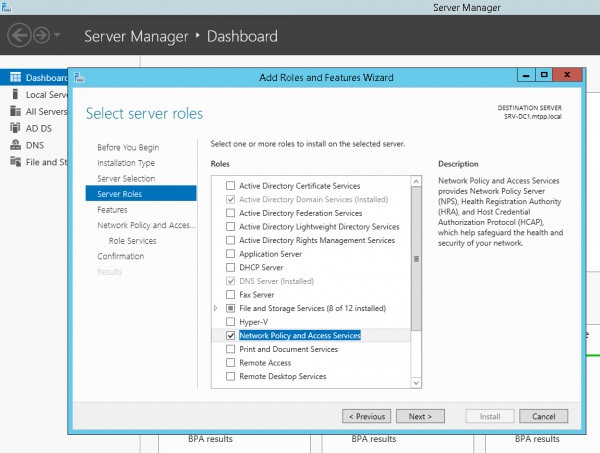
or using PowerShell:
Install-WindowsFeature NPAS -IncludeManagementToolsA small clarification – since for Protected EAP (PEAP) you will definitely need a certificate that confirms the authenticity of the server (with the appropriate rights for use), which will be on the trusted client computers, you will probably need to install the Certification Authority. But let's assume that CA it is already installed…
We will do the same on the second server. Create a folder for the script C:\Scripts on both servers and a network folder on the second server SRV2NPS-config$
On the first server, we will create a PowerShell script C:\Scripts\Export-NPS-config.ps1 with the following content:
Export-NpsConfiguration -Path "SRV2NPS-config$\NPS.xml"After that, we will set up a task in Task Scheduler: "Export-NpsConfiguration”
powershell -executionpolicy unrestricted -f "C:\Scripts\Export-NPS-config.ps1" Run for all users — Run with highest privileges
Daily — Repeat task every 10 minutes for 8 hours.
On the backup NPS, we will configure the import of the configuration (policies):
let's create a PowerShell script:
echo Import-NpsConfiguration -Path "c:\NPS-config\NPS.xml" >> C:\Scripts\Import-NPS-config.ps1and set a task to execute it every 10 minutes:
powershell -executionpolicy unrestricted -f "C:ScriptsImport-NPS-config.ps1" Run for all users — Run with highest privileges
Daily — Repeat task every 10 minutes for 8 hours.
Now, to verify, let's add a couple of switches in NPS on one of the servers (!) as RADIUS clients (IP and Shared Secret), two connection request policies: WIRED-Connect (Condition: “NAS Port Type – Ethernet”) and WiFi-Enterprise (Condition: “NAS Port Type – IEEE 802.11”), as well as the network policy Access Cisco Network Devices (Network Admins):
Conditions:
Windows Groups - domainsg-network-admins
Constraints:
Authentication methods - Clear text authentication (PAP, SPAP)
Attributes:
RADIUS Attributes: Standard - Service-Type - Login
Vendor-specific - Cisco-AV-Pair - Cisco - shell:priv-lvl=15
From the switches, the following settings:
aaa new-model
aaa local authentication attempts max-fail 5
!
!
aaa group server radius NPS
 server-private 192.168.38.151 auth-port 1812 acct-port 1813 key %shared_secret%
 server-private 192.168.10.151 auth-port 1812 acct-port 1813 key %shared_secret%
!
aaa authentication login default group NPS local
aaa authentication dot1x default group NPS
aaa authorization console
aaa authorization exec default group NPS local if-authenticated
aaa authorization network default group NPS
!
aaa session-id common
!
identity profile default
!
dot1x system-auth-control
!
!
line vty 0 4
 exec-timeout 5 0
 transport input ssh
 escape-character 99
line vty 5 15
 exec-timeout 5 0
 logging synchronous
 transport input ssh
 escape-character 99
After the configuration, in about 10 minutes, all clients policy parameters should appear on the backup NPS, and we will be able to authenticate on the switches using an Active Directory account that is a member of the domainsg-network-admins group (which we created in advance).
Let's proceed to configuring Active Directory – we will create group and password policies, and establish the necessary groups.
Group Policy Computers-8021x-Settings:
Computer Configuration (Enabled)
   Policies
     Windows Settings
        Security Settings
          System Services
     Wired AutoConfig (Startup Mode: Automatic)
Wired Network (802.3) Policies
NPS-802-1x
Name	NPS-802-1x
Description	802.1x
Global Settings
SETTING	VALUE
Use Windows wired LAN network services for clients	Enabled
Shared user credentials for network authentication	Enabled
Network Profile
Security Settings
Enable use of IEEE 802.1X authentication for network access	Enabled
Enforce use of IEEE 802.1X authentication for network access	Disabled
IEEE 802.1X Settings
Computer Authentication	Computer only
Maximum Authentication Failures	10
Maximum EAPOL-Start Messages Sent
Held Period (seconds)
Start Period (seconds)
Authentication Period (seconds)
Network Authentication Method Properties
Authentication method	Protected EAP (PEAP)
Validate server certificate	Enabled
Connect to these servers
Do not prompt user to authorize new servers or trusted certification authorities	Disabled
Enable fast reconnect	Enabled
Disconnect if server does not present cryptobinding TLV	Disabled
Enforce network access protection	Disabled
Authentication Method Configuration
Authentication method	Secured password (EAP-MSCHAP v2)
Automatically use my Windows logon name and password(and domain if any)	Enabled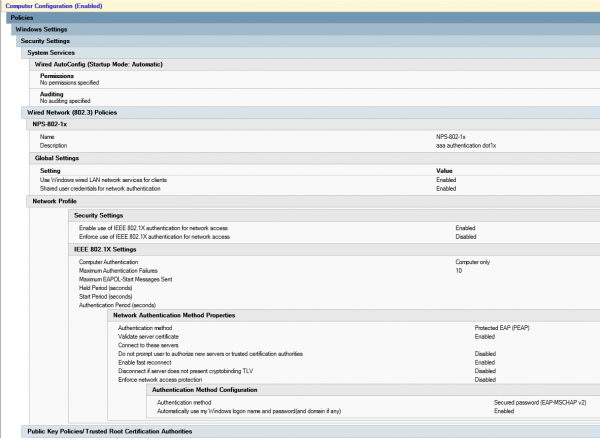
Let's create a security group sg-computers-8021x-vl100, where we will add the computers that we want to assign to VLAN 100 and configure filtering for the previously created group policy for this group:
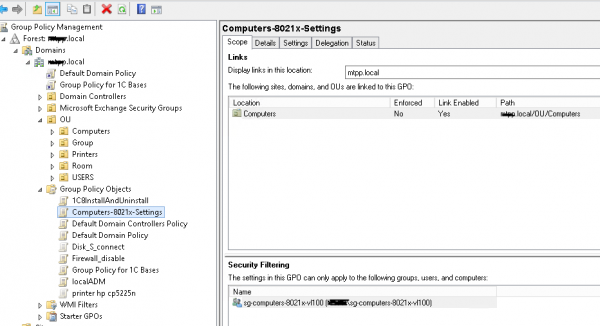
To verify that the policy has been applied successfully, open the “Network and Sharing Center (Network and Internet settings) – Change adapter settings (Configure adapter settings) – Adapter properties,” where we can see the “Authentication” tab:
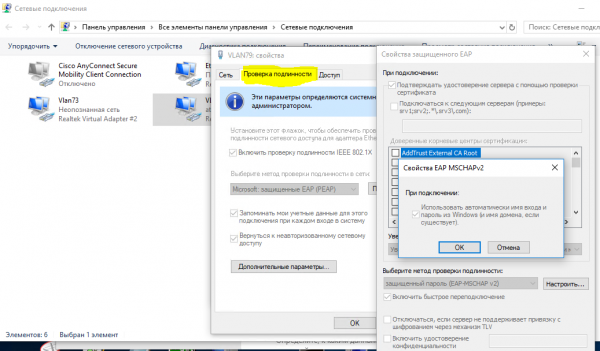
Once we have confirmed that the policy is being applied successfully, we can move on to configuring the network policy on the NPS and the access switch ports.
Let's create a network policy neag-computers-8021x-vl100:
Conditions:
  Windows Groups - sg-computers-8021x-vl100
  NAS Port Type - Ethernet
Constraints:
  Authentication Methods - Microsoft: Protected EAP (PEAP) - Unencrypted authentication (PAP, SPAP)
  NAS Port Type - Ethernet
Settings:
  Standard:
   Framed-MTU 1344
   TunnelMediumType 802 (includes all 802 media plus Ethernet canonical format)
   TunnelPrivateGroupId  100
TunnelType Virtual LANs (VLAN) 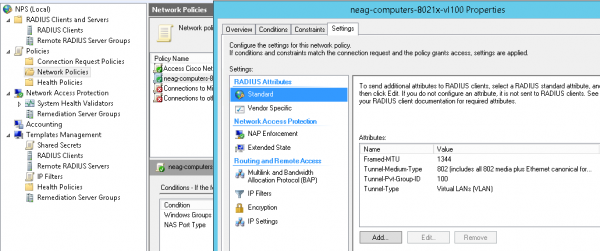
Typical settings for the switch port (note that a multi-domain authentication type is used – Data & Voice, and there is also the possibility of authentication by MAC address. During the “transition period,” it makes sense to use the parameters:
authentication event fail action authorize vlan 100
authentication event no-response action authorize vlan 100
the VLAN ID is not 'quarantine', but the same one that the user’s computer should enter upon successful authorization – until we ensure that everything works correctly. These parameters can also be used in other scenarios, for example, when an unmanaged switch is plugged into this port and you want all devices connected to it that have not passed authentication to enter a specific VLAN ('quarantine').
settings for the switch port in 802.1x mode host-mode multi-domain
default int range Gi1/0/39-41
int range Gi1/0/39-41
shu
des PC-IPhone_802.1x
switchport mode access
switchport nonegotiate
switchport voice vlan 55
switchport port-security maximum 2
authentication event fail action authorize vlan 100
authentication event no-response action authorize vlan 100
authentication host-mode multi-domain
authentication port-control auto
authentication violation restrict
mab
dot1x pae authenticator
dot1x timeout quiet-period 15
dot1x timeout tx-period 3
storm-control broadcast level pps 100
storm-control multicast level pps 110
no vtp
lldp receive
lldp transmit
spanning-tree portfast
no shu
exit
You can confirm that the computer/phone has been authenticated successfully with the command:
sh authentication sessions int Gi1/0/39 detNow let's create a group (for example, sg-fgpp-mab ) in Active Directory for phones and we'll add one device for testing (in my case, this is Grandstream GXP2160 with the MAC address 000b.82ba.a7b1 and the corresponding account domain 00b82baa7b1).
For the created group, we will lower the password policy requirements (using through Active Directory Administrative Center -> domain -> System -> Password Settings Container) with the following parameters Password-Settings-for-MAB:
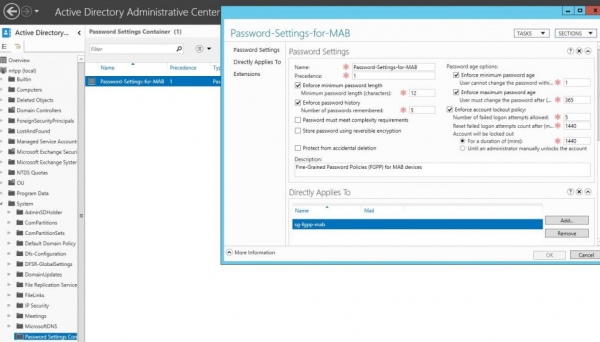
thus allowing the use of device MAC addresses as passwords. After this, we will be able to create a network policy for 802.1x authentication method mab, naming it neag-devices-8021x-voice. The parameters are as follows:
- NAS Port Type – Ethernet
- Windows Groups – sg-fgpp-mab
- EAP Types: Unencrypted authentication (PAP, SPAP)
- RADIUS Attributes – Vendor Specific: Cisco – Cisco-AV-Pair – Attribute value: device-traffic-class=voice
after successful authentication (let's not forget to configure the switch port), we will check the information from the port:
sh authentication se int Gi1/0/34
----------------------------------------
            Interface:  GigabitEthernet1/0/34
          MAC Address:  000b.82ba.a7b1
           IP Address:  172.29.31.89
            User-Name:  000b82baa7b1
               Status:  Authz Success
               Domain:  VOICE
       Oper host mode:  multi-domain
     Oper control dir:  both
        Authorized By:  Authentication Server
      Session timeout:  .N/A
         Idle timeout:  N/A
    Common Session ID:  0000000000000EB2000B8C5E
      Acct Session ID:  0x00000134
               Handle:  0xCE000EB3

Runnable methods list:
       Method   State
       dot1x    Failed over
       mab      Authc Success
Now, as promised, let's look at a couple of not-so-obvious situations. For example, we need to connect user computer devices through an unmanaged switch. In this case, the port settings for it will look like the following:
switch port settings in 802.1x host-mode multi-auth
interface GigabitEthernet1/0/1
description *SW – 802.1x – 8 mac*
shu
switchport mode access
switchport nonegotiate
switchport voice vlan 55
switchport port-security maximum 8  ! increasing the number of allowed MAC addresses
authentication event fail action authorize vlan 100
authentication event no-response action authorize vlan 100
authentication host-mode multi-auth  ! – authentication mode
authentication port-control auto
authentication violation restrict
mab
dot1x pae authenticator
dot1x timeout quiet-period 15
dot1x timeout tx-period 3
storm-control broadcast level pps 100
storm-control multicast level pps 110
no vtp
spanning-tree portfast
no shu
P.S. I've noticed a very strange glitch – if a device was connected through such a switch and then plugged into a managed switch, it will NOT work until we restart (!) the switch. I have not found any other solutions to this problem.
Another point related to DHCP (if ip dhcp snooping is used) – without such options:
ip dhcp snooping vlan 1-100
no ip dhcp snooping information option
For some reason, the IP address cannot be obtained correctly... although this may be a feature of our DHCP server.
Additionally, Mac OS & Linux (which have native support for 802.1x) attempt to authenticate the user, even if authentication by MAC address is configured.
In the next part of the article, we will discuss the application of 802.1x for Wireless (depending on the group to which the user's account belongs, we will 'place' them in the corresponding network (VLAN), even though they will connect to a single SSID).
Source: habr.com
