

Hello everyone! In my , I promised to talk about running Docker in Docker and the practical aspects of this endeavor. It's time to fulfill my promise. An experienced DevOps engineer might argue that those who need Docker inside Docker simply pass the Docker daemon's socket from the host into the container, and that suffices in 99% of cases. But don't rush to throw cookies at me, as this will be about the actual running of Docker inside Docker. This solution has many possible areas of application, and this article will discuss one of them, so make yourself comfortable and stretch out your hands.

Beginning
It all started on a rainy September evening when I was cleaning a $5 machine rented on Digital Ocean, which had completely frozen because Docker filled up all 24 gigabytes of available disk space with its images and containers. The irony was that all these images and containers were transient and only needed to test the functionality of my application every time a new version of a library or framework came out. I tried writing shell scripts and setting up cron schedules to clean up the junk, but that didn't help: each time it inevitably ended with my server's disk space being consumed and the server freezing (at best). At some point, I stumbled upon an article about running Jenkins in a container and how it could create and delete build pipelines through a passed Docker daemon socket. I found the idea appealing but decided to go further and experiment with directly running Docker inside Docker. At that time, it seemed quite logical to me to pull Docker images and create containers for all the applications I needed for testing inside another container (let's call it the staging container). The idea was to run the staging container with the -rm flag, which automatically removes the entire container with all its contents when it stops. I dug into the Docker image from Docker itself (), but it turned out to be too cumbersome and I couldn't get it to work the way I needed, and I wanted to go through the entire process myself.
Practice. Setbacks
I set out to make the container work the way I needed it to and continued my experiments, resulting in countless setbacks. The outcome of my self-inflicted trials was the following algorithm:
Starting the Docker container in interactive mode.
docker run --privileged -it docker:18.09.6Note the version of the container; a step to the right or left, and your DinD turns into a pumpkin. In fact, things break fairly often with new releases.
We need to land in the shell right away.Let's try to see which containers are running (Answer: none), but let's execute the command anyway:
docker psYou might be a bit surprised, but it turns out the Docker daemon isn't even running:
error during connect: Get http://docker:2375/v1.40/containers/json: dial tcp: lookup docker on
192.168.65.1:53: no such host
Let's start it ourselves:
dockerd &Another unpleasant surprise:
failed to start daemon: Error initializing network controller: error obtaining controller instance: failed to create NAT chain DOCKER: Iptables not foundInstalling the iptables and bash packages (it's definitely more pleasant to work in bash than in sh):
apk add --no-cache iptables bashLaunching bash. Finally, we're back in a familiar shell.
Let's try to start Docker again:
dockerd &We should see a long stream of logs ending with:
INFO[2019-11-25T19:51:19.448080400Z] Daemon has completed initialization
INFO[2019-11-25T19:51:19.474439300Z] API listen on /var/run/docker.sock
Press Enter. We're back in bash.
From this point on, we can try running other containers inside our Docker container, but what if we want to spin up another Docker container inside our Docker container or something goes wrong and the container 'crashes'? Starting all over again.
Custom DinD container and new experiments
To avoid repeating the above steps over and over again, I created my own DinD container:
A working DinD solution allowed me to run Docker inside Docker recursively and conduct bolder experiments.
One such (successful) experiment with running MySQL and Node.js I'm about to describe.
The most impatient can see how it went down here
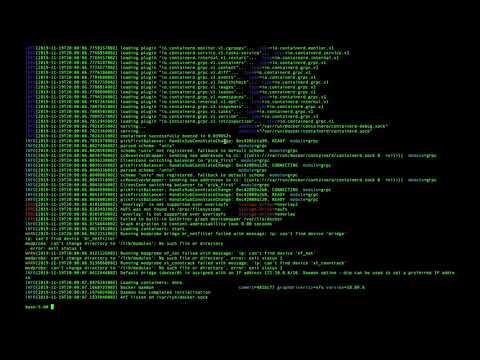
So, let's get started:
Starting DinD in interactive mode. In this version of DinD, we need to manually map all the ports that our child containers might use (I'm already working on this).
docker run --privileged -it
-p 80:8080
-p 3306:3306
alekslitvinenk/dind
We enter the shell from where we can immediately start launching child containers.
Starting MySQL:
docker run --name mysql -e MYSQL_ROOT_PASSWORD=strongpassword -d -p 3306:3306 mysqlWe connect to the database just like we would connect to it locally. We ensure everything is working.
Starting the second container:
docker run -d --rm -p 8080:8080 alekslitvinenk/hello-world-nodejs-serverNote that the port mapping here will be exactly 8080:8080, as we have already mapped port 80 from the host to the parent container to port 8080.
We go to localhost in the browser and make sure the server responds with "Hello World!".
In my case, the experiment with nested Docker containers turned out to be quite positive, and I will continue to develop the project and use it for staging. I think it's a much more lightweight solution than Kubernetes and Jenkins X. But that's my subjective opinion.
I think that's all for today's article. In the next article, I will detail my experiments with recursively running Docker in Docker and mounting directories deep into nested containers.
P.S. If you find this project useful, please give it a star on GitHub, fork it, and tell your friends.
Edit1 I fixed errors and focused on 2 videos.
Source: habr.com
