

Just before the holidays, we released the much-anticipated 3CX V16 Update 4! We also have a new universal MCU name for 3CX WebMeeting and new types of storage for 3CX backups and call recordings. Let's look at everything in order.
3CX V16 Update 4
The latest update for 3CX offers a choice of audio devices in the web client, the final release of the 3CX extension for Chrome, and new types of backup storage. Additionally, Update 4 features several stability and security improvements made by developers during the testing phase.
, the update introduces a 3CX extension for Google Chrome, implementing a browser-based VoIP softphone. The final version of the extension has already been published in . The web softphone allows you to receive call notifications even if the browser is minimized or completely closed, and it intercepts clicks on numbers on web pages—dialing them directly or through a connected IP phone.
In the Chrome Store, search for the term '3CX' and install the extension in your browser. Then log in to your 3CX web client account and click 'Activate 3CX Extension for Chrome.' The extension requires 3CX V16 Update 4 and Google Chrome V78 or higher. If you have the old 3CX Click to Call extension installed, you need to disable it. Users with V16 Update 3 or earlier versions must first install Update 4, and then refresh the page with the open web client to see the option to activate the extension.
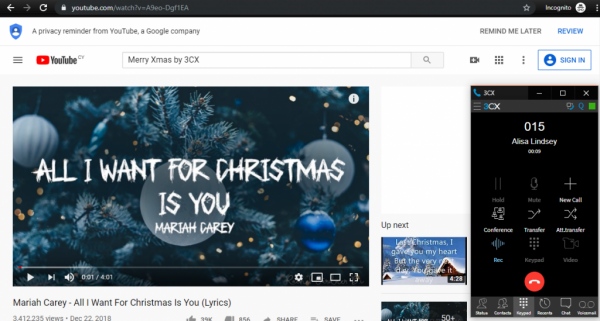
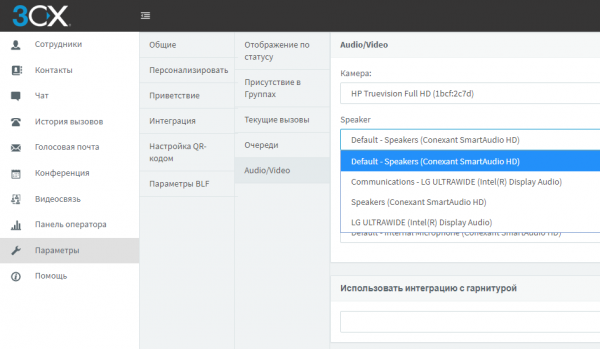
Update 4 also features a choice of PC audio devices in the 3CX web client (and, accordingly, in the Chrome extension). You can select audio devices for 'Speaker' (where you hear the voice) and 'Speakerphone' (where you hear the call). This is very convenient if you are using a headset—now you can output calls to external speakers and hear incoming calls. The selection of audio devices is made in the web client under 'Settings' > 'Personalization' > 'Audio/Video'.
The update installation is done as usual—go to the 'Updates' section in the 3CX interface, select 'v16 Update 4,' and click 'Download Selected.'
You can also install a clean distribution of v16 Update 4:
- Windows: .
- Linux: – on the screen '» select 'Stable.'
Full in this version.
Unified FQDN for 3CX WebMeeting
This week, we also made a useful improvement that system administrators will appreciate — a universal network name for the 3CX WebMeeting service — "mcu.3cx.net". If you have a secure network, you can open only this FQDN in your firewall settings. There's no need to know and open each IP address separately. The new FQDN is also convenient for prioritizing traffic between you and the WebMeeting service.
You can find out which addresses correspond to "mcu.3cx.net" with the standard command nslookup mcu.3cx.net.
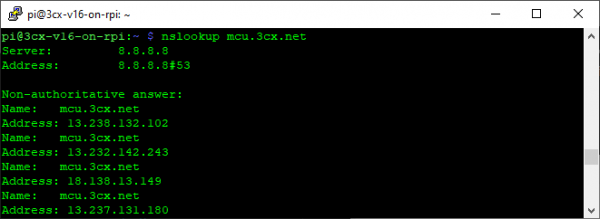
If a server is temporarily unavailable, its IP address will be automatically removed from the list.
New types of supported storage for call recording
We also want to draw your attention to the new types of supported storage for call recordings introduced in v16 Update 4 Beta. These include SFTP, Windows Shares, and Secure FTP (FTPS & FTPES). The 3CX server can now integrate into a network environment supporting a variety of technologies. For example, SSH (Secure SHell) is one of the most popular file transfer protocols on the internet, supported by various platforms and providing cryptographic protection for data.
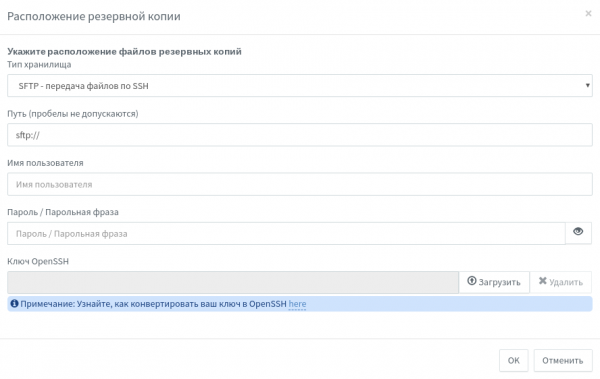
To use the SSH server, go to the Backup > Location section and specify the path and credentials (or OpenSSH server key). If you need to create or convert an OpenSSH key, refer to this . The setup of your own OpenSSH server is described .
The SMB protocol is well known to all Windows administrators. It is also successfully supported on NAS devices, Raspberry Pi, Linux, and Mac (Samba).
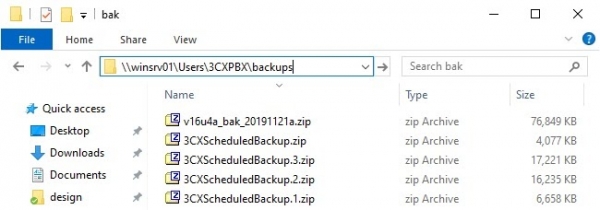
Using it is just as simple — just specify the SMB share path and access credentials.
By the way, if you need to sync backups or call recordings between several servers, we recommend using the Linux rsync utility. More about its use can be found in article.
Source: habr.com
