


Sometimes you need to quickly set up monitoring for a new service, but there is no ready infrastructure/expertise at hand. In this guide, we will create a tool for monitoring any web services in half an hour using only built-in Ubuntu tools: bash, cron, and curl. We will use telegram for delivering notifications.
The 'cherry on top' will be the emotional engagement of users. Tested on people - it works.
When we created a chatbot for assessing users' stress levels at the telemedicine service Doctor Nearby, we needed monitoring. A mini-project was completed in just a couple of hours that not only works great but also adds positivity with its messages.
First, let's get the repository with the scripts:
git clone https://github.com/rshekhovtsov/msms.gitNavigate to the msms folder and continue working there.
If telegram is blocked, use a proxy. The simplest and most reliable option is torsocks:
sudo apt install tor
sudo apt install torsocks
As an example, let's configure monitoring for the homepage of google.com in three steps
STEP 1. Create a bot in telegram and get the user ID
- In the contact search bar in telegram, search for :

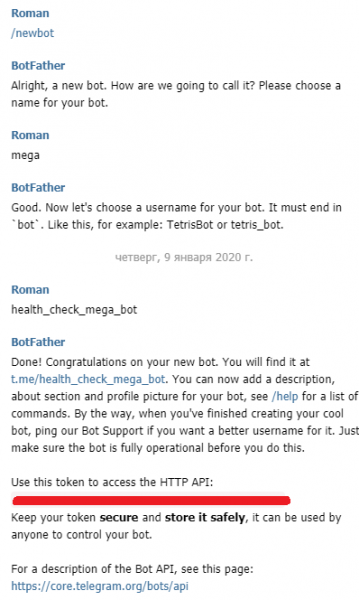
- Launch it using the Start button, enter the command /newbot, and answer the questions. Keep in mind that name is the bot's name, which will be displayed to users, and username is unique and must end with 'bot':

Among other things, the bot will provide a secret token for the HTTP API, which you need to copy and save in the file telegram-api-key.txt in the msms folder. - Type the name of our bot in the telegram search bar and launch it.
- As a final touch, let's add ourselves to the list of monitoring notification recipients:
sudo chmod +x ./recipients-setup.sh
torsocks ./recipients-setup.sh
The script will output a list of the last accesses to the bot; there should be one line with our ID and name in telegram. Take this ID and save it in the file services/google-recipients.txt. The format of the file: each line contains one ID. Example:
123456789
987654321

To add a new recipient, you need to ask them to start the bot in telegram, run recipients-setup.sh, and add the ID to the file.
STEP 2. Set up monitoring
Describing the service is done by creating an ini file in the services folder. You need to specify five parameters:
- MSMS_SERVICE_NAME: service name - will be used in notifications and the monitoring log.
- MSMS_SERVICE_ENDPOINT: the service endpoint we will access via curl.
- MSMS_CURL_PARAMS: additional curl parameters, see the example below.
- MSMS_EXPECTED: the expected response from the service. Used if the response is short.
- MSMS_EXPECTED_FILE: the filename with the expected response from the service. If specified, it overrides MSMS_EXPECTED.
- MSMS_RECIPIENTS: the file containing the list of notification recipients.
A request to google.com returns fixed HTML with a redirect; we will use it as the expected server response:
curl google.com > services/google-response.htmlLet's create the file services/google.ini:
MSMS_SERVICE_NAME='google front page'

# service endpoint
MSMS_SERVICE_ENDPOINT='google.com'

# curl parameters
MSMS_CURL_PARAMS='-s --connect-timeout 3 -m 7'

# expected service response
MSMS_EXPECTED_FILE='google-response.html'

# recipients list file
MSMS_RECIPIENTS='google-recipients.txt'
In MSMS_CURL_PARAMS you can specify everything that curl is capable of, including:
- Disable curl messages to avoid cluttering the console and logs:
-s - Set the connection timeout with the service being checked (in seconds):
--connect-timeout 3 - Set the response timeout:
-m 7 - Disable SSL certificate verification (for instance, if a self-signed certificate is used):
--insecure - Specify the HTTP request type:
-X POST - Specify the headers:
-H "Content-Type: application/json" - Specify the request body as a string or a file. Example for a file:
-d @request.json
We have disabled notifications and set timeouts of 3 seconds for connection and 7 seconds for obtaining the response from the service.
Attention: specify parameter values in single quotes, as in the example. Unfortunately, bash can be quite fragile in this respect, and a butterfly that accidentally flutters in the wrong place can lead to universe-ending, hard-to-diagnose errors.
We have set up monitoring. Let's check that everything is OK:
sudo chmod +x ./monitoring.sh
torsocks ./monitoring.sh
The script should output a message like:
2020-01-10 12:14:31
health-check "google front page": OK
STEP 3. Configuring the schedule
Let's configure the monitoring schedule in cron:
sudo crontab -eAdd a line for checking google.com every minute:
*/1 * * * * torsocks /monitoring.sh >> /monitoring.log 2>&1Add a daily notification at 11:00 confirming the monitoring is functioning. To do this, we pass the parameter DAILY to the script:
0 11 * * * torsocks /monitoring.sh DAILY >> /monitoring.log 2>&1
2>&1 — a standard method that redirects errors to the main output stream. As a result, they will also be included in the monitoring log.
Let's save the changes and apply them with the team:
sudo service cron reloadYou can read more about configuring cron, for example, .
Thus, a monitoring script will run every minute, which will use curl to access google.com. If the received response differs from the expected one, the script will send a notification to the recipient list via Telegram. The check log is maintained in the file monitoring.log.
If you need to add another service, we simply create a new ini-file for it in the services folder and, if necessary, form a separate recipient list. Everything else will work automatically.
If the monitored service becomes unavailable, notifications will be sent every minute. If it is not possible to quickly restore the service, you can temporarily disable notifications in the bot's properties in Telegram.
Now let's take a closer look at the additional capabilities and implementation of scripts.
Message templates and emotional engagement
To make communication with the bot more lively, we named it Manya, added a corresponding avatar picture and engaged professional PR specialists to create the text messages. You can use our developments or change them to your liking.
For example, like this:

or even like this:

Why not?
The bot's name and avatar are set through .
Message templates are located in the folder templates:
- curl-fail.txt: a message sent when curl returns a non-zero error code. This usually indicates an inability to reach the service.
- daily.txt: a daily message confirming that the service monitoring is working.
- service-fail.txt: a message sent when the service response differs from the expected one.
Let's explore customization options using the built-in message templates as an example.
The templates use emojis. Unfortunately, habr does not display them.
For selecting emojis, it is convenient to use the search at :
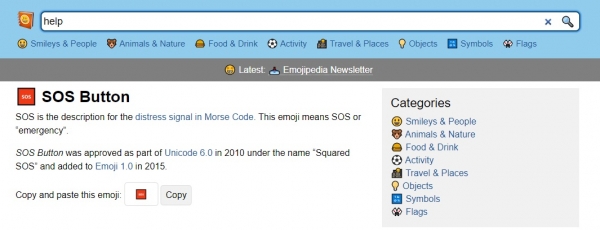
Simply copy the suitable symbol and paste it into the template text (this is regular unicode).
- curl-fail.txt:
Kitten, help me...
I can't reach the service "$MSMS_SERVICE_NAME"
`CURL EXIT CODE: $EXIT_CODE`
We used the service name we defined (variable
MSMS_SERVICE_NAME) and the internal variable of the script with the curl exit code (EXIT_CODE). We also formatted the message using markup : The characters "`" wrap fixed-width text. Since quotes and apostrophes are special characters in bash, we escape them with the "" symbol. Variable names are prefixed with the "$" sign.Result:

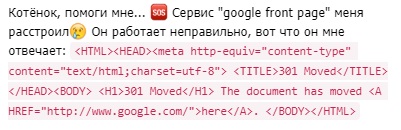
- service-fail.txt:
Kitten, help me...
The service "$MSMS_SERVICE_NAME" has disappointed me.
It is not working correctly, here’s what it replies:
`$RESPONSE`
Result:

Here we use another script variable:RESPONSE. It contains the service's response. - daily.txt:
Baby, hello!
I’m doing well, keeping an eye on the service:
"$MSMS_SERVICE_NAME" every minute...
How are you doing?
Result:



Let's move on to the implementation of scripts.
Monitoring script
monitoring.sh performs a simple auto-discovery — it takes all ini-files from the services folder and executes the main script with the logic of checking and sending notifications for each one:
#!/bin/bash
cd $(dirname "$0")/services

for service_ini  in $(ls *.ini); do
    bash ../msms.sh "$1" "$service_ini"
done
To generate a daily status message for monitoring, the script can be passed the DAILY parameter.
Note that when the script starts, the current folder changes to services. This allows specifying file paths in ini files relative to services.
The script for checking and sending notifications
msms.sh contains the main logic for checking the service and sending notifications.
Working with Telegram:
# telegram endpoint
TG_API_URL="https://api.telegram.org/bot$(cat ../telegram-api-key.txt)/sendMessage"

#################################################################
# send message to telegram
# parameter: message text
#################################################################
function send_message {
    for chat_id  in $(cat ../$MSMS_RECIPIENTS); do
	curl -s -X POST --connect-timeout 10 $TG_API_URL -d chat_id=$chat_id -d parse_mode="Markdown" -d text="$1"
	echo
    done
}
We form a URL to access the Telegram REST API, using the secret key saved in the file.
The send_message function uses curl to send messages to this REST API, taking the recipient IDs from the file we specified in ini. In the data being sent, we indicate that we are using message formatting: parse_mode="Markdown".
Let’s output the current date-time and load the ini file.
echo $(date '+%Y-%m-%d %H:%M:%S')

# load variables from .ini file:
. $2
The magical line . $2 executes the ini file passed as the second parameter as a regular script, assigning the specified values to environment variables.
Let's load the expected response from the file if the parameter is specified MSMS_EXPECTED_FILE:
if [ -n "$MSMS_EXPECTED_FILE" ]; then
 MSMS_EXPECTED="$(cat "$MSMS_EXPECTED_FILE")"
fi
Let’s perform the service check with notifications if needed:
RESPONSE="$(eval curl $MSMS_CURL_PARAMS "$MSMS_SERVICE_ENDPOINT")"
EXIT_CODE=$?
if [[ $EXIT_CODE != 0 ]]; then
    echo health-check "$MSMS_SERVICE_NAME" FAILED: CURL EXIT WITH $EXIT_CODE
    MESSAGE="$(cat ..\/templates\/curl-fail.txt)"
    MESSAGE=$(eval echo $MESSAGE)
    send_message "$MESSAGE"
elif [[ "$RESPONSE" != "$MSMS_EXPECTED" ]]; then
    echo health-check "$MSMS_SERVICE_NAME" FAILED: "$RESPONSE"
    MESSAGE="$(cat ..\/templates\/service-fail.txt)"
    MESSAGE=$(eval echo $MESSAGE)
    send_message "$MESSAGE"
else
    echo health-check "$MSMS_SERVICE_NAME": OK
fi
First, we assign to the variable RESPONSE the result of executing the curl command for this service.
Expression EXIT_CODE=$? stores the result of the last command execution, i.e., curl. If a notification needs to be sent, the template is read from the corresponding file and sent to recipients using send_message.
The last block processes the DAILY parameter:
if test "$1" = "DAILY"; then
    echo health-check "$MSMS_SERVICE_NAME" DAILY
    MESSAGE="$(cat ..\/templates\/daily.txt)"
    MESSAGE=$(eval echo $MESSAGE)
    send_message "$MESSAGE"
fi
It sends a message confirming the functionality of the monitoring itself.
Fetching the list of user ids
recipients-setup.sh calls the Telegram API to get the latest messages directed at the bot:
curl -s https://api.telegram.org/bot$(cat telegram-api-key.txt)/getUpdates
| python recipients-setup.py
Here, Python magic is used for nicely formatting the output list. This is optional; you can simply take the needed id from the json outputted by the command:
torsocks curl -s https://api.telegram.org/bot$(cat telegram-api-key.txt)/getUpdatesConclusion
Thus, you can use ready-made scripts and message templates, only configuring the services being monitored and the lists for notifications; you can create a new 'identity' for the bot; or you can make your own solution based on the suggested one.
As options for further development, configuring and managing the monitoring within the bot itself is suggested, but here Python cannot be avoided. If someone gets around to it before I do — you know where to submit a pull request 🙂
Source: habr.com
