

It was probably easy to review the first e-readers with 'e-ink' screens. A couple of phrases were enough: 'The body shape is rectangular. What it can do — display letters.'
Now, writing a review is not that easy: the e-readers have acquired touch screens, adjustable color temperature lighting, word translation capabilities, internet access, audio output, and the ability to install additional applications.
Moreover, with the most advanced e-readers, you can not only read but also write and even draw!
This review will focus on such a fully-featured e-reader.
Meet — ONYX BOOX Note 2:
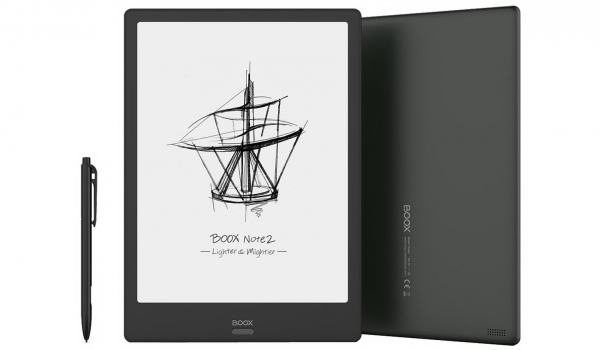
(image from the manufacturer's official website)
Before proceeding with the review, I will take a moment to discuss the screen size of the ONYX BOOX Note 2, which is 10.3 inches.
This screen size allows for comfortable reading of books not only in standard formats (mobi, fb2, etc.) but also in PDF and DjVu formats, where the page content is rigidly defined and cannot be reformatted 'on the fly' (hence, for readability of small fonts, the physically large screen size is essential).
Technical Specifications of the ONYX BOOX Note 2 Reader
The foundation on which we will base our review is the technical specifications of the device.
The most significant of them are as follows:
- screen size: 10.3 inches;
- screen resolution: 1872×1404 (4:3);
- screen type: E Ink Mobius Carta, with SNOW Field functionality;
- backlight: MOON Light+ (with adjustable color temperature);
- touch sensitivity: yes, capacitive + inductive (stylus);
- processor*: 8-core, 2 GHz;
- RAM: 4 GB;
- internal memory: 64 GB (available 51.7 GB);
- audio: stereo speakers, microphone;
- wired interface: USB Type-C with OTG support;
- wireless interface: Wi-Fi IEEE 802.11ac, Bluetooth 4.1;
- supported file formats ('out of the box')**: TXT, HTML, RTF, FB2, FB2.zip, DOC, DOCX, PRC, MOBI, CHM, PDB, DOC, EPUB, JPG, PNG, GIF, BMP, PDF, DjVu, MP3, WAV, CBR, CBZ
- operating system: Android 9.0.
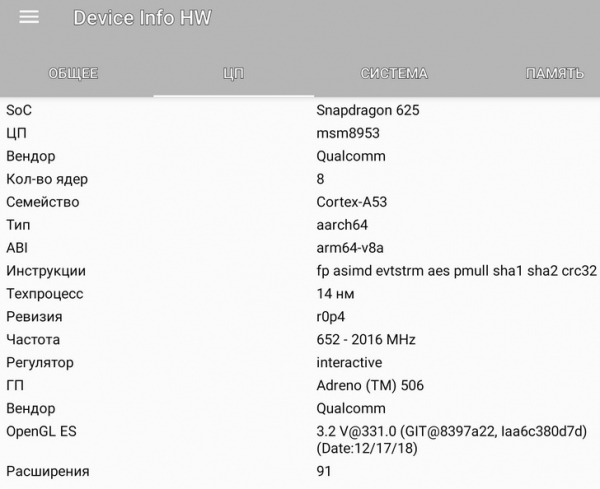
* As subsequent testing will show, this e-reader employs an 8-core Qualcomm Snapdragon 625 chip with core speeds of up to 2 GHz.
** Thanks to the Android operating system, it is possible to open any file types for which compatible applications exist in this OS.
All specifications can be viewed on the (under the 'Specifications' tab).
The feature of modern e-reader screens based on 'electronic ink' (E Ink) is their operation in reflected light. Thanks to this, the higher the external lighting, the better the image is visible (unlike smartphones and tablets). Reading on e-books (readers) is possible even in direct sunlight, making for a very comfortable experience, especially since these screens have 'absolute' viewing angles (like real paper).
E-books with 'electronic ink' screens that also have additional backlighting possess their own positive features.
Their backlighting is not arranged behind the screen (i.e., not through the screen like on smartphones and tablets), but in the front layer of the screen. As a result, external light and backlighting complement each other rather than compete. This kind of backlighting enhances screen perception in medium and low external lighting.
A few words about the processor.
The Qualcomm Snapdragon 625 processor used here is very powerful for applications in e-books. Its application is quite justified, as it needs to manage a screen with a very high resolution and open PDF and DjVu files that can be tens or hundreds of megabytes in size.
Interestingly, this processor was originally developed for smartphones and was one of the first mobile processors using a 14-nm process technology. This earned it a reputation as an energy-efficient and simultaneously high-performance processor.
Packaging, Contents, and Design of the ONYX BOOX Note 2 E-Reader
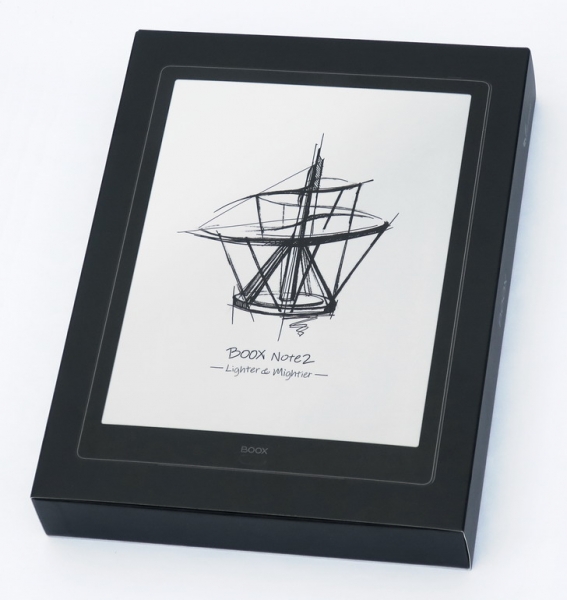
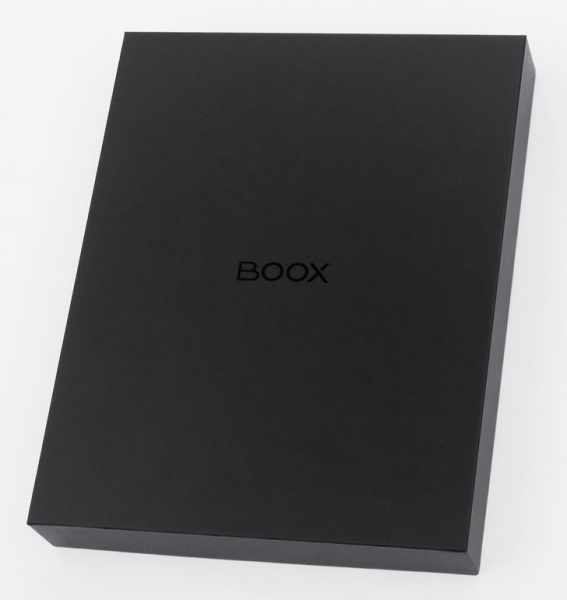
The packaging of the reader is hefty and solid, befitting its contents.
The main part of the packaging is a dark box made of sturdy cardboard with a lid, additionally secured with an outer wrap of thin cardboard:
 |  |
The reader's kit includes a USB Type-C cable, a stylus, a protective film, and a set of 'papers':
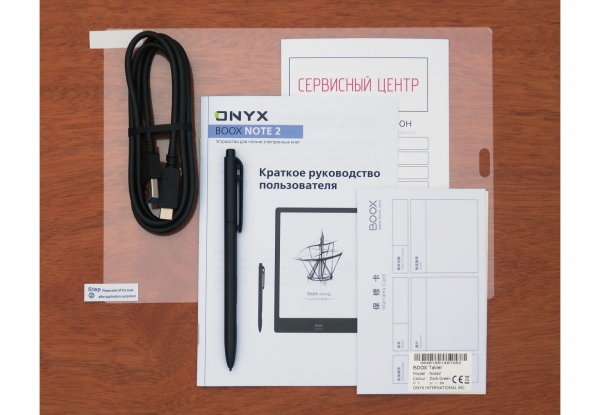
There is no charger included: it seems it is reasonably assumed that standard 5-volt chargers are more than abundant in every home. However, to get ahead of myself, it's worth noting that not any charger will do, but only one with an output current of at least 2 A.
Now it's time to take a look at the reader itself:
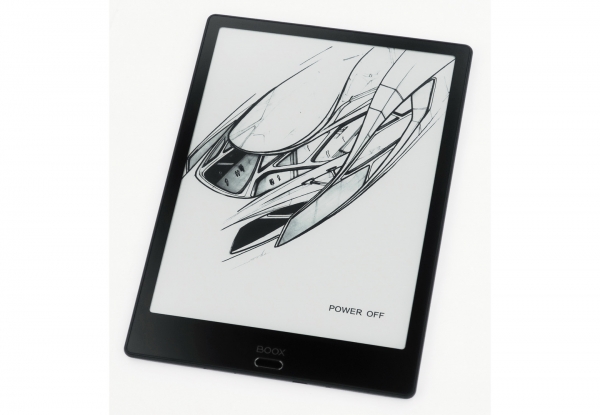
The screen is positioned flush with its own frame instead of recessed. This makes it convenient to interact with elements located near the edges (the frame does not obstruct finger actions).
Below the screen is a single mechanical button for controlling the reader. A short press functions as the 'back' button, while a long press toggles the backlight on and off.
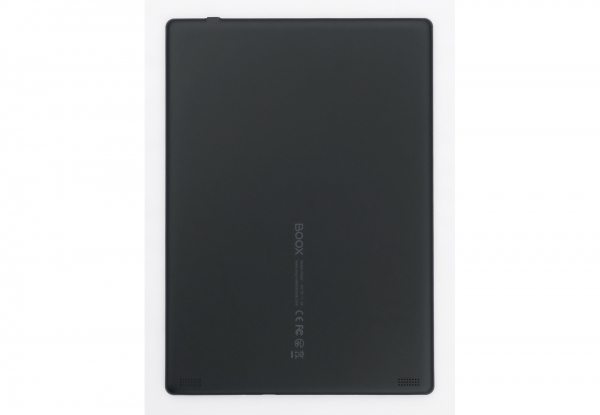
On the back of the reader, at the bottom, are the grilles of the stereo speakers:
On the bottom edge of the reader is a multifunction USB Type-C port, a microphone hole, and a couple of screws securing the construction:
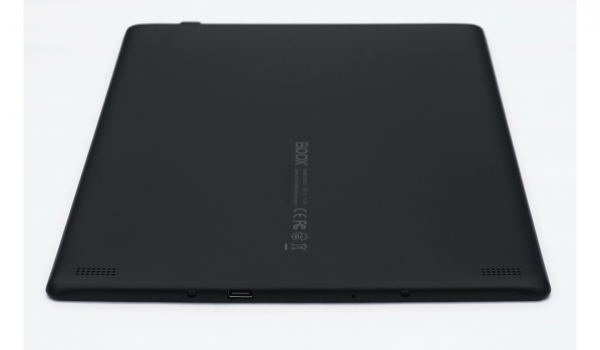
The multifunctionality of the USB Type-C port on the reader lies in the fact that, in addition to standard functions (charging and connecting to a computer), it can operate in USB OTG mode. This means you can connect USB flash drives and other storage devices via an adapter cable; it can also charge other devices from the reader (in emergency situations). Verified: both functions work!
The current delivered while charging my phone from the reader was 0.45 A.
In principle, you can connect even a mouse and keyboard through the USB OTG port, but I doubt anyone would do that (Bluetooth would be more convenient).
On the top edge is the power-sleep button:
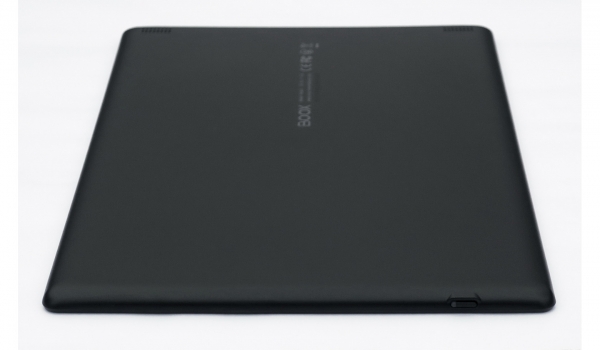
The button is equipped with an indicator that lights up red while charging the reader and blue during its boot process.
Now, let's move from examining the reader's exterior to its hardware and versatile functionality.
Hardware and software of the ONYX BOOX Note 2
First thing after turning on the reader, we check for any new firmware updates (in this reader, they are installed 'over the air', i.e., via Wi-Fi). This is necessary to avoid dealing with issues that have long been resolved.
In this case, the check indicated there was fresh firmware from December 2019:
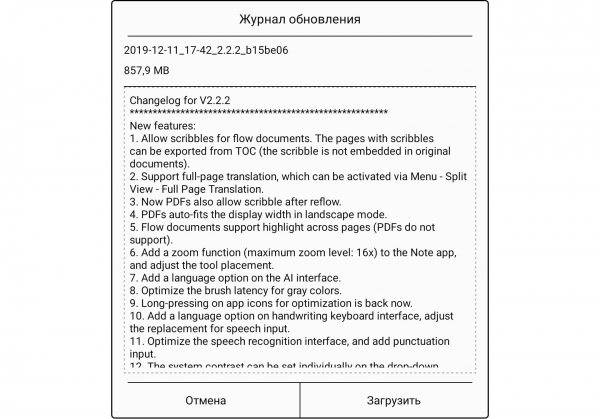
This firmware was successfully installed, and all subsequent operations were carried out under this firmware.
To monitor the hardware of the reader, the Device Info HW application was installed, which confirmed the data claimed by the manufacturer:
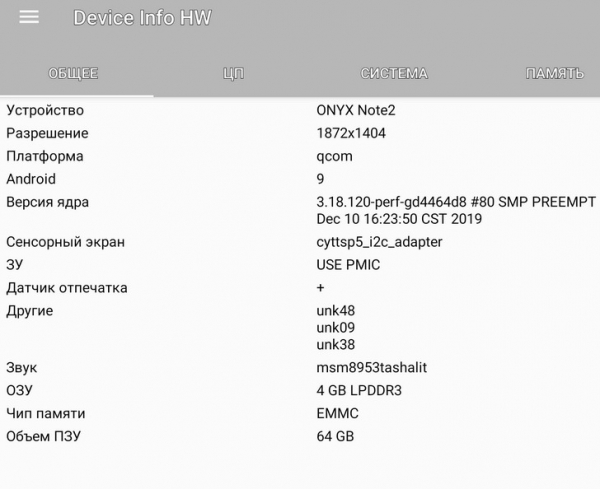 |  |
Thus, the reader operates on Android version 9.0 (Pie) — already not the latest, but still quite relevant today.
However, when using the reader, it can be quite difficult to find familiar Android elements: the manufacturer has developed a custom interface focused on reading books and documents. But it's not complex at all: by navigating through the menu items, one can easily figure out what is what.
This is what the settings page looks like:
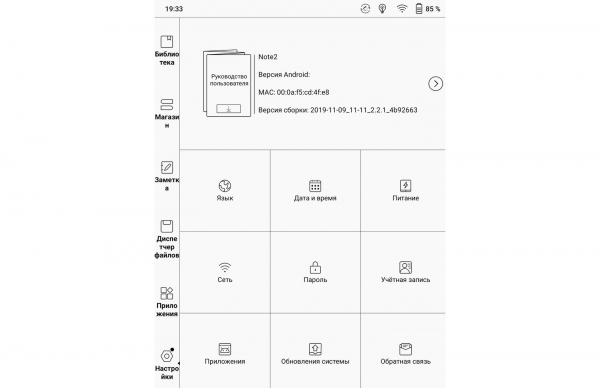
There are no reading settings (margins, fonts, orientation, etc.) here; they are located in the reading app (Neo Reader 3.0).
By the way, here’s the list of pre-installed apps by the manufacturer:
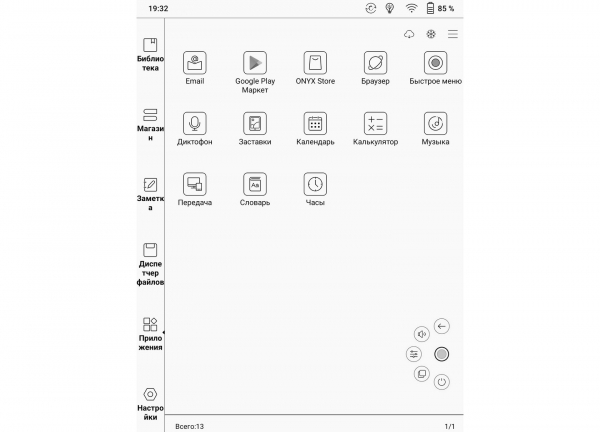
Some applications here need further explanation.
The Play Market app is installed here but not activated. To activate it, if the user wishes to use this app store, a few simple steps must be taken, after which they will need to wait about half an hour (i.e., activation does not happen instantly).
However, the Play Market may not be necessary for the user. The fact is that many applications in the Play Market are not optimized for e-books, and the user will have to experiment themselves to see whether the app works smoothly, has issues, or doesn't work at all.
As an alternative to the Play Market, the reader has the ONYX Store with applications that have been fairly checked for compatibility with e-books.
Here is an example of one of the sections ('Tools') in this app store (which is free, by the way):
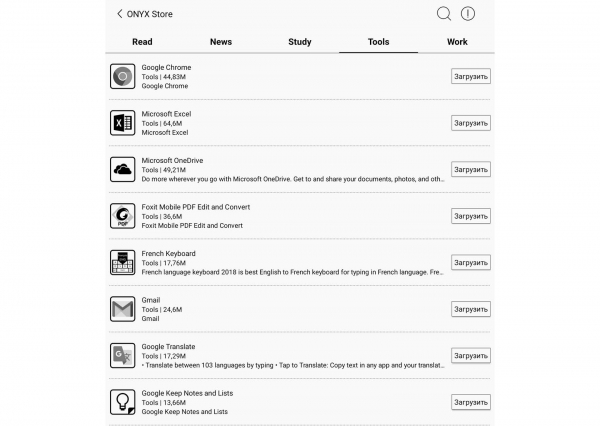
Microsoft Excel was installed from this store for testing, which allowed adding *.XLS and *.XLSX files to the list of files the reader can work with.
Additionally, you can find apps from (in 5 parts) on Habr, where they also compiled a list of applications that are functional on e-books.
Let's return to the list of applications on the reader.
The next app that needs a few quick words — is 'Quick Menu'.
When activated, a button appears on the screen in the form of a light gray semi-transparent circle, pressing which reveals buttons for five 'quick functions' (visible in the penultimate screenshot near the bottom right corner). The functions are assigned by the user; I assigned the 'screenshot' function to one of the buttons, which greatly helped in crafting this review.
Another application that requires a relatively detailed description is 'Send.'
This application is yet another way to obtain books on your reader.
There are several methods of 'acquiring' books here.
The first is to upload them to the reader via cable.
The second is to connect to the Internet from the reader and download them from somewhere (or to receive books sent to you via email and similar methods).
The third is to send a book to the reader via Bluetooth.
The fourth is to read books online by installing the appropriate application.
The fifth method is precisely the application 'Send' just mentioned.
Application 'Send' allows you to send books from another device to the reader over the network 'directly' (if both devices are on the same subnet) or over the 'larger' Internet if they are on different subnets.
Sending 'directly' is simpler.
To do this, simply connect to Wi-Fi and open the 'Send' application. It will display the network address (and its QR code) that you need to access in the browser from the device (computer, smartphone, etc.) from which you want to send the file:
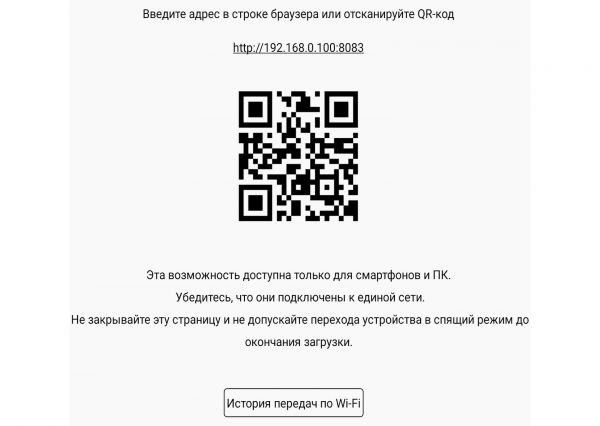
After that, in the form that opens on the second device, you just need to click the 'Upload Files' button, and everything will upload very quickly to the reader.
If, however, the device from which you are going to send the book and the reader are on different subnets, the process will be somewhat more complicated. You will have to send the book through the send2boox service located at push.boox.com. This service is essentially a specialized 'cloud.' To use it, you must first register on both sides — from the reader's side and from the computer's (or another device's) side.
On the reader's side, registration is straightforward; the user's email address is used for identification.
When registering from the computer side, the user may initially be surprised. The service does not automatically detect the user's system language and displays the site in Chinese, regardless of where the user has come from. This issue is easy to resolve: you need to click the button in the upper right corner and select the correct language:
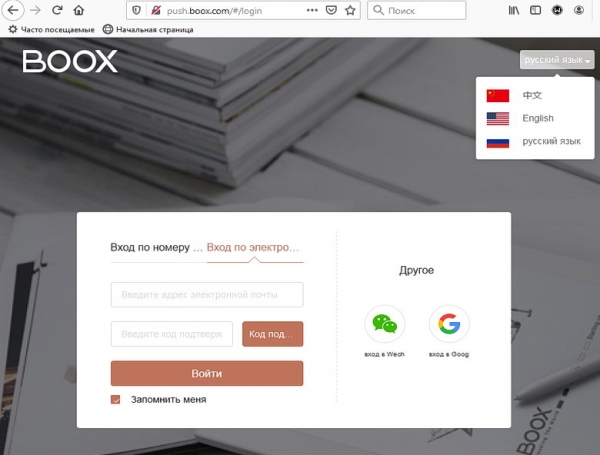
After that, there will be no more language issues. We click the file addition button and upload the book(s) to the service:
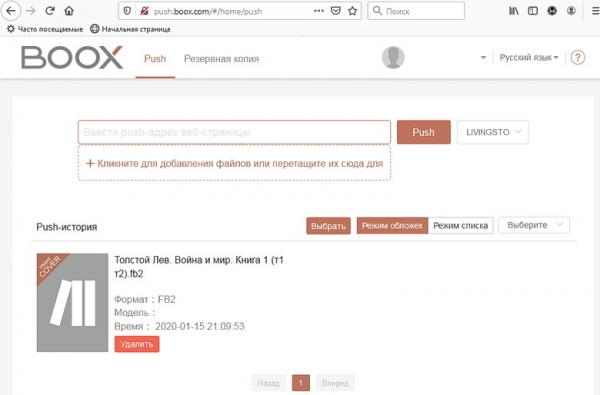
After that, the only thing left is to 'catch' the dropped files from the reader's side:
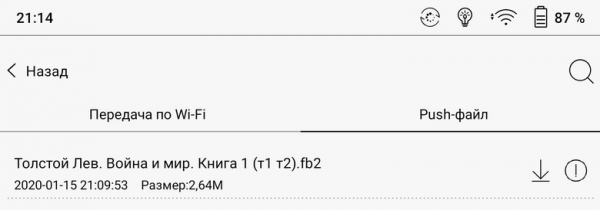
Interestingly, there is no application for Neo Reader 3.0, which is designed for reading books and documents, listed among the applications on this reader, as it is hidden; however, it is essentially the most important one.
The next chapter is dedicated to this application and the overall process of reading books and documents:
Reading Books and Documents on the ONYX BOOX Note 2 E-Reader
We will start exploring the reading process with a look at the screen — the main part directly related to reading.
The screen has a resolution of 1872*1404, which at its diagonal of 10.3 inches creates a pixel density of 227 pixels per inch. This is a very high value, making the 'pixelation' of the image completely invisible when reading texts from a comfortable distance, at which we usually read books.
The reader's screen is matte, which eliminates the 'mirror effect', where reflections from surrounding objects are visible on the screen.
The touch sensitivity of the screen is very good; it 'understands' even light touches.
Thanks to the touch sensitivity, you can change the font size in standard book formats with two fingers without going into the settings, just by 'shifting' or 'spreading' the screen.
However, in special formats (PDF and DjVu), these movements will increase or decrease not the font, but the entire image as a whole.
And the best feature of the screen is the ability to adjust the screen's color tone (color temperature).
The color tone can be changed in a very wide range: from icy cold to very 'warm', corresponding to 'red-hot iron'.
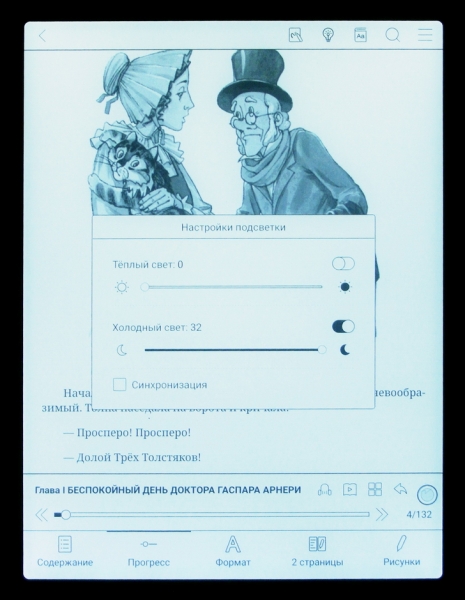
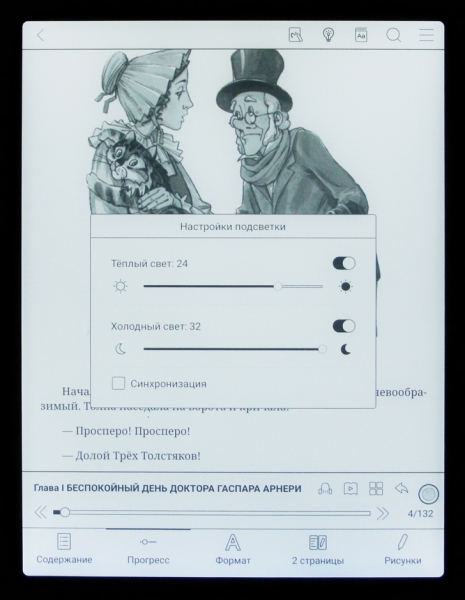
Adjustment is done using two independent controls that change the brightness of the 'cold' backlight LEDs (white-blue) separately and the 'warm' LEDs (yellow-orange) separately.
For each type of LED, the brightness is adjustable in 32 steps, allowing it to be set for comfortable reading in complete darkness, as well as in medium and low external lighting. Under high lighting conditions, backlighting is not required.
Next are examples of the screen's color tone at different brightness ratios of the 'cold' and 'warm' backlighting (the photo shows the positions of the brightness controls):
 |  |
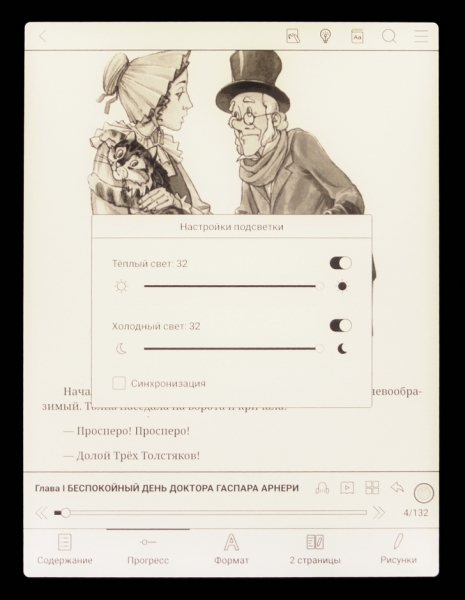 | 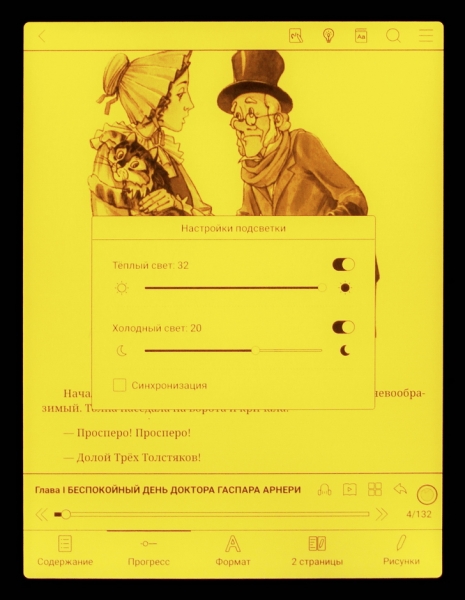 |
What is the benefit of adjusting color temperature?
The benefits can vary widely.
First of all, doctors consider a "warm" color environment in the evening to be soothing, while neutral or slightly cool lighting is preferred in the morning and daytime. Additionally, they regard blue light (i.e., excessively "cool" lighting) as harmful. However, there have been recent publications stating that tireless British scientists disagree with this approach.
Moreover, this will allow fulfilling the personal preferences of the owners. For example, I personally prefer a slightly warm color tone, and even at home, I have replaced all bulbs with a "warm" spectrum (2700K).
For example, you can adjust the lighting according to the content of the book: use "warm" lighting for historical novels to mimic old yellowed pages; and for science fiction novels, use "cool" lighting to symbolize the blue of the sky and the depth of space.
In general, this is a matter of personal taste for the consumer; the main thing is that they have a choice.
Now let's move from the hardware aspect of reading books to the software side.
Upon turning on the reader, the user is immediately taken to the "Library". Thus, this page can be referred to as the "main" page, although there is no button labeled "Home" or "Main" in the reader's menu.
This is what the "Library" looks like with the custom menu activated:
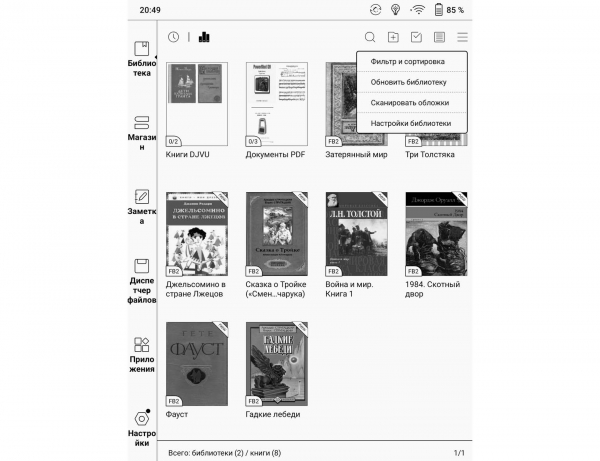
In the narrow left column, the main menu of the reader is located.
"Library" supports standard features: view changes, various types of filtering, and creating collections of books (though they are called libraries here, not collections).
In the settings of the "Library" (as well as in some other menus of the reader), there are inaccuracies in the translation of menu items into Russian:
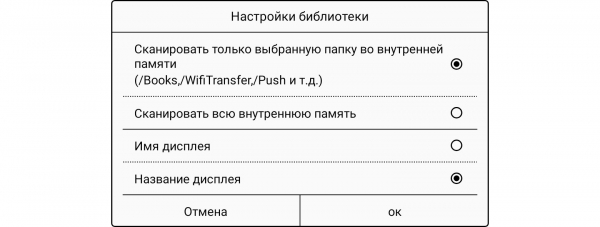
The two lower lines here should read "File Name" and "Book Title," not "Display Name" and "Display Title."
However, such errors are rarely found in the various menus of the reader.
The next item in the reader's main menu is "Store" (referring to a bookstore, not an application store):
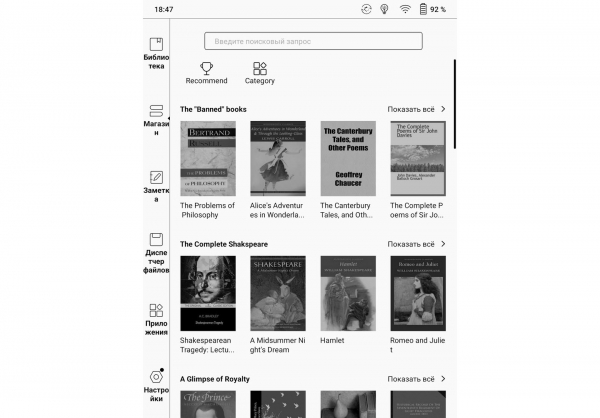
It was not possible to find a single book in this store in Russian. Therefore, it may only be useful for users studying English.
It would be more practical if the manufacturer allowed users to customize some kind of bookstore independently. But for now, this option is not available.
Now let's move directly to the book reading process, which is handled by the 'invisible' app on the reader. Neo Reader 3.0.
Thanks to the combination of this app's features and the large physical screen size, work modes become possible that would not make sense on 'small' screen readers.
For example, one such mode is the split-screen view displaying two pages. This mode has several options that can be accessed from the Neo Reader 3.0 menu:
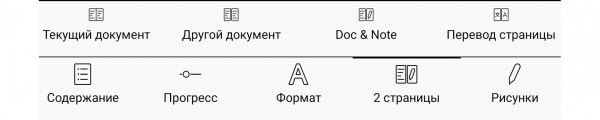
When switching to the two-page mode, even when reading the same document on both halves of the reader, each page is controlled independently from the other. They can be flipped, have font sizes changed, etc.
In this interesting way, a reader with a 10.3-inch diagonal and a 3:4 aspect ratio turns into two readers with a 7.4-inch diagonal and a 2:3 aspect ratio.
Here is an example screenshot showing two books on the screen at the same time with different font sizes set:
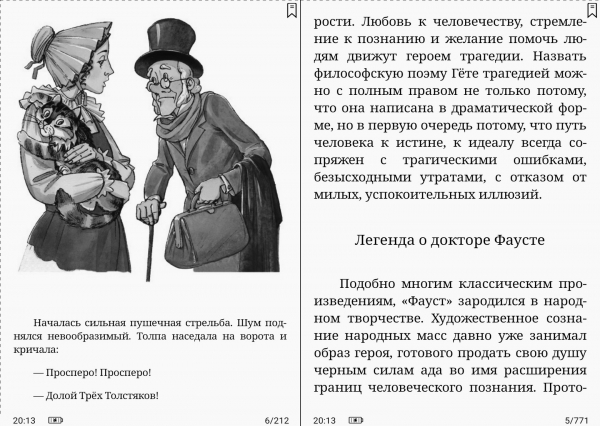
Of course, reading two books simultaneously is exotic; however, for example, displaying an illustration (a diagram, a chart, etc.) on one half of the screen while reading explanations on the other is a quite realistic and useful application.
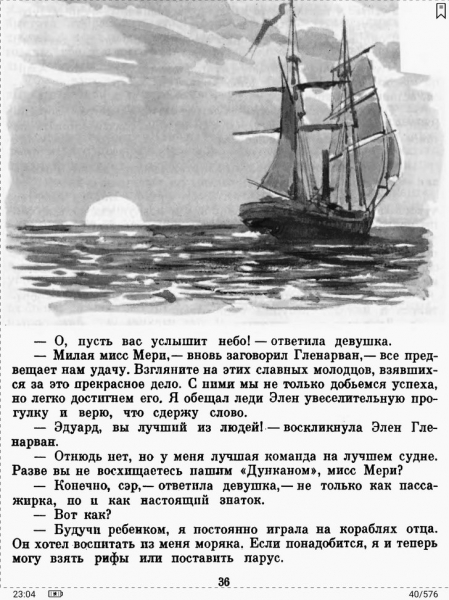
If we return to the usual single-page mode, the large screen makes working with PDF documents very comfortable. Even relatively small fonts become easily readable, and with a stylus, you can make notes anywhere in the document:
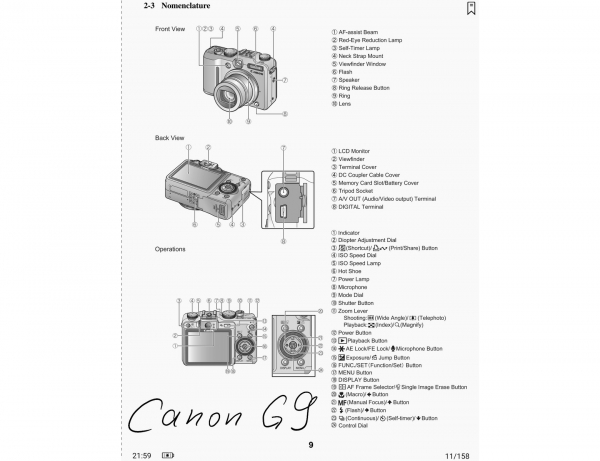
However, notes are not embedded in the PDF file (this is not PDF editing) but are saved in a separate file, the data from which is loaded during subsequent openings of the PDF document.
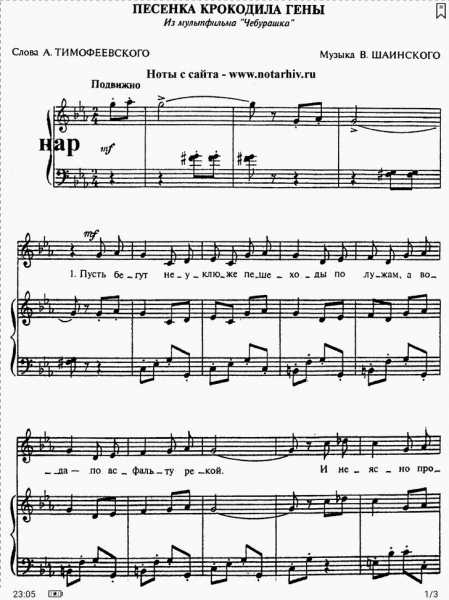
The large screen of the reader is equally useful when reading books in DjVu format and when viewing other documents that require the entire page to be displayed on screen (for instance, sheet music):
 |  |
The word and text translation feature in the reader is interestingly organized, especially in that the translation of individual words and texts is separated and works differently.
When translating individual words, built-in dictionaries in StarDict format are used. These dictionaries are usually of an 'academic' type and provide various translation options with comments, for example:
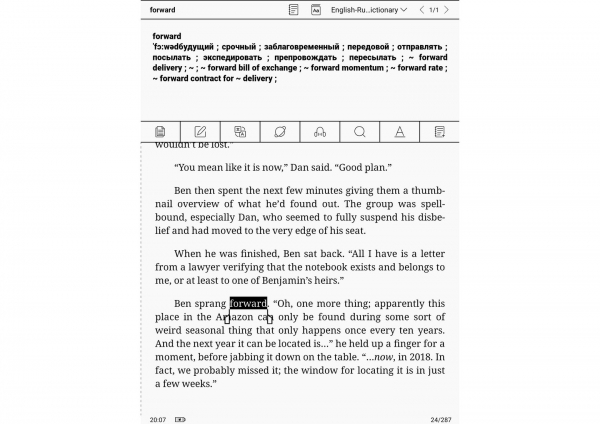
When translating texts, the reader does not use its own dictionaries but rather refers to the Google Translate service. The translation is far from perfect, but it is no longer the set of poorly related words that machine translation provided a decade ago.
The following screenshot shows the translation of the last paragraph of the page:
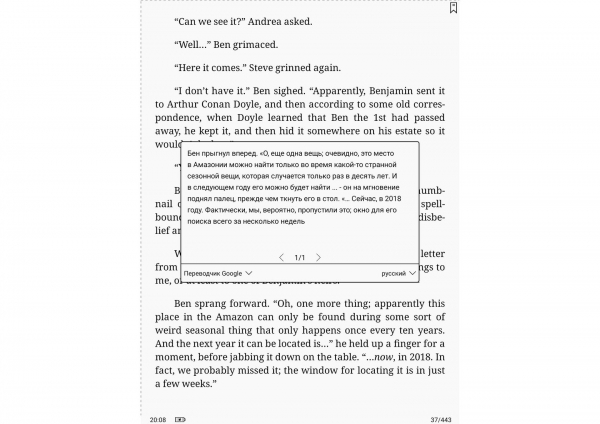
Translation capabilities can be expanded by installing additional dictionaries.
The simplest way is to find dictionaries in StarDict format on the internet and then place this set of files in the appropriate folder for dictionaries on the reader.
The second way is to download and install dictionary apps from any app store for Android.
Another useful feature of the Neo Reader 3.0 app is the ability to auto-scroll pages. This feature is not often needed, but there are different situations in life.
One downside to note is the excessive overload of the reader with fonts for rarely encountered Asian languages; this makes it very time-consuming to scroll through them when selecting a suitable font.
Additional Features
As mentioned at the beginning of the review, this e-reader, besides its use for reading books, has many other features; and it is worth briefly addressing them.
Let's start with of browsing web pages (internet surfing).
The processor in the reader is indeed very fast; therefore, there is no lag in opening web pages due to a lack of performance. The main thing is to have a fast connection.
Of course, largely due to the black-and-white display, web pages will lack beauty, but in some cases, this may not be critically important. For example, when reading emails or books directly on websites, it won’t be much of a hindrance.
News websites will even look interesting, in an old-newspaper style:
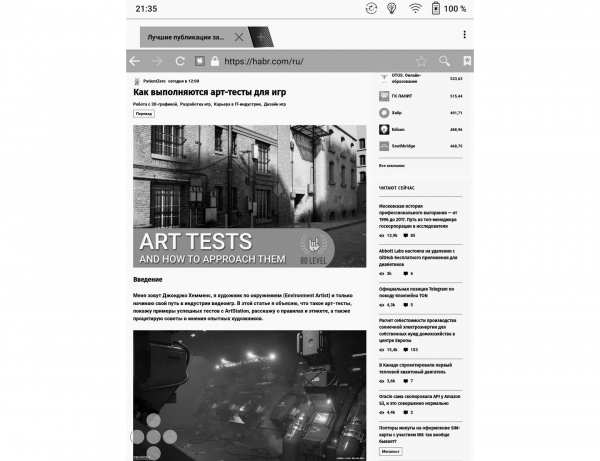
But all this is just for fun. The primary purpose of internet access for this and other 'readers' is to obtain books.
To enhance the viewing experience of web pages and when working with some other applications that may display rapidly changing images, it might be advisable to adjust the display refresh settings on the e-reader:
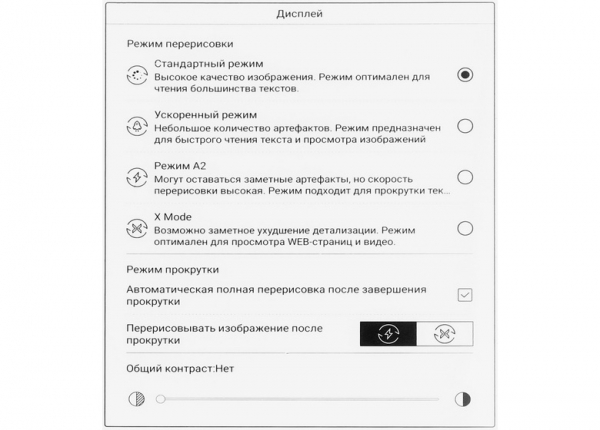
The so-called "Standard" redraw mode is the best; in this mode, the SNOW Field artifact suppression technology works at its best. This completely eliminates residual traces from the previous image when viewing texts; however, this technology does not apply to images.
The next additional feature is creating drawings and notes with a stylus.
Notes and drawings can be made directly in open documents (an example was above), but also on a "blank page." This is handled by the "Notes" application, for instance:
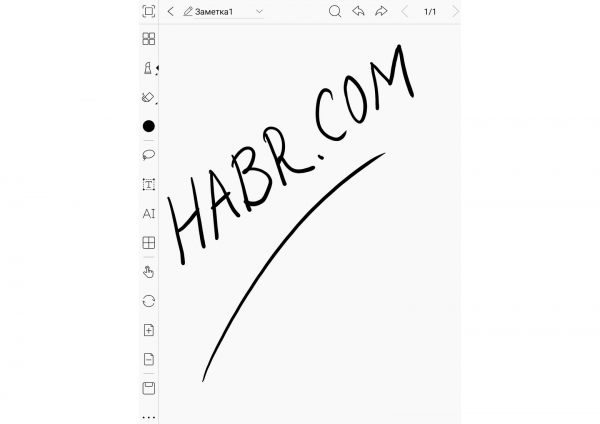
As can be seen in the screenshot, the pressure sensitivity function successfully affects the thickness of the line. Users with artistic skills can certainly use the reader for creative purposes.
The reader also has advanced sound functions..
The built-in speakers are quite loud and reproduce almost the entire frequency range (except for bass).
There is no option to connect wired headphones, but wireless headphones work flawlessly via Bluetooth. Pairing them is easy and straightforward:
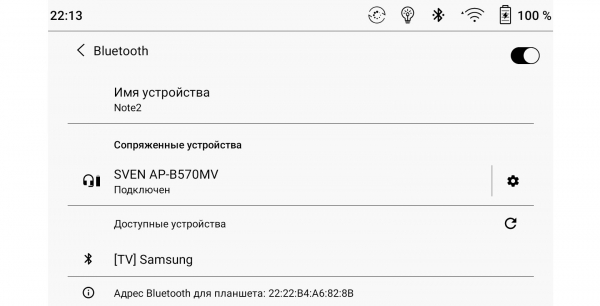
To play audio files on the reader, there is a "Music" application.
While playing a file, it attempts to show the extracted information from the audio file to the user, but in the absence of such information, the application's interface looks a bit dull:
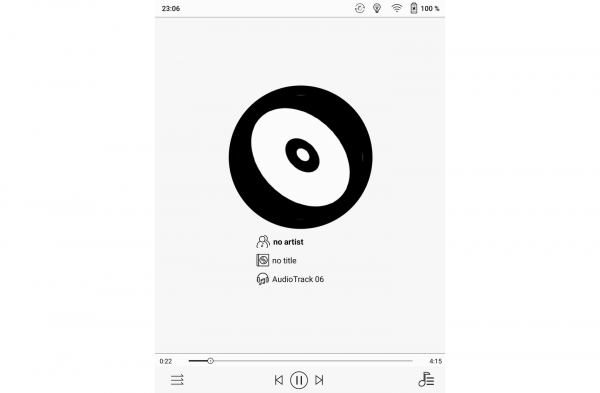
Thanks to the presence of a microphone on the reader, it will be possible to use speech recognition apps, voice assistants, and similar applications.
And finally, you can simply ask the reader to read a book aloud: the reader supports TTS (text-to-speech) functionality; an internet connection is required for this feature to work (external services are used). There will be no artistic reading here (it will be a monotone voice with not always appropriate pauses), but it is listenable.
Autonomy
Long battery life (duration of operation on a single charge) has always been one of the main advantages of e-readers, which is due both to the 'unhurried' nature of working with these devices and the extreme energy efficiency of the screens. Under high external lighting conditions, when backlighting is not required, screens using 'electronic ink' consume energy only during image transition.
However, even in low light, energy savings are present because external lighting and the device's own backlighting can combine (the level of own backlighting can be minimal).
To test the autonomy, the book's auto-page-turning mode was set to a period of 5 seconds, with both 'warm' and 'cold' backlighting set to 24 levels each (out of a possible 32), and wireless interfaces turned off.
The test had to be conducted 'with continuation' because the initially launched automatic page-turning reached its maximum of 20,000 pages allowed by the Neo Reader 3.0 application:
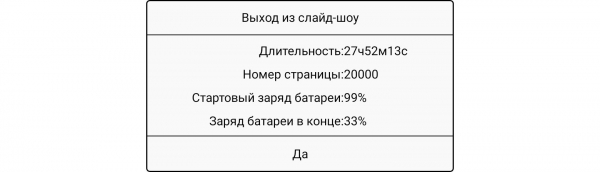
After restarting the page-turning, the total number of turned pages amounted to about 24,100 pages.
This resulted in the following graph of battery consumption and subsequent charging:
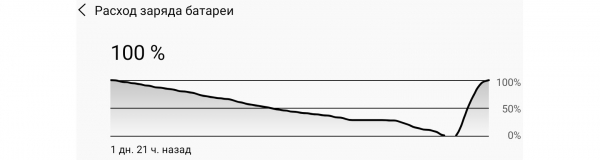
The graph shows a flat section where the first test run has already ended, while the second has not yet started.
Charging the reader took a long time, almost 4 hours. A mitigating factor here is that this will need to be done fairly rarely.
The maximum current drawn during charging was 1.61 Amperes. Therefore, a charger with an output of at least 2 Amperes will be required for its charging.
The possibility of charging a phone from this e-book was also tested (a USB OTG adapter with a USB Type C interface will be required). The current supplied by the reader was 0.45 A. Using the reader systematically as a power bank is not recommended, but it is permissible in emergencies.
Final Word
The capabilities of this e-book truly turned out to be maximum. On one hand, this will please demanding users; on the other hand, this has undoubtedly affected the price (which will not please everyone).
From a hardware perspective, everything here is simply excellent. A fast processor, a lot of memory, wireless interfaces, and a large battery.
The screen deserves special praise: it’s large (great for PDFs and DjVus); has a very high resolution; brightness and color tone are adjustable across a wide range; and it can be controlled both by touch and with a stylus.
However, from a software standpoint, the enthusiasm will be a bit muted.
Although there are plenty of advantages here (primarily flexibility due to the ability to install additional applications), there are also certain drawbacks.
The very first and noticeable downside is the built-in bookstore in the main menu without books in Russian. It makes you want to ask, "How is that possible?"
An overload of preinstalled fonts for rarely used languages can also puzzle users. It would be nice to have the option to remove them from immediate view with just one touch.
Minor translation errors in the menu into Russian are perhaps the least significant drawback.
Lastly, a flaw that doesn’t relate to hardware or software is the absence of a protective cover for the reader in the package. The screen is the most expensive part of large readers, and if something happens to it, it will result in significant material loss.
Of course, I suspect that in stores managers will strongly recommend purchasing a cover along with the reader (that's their job); but ideally, the reader should be sold right away dressed in a cover! As is usually done with many other ONYX readers.
As a final positive note, it must be said that the advantages of this reader significantly outweigh the disadvantages!
Source: habr.com
