

New trends in the field of import substitution are forcing Russian companies to switch to domestic operating systems. One such system is the Russian OS based on Debian – Astra Linux. In the realm of public procurement, requirements for the use of domestic software with FSTEC certificates are becoming more common, as well as its inclusion in the registry of domestic software. However, it should be noted that, by law, the presence of an FSTEC certificate is not mandatory.
Most Russian operating systems are designed for use in 'Workstation' mode, meaning they are essentially analogs of x86 solutions for employee workstations. We decided to install Astra Linux on ARM architecture, aiming to use a domestically produced OS in the industrial sector, specifically on the AntexGate embedded computer (we won't delve into the advantages of ARM architecture over x86 right now).
Why We Chose Astra Linux?
- They have a special distribution for ARM architecture;
- We appreciated that they use a Windows-style desktop, which is an important advantage for those accustomed to Windows OS when transitioning to Linux;
- Astra Linux is already in use by government companies and the Ministry of Defense, which means the project will continue to thrive and will not become obsolete in the near future.
Why We Chose an ARM Embedded PC?
- Energy efficiency and lower heat generation (devices based on ARM architecture consume less energy and emit comparatively less heat during operation);
- Compact size and high integration (a large number of components can be placed on a single chip, simplifying the design of system boards and eliminating the need to purchase many additional components);
- Non-redundancy of commands and instructions (the ARM architecture provides exactly the number of commands necessary for operation)
- Trends in Russia regarding the Internet of Things (due to the development of cloud technologies, the requirements for end computers are decreasing, there's no need to use powerful workstations, and more computations are moving to the cloud; devices such as 'thin clients' are becoming more prevalent).
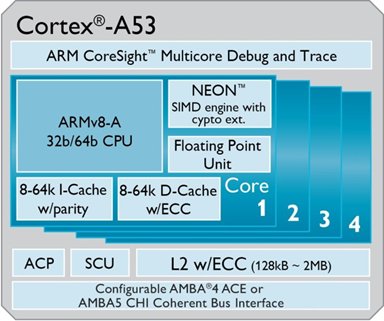
Figure 1 — ARM Architecture
Applications of PCs based on ARM architecture
- 'Thin client';
- 'Workstation';
- IoT gateway;
- Embedded PC;
- Device for industrial monitoring.
1. Obtaining the AstraLinux distribution
To obtain the distribution, you need to write a request email to any officially authorized partner of NPO 'RusBiTech'. Next, you will have to sign a non-disclosure agreement and a scientific and technical cooperation agreement (if your company is a software or hardware developer).
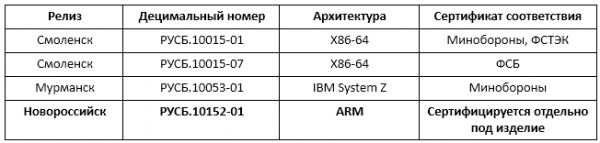
Figure 2 — Description of AstraLinux releases
2. Installing AstraLinux on the AntexGate device
After obtaining the AstraLinux distribution, you need to install it on the target device (in our case, this is the AntexGate embedded PC). The official instructions tell us to use any Linux OS to install AstraLinux on an ARM computer, but we decided to try doing it on Windows OS. So, let's follow this sequence of actions:
1. Download and install for the Windows operating system.
2. Connect the device via Micro USB to the computer.
3. Power on the device; Windows should now detect the hardware and install the driver.
4. After the driver installation is complete, launch the program.
5. After a few seconds, the eMMC storage will appear in Windows as a USB storage device.
6. Download the Win32DiskImager utility from the and install the program normally.
7. Launch the just-installed Win32DiskImager software.
8. Select the AstraLinux image file that you obtained earlier.
9. In the device field, select the drive letter for the eMMC card. Be careful: if you choose the wrong disk, you could destroy data on your computer's hard drive!
10. Click ‘Write’ and wait for the writing process to finish.
11. Reboot the device.
The device reboot should lead to it booting the AstraLinux operating system image from the eMMC.
3. Using Astra Linux
After booting the device, an authorization screen will appear. Enter "admin" in the login field, and the password is also the word "admin". After successful authorization, the desktop will appear (see Figure 3).
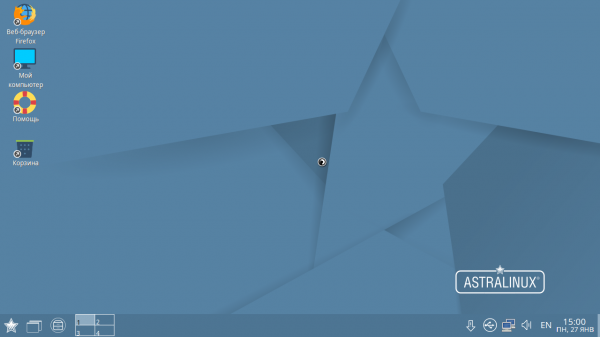
Figure 3 — AstraLinux Desktop
What stands out first is that the desktop indeed resembles Windows, with all elements and dialogs named in a familiar way ("Control Panel", "Desktop", "Explorer", "My Computer" on the desktop). Notably, Astra Linux even includes "Solitaire" and "Minesweeper"!
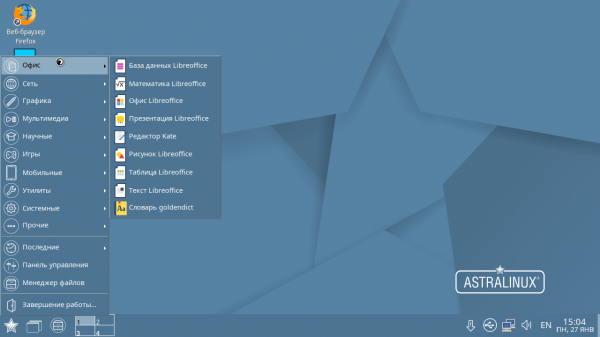
Figure 4 — "Office" Tab in the AstraLinux Start Menu
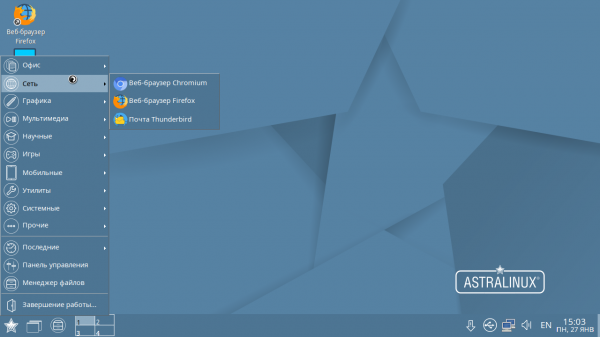
Figure 5 — "Network" Tab in the AstraLinux Start Menu
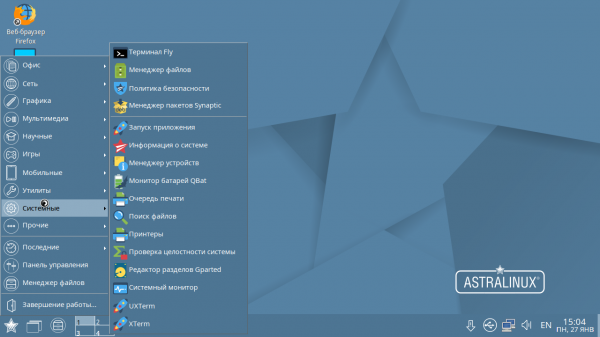
Figure 6 — "System" Tab in the AstraLinux Start Menu
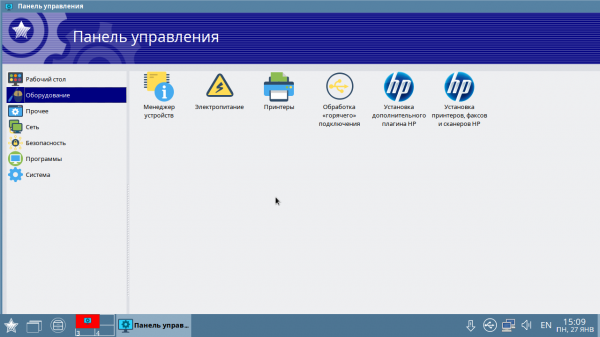
Figure 7 — AstraLinux Control Panel
It is worth noting that for use as embedded solutions, there is access via SSH, through the Linux console, and it is also possible to install preferred Debian packages (nginx, apache, etc.). Thus, former Windows users have a familiar desktop, while experienced Linux users and those working with embedded solutions have the console.
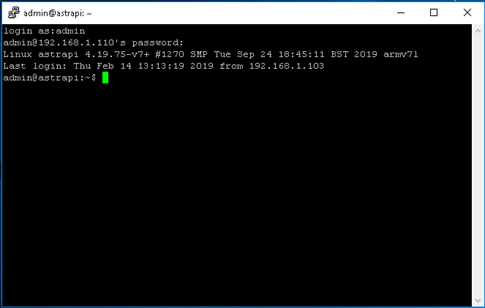
Figure 8 — AstraLinux Console
Optimizing the Performance of AstraLinux
1. For devices with low hardware performance, we recommend using a monitor with a low resolution or manually reducing the resolution in the file /boot/config.txt to 1280x720.
2. We also recommend installing a utility for automatic processor frequency management:
sudo apt-get install cpufrequtilsWe edit in /boot/config.txt the following value:
force_turbo=13. By default, the system has standard repositories disabled. To enable them, you need to uncomment three lines in the following file cd/etc/apt/nano sources.list
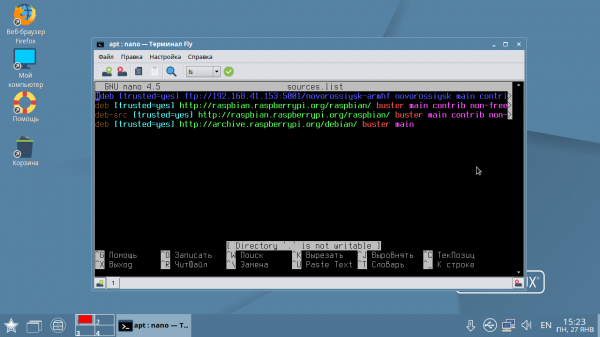
Figure 9 — Enabling Standard Repositories
Source: habr.com
