

Historically, command-line utilities in Unix systems have been more developed than in Windows, but with the emergence of new solutions, the situation has changed.
PowerShell allows for scripting in an interpreted multi-paradigm language that incorporates elements of classical procedural, object-oriented, and even functional programming: conditional statements, loops, variables, arrays, hash tables, classes, error handling, as well as functions, cmdlets, and pipelines. was dedicated to the basics of working in the environment, and now we present to readers a small guide for programmers.
Table of Contents:
You can write code in any text editor or using an integrated development environment — the simplest option is to use Windows PowerShell ISE from the Microsoft server operating systems package. This is only necessary for sufficiently complex scripts; shorter command sets are easier to execute in interactive mode.
Comments
Using comments is considered part of good programming style along with proper indentation and spacing:
# Для строчных комментариев используется символ решетки — содержимое строки интерпретатор не обрабатывает.

<#

       Так обозначаются начало и конец блочного комментария.
       Заключенный между ними текст интерпретатор игнорирует.

#>
Variables and Their Types
In PowerShell, variables are named objects. Their names may include an underscore symbol, as well as letters and numbers. The $ symbol is always used before the name, and to declare a variable, you just need to specify a valid name to the interpreter:

To initialize a variable (assigning a value to it), the assignment operator (the = symbol) is used:
$test = 100A variable can be declared with its type indicated in square brackets (type casting operator) before the name or value:
[int]$test = 100

$test = [int]100
It is important to understand that variables in PowerShell are full-fledged objects (classes) with properties and methods, the types of which are based on those available in .NET Core. Let's enumerate the main ones:
Type (class in .NET)
Description
Code Example
[string]
System.String
Unicode string
$test = "test"
$test = 'test'
[char]
System.Char
Unicode character (16 bits)
[char]$test = 'c'
[bool]
System.Boolean
boolean type (logical value True or False)
[bool]$test = $true
[int]
System.Int32
thirty-two bit integer (32 bits)
[int]$test = 123456789
[long]
System.Int64
sixty-four bit integer (64 bits)
[long]$test = 12345678910
[single]
System.Single
floating-point number of 32 bits
[single]$test = 12345.6789
[double]
System.Double
floating-point number of 64 bits (8 bytes)
[double]$test = 123456789.101112
[decimal]
System.Decimal
floating-point number of 128 bits (must specify d at the end)
[decimal]$test = 12345.6789d
[DateTime]
System.DateTime
date and time
$test = Get-Date
[array]
System.Object[]
array whose element indices start from 0
$test_array = 1, 2, "test", 3, 4
[hashtable]
System.Collections.Hashtable
hashtables are associative arrays with named keys, structured as: @{key = "value"}
$test_hashtable = @{one="one"; two="two"; three="three"}
PowerShell supports implicit type conversion; moreover, the variable type can change on the fly (for example, using the assignment operator) if not explicitly specified — in this case, the interpreter will throw an error. You can determine the variable type from the previous example using the method GetType():
$test.GetType().FullName 
There are a number of cmdlets for managing variables. Their list can be conveniently displayed using the command:
Get-Command -Noun Variable | ft -Property Name, Definition -AutoSize -Wrap 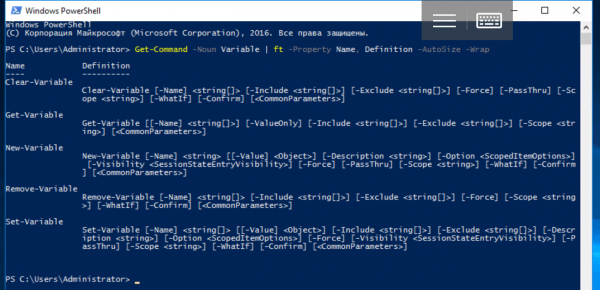
To view declared variables and their values, you can use a special cmdlet:
Get-Variable | moreThis method seems overly cumbersome; working with variables is much easier through operators or by directly accessing their properties and methods. However, cmdlets have their place, as they allow you to set some additional parameters. It’s important to understand that user-defined variables exist only within the current session. They are removed after closing the console or finishing the script.
System Variables
In addition to user-declared variables, there are built-in (system) variables that are not removed after the current session ends. These are divided into two types; the PowerShell state data is stored in automatic variables, which cannot be assigned arbitrary values. For example, one of them is $PWD:
$PWD.Path 
To store user preferences, preference variables are needed, whose values can be changed. For example, with $ErrorActionPreference, you define how the command interpreter reacts to non-critical errors.
In addition to operators and cmdlets for accessing declared variables, there is a pseudo-accumulator Variable:. You can work with it similarly to other accumulators, and in this case, variables resemble file system objects:
Get-ChildItem Variable: | moreor
ls Variable: | more 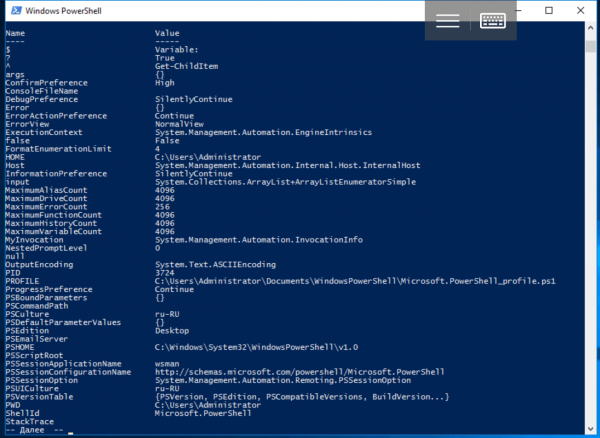
Scopes
In PowerShell, there is a concept of scope for variables. The global scope (Global) applies to the entire current session — it includes, for example, system variables. Local (Local) variables are only accessible within the scope in which they were defined: say, inside a function. There is also the concept of script scope (Script), but for script commands, it is essentially local. By default, when variables are declared, they are assigned a local scope, and to change this, a special syntax like this is needed: $Global: variable = value.
For example, like this:
$Global:test = 100
Environment Variables
From PowerShell, there is also another pseudo-accumulator Env:, which allows you to access environment variables. When the shell is launched, they are copied from the parent process (i.e., from the program that initiated the current session) and their initial values usually match the values in the control panel. The Get-ChildItem cmdlet or its aliases (ls and dir) are used to view environment variables.
dir Env: 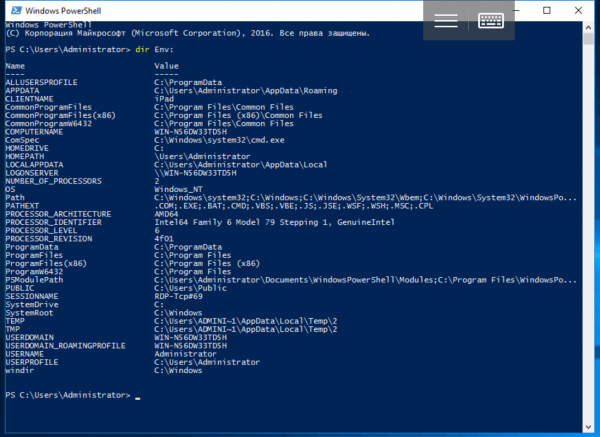
These variables represent sequences of bytes (or characters, if you prefer), the interpretation of which depends solely on the program that uses them. Cmdlets *-Variable do not work with environment variables. To access them, you need to use the drive prefix:
$env:TEST = "Hello, World!" 
Arithmetic Operators and Comparison Operators
PowerShell includes the following arithmetic operators: + (addition), - (subtraction), * (multiplication), / (division), and % (modulus or remainder). The result of an arithmetic expression is evaluated from left to right following the standard order of operations, and parentheses are used for grouping parts of the expression. Spaces between operators are ignored and are used only for readability. The + operator also concatenates, while the * operator repeats strings. When attempting to add a number to a string, it will be converted to a string. Additionally, PowerShell has many comparison operators that check for equality between two values and return a boolean True or False:
The
Description
Code Example
-eq
Equal / Equals (analogous to = or == in other languages)
$test = 100
$test -eq 123
-ne
Not equal / Not equal (analogous to or !=)
$test = 100
$test -ne 123
-gt
Greater than / Greater than (analogous to >)
$test = 100
$test -gt 123
-ge
Greater than or equal / Greater than or equal (analogous to >=)
$test = 100
$test -ge 123
-lt
Less than / Less than (analogous to <)
$test = 100
$test -lt 123
-le
Less than or equal / Less than or equal (analogous to <=)
$test = 100
$test -le 123
There are also other similar operators that allow, for example, comparing strings with wildcard characters or using regular expressions for pattern matching. We will cover them in detail in future articles. The symbols , and = are not used for comparison as they are reserved for other purposes.
Assignment Operators
In addition to the most common operator =, there are other assignment operators: +=, -=, *=, /=, and %= which modify the value before assignment. Unary operators ++ and --, which increase or decrease the value of a variable, also fall under assignment operators.
Logical Operators
For expressing complex conditions, comparison alone is not sufficient. Any logical expressions can be written using operators: -and, -or, -xor, -not and !. These work as they do in other programming languages, and you can use parentheses to set the order of evaluation:
("Test" -eq "Test") -and (100 -eq 100)

-not (123 -gt 321)

!(123 -gt 321)
Conditional Statements
The branching operators in PowerShell are standard: IF (IF…ELSE, IF…ELSEIF…ELSE) and SWITCH. Let's explore their usage through examples:
[int]$test = 100
if ($test -eq 100) {
      Write-Host "test = 100"
}


[int]$test = 50
if ($test -eq 100) {
       Write-Host "test = 100"
}
else {
      Write-Host "test  100"
}


[int]$test = 10
if ($test -eq 100) {
      Write-Host "test = 100"
}
elseif ($test -gt 100) {
      Write-Host "test > 100"
}
else {
       Write-Host "test  5 or value is undefined"}
}
Loops
In PowerShell, there are several types of loops: WHILE, DO WHILE, DO UNTIL, FOR, and FOREACH.
A precondition loop works if/while the condition is true:
[int]$test = 0
while ($test -lt 10) {
      Write-Host $test
      $test = $test + 1
}
Postcondition loops will execute at least once, because the condition is checked after the iteration. In this case, DO WHILE continues while the condition is true, and DO UNTIL continues while it is false:
[int]$test = 0
do {
      Write-Host $test
      $test = $test + 1
}
while ($test -lt 10)


[int]$test = 0
do {
      Write-Host $test
      $test = $test + 1
}
until ($test -gt 9)
The number of iterations in a FOR loop is known in advance:
for ([int]$test = 0; $test -lt 10; $test++) {
       Write-Host $test
}
In a FOREACH loop, elements of an array or collection (hash tables) are iterated:
$test_collection = "item1", "item2", "item3"
foreach ($item in $test_collection)
{
        Write-Host $item
}
Arrays
PowerShell variables can hold not only single objects (numbers, strings, etc.) but also multiple ones. The simplest type of such variables is arrays. An array can consist of several elements, one element, or be empty, meaning it contains no elements. To declare it, the operator @() is used, which will be very important for adding other arrays (creating multidimensional arrays), passing arrays to functions as arguments, and similar tasks:
$test_array = @() #creating an empty arrayWhen initializing an array, its values are listed separated by a comma (a special operator ,):
$test_array = @(1, 2, 3, 4) # creating an array of four elements In most cases, the operator @() can be omitted:
$test_array = 1, 2, 3, 4In this case, an array with a single element is initialized as follows
$test_array = , 1To access the elements of an array, a zero-based integer index and the index operator (square brackets) are used:
$test_array[0] = 1Multiple indices can be specified through a comma, including repeating ones:
$test_array = "one", "two", "three", "four"
$test_array[0,1,2,3]
$test_array[1,1,3,3,0] 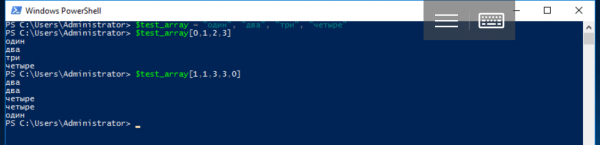
The .. (two dots — the range operator) returns an array of integers within the specified upper and lower bounds of a range. For example, the expression 1..4 outputs an array of four elements @(1, 2, 3, 4), while the expression 8..5 outputs an array @(8, 7, 6, 5).
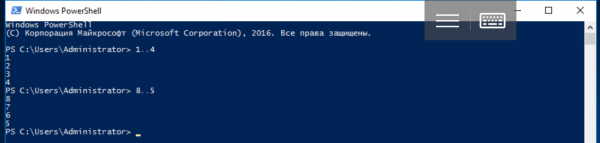
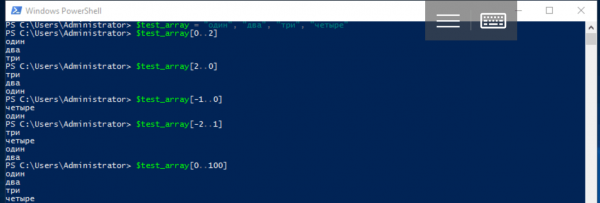
Using the range operator, you can initialize an array ($test_array = 1..4) or obtain a slice, i.e., a sequence of elements from one array with indices from another. Here, the negative number -1 denotes the last element of the array, -2 denotes the second to last, and so on.
$test_array = "one", "two", "three", "four"
$test_array[0..2]
$test_array[2..0]
$test_array[-1..0]
$test_array[-2..1]
Note that the values in an integer array can exceed the maximum index value of the data array. In this case, all values up to the last one are returned:
$test_array[0..100]If you try to access a single non-existent element of the array, the value $null is returned.
In PowerShell, arrays can contain elements of different types or be strictly typed:
$test_array = 1, 2, "test", 3, 4
for ([int]$i = 0; $i -lt $test_array.count; $i++)
{
          Write-Host $test_array[$i]
}
Where the property $test_array.count is the number of elements in the array.
Example of creating a strictly typed array:
[int[]]$test_array = 0, 1, 2, 3, 4, 5, 6, 7, 8, 9
Hash Tables
Another basic variable type in PowerShell is hash tables, also known as associative arrays. Hashtables are similar to JSON objects and are structured on a key-value basis. Unlike regular arrays, access to their elements is done via named keys, which are properties of the object (the index operator — square brackets can also be used).
An empty hash table is declared using the @ symbol and operator brackets:
$test_hashtable = @{}When declaring, you can immediately create keys and assign values to them:
$test_hashtable = @{one="one"; two="two"; three="three"; "some key"="some value"}To add an element to the hash table, you need to assign it a non-existent key or use the Add() method. If the assignment is made with an existing key, its value will change. To remove an element from the hash table, the Remove() method is used.
$test_hashtable."some key"
$test_hashtable["some key"]
$test_hashtable.Add("four", "four")
$test_hashtable.five = "five"
$test_hashtable['five'] = "replacing value"
$test_hashtable.Remove("one") 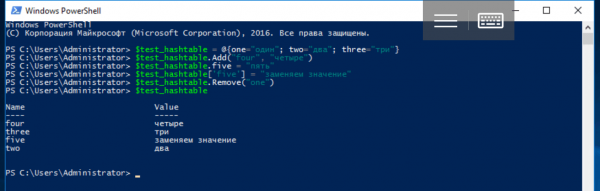
Variables of this type can be passed as arguments to functions and cmdlets — in the next article we will explore how this is done, as well as examine another similar type — PSCustomObject.
Features
The PowerShell language has all the necessary elements for procedural programming, including functions. The keyword Function is used to describe them, after which the function name and the body enclosed in parentheses must be specified. If you need to pass arguments to the function, they can be specified immediately after the name in parentheses.
function function-name (argument1, ..., argumentN)
{
        function-body
}
A function always returns a result — this is an array of results from all its statements if there is more than one. If there is only one statement, a single value of the corresponding type is returned. The return $value statement adds an element with the value $value to the results array and stops the execution of the statement list, while an empty function returns $null.
For example, let's create a function that squares a number:
function sqr ($number)
{
      return $number * $number
}
Note that in the body of a function you can use any variables declared before its call, and calling functions in PowerShell may seem unusual: arguments (if any) are not enclosed in parentheses and are separated by spaces.
sqr 2or like this:
sqr -number 2Due to the way arguments are passed, sometimes the function itself has to be enclosed in parentheses:
function test_func ($n) {}
test_func -eq $null     # the function has not been called
(test_func) -eq $null # the result of the expression is $true 
When describing a function, you can assign default values to arguments:
function func ($arg = value) {
         #function body
}
There is also another syntax for describing function arguments; furthermore, parameters can be read from the pipeline — all of this will be useful in the next article when we will discuss exported modules and creating custom cmdlets.
Error Handling
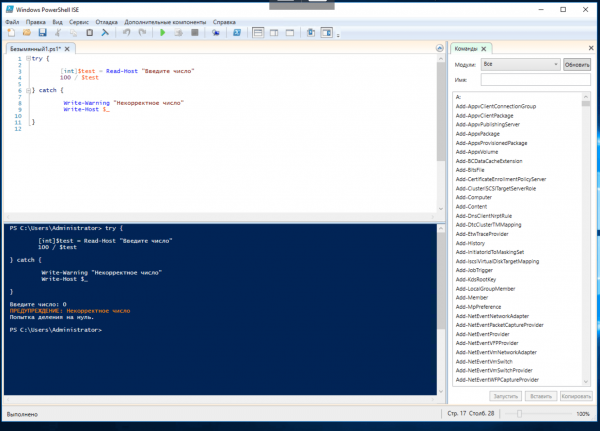
PowerShell has a mechanism called Try…Catch…Finally that allows for handling exceptional situations. The Try block contains code where an error might occur, while the Catch block contains its handler. If no error occurs, the Catch block does not execute. The Finally block runs after the Try block regardless of whether an error occurred, and there can be multiple Catch blocks for different types of exceptions. The exception itself is stored in a default variable that does not require declaration ($_) and can be easily extracted. In the example below, we implement protection against incorrect input values:
try {

        [int]$test = Read-Host "Enter a number"
        100 / $test

} catch {

         Write-Warning "Invalid number"
         Write-Host $_

}
This concludes our overview of the fundamentals of programming in PowerShell. In the following articles, we will delve deeper into working with variables of different types, collections, regular expressions, creating functions, modules, and custom cmdlets, as well as object-oriented programming.
Source: habr.com
