

Continuing our overview of the fantastic development tool for Windows and more, Azure DevOps. This time, after struggling with environment variables, I decided to consolidate my experiences into one article.
Starting from the fact that each runtime environment has a different syntax, to the lack of a standard method for transferring variables from one stage of the pipeline to another.
To clarify, the main examples will be on Release Pipelines because YAML hasn't reached there yet, and I need the functionality of multiple stages and multiple artifacts. This seems to have become available in regular Pipelines, which practically equalized their functionality. In YAML Pipelines, they added a small graphical hint with parameters that can be set to the text representation, which is very convenient, eliminating the need to dive into the documentation for each module. However, I will describe this in the next article; for now, here is an image of the new feature.
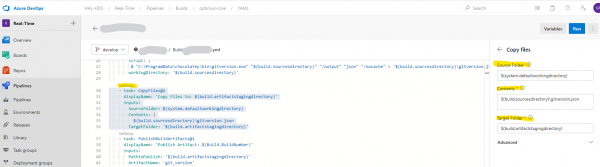
Storage and Usage
Let's start with the fact that there are default variables in the system. They begin, depending on their origin, with Release, System, etc. A complete list (as it turned out, there isn't one) is available at . The syntax confusion is illustrated by the example from the documentation below. The same variable has three representations, depending on where we call it.
steps:
 - bash: echo This script could use $SYSTEM_ACCESSTOKEN
    env:
      SYSTEM_ACCESSTOKEN: $(System.AccessToken)
  - powershell: Write-Host "This is a script that could use $env:SYSTEM_ACCESSTOKEN"
    env:
      SYSTEM_ACCESSTOKEN: $(System.AccessToken)
If you set a variable on the agent where the task is executed, it is $(System.AccessToken). If you want to use it within a PowerShell script on the same agent, it will be $env:SYSTEM_ACCESSTOKEN. If you, heaven forbid, want to use this variable on some remote host using the PowerShell task on target machines, you need to pass it through an argument to the script, using . With bash, it's simpler; you can just pass it in using an argument and the $SYSTEM_ACCESSTOKEN syntax.
The same rules do not apply to your own variables; you are responsible for the syntax here. You can set variables locally in each task.
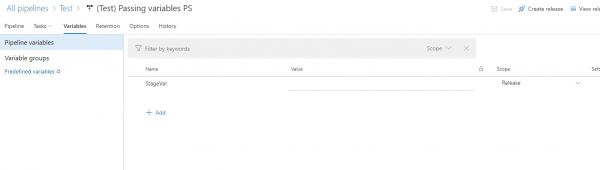
Or globally in the variable store and then link them from the store. Very convenient.
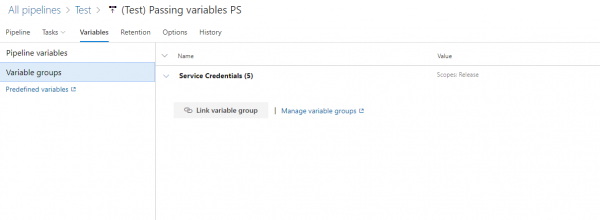
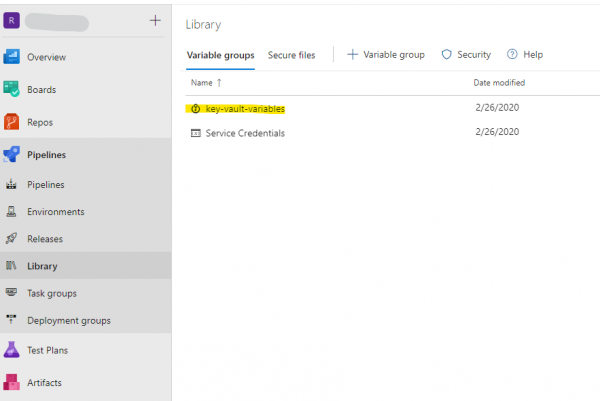
As a bonus, if the variables are highly confidential, they can be stored in Azure cloud in a storage called Azure Vault, which can be linked to the project in the Library.
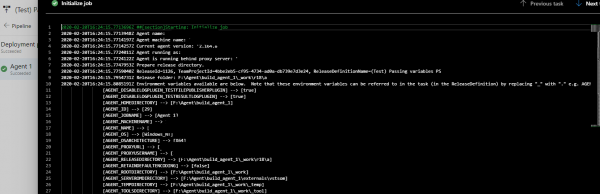
Overall, the use of variables is straightforward; in pipelines, they can also be set manually for each run, but this functionality is not available in releases. You can check what you are passing to the pipeline again in the agent initialization logs, but keep in mind, they are already in a transformed state.
Dynamic Variables
The most interesting part begins when we want to obtain a certain value in one stage and pass it to the next.
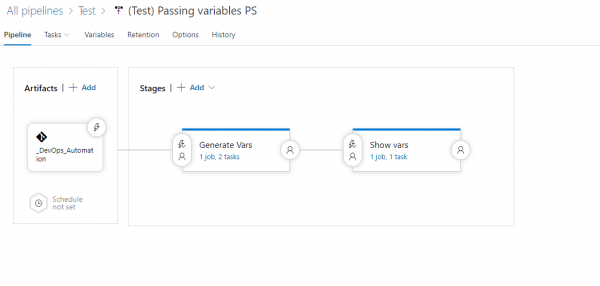
Such functionality hasn't been provided. But our hands aren't idle, and with the help of Google, a solution was found. Thank goodness Azure DevOps has an API that allows us to do a bit more than what's depicted in the interface.
So, we will need a call to update global variables, which we will execute directly from within the pipeline. The address is taken from environment variables, the very same ones that are not mentioned in the documentation, as previously noted. You can define them yourself or, if need be, hardcode them if they decide to shut things down.
$releaseurl = ('{0}{1}/_apis/release/releases/{2}?api-version=5.0' -f $($env:SYSTEM_TEAMFOUNDATIONSERVERURI), $($env:SYSTEM_TEAMPROJECTID), $($env:RELEASE_RELEASEID))We set an empty value for the variable we want to pass and set the Scope to Release.
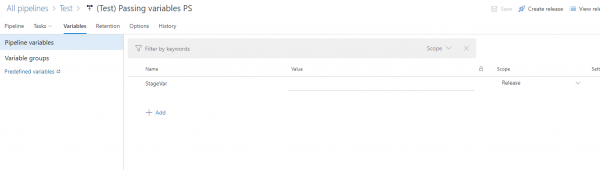
For example, we create a random value generator. Note the syntax for declaring a variable within this stage; such functionality has been introduced.
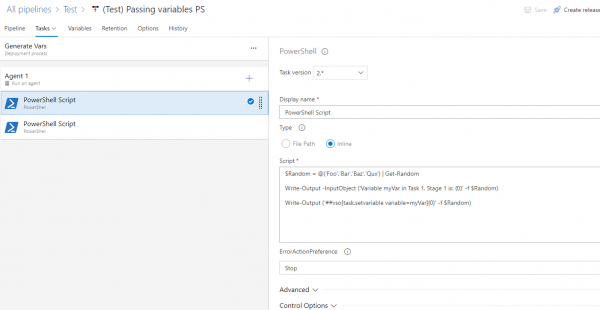
In the next stage, we pass the variable to the script; yes, directly is not possible; it has to go through an argument.
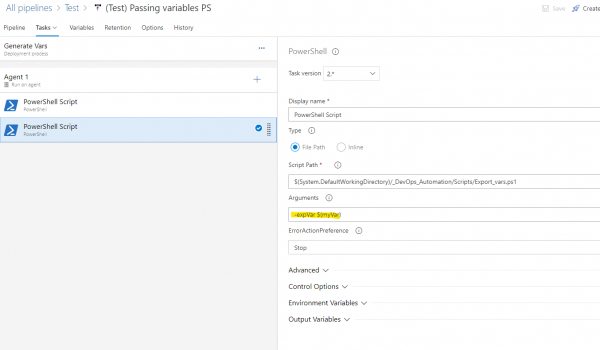
The script is under the spoiler.
PowerShell
#Script requires stageVar variable in release variables set to Release scope

param ( [string] $expVar )
#region variables
$ReleaseVariableName = 'StageVar'
$releaseurl = ('{0}{1}/_apis/release/releases/{2}?api-version=5.0' -f $($env:SYSTEM_TEAMFOUNDATIONSERVERURI), $($env:SYSTEM_TEAMPROJECTID), $($env:RELEASE_RELEASEID)  )
#endregion


#region Get Release Definition
Write-Host "URL: $releaseurl"
$Release = Invoke-RestMethod -Uri $releaseurl -Headers @{
    Authorization = "Bearer $env:SYSTEM_ACCESSTOKEN"
}
#endregion

#region Output current Release Pipeline
Write-Output ('Release Pipeline variables output: {0}' -f $($Release.variables | ConvertTo-Json -Depth 10))
#endregion


#region Update StageVar with new value
$release.variables.($ReleaseVariableName).value = "$expVar"
#endregion

#region update release pipeline
Write-Output ('Updating Release Definition')
$json = @($release) | ConvertTo-Json -Depth 99
Invoke-RestMethod -Uri $releaseurl -Method Put -Body $json -ContentType "application/json" -Headers @{Authorization = "Bearer $env:SYSTEM_ACCESSTOKEN" }
#endregion

#region Get updated Release Definition
Write-Output ('Get updated Release Definition')
Write-Host "URL: $releaseurl"
$Release = Invoke-RestMethod -Uri $releaseurl -Headers @{
    Authorization = "Bearer $env:SYSTEM_ACCESSTOKEN"
}
#endregion

#region Output Updated Release Pipeline
Write-Output ('Updated Release Pipeline variables output: {0}' -f $($Release.variables | ConvertTo-Json -Depth 10))
#endregion
Or
Bash
INPUT_VAR=$1
RELEASE_VAR=$2

echo Test ID: ${INPUT_VAR}

RELEASE_URL="${SYSTEM_TEAMFOUNDATIONSERVERURI}${SYSTEM_TEAMPROJECTID}/_apis/release/releases/${RELEASE_RELEASEID}?api-version=5.0"

echo release url: $RELEASE_URL

RELEASE_JSON=$(curl -H "Authorization: Bearer $SYSTEM_ACCESSTOKEN" $RELEASE_URL)

OUTPUT=`jq ''.variables.${RELEASE_VAR}.value' = '"${INPUT_VAR}"'' <<< $RELEASE_JSON`

curl -H "Authorization: Bearer $SYSTEM_ACCESSTOKEN" -H "Content-Type: application/json" -X PUT -d "$OUTPUT" $RELEASE_URL
In brief, our script takes the input variable myVar and uses the API to set the value of this variable in stageVar. In the next stage, we can view it using the system variable syntax.
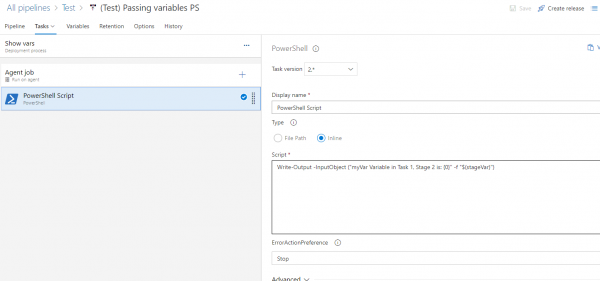
This example is quite simple, but the functionality opens up good possibilities, combined with my past experience. We can create a virtual machine in the first stage of testing, perform various operations on it concurrently, and finally, destroy it. Currently, we run product autotests each time on fresh virtual machines. Considering they last about 10 minutes, this costs very little.
In the next article, if needed, I will discuss YAML pipelines, as there have been quite a few interesting innovations lately.
Source: habr.com
