

Network engineers often face the task of copying and pasting certain fragments from a notepad into the console. Usually, several parameters need to be copied: Username/Password and something else. The use of scripts helps speed up this process. However, the combined time taken to write and execute a script should be less than manually configuring, otherwise, the scripts are useless.
Purpose of this article. This article is part of the Fast Start series and is aimed at saving time for network engineers when configuring equipment (a single task) on multiple devices. SecureCRT software and the built-in script execution functionality are used.
Content
Introduction
The SecureCRT program comes with a built-in mechanism for executing scripts. The purposes of scripts in the terminal include:
- Automated input and output, and minimal correctness checks for input/output.
- Accelerating routine tasks - reducing pauses between configuring equipment. (De facto reducing the pauses caused by the time needed for copy/pasting on the same equipment when applying 3 or more command fragments.)
This document addresses the tasks:
- Creating simple scripts.
- Running scripts on SecureCRT.
- Examples of using simple and advanced scripts. (Real-life practice.)
Creating simple scripts.
Simple scripts use only two commands: Send and WaitForString. This functionality is sufficient for 90% (or more) of tasks performed.
Scripts can run in Python, JS, VBS (Visual Basic), Perl, etc.
Python
# $language = "Python"
# $interface = "1.0"
def main():
  crt.Screen.Synchronous = True
  crt.Screen.Send("r")
  crt.Screen.WaitForString("name")
  crt.Screen.Send("adminr")
  crt.Screen.WaitForString("Password:")
  crt.Screen.Send("Password")
  crt.Screen.Synchronous = False
main()
Typically, a file with the extension "*.py"
VBS
# $language = "VBScript"
# $interface = "1.0"
Sub Main
  crt.Screen.Synchronous = True
  crt.Screen.Send vbcr
  crt.Screen.WaitForString "name"
  crt.Screen.Send "cisco" & vbcr
  crt.Screen.WaitForString "assword"
  crt.Screen.Send "cisco" & vbcr
  crt.Screen.Synchronous = False
End Sub
Typically, a file with the extension "*.vbs"
Creating a script using a script recorder.
Automates the process of writing a script. You start the script recording. SecureCRT records the commands and subsequent responses from the device and provides you with a ready-made script.
a. Start the script recording:
SecureCRT Menu => Script => Start Recording Script
b. Perform actions in the console (execute configuration actions in CLI).
c. Finish the script recording:
SecureCRT Menu => Script => Stop Recording Script…
Save the script file.
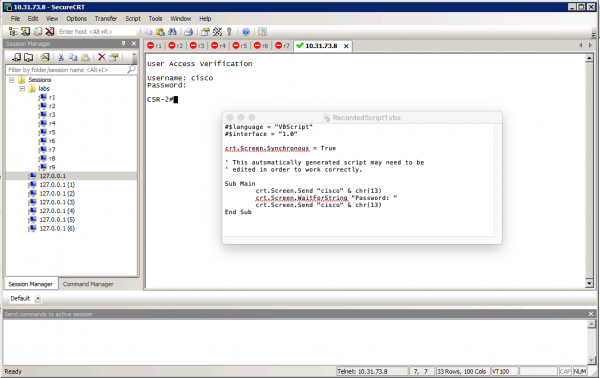
Example of executed commands and the saved script:
Running scripts on SecureCRT.
After creating/editing the script, a natural question arises: How to apply the script?
There are several ways:
- Manual run from the Script menu
- Automatic launch after connection (logon script)
- Automatic logon without using a script
- Manual launch using a button in SecureCRT (the button still needs to be created and added in SecureCRT)
Manual run from the Script menu
SecureCRT Menu => Script => Run…
— The last 10 scripts are remembered and available for quick execution:
SecureCRT Menu => Script => 1 "Script file name"
SecureCRT Menu => Script => 2 "Script file name"
SecureCRT Menu => Script => 3 "Script file name"
SecureCRT Menu => Script => 4 "Script file name"
SecureCRT Menu => Script => 5 "Script file name"
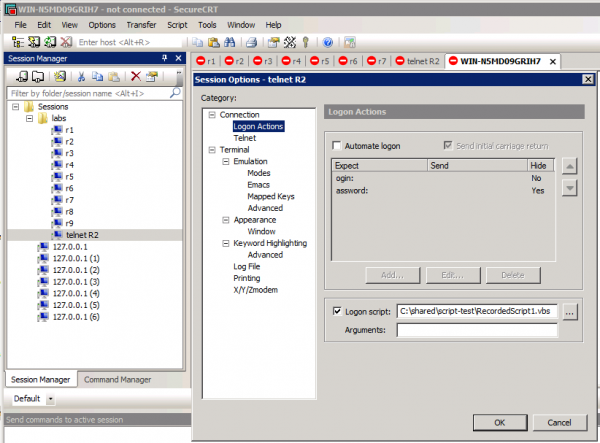
Automatic launch after connection (logon script)
Automatic script logon settings are configured for the saved session: Connection => Logon Actions => Logon script
Automatic logon without using a script
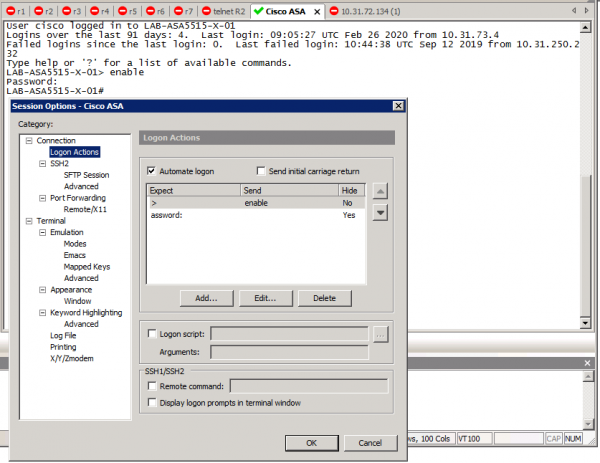
It is possible to automate the input of username and password without writing a script, using only the built-in functionalities of SecureCRT. In the connection settings "Connection" => Logon Actions => Automate logon – several pairs need to be filled in, which imply pairs of: "Expected text" + "Sent characters for this text". There can be many such pairs. (Example: 1st pair expects username input, the second expects password input, the third expects a prompt for privileged mode, the fourth is the password for privileged mode.)
Example of an automatic logon on Cisco ASA:
Manual launch using a button in SecureCRT (the button still needs to be created and added in SecureCRT)
In SecureCRT, a script can be assigned to a button. The button is added to a panel created specifically for this purpose.
a. Add the panel to the interface: SecureCRT Menu => View => Button Bar
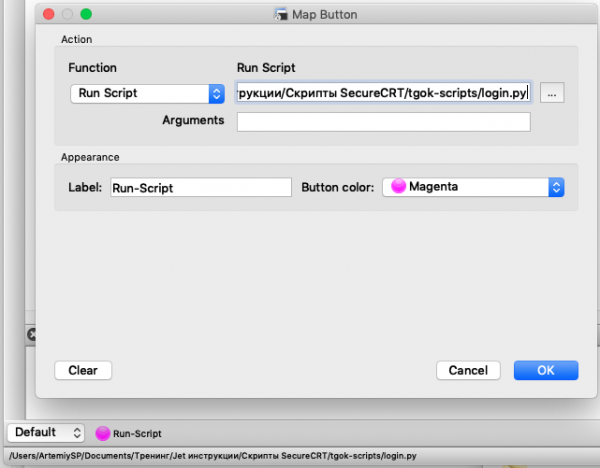
b. Add a button to the panel and assign a script. – Right-click on the Button Bar panel and select "New button…" from the context menu.
c. In the "Map Button" dialog, select the action (function) "Run Script" from the "Action" field.
Specify the button label. Color for the button icon. Complete the settings by clicking Ok.
Note:
The button panel is a very useful feature.
1. It is possible to specify which panel opens by default for a specific session upon Logon.
2. It is possible to predefine actions for standard equipment tasks: show show version, show running-config, save configuration.

No script is attached to these buttons. Only the action string:
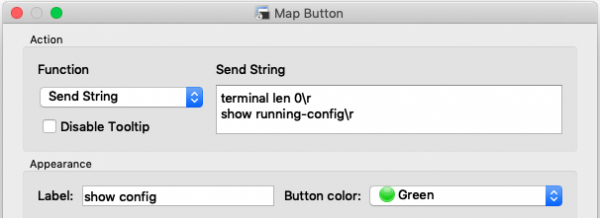
Configuration – to open the required button panel when switching to a session is done in the session settings:
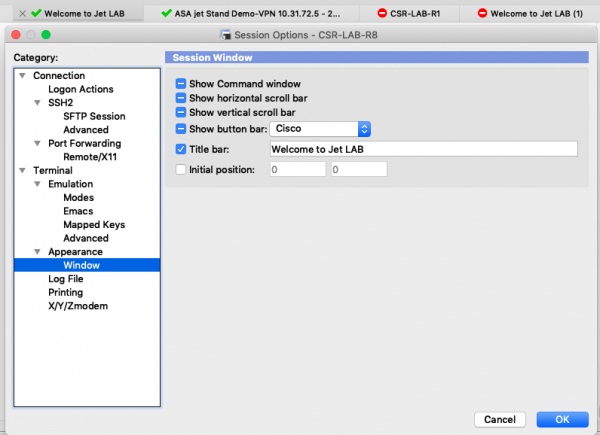
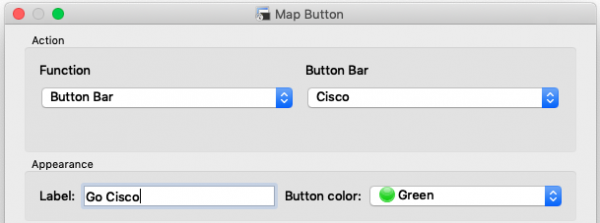
For the client, it makes sense to configure custom scripts for Login and switching to the vendor's frequently used commands panel.

When the Go Cisco button is pressed, the panel switches to the Cisco Button Bar.
Examples of using simple and advanced scripts. (Real-life practice.)
Simple scripts are sufficient for almost all scenarios. However, there was once a need to complicate the script slightly – to improve efficiency. This complication only required additional data to be requested from the user in a dialog box.
Requesting data from the user via a dialog box
In my data request script, I had 2 prompts. These were the Hostname and the 4th octet of the IP address. To perform this action – I Googled how to do it and found on the official SecureCRT (vandyke) site. The functionality is called prompt.
	crt.Screen.WaitForString("-Vlanif200]")
	hostnamestr = crt.Dialog.Prompt("Enter hostname:", "hostname", "", False)
	ipaddressstr = crt.Dialog.Prompt("Enter ip address:", "ip", "", False)
	crt.Screen.Send("ip address 10.10.10.")
	crt.Screen.Send(ipaddressstr)
	crt.Screen.Send(" 23r")
	crt.Screen.Send("quitr")
	crt.Screen.Send("sysname ")
	crt.Screen.Send(hostnamestr)
	crt.Screen.Send("r")
This part of the script prompted for the Hostname and the digits from the last octet. Since there were 15 pieces of equipment and the data was presented in a table, I copied values from the table and pasted them into the dialog boxes. Then the script worked independently.
FTP copying to network equipment.
This script opened a command window (shell) and copied data via FTP. Upon completion, it closed the session. Using Notepad for this is impossible, as the copying takes too long and the data in the FTP buffer will not be stored for that long:
# $language = "Python"
# $interface = "1.0"

# Connect to a telnet server and automate the initial login sequence.
# Note that synchronous mode is enabled to prevent server output from
# potentially being missed.

def main():
	crt.Screen.Synchronous = True
	crt.Screen.Send("ftp 192.168.1.1r")
	crt.Screen.WaitForString("Name")
	crt.Screen.Send("adminr")
	crt.Screen.WaitForString("Password:")
	crt.Screen.Send("Passwordr")
	crt.Screen.WaitForString("ftp")
	crt.Screen.Send("binaryr")
	crt.Screen.WaitForString("ftp")
	crt.Screen.Send("put S5720LI-V200R011SPH016.patr")
	crt.Screen.WaitForString("ftp")
	crt.Screen.Send("quitr")
	crt.Screen.Synchronous = False
main()
Entering username/password via a script
One customer had direct access to the network equipment closed. Access to the equipment was possible only after connecting to the default Gateway, and from there to the connected equipment. An ssh client built into the IOS/software was used for connection. Accordingly, the username and password were requested in the console. With the script below, the username and password were entered automatically:
# $language = "Python"
# $interface = "1.0"

# Connect to a telnet server and automate the initial login sequence.
# Note that synchronous mode is enabled to prevent server output from
# potentially being missed.

def main():
	crt.Screen.Synchronous = True
	crt.Screen.Send("snmpadminr")
	crt.Screen.WaitForString("assword:")
	crt.Screen.Send("Passwordr")
	crt.Screen.Synchronous = False
main()
Note: There were 2 scripts. One for the administrator account, the other for the eSIGHT account.
A script that allows direct data entry during script execution.
The task was to add a static route on all network equipment. However, the gateway to the internet on each equipment was different (and different from the default gateway). The next script displayed the routing table, entered configuration mode but did not complete the command (the IP address of the internet gateway) – I completed that part. After I pressed Enter, the script continued executing the command.
# $language = "Python"
# $interface = "1.0"

# Connect to a telnet server and automate the initial login sequence.
# Note that synchronous mode is enabled to prevent server output from
# potentially being missed.

def main():
	crt.Screen.Synchronous = True
	crt.Screen.Send("Zdes-mogla-bit-vasha-reklamar")
	crt.Screen.WaitForString("#")
	crt.Screen.Send("show run | inc ip router")
	crt.Screen.WaitForString("#")
	crt.Screen.Send("conf tr")
	crt.Screen.WaitForString("(config)#")
	crt.Screen.Send("ip route 10.10.10.8 255.255.255.252 ")
	crt.Screen.WaitForString("(config)#")
	crt.Screen.Send("endr")
	crt.Screen.WaitForString("#")
	crt.Screen.Send("copy run star")
	crt.Screen.WaitForString("[startup-config]?")
	crt.Screen.Send("r")
	crt.Screen.WaitForString("#")
	crt.Screen.Send("exitr")
	crt.Screen.Synchronous = False
main()
In this script, in the line: crt.Screen.Send(«ip route 10.10.10.8 255.255.255.252 „), the IP address of the gateway is missing and the carriage return character is absent. The script waits for the next line with the characters «(config)#» These characters appeared after I entered the IP address and pressed enter.
Conclusion:
When writing and executing a script, the rule must always be followed: The time taken to write and execute the script should never exceed the time theoretically spent performing the same work manually (copy/paste from notepad, writing and debugging a playbook for ansible, writing and debugging a python script). That is, using the script should save time, not take time for one-time automation processes (i.e., when the script is unique and will not be repeated). But if the script is unique and the automation with the script, along with the writing/debugging of the script, takes less time than performing it by any other means (ansible, command window), then the script is the best solution.
Debugging the script. The script grows gradually, the debugging takes place on the first, second, and third device, and by the fourth the script will most likely be fully functional.
Running a script (with username and password input) using the mouse is usually faster than copying the Username and Password from Notepad. However, it's not secure from a security standpoint.
Another (real) example of when to use a script: You do not have direct access to the network equipment, but you need to configure all network devices (add them to the monitoring system, configure additional Username/password/snmpv3username/password). You can access the Core switch and open SSH to other equipment from there. Why can't Ansible be used? — Because we hit the limit on the number of allowed simultaneous sessions on the network equipment (line vty 0 4, user-interface vty 0 4) (another question is how to bring in different equipment with the same SSH as a first hop in Ansible).
The script reduces time during lengthy operations – for example, copying files over FTP. After the copy is complete, the script immediately starts working. The person has to see the completion of the copy, then comprehend that it has finished, and then enter the appropriate commands. The script accomplishes this objectively faster.
Scripts are applicable where mass data delivery tools cannot be used: Console. Or when part of the data for the equipment is unique: hostname, management IP address. Or when writing a program and debugging it is more complicated than just adding data retrieved from the equipment during the script's operation. — Example with a script for setting up a route when each piece of equipment has its own ISP IP address. (My colleagues wrote such scripts — when there were over 300 DMVPN spokes. It was necessary to change the DMVPN settings).
A practical example: Setting up initial configurations on a new switch through console ports:
A. Inserted the console cable into the device.
B. Launched the script.
C. Waited for the script to execute.
D. Switched the console cable to the next device.
E. If the switch is not the last, return to step B.
In summary, after the script ran:
- a default password was set on the equipment.
- Username was entered.
- a unique IP address for the device was entered.
P.S. the operation had to be repeated because by default SSH was not configured/was disabled. (Yes, that was my mistake.)
Sources used.
1.
2.
Appendix 1: Script examples.
An example of a long script with two requests: Hostname and IP address. It was created for preconfiguring equipment via the console (9600 baud). Also, for preparing the equipment connection to the network.
# $language = "Python"
# $interface = "1.0"

# Connect to a telnet server and automate the initial login sequence.
# Note that synchronous mode is enabled to prevent server output from
# potentially being missed.

def main():
	crt.Screen.Synchronous = True
	crt.Screen.Send("r")
	crt.Screen.WaitForString("name")
	crt.Screen.Send("adminr")
	crt.Screen.WaitForString("Password:")
	crt.Screen.Send("Passwordr")
	crt.Screen.Send("sysr")
	crt.Screen.WaitForString("]")
	crt.Screen.Send("interface Vlanif 1r")
	crt.Screen.WaitForString("Vlanif1]")
	crt.Screen.Send("undo ip addressr")
	crt.Screen.Send("shutdownr")
	crt.Screen.Send("vlan 100r")
	crt.Screen.Send(" description description1r")
	crt.Screen.Send(" name description1r")
	crt.Screen.Send("vlan 110r")
	crt.Screen.Send(" description description2r")
	crt.Screen.Send(" name description2r")
	crt.Screen.Send("vlan 120r")
	crt.Screen.Send(" description description3r")
	crt.Screen.Send(" name description3r")
	crt.Screen.Send("vlan 130r")
	crt.Screen.Send(" description description4r")
	crt.Screen.Send(" name description4r")
	crt.Screen.Send("vlan 140r")
	crt.Screen.Send(" description description5r")
	crt.Screen.Send(" name description5r")
	crt.Screen.Send("vlan 150r")
	crt.Screen.Send(" description description6r")
	crt.Screen.Send(" name description6r")
	crt.Screen.Send("vlan 160r")
	crt.Screen.Send(" description description7r")
	crt.Screen.Send(" name description7r")
	crt.Screen.Send("vlan 170r")
	crt.Screen.Send(" description description8r")
	crt.Screen.Send(" name description8r")
	crt.Screen.Send("vlan 180r")
	crt.Screen.Send(" description description9r")
	crt.Screen.Send(" name description9r")
	crt.Screen.Send("vlan 200r")
	crt.Screen.Send(" description description10r")
	crt.Screen.Send(" name description10r")
	crt.Screen.Send("vlan 300r")
	crt.Screen.Send(" description description11r")
	crt.Screen.Send(" name description11r")
	crt.Screen.Send("quitr")
	crt.Screen.WaitForString("]")
	crt.Screen.Send("stp region-configurationr")
	crt.Screen.Send("region-name descr")
	crt.Screen.Send("active region-configurationr")
	crt.Screen.WaitForString("mst-region]")
	crt.Screen.Send("quitr")
	crt.Screen.Send("stp instance 0 priority 57344r")
	crt.Screen.WaitForString("]")
	crt.Screen.Send("interface range GigabitEthernet 0/0/1 to GigabitEthernet 0/0/42r")
	crt.Screen.WaitForString("port-group]")
	crt.Screen.Send("description Usersr")
	crt.Screen.WaitForString("port-group]")
	crt.Screen.Send("port link-type hybridr")
	crt.Screen.WaitForString("port-group]")
	crt.Screen.Send("voice-vlan 100 enabler")
	crt.Screen.WaitForString("port-group]")
	crt.Screen.Send("voice-vlan legacy enabler")
	crt.Screen.WaitForString("port-group]")
	crt.Screen.Send("port hybrid pvid vlan 120r")
	crt.Screen.WaitForString("port-group]")
	crt.Screen.Send("port hybrid tagged vlan 100r")
	crt.Screen.WaitForString("port-group]")
	crt.Screen.Send("port hybrid untagged vlan 120r")
	crt.Screen.WaitForString("port-group]")
	crt.Screen.Send("stp edged-port enabler")
	crt.Screen.WaitForString("port-group]")
	crt.Screen.Send("trust 8021pr")
	crt.Screen.WaitForString("port-group]")
	crt.Screen.Send("storm-control broadcast min-rate 1000 max-rate 1500r")
	crt.Screen.WaitForString("port-group]")
	crt.Screen.Send("storm-control multicast min-rate 1000 max-rate 1500r")
	crt.Screen.WaitForString("port-group]")
	crt.Screen.Send("storm-control action blockr")
	crt.Screen.WaitForString("port-group]")
	crt.Screen.Send("storm-control enable trapr")
	crt.Screen.WaitForString("port-group]")
	crt.Screen.Send("quitr")
	crt.Screen.Send("interface range GigabitEthernet 0/0/43 to GigabitEthernet 0/0/48r")
	crt.Screen.WaitForString("port-group]")
	crt.Screen.Send("description Printersr")
	crt.Screen.WaitForString("port-group]")
	crt.Screen.Send("port link-type accessr")
	crt.Screen.WaitForString("port-group]")
	crt.Screen.Send("port default vlan 130r")
	crt.Screen.WaitForString("port-group]")
	crt.Screen.Send("stp edged-port enabler")
	crt.Screen.WaitForString("port-group]")
	crt.Screen.Send("trust 8021pr")
	crt.Screen.WaitForString("port-group]")
	crt.Screen.Send("storm-control broadcast min-rate 1000 max-rate 1500r")
	crt.Screen.WaitForString("port-group]")
	crt.Screen.Send("storm-control multicast min-rate 1000 max-rate 1500r")
	crt.Screen.WaitForString("port-group]")
	crt.Screen.Send("storm-control action blockr")
	crt.Screen.WaitForString("port-group]")
	crt.Screen.Send("storm-control enable trapr")
	crt.Screen.WaitForString("port-group]")
	crt.Screen.Send("quitr")
	crt.Screen.Send("interface range XGigabitEthernet 0/0/1 to XGigabitEthernet 0/0/2r")
	crt.Screen.WaitForString("port-group]")
	crt.Screen.Send("description uplinkr")
	crt.Screen.WaitForString("port-group]")
	crt.Screen.Send("port link-type trunkr")
	crt.Screen.WaitForString("port-group]")
	crt.Screen.Send("port trunk allow-pass vlan 100 110 120 130 140 150 160 170 180 200r")
	crt.Screen.WaitForString("port-group]")
	crt.Screen.Send("port trunk allow-pass vlan 300r")
	crt.Screen.WaitForString("port-group]")
	crt.Screen.Send("storm-control broadcast min-rate 1000 max-rate 1500r")
	crt.Screen.WaitForString("port-group]")
	crt.Screen.Send("storm-control multicast min-rate 1000 max-rate 1500r")
	crt.Screen.WaitForString("port-group]")
	crt.Screen.Send("storm-control action blockr")
	crt.Screen.WaitForString("port-group]")
	crt.Screen.Send("storm-control enable trapr")
	crt.Screen.WaitForString("port-group]")
	crt.Screen.Send("quitr")
	crt.Screen.Send("ntp-service unicast-server 10.10.10.4r")
	crt.Screen.Send("ntp-service unicast-server 10.10.10.2r")
	crt.Screen.Send("ntp-service unicast-server 10.10.10.134r")
	crt.Screen.Send("ip route-static 0.0.0.0 0.0.0.0 10.10.10.254r")
	crt.Screen.Send("interface Vlanif 200r")
	crt.Screen.WaitForString("-Vlanif200]")
	crt.Screen.Send("r")
	crt.Screen.WaitForString("-Vlanif200]")
	crt.Screen.Send("r")
	crt.Screen.WaitForString("-Vlanif200]")
	crt.Screen.Send("r")
	crt.Screen.WaitForString("-Vlanif200]")
	crt.Screen.Send("r")
	crt.Screen.WaitForString("-Vlanif200]")
	crt.Screen.Send("r")
	crt.Screen.WaitForString("-Vlanif200]")
	crt.Screen.Send("r")
	crt.Screen.WaitForString("-Vlanif200]")
	crt.Screen.Send("r")
	crt.Screen.WaitForString("-Vlanif200]")
        hostnamestr = crt.Dialog.Prompt("Enter hostname:", "hostname", "", False)
        ipaddressstr = crt.Dialog.Prompt("Enter ip address:", "ip", "", False)
	crt.Screen.Send("ip address 10.10.10.")
	crt.Screen.Send(ipaddressstr)
	crt.Screen.Send(" 24r")
	crt.Screen.Send("quitr")
	crt.Screen.Send("sysname ")
	crt.Screen.Send(hostnamestr)
	crt.Screen.Send("r")
	crt.Screen.WaitForString("]")
	crt.Screen.Synchronous = False
main()
Such scripts are usually not needed, but the quantity of equipment – 15 units. This allowed for faster configuration. Further setup of the equipment was quicker using the SecureCRT Command window.
Setting up an account for ssh.
Another example. Configuration is also done through the console.
# $language = "Python"
# $interface = "1.0"

# Connect to a telnet server and automate the initial login sequence.
# Note that synchronous mode is enabled to prevent server output from
# potentially being missed.

def main():
	crt.Screen.Synchronous = True
	crt.Screen.Send("r")
	crt.Screen.WaitForString("name")
	crt.Screen.Send("adminr")
	crt.Screen.WaitForString("Password:")
	crt.Screen.Send("Passwordr")
	crt.Screen.WaitForString(">")
	crt.Screen.Send("sysr")
	crt.Screen.Send("stelnet server enabler")
	crt.Screen.Send("aaar")
	crt.Screen.Send("local-user admin service-type terminal ftp http sshr")
	crt.Screen.Send("quitr")
	crt.Screen.Send("user-interface vty 0 4r")
	crt.Screen.Send("authentication-mode aaar")
	crt.Screen.Send("quitr")
	crt.Screen.Send("quitr")
	crt.Screen.Synchronous = False
main()
About SecureCRT:Paid software: from $99 (the lowest price only on SecureCRT for one year)
A software license is purchased once, with support (for updates), after which the software can be used with this license for an unlimited time.
Works on Mac OS X and Windows operating systems.
There is support for scripts (this article)
There is
Serial/Telnet/SSH1/SSH2/Shell of the operating system
Source: habr.com
