

In the organization where I work, remote work was generally prohibited. That was until last week. Now we had to urgently implement a solution. From the business side — adapting processes to the new work format, from us — PKI with PIN codes and tokens, VPN, detailed logging, and much more.
Besides everything, I was involved in setting up remote desktop infrastructure aka terminal services. We have several RDS deployments in different data centers. One of the tasks was to allow colleagues from adjacent IT departments to connect to user sessions interactively. As is known, there is a built-in RDS Shadow mechanism for this, and the easiest way to delegate it is to give local administrator rights on the RDS servers.
I respect and value my colleagues, but I am very stingy with the distribution of admin rights. 🙂 Those who agree with me, please read on.
Well, the task is clear, now let's get to work.
Step 1
Let's create a security group in Active Directory RDP_Operators and include the accounts of those users to whom we want to delegate rights:
$Users = @(
    "UserLogin1",
    "UserLogin2",
    "UserLogin3"
)
$Group = "RDP_Operators"
New-ADGroup -Name $Group -GroupCategory Security -GroupScope DomainLocal
Add-ADGroupMember -Identity $Group -Members $Users
If you have multiple AD sites, wait until it is replicated to all domain controllers before proceeding to the next step. Usually, this takes no more than 15 minutes.
Step 2
Let's grant the group permission to manage terminal sessions on each of the RDSH servers:
Set-RDSPermissions.ps1
$Group = "RDP_Operators"
$Servers = @(
    "RDSHost01",
    "RDSHost02",
    "RDSHost03"
)
ForEach ($Server in $Servers) {
    #Delegate permission for shadow sessions
    $WMIHandles = Get-WmiObject `
        -Class "Win32_TSPermissionsSetting" `
        -Namespace "rootCIMV2terminalservices" `
        -ComputerName $Server `
        -Authentication PacketPrivacy `
        -Impersonation Impersonate
    ForEach($WMIHandle in $WMIHandles)
    {
        If ($WMIHandle.TerminalName -eq "RDP-Tcp")
        {
        $retVal = $WMIHandle.AddAccount($Group, 2)
        $opstatus = "successful"
        If ($retVal.ReturnValue -ne 0) {
            $opstatus = "error"
        }
        Write-Host ("Delegating shadow connection rights to group " +
            $Group + " on server " + $Server + ": " + $opstatus + "`r`n")
        }
    }
}
Step 3
Let's add the group to the local group Remote Desktop Users on each of the RDSH servers. If your servers are combined into session collections, do this at the collection level:
$Group = "RDP_Operators"
$CollectionName = "MyRDSCollection"
[String[]]$CurrentCollectionGroups = @(Get-RDSessionCollectionConfiguration -CollectionName $CollectionName -UserGroup).UserGroup
Set-RDSessionCollectionConfiguration -CollectionName $CollectionName -UserGroup ($CurrentCollectionGroups + $Group)
For individual servers, we'll use , waiting for it to be applied on the servers. Those who are impatient can force the process using the good old gpupdate, preferably .
Step 4
Let's prepare a PS script for the "managers":
RDSManagement.ps1
$Servers = @(
    "RDSHost01",
    "RDSHost02",
    "RDSHost03"
)

function Invoke-RDPSessionLogoff {
    Param(
        [parameter(Mandatory=$True, Position=0)][String]$ComputerName,
        [parameter(Mandatory=$true, Position=1)][String]$SessionID
    )
    $ErrorActionPreference = "Stop"
    logoff $SessionID /server:$ComputerName /v 2>&1
}

function Invoke-RDPShadowSession {
    Param(
        [parameter(Mandatory=$True, Position=0)][String]$ComputerName,
        [parameter(Mandatory=$true, Position=1)][String]$SessionID
    )
    $ErrorActionPreference = "Stop"
    mstsc /shadow:$SessionID /v:$ComputerName /control 2>&1
}

Function Get-LoggedOnUser {
    Param(
        [parameter(Mandatory=$True, Position=0)][String]$ComputerName="localhost"
    )
    $ErrorActionPreference = "Stop"
    Test-Connection $ComputerName -Count 1 | Out-Null
    quser /server:$ComputerName 2>&1 | Select-Object -Skip 1 | ForEach-Object {
        $CurrentLine = $_.Trim() -Replace "s+"," " -Split "s"
        $HashProps = @{
            UserName = $CurrentLine[0]
            ComputerName = $ComputerName
        }
        If ($CurrentLine[2] -eq "Disc") {
            $HashProps.SessionName = $null
            $HashProps.Id = $CurrentLine[1]
            $HashProps.State = $CurrentLine[2]
            $HashProps.IdleTime = $CurrentLine[3]
            $HashProps.LogonTime = $CurrentLine[4..6] -join " "
            $HashProps.LogonTime = $CurrentLine[4..($CurrentLine.GetUpperBound(0))] -join " "
        }
        else {
            $HashProps.SessionName = $CurrentLine[1]
            $HashProps.Id = $CurrentLine[2]
            $HashProps.State = $CurrentLine[3]
            $HashProps.IdleTime = $CurrentLine[4]
            $HashProps.LogonTime = $CurrentLine[5..($CurrentLine.GetUpperBound(0))] -join " "
        }
        New-Object -TypeName PSCustomObject -Property $HashProps |
        Select-Object -Property UserName, ComputerName, SessionName, Id, State, IdleTime, LogonTime
    }
}

$UserLogin = Read-Host -Prompt "Enter user login"
Write-Host "Searching for user RDP sessions on servers..."
$SessionList = @()
ForEach ($Server in $Servers) {
    $TargetSession = $null
    Write-Host "  Polling server $Server"
    Try {
        $TargetSession = Get-LoggedOnUser -ComputerName $Server | Where-Object {$_.UserName -eq $UserLogin}
    }
    Catch {
        Write-Host "Error: " $Error[0].Exception.Message -ForegroundColor Red
        Continue
    }
    If ($TargetSession) {
        Write-Host "    Found session with ID $($TargetSession.ID) on server $Server" -ForegroundColor Yellow
        Write-Host "    What would you like to do?"
        Write-Host "      1 - connect to the session"
        Write-Host "      2 - terminate the session"
        Write-Host "      0 - do nothing"
        $Action = Read-Host -Prompt "Enter action"
        If ($Action -eq "1") {
            Invoke-RDPShadowSession -ComputerName $Server -SessionID $TargetSession.ID
        }
        ElseIf ($Action -eq "2") {
            Invoke-RDPSessionLogoff -ComputerName $Server -SessionID $TargetSession.ID
        }
        Break
    }
    Else {
        Write-Host "    no sessions found"
    }
}
To make the PS script easy to run, we will create a wrapper for it in the form of a CMD file with the same name as the PS script:
RDSManagement.cmd
@ECHO OFF
powershell -NoLogo -ExecutionPolicy Bypass -File "%~d0%~p0%~n0.ps1" %*
We place both files in a folder accessible to the "administrators" and ask them to log in again. Now, by running the cmd file, they will be able to connect to other users' sessions in RDS Shadow mode and forcibly log them out (useful when a user cannot independently end a "frozen" session).
It looks something like this:
For the "administrator"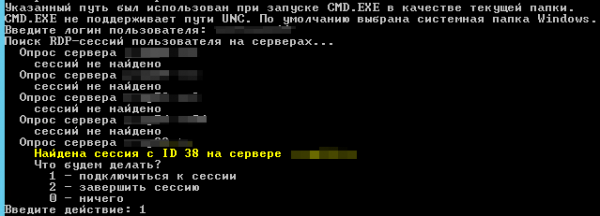
For the user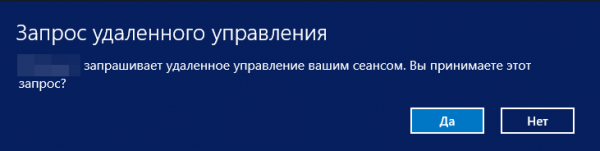
A few final notes
nuance 1. If the user session we are trying to control was started before the script Set-RDSPermissions.ps1 executed on the server, the "administrator" will receive an access error. The solution here is obvious: wait for the managed user to log in again.
nuance 2. After several days of working with RDP Shadow, we noticed an interesting bug or feature: after ending the shadow session of the user we connected to, the language bar disappears from the tray and in order to get it back, the user needs to log in again. It turns out we are not alone: , , .
That's all. I wish you and your servers good health. As always, I look forward to your feedback in the comments and please take a short survey below.
file — continuous reading of events from one or more local files;
Only registered users can participate in the survey. , please.
What do you use?
8,1%AMMYY Admin5
17,7%AnyDesk11
9,7%DameWare6
24,2%Radmin15
14,5%RDS Shadow9
1,6%Quick Assist / Windows Remote Assistance1
38,7%TeamViewer24
32,3%VNC20
32,3%other20
3,2%LiteManager2
62 users voted. 22 users abstained.
Source: habr.com
