

The textual output of commands in the PowerShell interpreter is just a way to display information in a human-readable format. In reality, the environment towards working with objects: cmdlets and functions receive them as input and , while the types of variables available in interactive mode and in scripts are based on .NET classes. In the fourth article of the series, we will explore working with objects in more detail.
Table of Contents:
Objects in PowerShell
Recall that an object is a collection of data fields (properties, events, etc.) and methods for processing them. Its structure is defined by a type, which is typically based on the classes used in the unified .NET Core platform. It is also possible to work with COM, CIM (WMI), and ADSI objects. Properties and methods are needed to perform various actions on the data; moreover, in PowerShell, objects can be passed as arguments to functions and cmdlets, their values assigned to variables, and there exists (pipeline). Each command in the pipeline passes its output to the next one sequentially — object by object. For processing, you can use compiled cmdlets or create your own , to perform various manipulations with objects in the pipeline: filtering, sorting, grouping, and even altering their structure. Transmitting data in this form has a significant advantage: the receiving command does not need to parse the byte stream (text), all necessary information can be easily extracted by accessing the relevant properties and methods.
Viewing Object Structures
For example, let's run the Get-Process cmdlet, which allows you to get information about the processes running on the system:
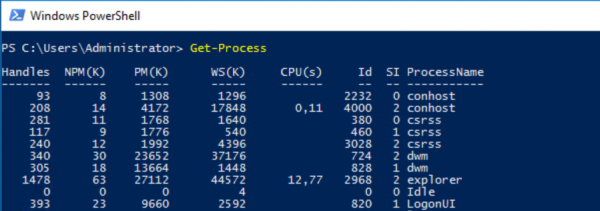
It will output some formatted text data that does not provide insight into the properties of the returned objects and their methods. To finely dissect the output, we need to learn to investigate the structure of objects, and the Get-Member cmdlet will assist us in this.
Get-Process | Get-Member 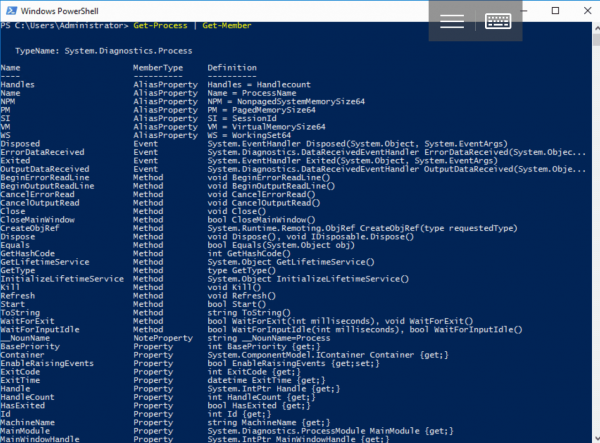
Here we can already see the type and structure, and using additional parameters we can, for example, output only the properties of the incoming object:
Get-Process | Get-Member -MemberType PropertyThis knowledge will be useful for solving administrative tasks in interactive mode or for writing your own scripts: for instance, to obtain information about unresponsive processes based on the Responding property.
Filtering Objects
PowerShell allows passing through the pipeline objects that meet certain criteria:
Where-Object { script block }The result of the script block in the brackets must be a logical value. If it is true ($true), the object passed to the Where-Object cmdlet will be sent further along the pipeline; otherwise (with a value of $false), it will be removed. For example, let's output the list of stopped Windows Server services, that is, those with the Status property set to 'Stopped':
Get-Service | Where-Object {$_.Status -eq "Stopped"} 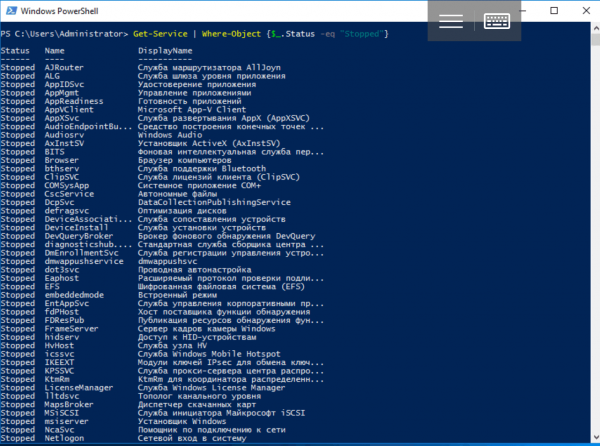
Here we again see a text representation, but if desired, understanding the type and internal structure of the objects passing through the pipeline is not difficult:
Get-Service | Where-Object {$_.Status -eq "Stopped"} | Get-Member 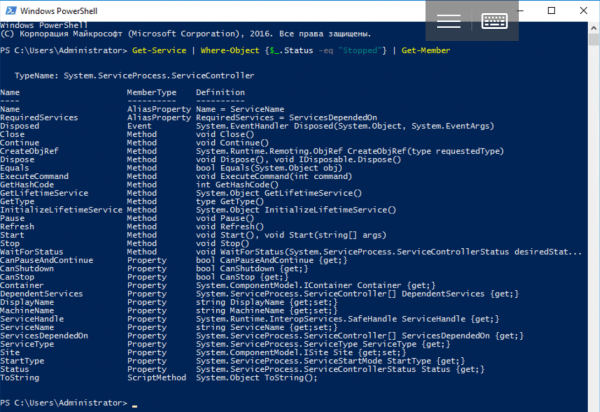
Sorting Objects
When processing objects through the pipeline, there is often a need for sorting them. The Sort-Object cmdlet takes the names of properties (sort keys), and it returns the objects ordered by their values. The output of running processes can easily be sorted by the amount of CPU time spent (cpu property):
Get-Process | Sort-Object –Property cpuThe -Property parameter when calling the Sort-Object cmdlet is optional — it is used by default. To sort in reverse order, the -Descending parameter is applied:
Get-Process | Sort-Object cpu -Descending 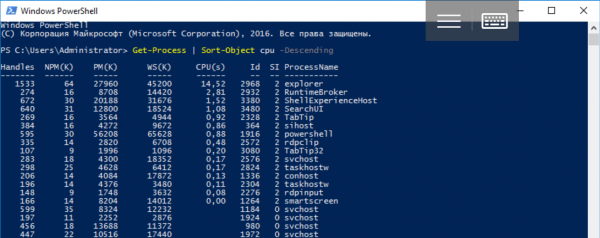
Extracting Objects and Their Parts
The Select-Object cmdlet allows you to select a specific number of objects at the beginning or end of the pipeline using the -First or -Last parameters. It can be used to select individual objects or certain properties, as well as to create new objects based on them. Let's break down the work of the cmdlet with simple examples.
The following command outputs information about the 10 processes consuming the maximum amount of memory (WS property):
Get-Process | Sort-Object WS -Descending | Select-Object -First 10 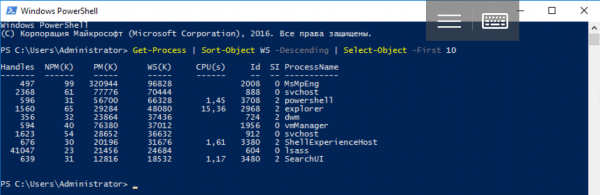
You can select only certain properties of the objects passing through the pipeline and create new ones based on them:
Get-Process | Select-Object ProcessName, Id -First 1As a result of the pipeline operation, we will obtain a new object whose structure will differ from that returned by the Get-Process cmdlet. We can verify this using Get-Member:
Get-Process | Select-Object ProcessName, Id -First 1 | Get-Member 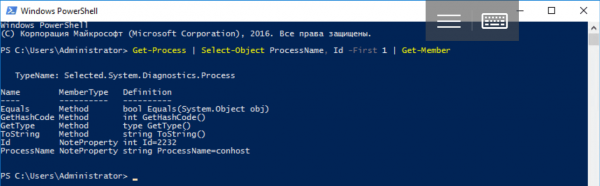
Note that Select-Object returns a single object (-First 1), which has only the two fields we specified: their values were copied from the first object passed to the pipeline by the Get-Process cmdlet. One way to create objects in PowerShell scripts is based on the use of Select-Object:
$obj = Get-Process | Select-Object ProcessName, Id -First 1
$obj.GetType() 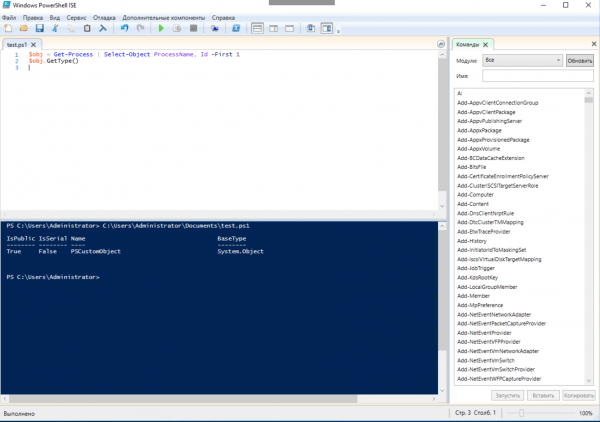
Using Select-Object, calculated properties can be added to the objects, which need to be presented as . The value of its first key corresponds to the property name, while the value of the second corresponds to the property value for the current pipeline element:
Get-Process | Select-Object -Property ProcessName, @{Name="StartTime"; Expression = {$_.StartTime.Minute}} 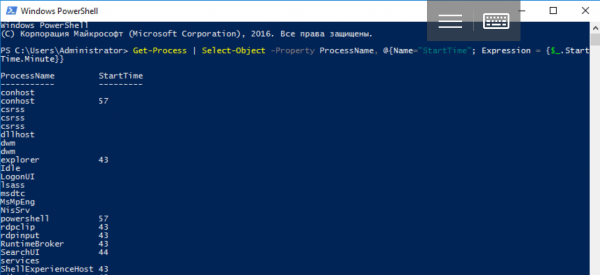
Let's take a look at the structure of the objects passing through the pipeline:
Get-Process | Select-Object -Property ProcessName, @{Name="StartTime"; Expression = {$_.StartTime.Minute}} | Get-Member 
ForEach-Object, Group-Object, and Measure-Object
There are other cmdlets for working with objects. For example, we will discuss three of the most useful:
ForEach-Object allows you to execute PowerShell code for each object in the pipeline:
ForEach-Object { script block }Group-Object groups objects by property value:
Group-Object PropertyNameIf run with the -NoElement parameter, it can show the number of items in the groups.
Measure-Object aggregates various summary parameters based on the field values of the objects in the pipeline (calculates the sum, and finds minimum, maximum, or average values):
Measure-Object -Property PropertyName -Minimum -Maximum -Average -SumTypically, the cmdlets discussed are used interactively, while functions are more commonly created in scripts. with blocks Begin, Process, and End.
Creating .NET and COM Objects (New-Object)
There are many software components with .NET Core and COM interfaces that will be useful for system administrators. The System.Diagnostics.EventLog class can be used to manage system logs directly from Windows PowerShell. Let's examine an example of creating an instance of this class using the New-Object cmdlet with the -TypeName parameter:
New-Object -TypeName System.Diagnostics.EventLog 
Since we did not specify a particular event log, the resulting class instance contains no data. To change this, it is necessary to call a special constructor method using the -ArgumentList parameter at the time of its creation. If we want to access the application log, the string "Application" should be passed as an argument to the constructor:
$AppLog = New-Object -TypeName System.Diagnostics.EventLog -ArgumentList Application
$AppLog 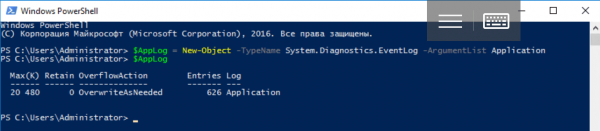
Note: We saved the output of the command in the variable $AppLog. Although pipelines are typically used in interactive mode, scripting often requires saving a reference to the object. Moreover, the main .NET Core classes are located in the System namespace: PowerShell looks for the specified types there by default, so it is perfectly valid to write Diagnostics.EventLog instead of System.Diagnostics.EventLog.
To work with the log, you can call the corresponding methods:
$AppLog | Get-Member -MemberType Method 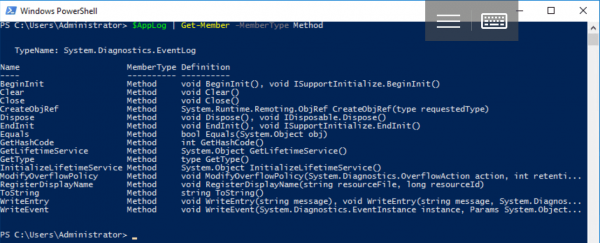
For example, it is cleared using the Clear() method if access rights are present:
$AppLog.Clear()The New-Object cmdlet is also used to work with COM components. There are quite a few of them — from the Windows scripting libraries that come with the server to ActiveX applications, such as Internet Explorer. To create a COM object, you need to specify the -ComObject parameter with the ProgId of the required class:
New-Object -ComObject WScript.Shell
New-Object -ComObject WScript.Network
New-Object -ComObject Scripting.Dictionary
New-Object -ComObject Scripting.FileSystemObject
Using New-Object to create your own objects with arbitrary structure looks too outdated and cumbersome, this cmdlet is used to work with external software components relative to PowerShell. This topic will be discussed in more detail in subsequent articles. In addition to .NET and COM objects, we will also explore CIM (WMI) and ADSI objects.
Calling Static Methods
Instances of some .NET Core classes cannot be created: among them are System.Environment and System.Math. They are and contain only static properties and methods. Essentially, these are reference libraries that are used without creating objects. A static class can be referenced using the literal by enclosing the type name in square brackets. When you look at the structure of the object with Get-Member, you will see the type System.RuntimeType instead of System.Environment:
[System.Environment] | Get-Member 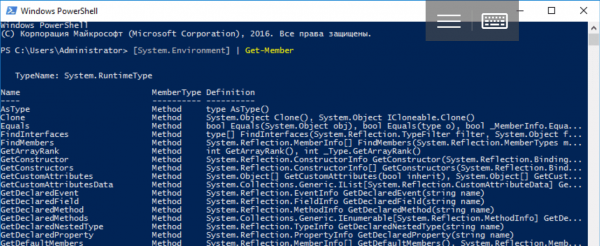
To view only static members, you need to call Get-Member with the -Static parameter (note the object type):
[System.Environment] | Get-Member -Static 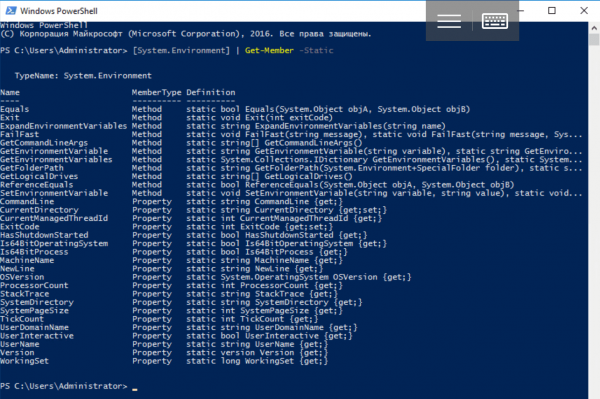
To access static properties and methods, two consecutive colons are used instead of a dot after the literal:
[System.Environment]::OSVersionOr
$test=[System.Math]::Sqrt(25)
$test
$test.GetType() 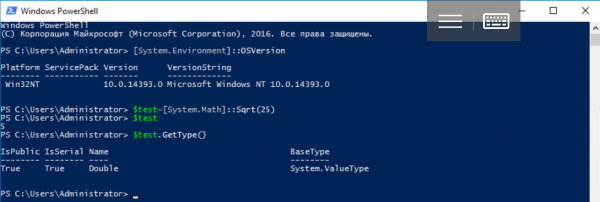
The PSCustomObject Type
Among the numerous data types available in PowerShell, PSCustomObject stands out, designed to hold objects with arbitrary structures. Creating such an object using the New-Object cmdlet is considered classic, but cumbersome and outdated:
$object = New-Object  –TypeName PSCustomObject -Property @{Name = 'Ivan Danko';
                                          City = 'Moscow';
                                          Country = 'Russia'}
Let's take a look at the object's structure:
$object | Get-Member 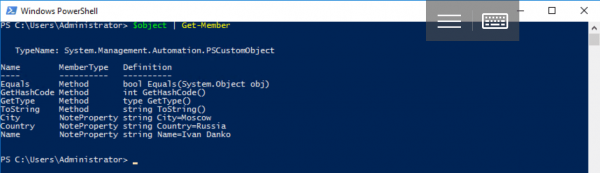
Starting from PowerShell 3.0, a different syntax is also available:
$object = [PSCustomObject]@{Name = 'Ivan Danko';
                                          City = 'Moscow';
                                          Country = 'Russia'
}
You can access the data in one of the equivalent ways:
$object.Name

$object.'Name'

$value = 'Name'
$object.$value
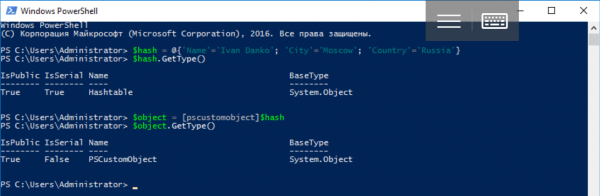
Here's an example of transforming an existing hashtable into an object:
$hash = @{'Name'='Ivan Danko'; 'City'='Moscow'; 'Country'='Russia'}
$hash.GetType()
$object = [pscustomobject]$hash
$object.GetType()
One of the drawbacks of this type of object is that the order of its properties may change. To avoid this, it is necessary to use the [ordered] attribute:
$object = [PSCustomObject][ordered]@{Name = 'Ivan Danko';
                                          City = 'Moscow';
                                          Country = 'Russia'
}
There are other options for creating an object: we have looked at using the cmdlet . Next, we need to figure out how to add and remove elements. This is quite simple for the object from the previous example:
$object | Add-Member –MemberType NoteProperty –Name Age  –Value 33
$object | Get-Member
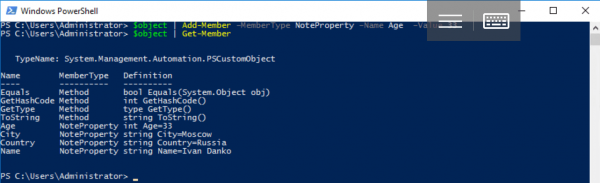
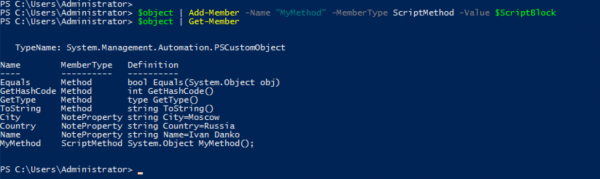
The Add-Member cmdlet allows adding not only properties but also methods to the previously created object $object using the ‘-MemberType ScriptMethod’ construct:
$ScriptBlock = {
    # code
}
$object | Add-Member -Name "MyMethod" -MemberType ScriptMethod -Value $ScriptBlock
$object | Get-Member
Note: to store the code for the new method, we used the variable $ScriptBlock of type ScriptBlock.
To remove properties, the corresponding method is used:
$object.psobject.properties.remove('Name')
Creating Custom Classes
PowerShell 5.0 introduced the ability to define using the syntax characteristic of object-oriented programming languages. The keyword Class is designated for this purpose, followed by the class name and the description of its body in curly braces:
class MyClass
{
    # class body
}
This is a true .NET Core type, in whose body its properties, methods, and other elements are described. Let's consider an example of defining the simplest class:
class MyClass
{
     [string]$Name
     [string]$City
     [string]$Country
}
To create an object (instance of the class), the cmdlet , or the type literal [MyClass] and new (default constructor):
$object = New-Object -TypeName MyClassor
$object = [MyClass]::new()Let's analyze the structure of the object:
$object | Get-Member 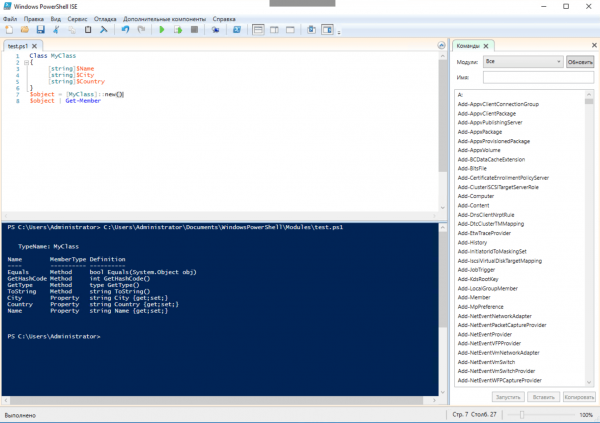
It should be noted regarding the scope: you cannot reference the type name as a string or use the type literal outside the script or module in which the class is defined. At the same time, functions can return class instances (objects) that will be accessible outside the module or script.
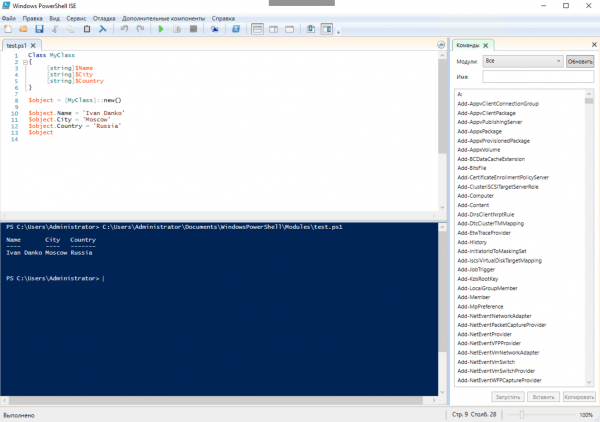
After creating the object, let's populate its properties:
$object.Name = 'Ivan Danko'
$object.City = 'Moscow'
$object.Country = 'Russia'
$object
Note that in the class description, not only the types of properties are specified but also their default values:
class Example
{
     [string]$Name = 'John Doe'
}
The class method description resembles that of a function, but without using the keyword function. As in a function, parameters can be passed to methods if necessary:
class MyClass
{
     [string]$Name
     [string]$City
     [string]$Country

     # method description
     Smile([bool]$param1)
     {
         If($param1) {
            Write-Host ':)'
         }
     }
}
Now our class instance knows how to smile:
$object = [MyClass]::new()
$object.Smile($true)
Methods can be overloaded; in addition, a class may have , as well as constructors, whose names match the name of the class itself. A class defined in a PowerShell script or module can serve as a base for another — this is how inheritance is implemented. Existing .NET classes may be used as base classes:
class MyClass2 : MyClass
{
      # body of the new class, which is based on MyClass
}
[MyClass2]::new().Smile($true)
Our description of working with objects in PowerShell can hardly be called exhaustive. In upcoming publications, we will try to deepen it with practical examples: the fifth article in the series will focus on the integration of PowerShell with third-party software components. Previous parts can be found via the links below.
Source: habr.com
