

The task was simple, to install Docker on my Windows work laptop, which already had a mix of different software. I installed Docker Desktop, created containers, everything was fine, but I quickly discovered that VMWare Workstation stopped launching virtual machines with an error:
VMware Workstation and Device/Credential Guard are not compatible. VMware Workstation can be run after disabling Device/Credential Guard.
Work came to a halt; it needs urgent fixing.
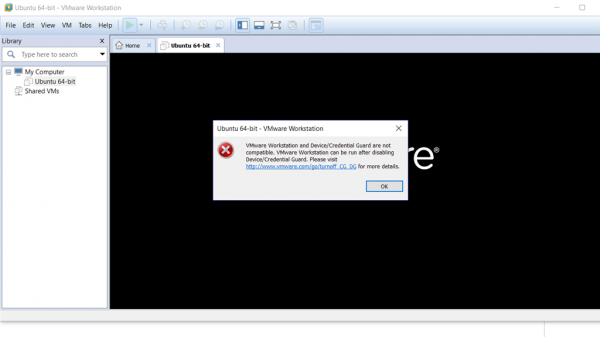
Through some Googling, I found out that this error occurs due to the incompatibility of VMWare Workstation and Hyper-V on the same machine. This is a known issue, and there is an official solution from VMWare on how to , with a link to the Microsoft knowledge base . The solution involves disabling Defender Credential Guard (I found step 4 in the section Disable Windows Defender Credential Guard helpful):
mountvol X: /s
copy %WINDIR%System32SecConfig.efi X:EFIMicrosoftBootSecConfig.efi /Y
bcdedit /create {0cb3b571-2f2e-4343-a879-d86a476d7215} /d "DebugTool" /application osloader
bcdedit /set {0cb3b571-2f2e-4343-a879-d86a476d7215} path "EFIMicrosoftBootSecConfig.efi"
bcdedit /set {bootmgr} bootsequence {0cb3b571-2f2e-4343-a879-d86a476d7215}
bcdedit /set {0cb3b571-2f2e-4343-a879-d86a476d7215} loadoptions DISABLE-LSA-ISO
bcdedit /set {0cb3b571-2f2e-4343-a879-d86a476d7215} device partition=X:
mountvol X: /d
After restarting Windows, it will ask if you really want to disable Defender Credential Guard. Yes! Thus, VMWare Workstation will return to normal operation, and we will be back in the same situation we were before installing Docker.
I did not find a solution on how to reconcile Hyper-V and VMWare Workstation; I hope they will get along in future versions.
Another way
I have been using VMWare Workstation for various purposes for a long time, tried to switch to Hyper-V and VirtualBox, but the functionality did not meet my needs, so I'm still here. It turns out there is a solution to integrate VMWare, Docker, and VSCode in one working environment.
— allows you to run Docker Engine on a virtual host and connect to it both remotely and locally. There is a compatibility driver for VMWare Workstation for it,
I won’t go over the installation instructions, just a list of ingredients:
- ( included)
- Docker Desktop
Yes, unfortunately, Docker Desktop will also be needed. If you uninstalled it, reinstall it, but this time uncheck the box for making changes to the OS so as not to break VMWare Workstation again.
I want to note that everything works perfectly from a regular user; the installation programs will request permission escalation when needed, but all commands in the command line and scripts are executed from the current user.
As a result, with the command:
$ docker-machine create --driver=vmwareworkstation devA virtual machine named dev will be created from Boot2Docker, within which Docker will run.
This virtual machine can be attached to the graphical interface of VMware Workstation by opening the corresponding vmx file. However, this is not necessary, as VSCode will now require launching with a PowerShell script (for some reason, docker-machine and docker-machine-driver-vmwareworkstation ended up in the bin folder):
cd ~/bin
./docker-machine env dev | Invoke-Expression
code
VSCode will open for working with code on the local machine and Docker in the virtual machine. The plugin allows easy management of containers in the virtual machine without accessing the console.
Challenges:
During the creation of docker-machine, the process hung:
Waiting for SSH to be available... 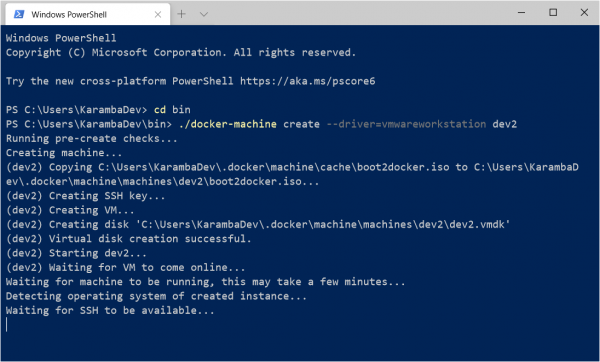
And after some time, it failed due to exceeding the attempts to connect to the virtual machine.
The issue lies in certificate policies. When creating the virtual machine, a directory ~.dockermachinemachinesdev will appear, containing the SSH connection certificate files: id_rsa, id_rsa.pub. OpenSSH may refuse to use them, considering there are issues with access rights. However, docker-machine won't inform you about this, but will simply keep reconnecting until it gets tedious.
Solution: Once the creation of a new virtual machine starts, navigate to the directory ~.dockermachinemachinesdev and change the permissions on the specified files, one by one.
The file's owner must be the current user, with full access only for the current user and SYSTEM. All other users, including the administrators group and administrators themselves, should be removed.
There may also be issues with converting absolute paths from Windows format to Posix, and with binding volumes containing symbolic links. But that's another story.
Source: habr.com
