

Good afternoon everyone! we explored some of the capabilities of Power Automate. In this article, I would like to focus on some use cases for Logic Apps and a number of differences from Power Automate. As we previously determined, Power Automate and Logic Apps are twin services, differing only in their environment (Office 365, Azure), as well as their licensing approach and certain internal features. Today, let's look at the features of Logic Apps compared to Power Automate. Let's not waste time.
1. Trigger Frequency
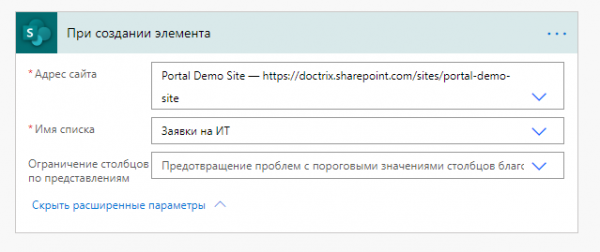
In Power Automate, there's no option to configure the trigger condition check frequency. You have to rely on the default value. Logic Apps allow you to configure the interval and frequency of trigger checks, which significantly speeds up event processing. However, Power Automate often has significantly fewer options for triggers than Logic Apps:
Power Automate Trigger 'When an item is created':
Logic Apps Trigger 'When an item is created':
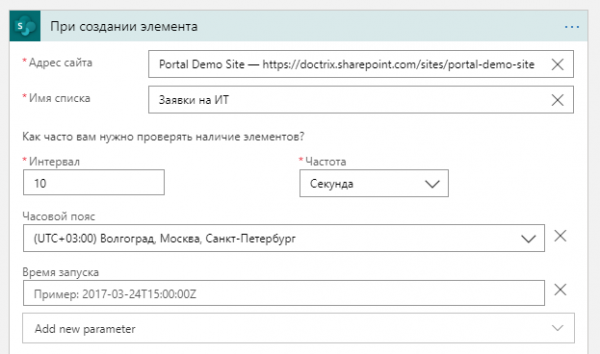
In Logic Apps, this trigger also has settings for time zone and start time.
2. Switching between flow view modes
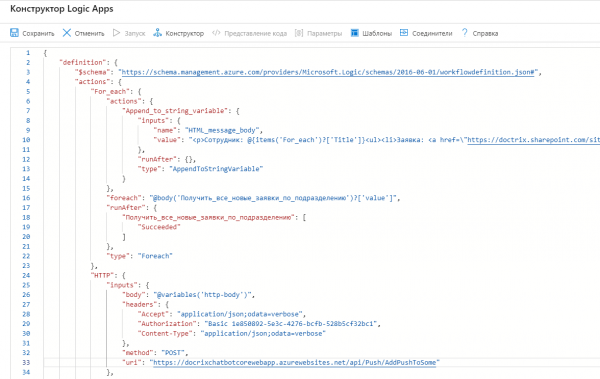
In Logic Apps, unlike Power Automate, there is the ability to switch between 'Designer' and 'Code View' modes. This capability greatly assists in debugging flows and also allows for more precise adjustments to flow logic:
3. Flow Debugging
Often, when configuring flows, we need to check the correctness of the logic implemented within them. And this is where debugging becomes essential. Logic Apps has an incredibly convenient flow debugging mode, allowing you to display the input and output data of each activity in the flow. With this mode, you can view at any moment what information arrived at the activity at what stage and what was produced by the activity:
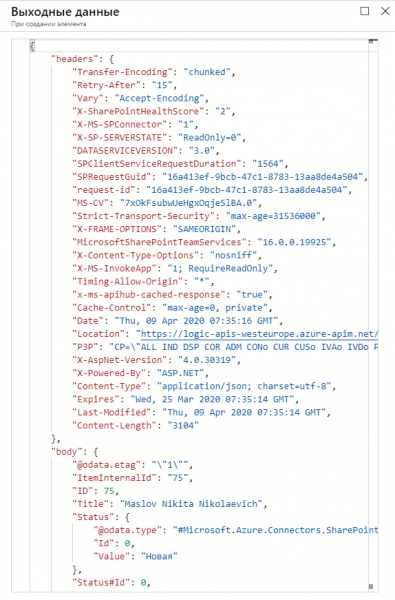
Power Automate has such a mode, but in a significantly limited version.
4. 'Premium' connectors
As we already know, Power Automate categorizes connectors by type into standard and 'premium':
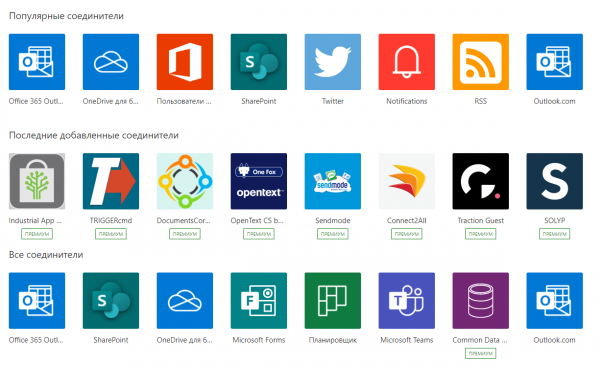
Standard connectors are always available, while "premium" connectors are only accessible with the purchase of separate plans for users or for flows. All connectors are available for use in Logic Apps, but billing is based on connector usage. Execution in the flow of standard connectors is less expensive, while "premium" connectors are more costly.
5. Triggering a flow by button
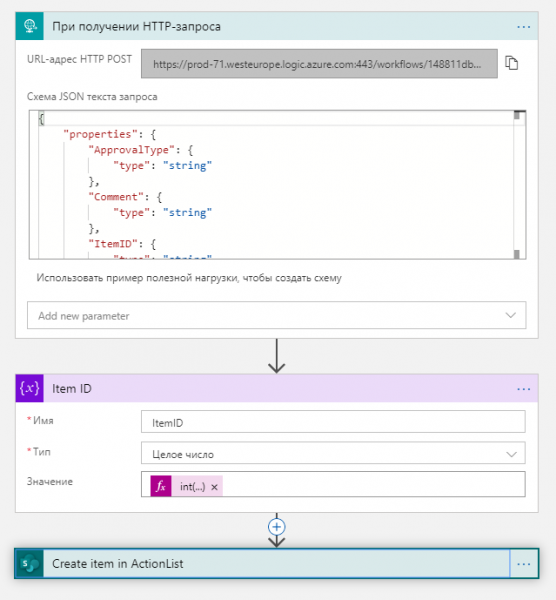
Here, Logic Apps falls short compared to Power Automate because a Logic Apps flow cannot be triggered, for instance, by a button from a Power Apps application. As we have found out, Power Automate allows for this. , flows can be created and connected to Power Apps for later invocation—for example, by pressing a button in the application. In the case of Logic Apps, if you need to implement a similar scenario, you must come up with various workarounds, such as using the trigger "When an HTTP request is received" and sending a POST request from the application to a pre-defined address:
6. Creating a flow using Visual Studio
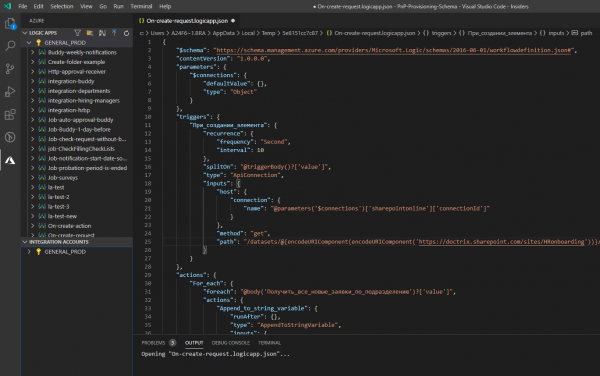
Unlike Power Automate, Logic Apps flows can be created directly through Visual Studio.
You can create and edit Logic Apps flows, for example, from Visual Studio Code, provided you have the Azure Logic Apps extension installed. After installing the extension, you will gain the ability to connect to Azure. Once authorization is successful, you will have access to existing Logic Apps flows in this environment, and you can proceed to edit the required flow:
Of course, I haven't covered all the differences between these two products, but I have tried to highlight the features that stood out to me the most when developing flows using Power Automate and Logic Apps. In future articles, we will explore interesting features and implementation cases using other products from the Power Platform line, and we will return to Logic Apps repeatedly. Have a great day, everyone!
Source: habr.com
