

There are many articles on how to use SpecFlow and how to configure TFS to run tests, but there isn't one that covers all aspects. In this article, I will explain how to make the execution and editing of SpecFlow scenarios convenient for everyone.
Below, you will learn how to obtain:
- Running tests from TFS
- Automatically linking scenarios to test cases in TFS
- Always up-to-date content of test cases in TFS
- The ability to edit scenarios directly in the version control system by testers


Background
We faced the task of automating the testing of an application using the BDD approach. Since TFS is the main task tracking system in our company, I envisioned a picture where the steps of the SpecFlow scenario are the steps of the test cases in TFS, and tests are executed from the test plans. Next, I will explain how I implemented this.
What we will need:
- A project with tests on SpecFlow
- Azure DevOps Server (aka Team Foundation Server)
- A tool for synchronizing SpecFlow scenarios with test cases in TFS
Settings
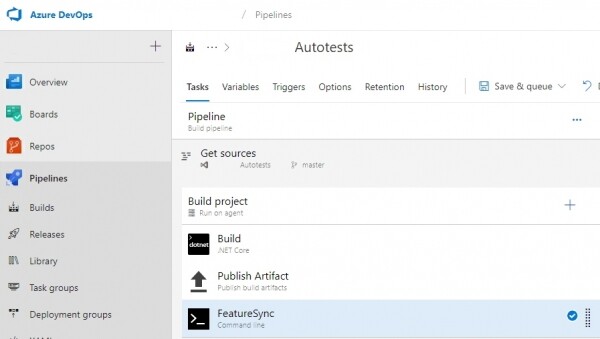
1. Creating a build for the project with tests
This is straightforward: building and publishing artifacts. More about the third task later.
2. Creating a release to run tests
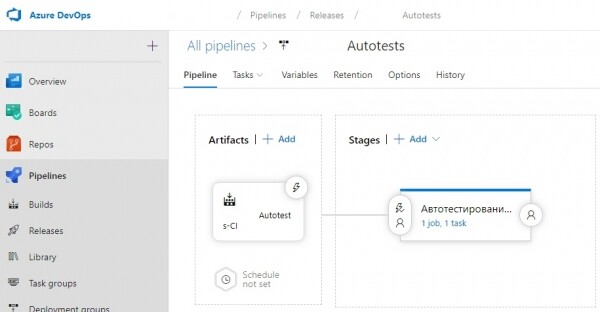
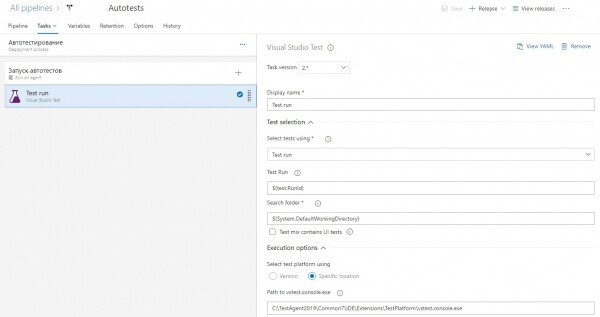
We create a release with one task — Visual Studio Test
In this case, the task is configured to run tests manually from the test plan.
3. Synchronizing test cases
We know that Visual Studio allows linking test methods to test cases in TFS and running them from test plans. To avoid doing this manually and to synchronize the content of scenarios, I wrote a simple console application . The principle is simple — we parse the feature file, and using the TFS API, we update the test cases.
How to use FeatureSync
Add a namespace and locale to the header of the feature file:
#language:en
@Namespace:Application.Autotests
Feature: Log to application
*the namespace must match the name of the .dll file in which the test methods are contained
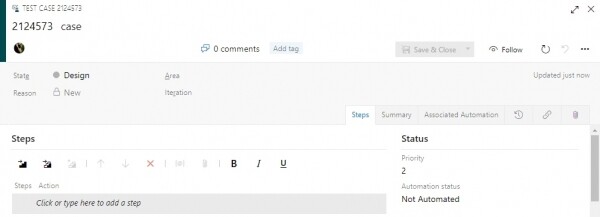
Create empty test cases in TFS and add tags with their IDs to the scenarios:
@2124573 @positive
Scenario: Successful authorization
    Given I am on the authorization page
    And I enter:
        | Login | Password |
        | user  | pass     |
    When I press the Login button
    Then the Browser redirects to the Home page
Run FeatureSync:
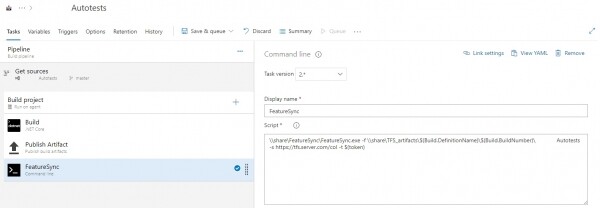
FeatureSync.exe -f C:FolderWithFeatures -s https://tfs.server.com/collection -t 6ppjfdysk-your-tfs-token-2d7sjwfbj7rzbaIn our case, the execution occurs after the build of the project with tests:
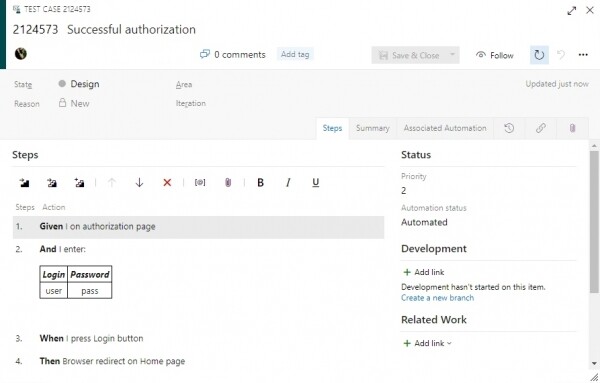
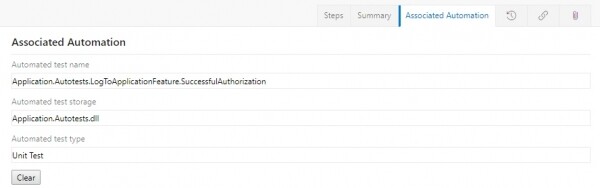
Result of synchronization
The steps of the SpecFlow scenario have been synchronized, and the status Automation has been set.
4. Configuring the test plan
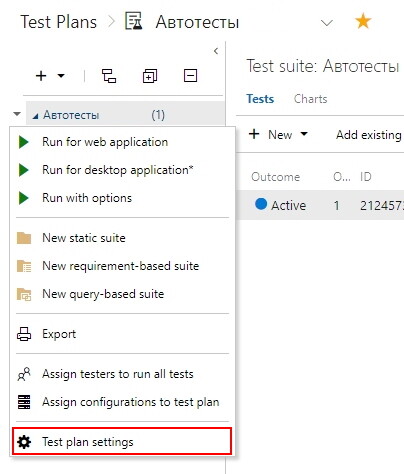
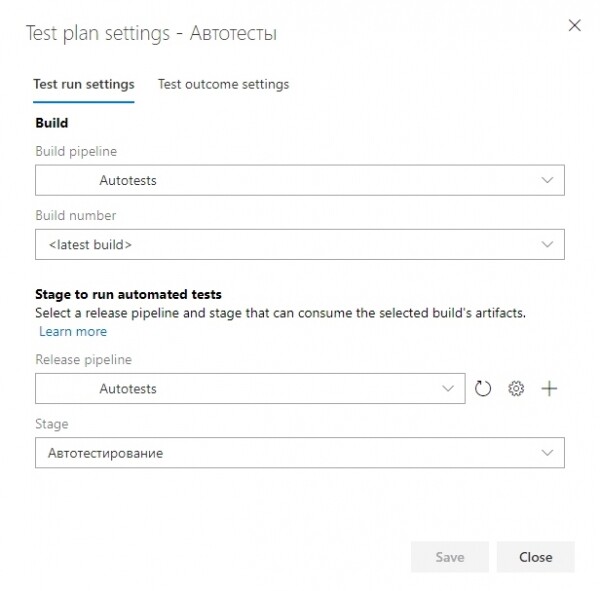
We create a test plan, add our automated cases to it, and select the build and release in the settings.
5. Running Tests
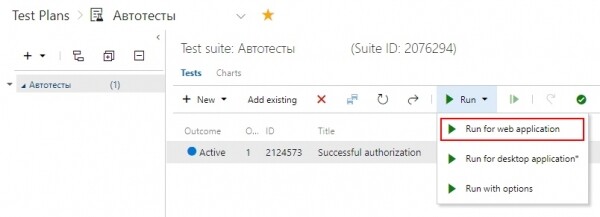
Select the necessary test in the test plan and launch it.
Conclusion
Advantages of this configuration:
- any tester can open the feature file in the web version control system, edit it, and the changes will take effect immediately after the build.
- tests can be run individually at any time.
- transparent test model — we always know what the test we launched is doing.
Source: habr.com
