

Remote work with us will remain significant even beyond today's raging pandemic. 74% of the 317 companies surveyed by Gartner will continue to utilize remote work formats. IT tools for its organization will be actively in demand in the future. We present an overview of the Citrix Workspace Environment Manager product – an essential element for creating a digital workspace. In this material, we will discuss the architecture and main capabilities of the product.

Solution Architecture
Citrix WEM has a classic client-server architecture.
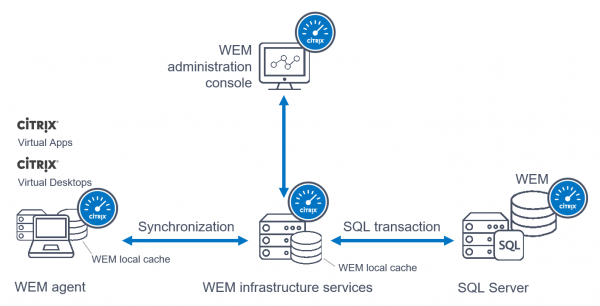
WEM agent WEM agent – the client part of the Citrix WEM software. It is installed on workstations (virtual or physical, single-user (VDI) or multi-user (terminal)) servers) to manage the user environment.
WEM Infrastructure services infrastructure services – the server part that supports the WEM agents.
MS SQL Server – a DBMS server necessary for maintaining the WEM database, where the configuration information for Citrix WEM is stored.
WEM administration console – the management console for the WEM environment.
Let's make a small adjustment to the description of the WEM Infrastructure services component on the Citrix website (see screenshot):

The website mistakenly states that WEM Infrastructure services is installed on the terminal server. This is not true. WEM agent is installed on terminal servers to manage the user environment. Also, it is impossible to install WEM agent and the WEM server on the same server. The WEM server does not require the role of terminal services to operate. This component is infrastructural, and like any service, it is advisable to place it on a dedicated server. One WEM server with specifications of 4 vCPUs and 8 GB RAM can serve up to 3000 users. To ensure fault tolerance, it is recommended to have at least two WEM servers in the environment.
Key Features
One of the tasks of IT administrators is to organize the workspace for users. The tools that employees use must be readily available and configured properly. Administrators need to ensure access to applications (placing shortcuts on the desktop and in the Start menu, configuring file associations), provide access to information resources (connecting network drives), connect network printers, enable centralized document storage for users, allow users to customize their environment, and most importantly – ensure users can work comfortably. On the other hand, administrators are responsible for data security based on the specific conditions in which the user operates and adherence to the software licensing policy. Citrix WEM is designed to address these challenges.
So, the main capabilities of Citrix WEM include:
- user environment management
- resource consumption management
- application access restriction
- management of physical workstations
User environment management
What capabilities does Citrix WEM provide for managing the parameters of user workspace creation? The image below shows the management console of Citrix Workspace Environment Manager. In the Action section, the actions that an administrator can apply to configure the workspace are listed. Specifically, creating application shortcuts on the desktop and in the Start menu (including for published applications via integration with Citrix Storefront), as well as assigning hotkeys for quick launch of applications and specifying the coordinates for shortcut placement on the screen, connecting network printers and drives, creating virtual disks, managing registry keys, creating environment variables, configuring the mapping of COM and LPT ports in the session, modifying INI files, running program scripts (during LogOn, LogOff, Reconnect operations), managing files and folders (creating, copying, deleting files and folders), and creating User DSN for configuring connection to the database on the SQL server, setting up file associations.
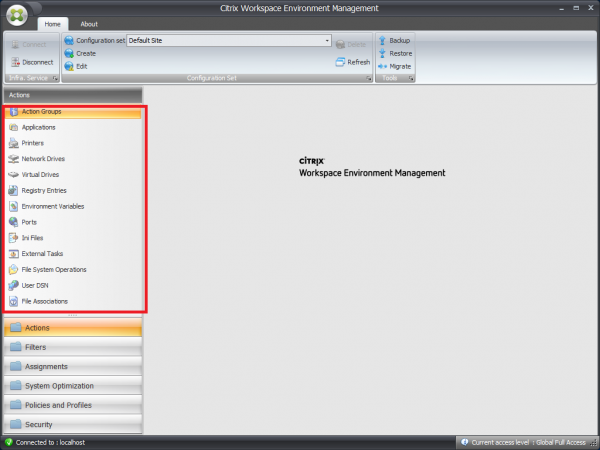
For easier administration, created "actions" can be grouped into an Action Group.
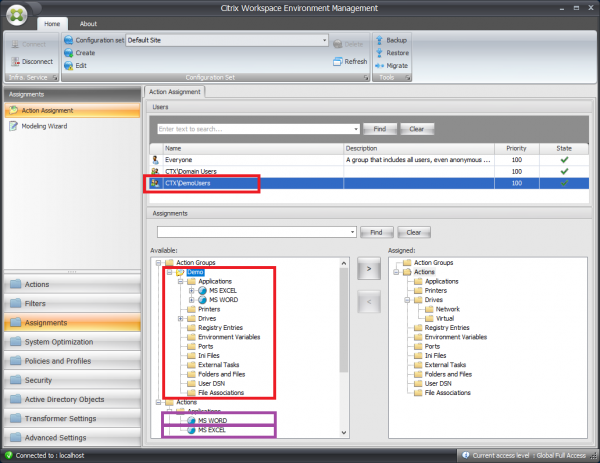
To apply the created actions, they need to be assigned to a security group or user domain account on the Assignments tab. The image below shows the Assessments section and the process of assigning the created "actions." You can assign an Action Group with all its included "actions" or add the necessary set of "actions" separately by dragging them from the left column Available to the right Assigned.
When assigning "actions," you need to choose a filter based on which the system will determine the necessity of applying certain "actions." By default, the system creates one filter Always True. When used, all assigned "actions" are always applied. For more flexible management, administrators create their filters in the Filters section. A filter consists of two parts: Conditions and Rules. The image shows two sections, with the left part being the condition creation window and the right part being the rule containing the selected conditions for applying the required "action."
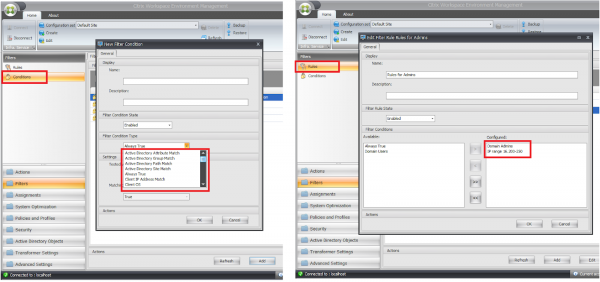
The console provides a considerable number of "conditions" – only a portion of them is displayed in the image. In addition to checking membership to a site or Active Directory group, specific AD attributes have filters to check the PC name or IP addresses, version compatibility, check date and time compliance, resource type, etc.
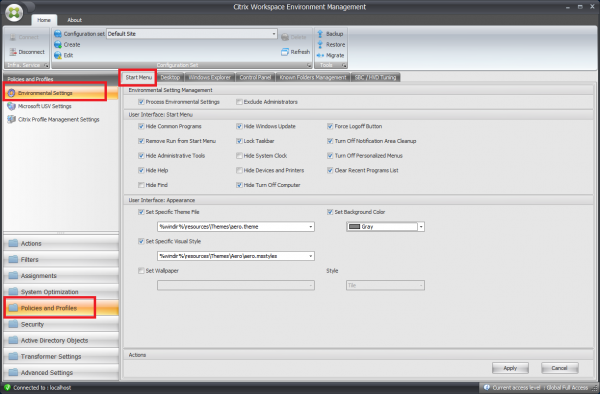
In addition to managing user workspace settings through the application of Actions, the Citrix WEM console also has a large section called Policies and Profiles. This section provides additional configuration options. It consists of three subsections: Environmental Settings, Microsoft USV Settings, and Citrix Profile Management Settings.
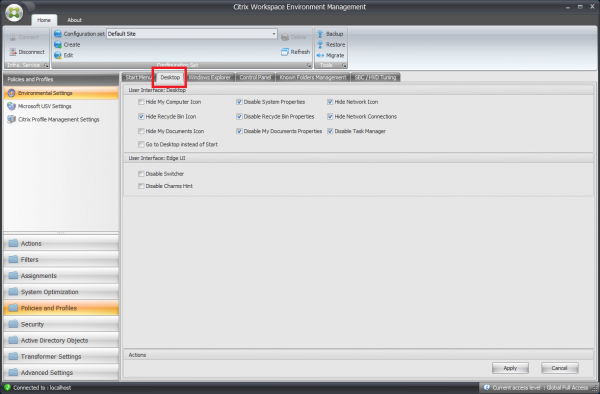
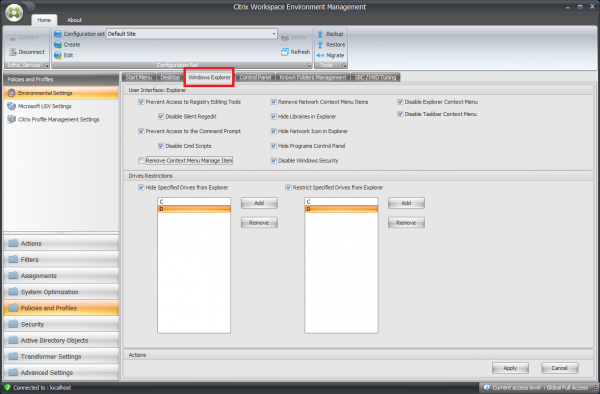
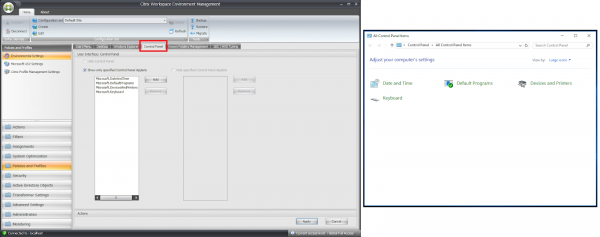
Environmental Settings includes a large number of settings, thematically grouped into several tabs. Their names speak for themselves. Let's look at what options are available to administrators for forming a user environment.
Start Menu tab:
Desktop tab:
Windows Explorer tab:
Control Panel tab:
SBCHVD Tuning tab:
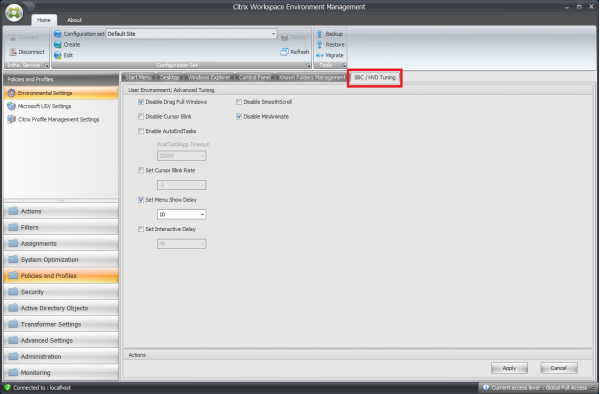
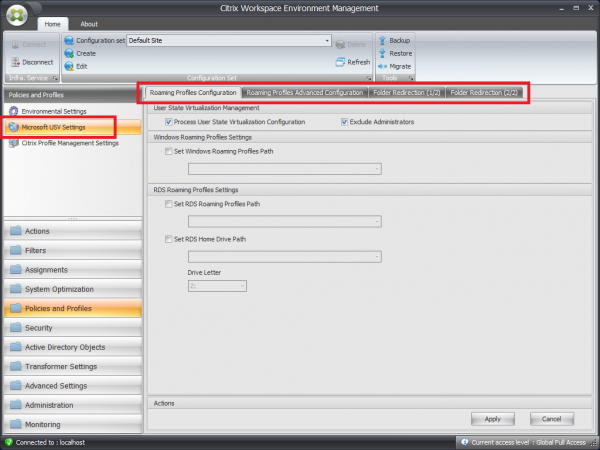
We will skip the settings from the Microsoft USV Settings section. This block configures the standard Microsoft components – Folder Redirection and Roaming Profiles, similar to the settings in group policies.
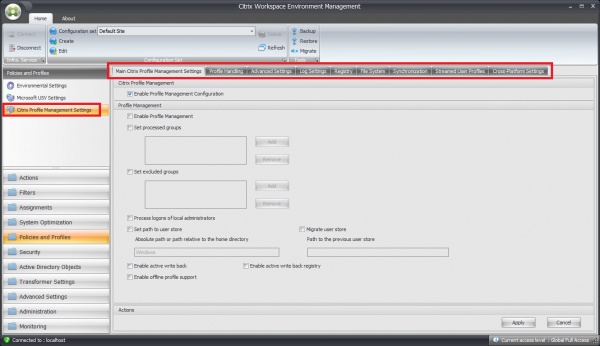
The last subsection is the Citrix Profile Management Settings. It is responsible for configuring Citrix UPM, designed to manage user profiles. There are more settings in this section than in the previous two combined. The settings are grouped into sections and organized in tabs, corresponding to the Citrix UPM settings in the Citrix Studio console. Below is an illustration with the Main Citrix Profile Management Settings tab and a list of available tabs for general reference.
Centralized management of user workspace settings is not the only thing WEM offers. Much of the functionality listed above can be accomplished using standard group policies. The advantage of WEM lies in how these settings are applied. Standard policies are executed sequentially during user connections. Only after all policies are applied does the logon process complete, and the user gains access to their desktop. The more settings involved through group policies, the longer it takes to apply them. This significantly prolongs the logon time. In contrast to group policies, the WEM agent changes the processing order and applies settings in multiple streams simultaneously and asynchronously. This greatly reduces user logon time.
The advantage of applying settings via Citrix WEM over group policies is demonstrated in the video.

Managing resource consumption
Let's consider another aspect of using Citrix WEM, namely the ability to optimize the system in terms of resource management. Settings are found in the System Optimization section and are divided into several blocks:
- CPU Management
- Memory Management
- IO Management
- Fast Logoff
- Citrix Optimizer
CPU management contains parameters for controlling CPU resources: limiting overall resource consumption, handling spikes in CPU resource usage, and prioritizing resources at the application level. The main settings are located on the CPU Manager Settings tab and are shown in the illustration below.
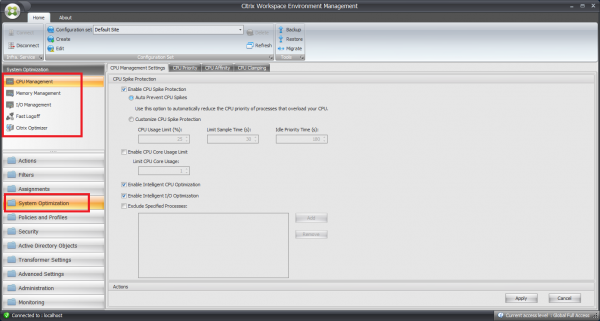
Overall, the purpose of the parameters is clear from their names. The ability to manage CPU resources, which Citrix calls 'smart' optimization – CPU Intelligent CPU optimization, is particularly interesting. Behind the loud title lies a simple yet effective functionality. When an application starts, it is assigned the highest priority for CPU usage. This ensures a quick application launch and generally increases the comfort level when working with the system. All the 'magic' is in the video.

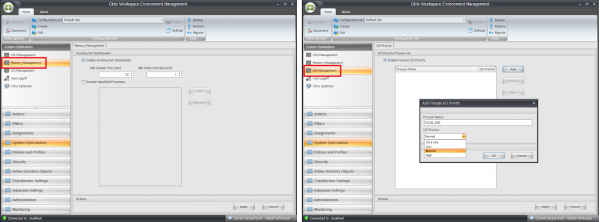
In the Memory Management and IO Management sections, the settings are minimal, and their essence is extremely simple: manage memory and input-output processes when working with the disk. Memory management is enabled by default and applies to all processes. When an application starts, its processes reserve a portion of RAM for their operation. Typically, this allocation is larger than necessary at the moment — the reserve is created 'for growth' to ensure the application's quick operation. Memory optimization involves releasing memory from those processes that have been idle for a set period (Idles State). This is achieved by moving unused memory pages to the swap file. Disk activity optimization is attained by assigning priorities to applications. The available usable parameters are shown in the figure below.
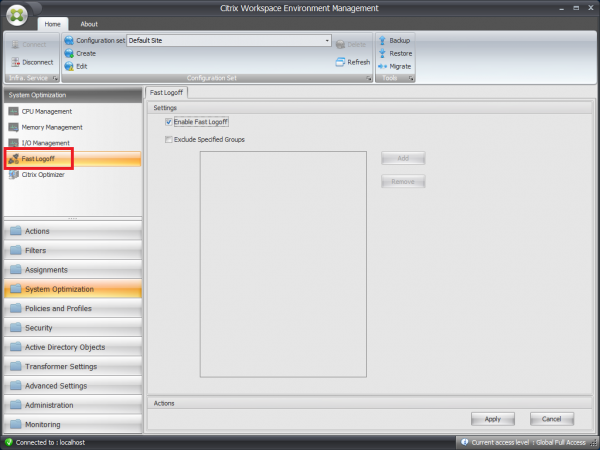
Let's examine the Fast Logoff section. During a regular session termination, the user sees applications closing, the profile being copied, etc. With the Fast Logoff option, the WEM agent monitors the session termination call (Log Off) and disconnects the user session — puts it into a Disconnect state. For the user, the session termination happens instantly. Meanwhile, the system normally terminates all work processes in the 'background'. The Fast Logoff option is activated with a single 'checkbox', but exceptions can be assigned.
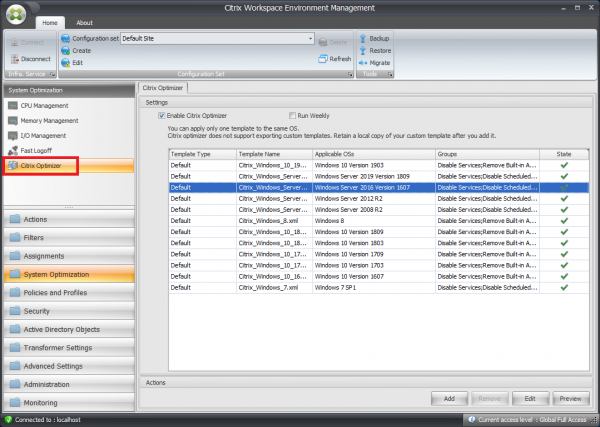
And finally, the Citrix Optimizer section. Citrix administrators are well aware of the tool for optimizing the 'golden image' — Citrix Optimizer. This tool is integrated into Citrix WEM 2003. The list of available templates is shown in the figure below.
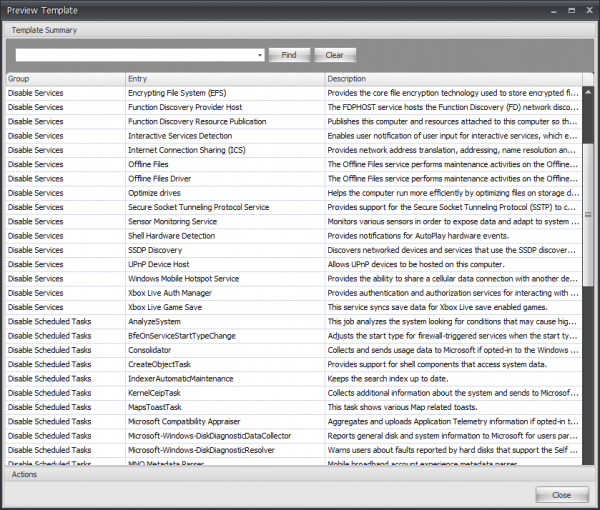
Administrators can edit current templates, create new ones, and view the parameters set in the templates. The settings window is shown in the figure below.
Access Restrictions for Applications
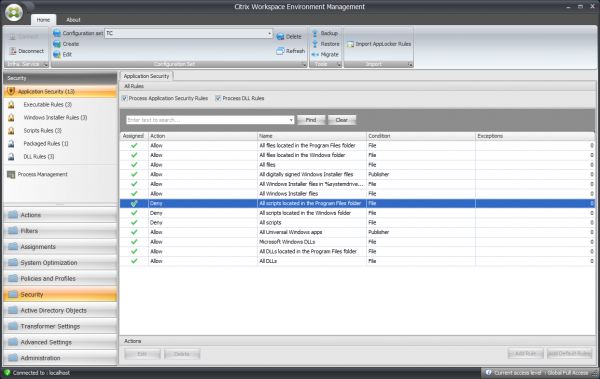
Citrix WEM can be used to restrict the launch and installation of applications, execution of scripts, and loading of DLL libraries. These settings are gathered in the Security section. The image below lists the rules that the system suggests creating by default for each subsection, with all actions allowed by default. Administrators can override these settings or create new ones; for each rule, one of two actions is available – Allow or Deny. The number of created rules for each subsection is indicated in parentheses next to the subsection's title. The Application Security section does not have its own settings; it displays all rules from its subsections. In addition to creating rules, administrators can import existing AppLocker rules if it is used in the organization and centrally manage the environment settings from a single console.
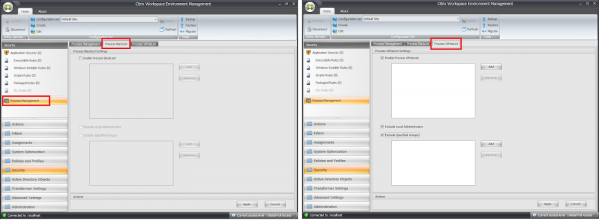
In the Process Management section, black and white lists can be created to limit the launch of applications by executable file names.
Management of Physical Workstations
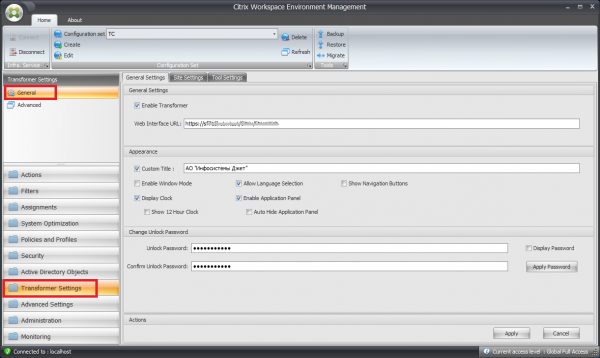
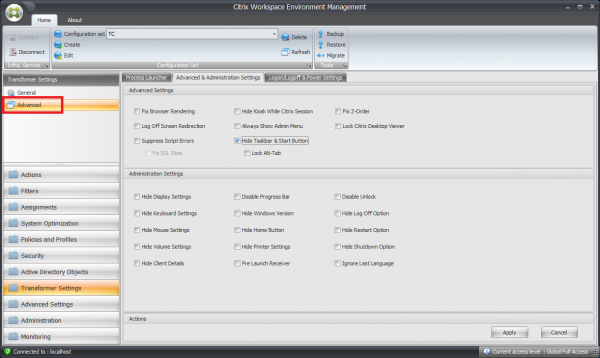
The previous settings were of interest for managing resources and parameters for shaping users' working environments in relation to VDI and terminal servers. What does Citrix offer for managing physical workstations from which connections are made? The WEM capabilities highlighted above can be applied to physical workstations. Additionally, the tool allows you to "turn" PCs into "thin clients." This transformation occurs by blocking users' access to the desktop and using the built-in capabilities of Windows as a whole. Instead of the desktop, the graphical interface of the WEM agent launches (the same WEM agent used on VDIRDSH), which displays the published Citrix resources. Citrix has software called Citrix DesktopLock, which also allows transforming PCs into "thin clients," but Citrix WEM offers broader capabilities. Below are images of the main parameters that can be used to manage physical computers.
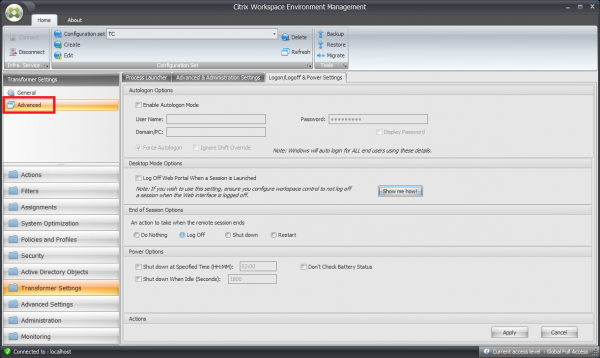
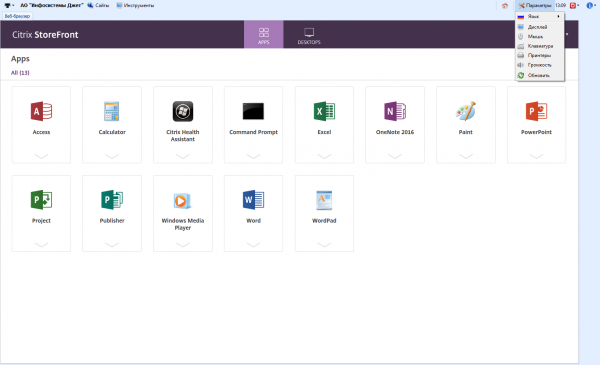
Below is a screenshot showing how the workspace looks after transforming it into a 'thin client.' In the 'Settings' dropdown menu, there are elements that allow the user to customize the environment to their liking. Some or all of these elements can be removed from the interface.
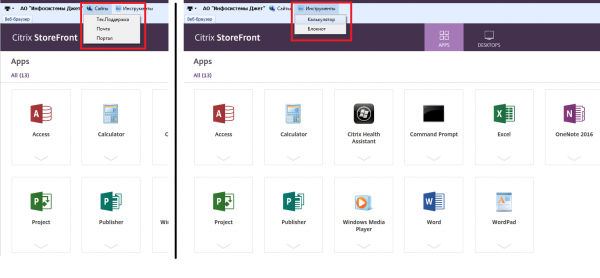
Administrators can centrally add links to company web resources in the 'Sites' section and applications installed on physical PCs, necessary for users' work, in the 'Tools' section. For example, it is useful to add a link to the user support portal in 'Sites,' where an employee can create a ticket if they encounter connection issues with VDI.
Such a solution cannot be called a full-fledged 'thin client': its capabilities are limited compared to commercial versions of similar solutions. However, it is sufficient to simplify and standardize the interface for working with the system, restrict users' access to system settings, and use an outdated fleet of PCs as a temporary alternative to specialized solutions.
***
So, let's summarize the overview of Citrix WEM. The product 'can':
- manage user workspace parameters
- manage resources: CPU, memory, disk
- ensure quick log on/log off from the System and launch applications
- restrict the use of applications
- transform PCs into 'thin clients'
Of course, one might view the demonstration videos of WEM with skepticism. Our experience shows that, on average, companies not using WEM have a login time of 50-60 seconds, which is not significantly different from the time shown in the videos. With WEM, the login time can be significantly reduced. Additionally, by using simple resource management rules, the density of users on the server can be increased or improved system performance for current users.
Citrix WEM fits well into the concept of a 'digital workplace,' is available to all users of Citrix Virtual Apps and Desktop starting from the Advanced edition, and requires an active Customer Success Services support.
Author: Valery Novikov, lead design engineer of computing complexes at 'Infosystems Jet'
Source: habr.com
