Hello colleagues! Today, as the excitement around remote work has somewhat subsided, most admins have conquered the challenge of allowing employees remote access to the corporate network. It's time to share my long-standing development for enhancing VPN security. This article won't cover the currently fashionable IPSec IKEv2 and xAuth. Instead, we will discuss building a system for VPN users when MikroTik acts as the VPN server. Specifically, when using 'classic' protocols like PPP.
Today, I will explain how to secure MikroTik PPP-VPN even in the event of a user's account being compromised. When this scheme was implemented for one of my clients, he described it succinctly: 'Well, now it's just like in a bank!'.
The method does not use external authentication services. Tasks are performed using the internal tools of the router itself. There are no costs for the connecting client. The method works for both PC clients and mobile devices.
The overall protection scheme looks as follows:
- The internal IP address of the user who successfully connects to the VPN server is automatically added to a 'gray' list.
- The connection event automatically generates a one-time code, which is sent to the user by one of the available methods.
- Addresses in this list have restricted access to local network resources, except for the 'authentication' service, which is waiting for the one-time code password.
- After presenting the code, the user gains access to the internal resources of the network.
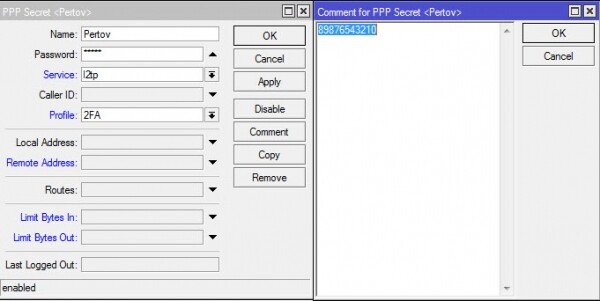
The first smallest problem encountered was storing contact information about the user for sending them the 2FA code. Since it is not possible to create arbitrary data fields corresponding to users in MikroTik, the existing 'comment' field was used:
/ppp secrets add name=Petrov password=4M@ngr! comment=«89876543210»
The second problem turned out to be more serious — choosing the path and method of delivering the code. Currently, three schemes have been implemented: a) SMS via USB modem b) e-mail c) SMS via e-mail available for corporate clients of the red mobile operator.
Yes, the SMS schemes incur costs. But if you think about it, 'security is always about money' (c).
I personally don't like the email scheme. Not because it requires the availability of the mail server for the authenticating client — it's not a problem to split the traffic. However, if a client carelessly saved passwords both for VPN and for email in the browser and then lost their laptop, an attacker would gain full access to the corporate network.
So, it’s decided — we will deliver a one-time code via SMS messages.
Third the problem was in where and how to generate a pseudo-random code for 2FA in MikroTik. In the RouterOS scripting language, there is no equivalent to the random() function, and I have seen several makeshift script generators of pseudo-random numbers before. None of them appealed to me for various reasons.
In fact, there is a pseudo-random number generator in MikroTik! It is hidden from a superficial glance in the context of /certificates scep-server. The first method obtaining a one-time password is easy and straightforward — with the command /certificates scep-server otp generate. If we perform a simple variable assignment operation, we get an array-type value that can be used later in scripts.
The second method obtaining a one-time password which is also easy to apply — using an external service to generate the desired type of sequence of pseudo-random numbers. Here is a simplified console example of obtaining data into a variable:
Code
:global rnd1 [:pick ([/tool fetch url="https://www.random.org/strings/?num=1&len=7&digits=on&unique=on&format=plain&rnd=new" as-value output=user ]->"da
 ta") 1 6]
 :put $rnd1
The request formatted for the console (in the body of the script, special characters need to be escaped) retrieves a string of six numeric characters into the variable $rnd1. The next command ‘put’ simply displays the variable in the MikroTik console.
The fourth problem, which had to be solved urgently — is how and where the connected client will send their one-time code at the second stage of authentication.
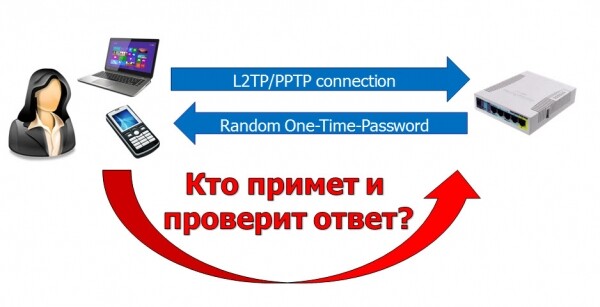
The MikroTik router must have a service capable of receiving the code and matching it with a specific client. If the provided code matches the expected one, the client's address should be added to some 'whitelist', from which access to the company's internal network is allowed.
Due to a limited choice of services, a decision was made to accept codes via http using the built-in webproxy in MikroTik. Since the firewall can work with dynamic IP address lists, it performs the search for the code, matches it with the client's IP, and adds it to the 'whitelist' through Layer7 regexp. The router itself has been assigned the conditional DNS name 'gw.local', and a static A-record has been created for PPP clients:
DNS
/ip dns static add name=gw.local address=172.31.1.1
Capturing traffic via proxy for unverified clients:
/ip firewall nat add chain=dstnat dst-port=80,443 in-interface=2fa protocol=tcp !src-address-list=2fa_approved action=redirect to-ports=3128
In this case, the proxy has two functions.
1. Open TCP connections with clients;
2. If the authorization is successful, redirect the client’s browser to a page or image notifying them of the successful authentication:
Proxy config
/ip proxy
 set enabled=yes port=3128
 /ip proxy access
 add action=deny disabled=no redirect-to=gw.local/mikrotik_logo.png src-address=0.0.0.0/0
I will list the important configuration elements:
- interface-list '2fa' — a dynamic list of client interfaces whose traffic requires processing within 2FA;
- address-list '2fa_jailed' — a 'gray' list of tunnel IP addresses for VPN clients;
- address_list '2fa_approved' — a 'whitelist' of tunnel IP addresses for VPN clients who have successfully passed two-factor authentication.
- firewall chain 'input_2fa' — this is where the check takes place for tcp packets for the presence of the authorization code and the match of the sender's IP address with the required one. Rules in the chain are added and removed dynamically.
A simplified flowchart of packet processing looks like this:
To include clients from the 'gray' list who have not yet passed the second stage of authentication into Layer7 traffic checking, a rule has been created in the standard 'input' chain:
Code
/ip firewall filter add chain=input !src-address-list=2fa_approved action=jump jump-target=input_2fa
Now let's start integrating all this into the PPP service. MikroTik allows scripts to be used in profiles (ppp-profile) and assigns them to events of establishing and breaking ppp connections. The ppp-profile settings can be applied both to the PPP server as a whole and to individual users. The assigned user profile has priority, overriding the parameters of the profile selected for the server as a whole.
As a result of this approach, we can create a special profile for two-factor authentication and assign it not to all users, but only to those we deem necessary. This may be relevant if your PPP services are used not only for connecting end-users but also for building site-to-site connections.
In the newly created special profile, we use dynamic addition of the address and interface of the connecting user to the 'gray' lists of addresses and interfaces:
winbox
Code
/ppp profile add address-list=2fa_jailed change-tcp-mss=no local-address=192.0.2.254 name=2FA interface-list=2fa only-one=yes remote-address=dhcp_pool1 use-compression=no use-encryption= required use-mpls=no use-upnp=no dns-server=172.31.1.1
Using both 'address-list' and 'interface-list' is necessary to identify and capture traffic from VPN clients who have not passed secondary authentication in the dstnat chain (prerouting).
Once the preparation is complete and additional firewall chains and profiles are created, we will write a script responsible for the auto-generation of the 2FA code and the individual firewall rules.
The PPP-Profile enriches us with information about variables related to PPP client connection-disconnection events. "Execute script on user login-event. These are available variables that are accessible for the event script: user, local-address, remote-address, caller-id, called-id, interface". Some of them will be very useful to us.
The code used in the profile for the PPP on-up connection event
#Логируем для отладки полученные переменные :log info ("local-address")
:log info ("remote-address")
:log info ("caller-id")
:log info ("called-id")
:log info ([/int pptp-server get ("interface") name])
#Объявляем свои локальные переменные
:local listname "2fa_jailed"
:local viamodem false
:local modemport "usb2"
#ищем автоматически созданную запись в адрес-листе "2fa_jailed"
:local recnum1 [/ip fi address-list find address=("remote-address") list=$listname]
#получаем псевдослучайный код через random.org
#:local rnd1 [:pick ([/tool fetch url="https://www.random.org/strings/?num=1&len=7&digits=on&unique=on&format=plain&rnd=new" as-value output=user]->"data") 0 4]
#либо получаем псевдослучайный код через локальный генератор
#:local rnd1 [pick ([/cert scep-server otp generate as-value minutes-valid=1]->"password") 0 4 ]#Ищем и обновляем коммент к записи в адрес-листе. Вносим искомый код для отладки
/ip fir address-list set $recnum1 comment=$rnd1
#получаем номер телефона куда слать SMS
:local vphone [/ppp secret get [find name=$user] comment]#Готовим тело сообщения. Если клиент подключается к VPN прямо с телефона ему достаточно
#будет перейти прямо по ссылке из полученного сообщения
:local msgboby ("Your code: " . $comm1 . "n Or open link http://gw.local/otp/" . $comm1 . " /")# Отправляем SMS по выбранному каналу - USB-модем или email-to-sms
if $viamodem do={
/tool sms send phone-number=$vphone message=$msgboby port=$modemport }
else={
/tool e-mail send server=a.b.c.d from=admin@mydomain.example to=mail2sms@mcommunicator.ru subject="@".$vphone body=$msgboby }#Генерируем Layer7 regexp
local vregexp ("otp/" . $comm1)
:local vcomment ("2fa_" . ("remote-address"))
/ip firewall layer7-protocol add name=("vcomment") comment=(
"remote-address") regexp=(
"vregexp")
#Генерируем правило проверяющее по Layer7 трафик клиента в поисках нужного кода
#и небольшой защитой от брутфорса кодов с помощью dst-limit
/ip firewall filter add action=add-src-to-address-list address-list=2fa_approved address-list-timeout=none-dynamic chain=input_2fa dst-port=80,443,3128 layer7-protocol=("vcomment") protocol=tcp src-address=(
"remote-address") dst-limit=1,1,src-address/1m40s
Specifically for those who thoughtlessly copy-paste, I warn — the code is taken from a test version and may contain minor typos. A knowledgeable person will not find it difficult to understand where exactly.When a user disconnects, the 'On-Down' event is generated, triggering the corresponding script with parameters. The task of this script is to clean up the firewall rules created for the disconnected user.
The code used in the profile for the PPP on-down connection event
:local vcomment ("2fa_" . ("remote-address"))
/ip firewall address-list remove [find address=("remote-address") list=2fa_approved]
/ip firewall filter remove [find chain="input_2fa" src-address=("remote-address") ]
/ip firewall layer7-protocol remove [find name=$vcomment]
After this, users can be created, and a profile with two-factor authentication can be assigned to all or some of them.winbox
Code
/ppp secrets set [find name=Petrov] profile=2FAHow it looks on the client side.
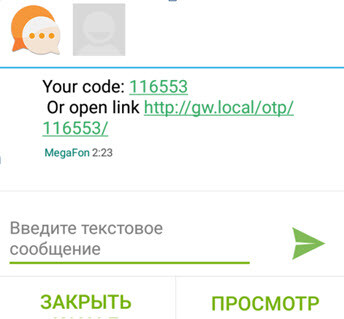
When establishing a VPN connection, an SMS of the following type is sent to the Android/iOS phone/tablet with a SIM card:
SMS
If the connection is established directly from the phone/tablet, you can complete 2FA simply by clicking the link in the message. This is convenient.
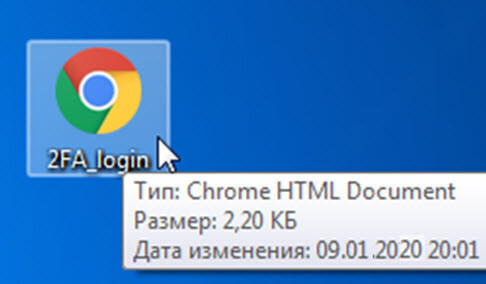
If the VPN connection is established with a PC, the user will require a minimal password input form. A small HTML file is sent to the user during the VPN setup. The file can even be sent via email so the user can save it and create a shortcut in a convenient location. This is what it looks like:
Desktop shortcut
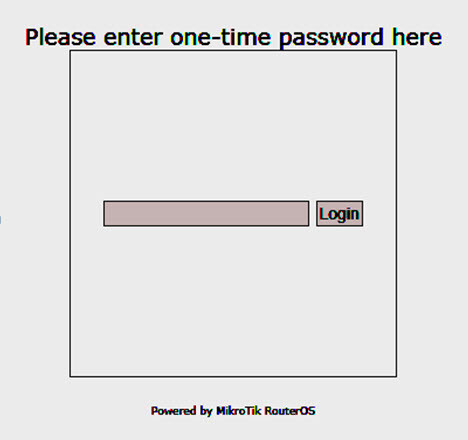
The user clicks on the shortcut, and a simple code input form opens, which will insert the code into the opened URL:
Form screenshot
The form is very basic, provided as an example. Those interested can customize it further.
2fa_login_mini.html
<html> <head> <title>SMS OTP login</title> <meta http-equiv="Content-Type" content="text/html; charset=UTF-8" /> </head> <body> <form name="login" action="/en/location.href='http://gw.local/otp/'+document.getElementById(‘text').value/" method="post" <input id="text" type="text" data-trp-original-action="location.href='http://gw.local/otp/'+document.getElementById(‘text').value"/><input type="hidden" name="trp-form-language" value="en"/> <input type="button" value="Login" onclick="location.href='http://gw.local/otp/'+document.getElementById('text').value"/> </form> </body> </html>If authentication is successful, the user will see the MikroTik logo in the browser, which should signal successful authentication:
I note that the image is returned from the built-in MikroTik web server using WebProxy Deny Redirect.
I believe the image can be customized using the 'hotspot' tool, uploading your own version and setting the Deny Redirect URL with WebProxy.
A big request to those who try to replace a $500 router with the cheapest '$20 toy' MikroTik — please don't do that. Devices like 'hAP Lite'/'hAP mini' (home access point) have a very weak CPU (smips), and are likely to struggle with the load in a business segment.
Warning! This solution has one downside: when clients connect and disconnect, there are changes to the configuration that the router tries to save in its non-volatile memory. With a large number of clients and frequent connections/disconnections, this can lead to degradation of the internal storage in the router.
P.S.: delivery methods for the code to the client can be expanded and supplemented as far as your programming capabilities allow. For example, you could send messages in Telegram or... suggest options!
I hope this article proves useful to you and helps make small and medium business networks a little more secure.
Source: habr.com