

Hello everyone! It’s no secret that artificial intelligence is increasingly involved in various aspects of our lives today. We are transferring more routine tasks and operations to virtual assistants, thereby freeing up our time and energy to tackle genuinely complex and often creative tasks. None of us enjoy performing the same monotonous work day in and day out, so the idea of handing such tasks over to artificial intelligence is met with great positivity.

So what exactly is Robotic Process Automation?
RPA or Robotic Process Automation is a technology that today allows you to set up software or a 'robot' to emulate the actions of people working within digital systems to perform business processes. RPA robots utilize the user interface to gather data and use applications just like humans do. They interpret, initiate responses, and communicate with other systems to carry out a variety of repetitive tasks. The only difference: an RPA software robot never tires and rarely makes mistakes. Well, almost never.
For example, an RPA robot can process attached files in emails, recognize text, amounts, and names, after which the received information will be automatically entered into any accounting system. In fact, RPA robots are capable of imitating many, if not all, user actions. They can log into applications, move files and folders, copy and paste data, fill out forms, extract structured and semi-structured data from documents, and much more.
The RPA technology has also reached the well-known Microsoft Power Automate. In previous articles, I discussed how to automate various processes with Power Automate, from posting messages in Microsoft Teams to approvals with supervisors and sending HTTP web requests. We explored numerous scenarios that can be implemented using Power Automate's capabilities. Today, let’s see how to use RPA. Let’s not waste any time.
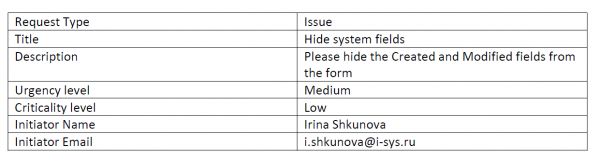
Let's try to 'robotize' the demo process of submitting a support ticket. The initial data is as follows – the client sends information about the error or request via email in the form of a PDF document with a table indicating the details of the inquiry. The table format will be as follows:
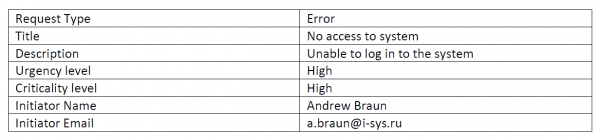
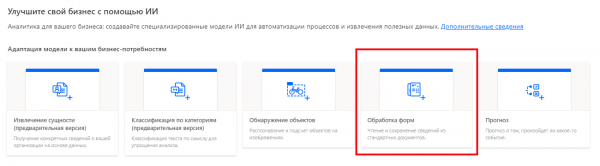
Now, let's go to the Power Automate portal and create a new artificial intelligence model:
Next, we specify a name for our future model:
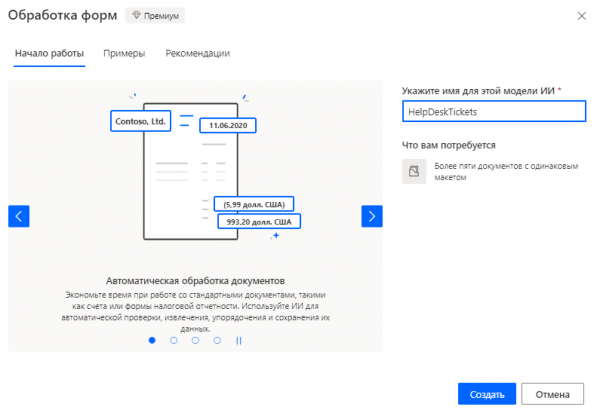
Power Automate warns us that creating the model will require about 5 documents with the same layout to train our future 'robot'. Fortunately, there are more than enough templates available.
We upload 5 document templates and start preparing the model:
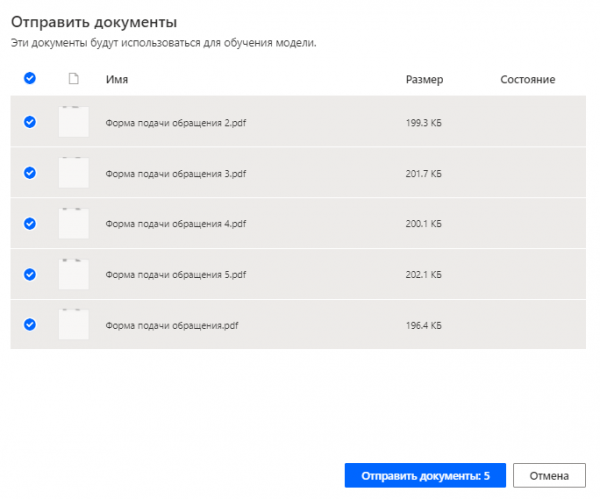
Preparing the artificial intelligence model takes a few minutes, now is a good time to pour yourself some tea:
After the model preparation is completed, it's necessary to assign certain tags to the recognized text, which can be used to access the information:
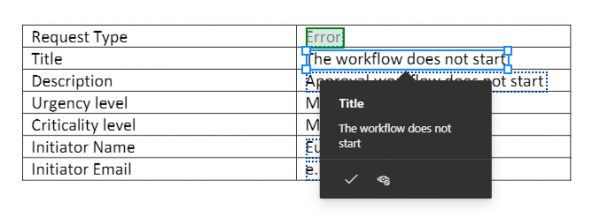
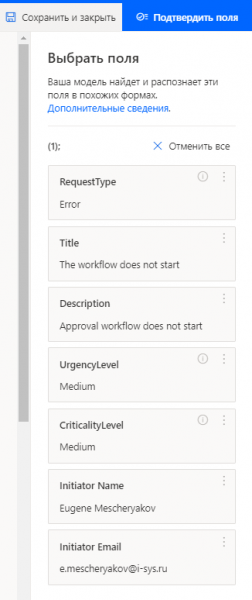
The tag and data associations are saved in a separate window. After you tag all the necessary fields, click 'Confirm fields':
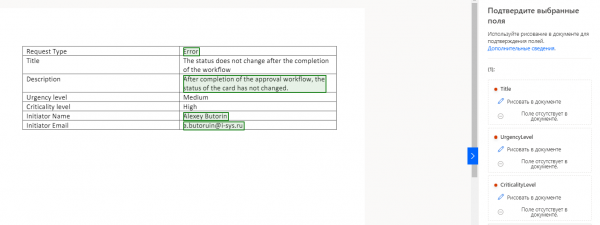
In my case, the model asked me to tag fields in a couple more document templates. I kindly agreed to help:
Once all operations are done, it's time to start training the model; the button for this is inexplicably called 'Train'. Well, let's go!
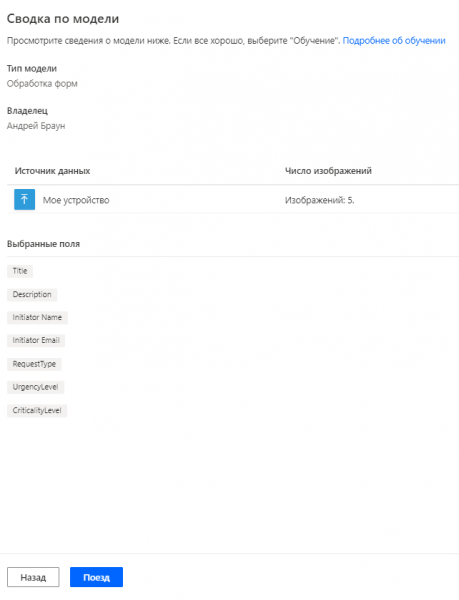
Training the model, like its preparation, takes a few minutes; it's a good time to pour yourself another cup of tea. Once training is completed, you can publish the created and trained model:
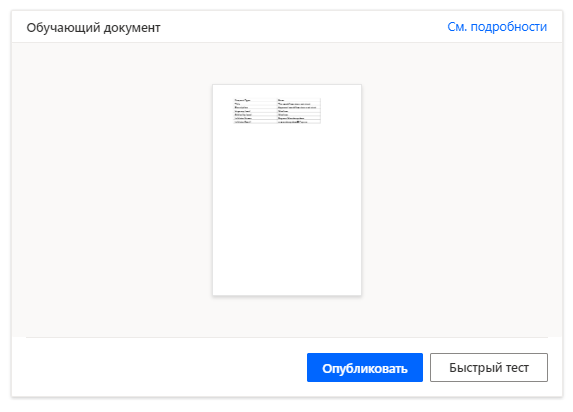
The model is trained and eager to work. Now, let's create a SharePoint Online list to store data from the recognized PDF documents:

And now, when everything is ready, we create a Power Automate flow with the trigger 'When a new email arrives', recognizing the attachment in the email and creating an item in the SharePoint list. An example flow is below:
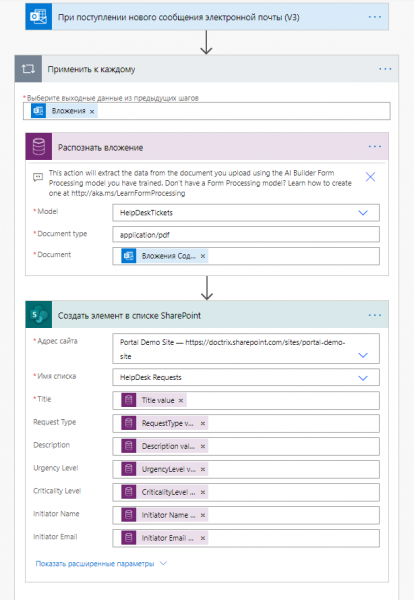
Let's check our flow. We send an email to ourselves with an attachment of the type:
And the result of running the flow is the automatic creation of a record in the SharePoint Online list:

Everything works like clockwork. Now about the nuances.
The first point is that currently, RPA in Power Automate cannot recognize Russian text. It is quite possible that this functionality will be introduced in the near future, but for now, it is not available. Therefore, this aspect needs to be taken into account.
The second point is that using Robotic Process Automation in Power Platform requires a Premium subscription. To be more precise, RPA is licensed as an add-on to the PowerApps or Power Automate license. Additionally, using RPA in Power Automate requires a connection to the Common Data Service environment, which is included in the Premium subscription.
In the upcoming articles, we will explore even more possibilities for using RPA in Power Platform and find out how to create an intelligent chatbot based on Power Automate and RPA. Thank you for your attention and have a great day!
Source: habr.com
