

We are excited to announce the first update for Windows Terminal Preview! You can download Windows Terminal Preview from or from the releases page on . The features presented will be transferred to in July 2020.
Check out what’s new below!
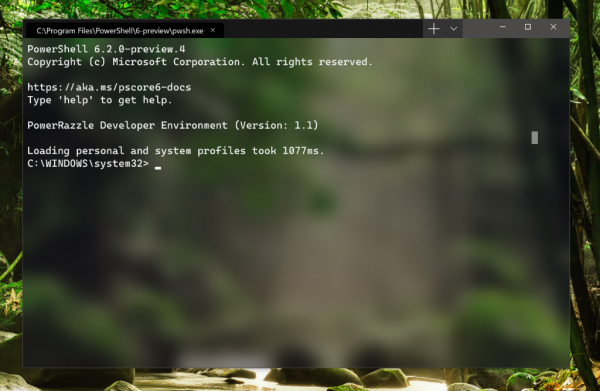
"Open in Windows Terminal"
You can now launch Terminal with your default profile in the selected directory by right-clicking the desired folder in Explorer and selecting “Open in Windows Terminal.”
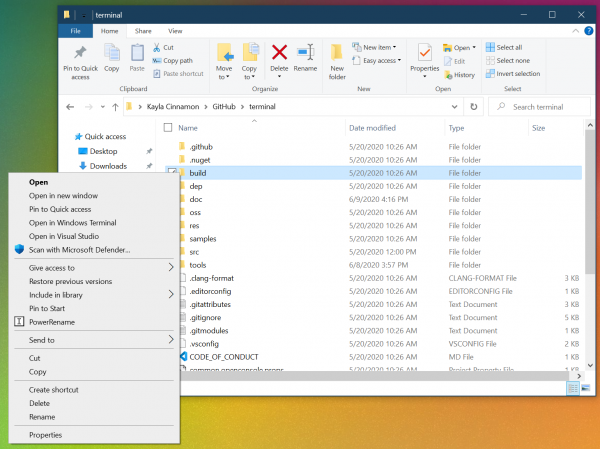
Note: This will launch Windows Terminal Preview until this feature is transferred to Windows Terminal in July 2020.
Launching Windows Terminal on Startup
added a new setting that allows you to configure Windows Terminal to start when your computer boots up. To enable this feature, just set startOnUserLogin to true in the global settings.
"startOnUserLogin": trueNote: if the auto-start of Windows Terminal is disabled by organizational policy or user action, this setting will have no effect.
Font Weight Support
Windows Terminal Preview has received a profile setting for fontWeight, which supports different styles of font weights. You can find complete documentation on our .
"fontWeight": "normal" 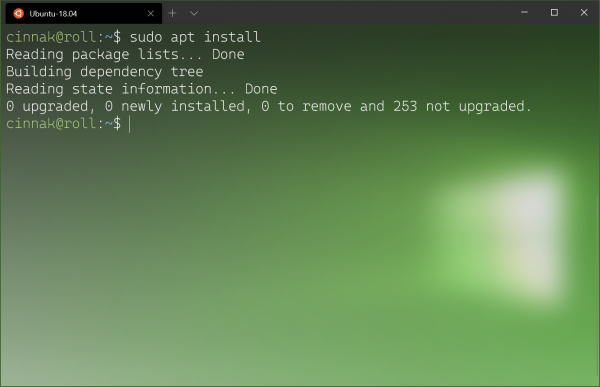
Here is a quick look at the light version of the font . Support for various weights for Cascadia Code is expected to arrive in the coming months.
Alt+Click to Open in Pane
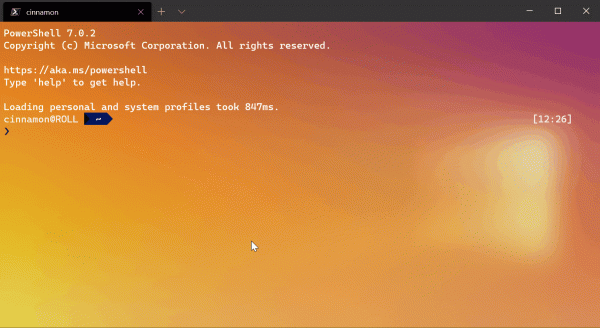
If you want to open an additional profile as a pane in the current window, you can click on it while holding down Alt. This will open the selected profile in a pane using the split feature with value auto, which will split the active window or pane, ensuring the maximum area is provided.
Tab Updates
Change Color
You can now color your tabs by right-clicking them and selecting “Color…”. This will open the corresponding menu where you can choose from one of the suggested colors or specify your own color using a color palette, hexadecimal code, or RGB fields. The colors for each tab will be saved for the current session. A huge thanks to for this feature!
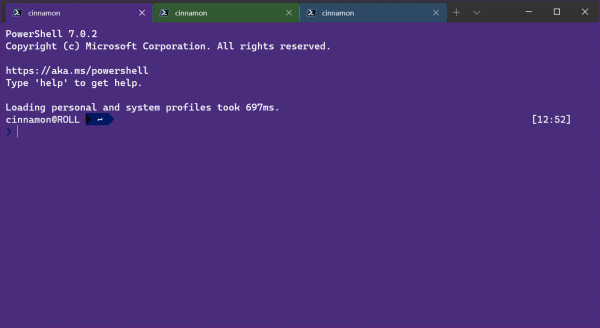
Tip: Use the same shade that is used as the background color to achieve a beautiful seamless window!
Rename Tabs
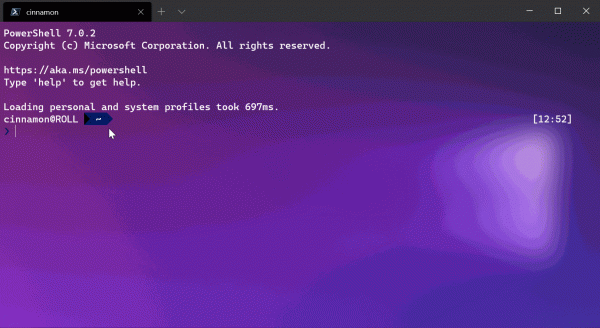
In the same context menu where the color palette is located, we've added an option to rename the tab. When clicked, the tab title will change to a text field where you can enter your name for the current session.
Compact Tab Size
Thanks to We added an option for a global setting tabWidthMode, allowing to reduce the size of each inactive tab to the width of an icon, while leaving the active tab more space to display its full title.
"tabWidthMode": "compact" 
New Command Line Arguments
We've added a few additional commands to be used as arguments when calling wt from the command line. The first argument is —maximized (or -M), which launches Windows Terminal in a maximized state. The second is —fullscreen (or -F), which launches Windows Terminal in full-screen mode. These two commands cannot be combined.
The third and final one is —title, which allows you to set the title of the tab before launching Windows Terminal. Its operation is similar to tabTitle.
Note: If you have both Windows Terminal and Windows Terminal Preview installed, the command wt will refer to the Windows Terminal, which will not support these new arguments until July 2020. You can fix this by using .
Opening defaults.json from the keyboard
For those who want to open defaults.json from the keyboard, we’ve added a new default key binding "ctrl+alt+,". The command openSettings has received new options that allow opening settings.json and defaults.json as "settingsFile" and "defaultsFile" (or "allFiles") respectively.
{ "command": { "action": "openSettings", "target": "defaultsFile" }, "keys": "ctrl+alt+," }
In conclusion
If you want to learn more about the latest features, we recommend visiting . Moreover, if you have any questions or would like to share your feedback, feel free to reach out to Kayla ( ) on Twitter. Also, if you want to suggest improvements for the Terminal or report any issues with it, please refer to the repository .

Source: habr.com
