

Hello Habr, this is a super short and simple guide for beginners on how to connect via RDP using a domain name to avoid the annoying certificate warning signed by the server itself. We'll need WinAcme and a domain.
Everyone who has ever used RDP has seen this message.
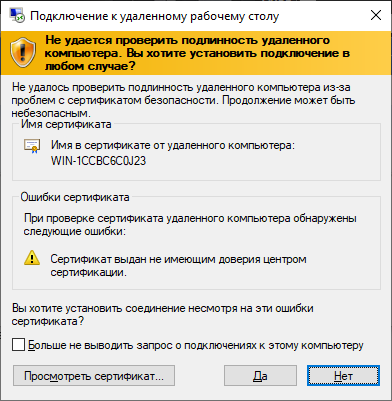
The guide includes ready-made commands for your convenience. Just copy, paste, and it works.
So, you can essentially skip this window by issuing a certificate signed by a third-party, trusted certification authority. In this case, Let’s Encrypt.
1. Add an A record

Simply add an A record and enter the server's IP address. That's it for the domain setup.
2. Download WinAcme
. It's best to extract the archive to a location you won't access frequently; the executable files and scripts will be useful for automatically updating the certificate later. It's advisable to extract the archive to C:WinAcme.
3. Open port 80
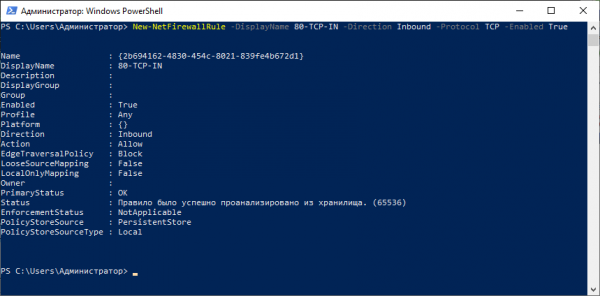
Your server's authorization occurs via HTTP, so we need to open port 80. To do this, enter the following command in PowerShell:
New-NetFirewallRule -DisplayName 80-TCP-IN -Direction Inbound -Protocol TCP -Enabled True -LocalPort 804. Allow script execution
For WinAcme to import the new certificate without issues, script execution needs to be allowed. To do this, navigate to the folder /Scripts/
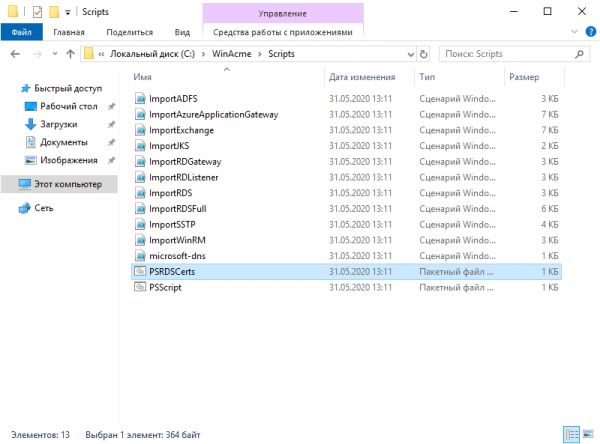
Before launching WinAcme, we need to allow the execution of two scripts. To do this, double-click PSRDSCerts.bat from the script folder.
5. Install the certificate
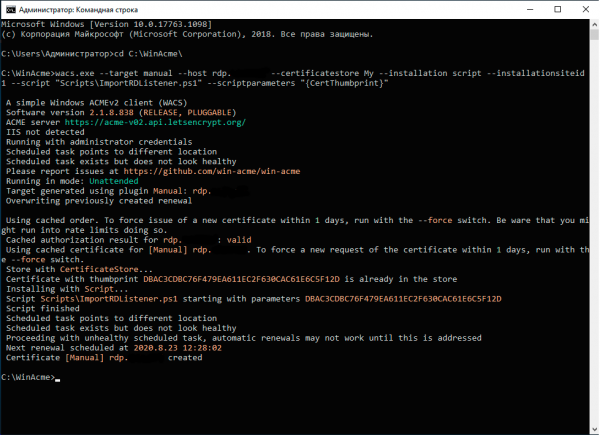
Next, copy the line below and enter the domain name you want to connect to the server with and execute the command.
C:Winacmewacs.exe --target manual --host VASHDOMAIN.RU --certificatestore My --installation script --installationsiteid 1 --script "ScriptsImportRDListener.ps1" --scriptparameters "{CertThumbprint}"After this, the certificate signing the domain will replace the old one. Nothing needs to be updated manually; the program will renew the certificate automatically in 60 days.
Done! You are amazing and have eliminated the annoying error.
What system errors irritate you?
Source: habr.com
