

Good day, Habr!
Task
In my organization, we use a mail server on the Kerio Connect platform, and various cities have mail servers serving their users. Initially, there was no distributed structure, as the domains differ in the third level with the city name of the platform. Everything was functioning well and everyone was satisfied. Then, one fine day, the management set the task: a shared calendar for all platforms!
Background
Initially, the idea was to set up a Distributed Kerio mail domain and let it handle everything on its own. It was created, but it turned out that the server was only ready to synchronize calendars, folders, and contacts between domains located on the same server, and it had no intention of syncing data across multiple servers.
I certainly did not expect such a twist and could hardly believe the lack of the functionality I needed. Later, I found documentary evidence of this fact, which left me quite puzzled and disappointed.
The task smoothly transitioned into a problem.
What were the options?
- Create two clients on different servers that would exchange the necessary data via some third-party software. I needed to find this third-party software that would implement this functionality - I don't like dealing with such issues, but it seemed like the only quick solution.
- Write my own data synchronization script between the servers. The thing is, Kerio stores each object as a separate file, so I would need to develop a script to work with the files, which seemed somewhat complicated due to the sufficient number of sources, especially since I would need to perform multiple validations of data correctness in case someone created a task at the same time, and so on.
Looking ahead, I can say that while Kerio stores an object as a separate file, it is not so naive as to ask each time how the file system is doing when accessing an object.
After spending a lot of time pondering and sketching out a ton of plans for the "capture of enemy territory," at 6 AM I made two correct decisions:
- The first decision - to do my own thing and not to look for anything external.
- The second decision - to go to sleep.
This morning I woke up with a single clear thought, which boiled down to just a few letters – DFS
Solution
The solution looked as follows
- to bring all servers that will participate in the synchronization to Windows OS. (Some were on Linux. Migration of email data to another OS was required)
- Decide on the directory structure that will be involved in the synchronization — they need to be identical.
- Identify all mail servers under one domain with a unified DFS space.
- Create the aforementioned distributed domain in Kerio, as in my case it required synchronization of data not just between servers but also among domains, the second can be handled independently by the Kerio server. (unlike the first)
- Direct the synchronized directories to the DFS space.
- Come up with some workaround (after all, you can't do without a workaround)
Implementation
An example on two mail servers (there can be more)
1. Kerio Distributed domain
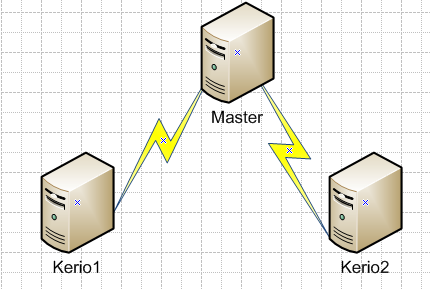
Master does not participate in the synchronization, but this is not a mandatory condition.
I won't detail how to set up a distributed domain in Kerio, it's not complicated, and you can check the official
In the end, in the administration console, you should see the following screen:
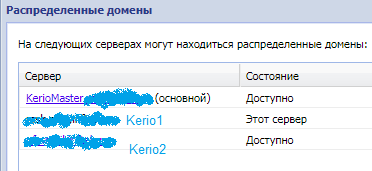
Next, I was interested in shared folders, on the Master server you can specify the following options:
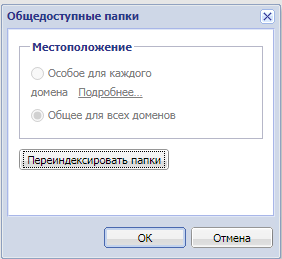
Special for each domain — the server will not synchronize shared folders between domains
Common for all domains — all servers will abandon existing shared folders in each domain and create new unified folders for all domains on each mail server.
Attention! This option, although it changes the configuration policy on all servers, performs synchronization separately from each of the servers (i.e., — without a single shared space)
The administrator will still have the ability to allocate access among users.
In my case — all my own, and I need complete synchronization (In your case, the solution may be different) identical sets of domains that need to be synchronized must be created on each server.
2. Kerio Data Directories
Now it is necessary to create identical shared directories that need to be synchronized on each of the servers. Folders, Calendars, Contacts.
Tip – create directories in English, as using Latin characters may result in directory names appearing in an unclear encoding, which is at least inconvenient.
Now it's necessary to find the physical paths of the mail folders on each server.
Common for all domains ~DataMailmail#publicSynced directory#msgs
Special for each domain ~DataMailmail**Domain**#publicSynced directory#msgs
Please note that we will sync only the container with data, not the entire directory. #msgs — this is where the actual objects are stored; all other data for each server should be separate.
3. DFS
I won't elaborate on how to configure DFS in detail; there is sufficient information on this topic.
DFS is a role service in Windows Server that provides the ability to consolidate shared folders located on different servers.
Before configuring DFS, it is necessary to stop all mail servers that will participate in the data synchronization.
Upon completion of the setup, you should see the following picture for each of the synchronized folders.

of course, we do not need to publish replicable folders.

After replication occurs (and there’s particularly nothing to replicate since the folders are empty), the mail servers can be started.
Next, you can populate one of the mail servers with data and check that the data replicates correctly.
4. Hack
Description of considerations
As you can see, after data start syncing (DFS), if you create something on the first server, nothing appears or it appears inconsistently on the second server.
Don't despair; eventually, it will appear, but it's better sooner than later, as late means 6 to 12 hours.
The issue is that as soon as you create something on the first server, the file will indeed appear immediately on the second and subsequent servers thanks to the DFS system. However, if the mail directory has already been read by someone before and requested again, the server will not re-read the #msgs folder but will return data from its own index, which may already have long been out of sync with reality.
Kerio has an index re-reading mechanism, but it may take about six hours to work, during which the relevance of the task in the calendar may be somewhat lost.
To check the synchronization process right now, you can delete the file in the corresponding synchronized directory, index.fld. After revisiting the folder on the mail server and in the absence of this file, Kerio will re-read the directory, and the data will appear. One would think that this is the solution: deleting the file when data is changed, but it only works the first time; afterwards, Kerio seems to lose all interest in index.fld.
Also, it starts spitting out incomprehensible messages for the user—about some index and that it is already doing something.
Another option is to create something—at the moment of creating a new object, the server might realize that the file name it wanted to assign is already taken, but this is a slippery slope and a dead-end option.
What to do?
If we take another look at the familiar picture.
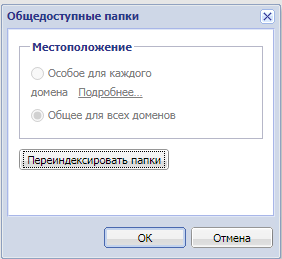
But in another dimension, one can notice a very interesting and necessary button for us right now— Re-index folders
And indeed. If you click this button on the mail server, which is unaware that something has already changed in the synchronized #msgs, we will get a stable, fast result. Everything hidden will become apparent.
In the log, you can see how long this process takes; in my case, with several thousand (15,000) entries, it takes about 3-4 minutes.
We just need to figure out how to press this button when we need it.
It turns out that Kerio has its own API
function that performs our task, looking like this –
session = callMethod("Domains.checkPublicFoldersIntegrity",{}, token)
From all of the above, we need to write a script that would monitor the status of the folders of interest and, in case something changed, execute the function we need.
I want to say that I wrote several different versions of scripts performing different checks and settled on the one that builds all outputs based on the number of files.
Implementation of the script
Example of CMD script and description
Re-index.bat
@echo off
set dir=%~dp0
%dir:~0,2%
CD "%~dp0"
md "%LOG"
md "%Setup"

ECHO -Start- >> "%LOG%Computername%.log"
ECHO Start -> %Computername% te% %Time% >> "%LOG%Computername%.log"

SetLocal EnableDelayedExpansion
for /f "UseBackQ Delims=" %%A IN ("%Setup%Computername%.List") do (
 set /a c+=1
 set "m!c!=%%A"
)

set d=%c%
Echo Folder = %c%
ECHO Folder = %c% >> "%LOG%Computername%.log"
ECHO.
ECHO. >> "%LOG%Computername%.log"

:start
cls
if %c% LSS 1 exit
set /a id=1
set R=0

:Find
REM PF-Start
if "%id%" gtr "%c%" if %R% == 1 Goto Reindex
if "%id%" gtr "%c%" timeout 60 && Goto start

For /F "tokens=1-3" %%a IN ('Dir "!m%id%!#msgs" /-C/S/A:-D') Do Set 2DirSize!id!=!DS!&& Set DS=%%c
if "2DirSize!id!" == "" set 1DirSize!id!=!2DirSize%id%!

echo %id%
ECHO !m%id%!
echo Count [ !1DirSize%id%! -- !2DirSize%id%! ]

if "!1DirSize%id%!" == "!2DirSize%id%!" ECHO Synk

REM DEL index.fld
if "!1DirSize%id%!" NEQ "!2DirSize%id%!" del /f /q !m%id%!index.fld && del /f /q !m%id%!indexlog.fld && del /f /q !m%id%!search.fld && set R=1 && ECHO RE-index Count && ECHO RE-index Count te% %Time% - Delete !m%id%! >> "%LOG%Computername%.log"

set 1DirSize!id!=!2DirSize%id%!

ECHO.
ECHO.

set /a id+=1
goto Find

:Reindex
ECHO. >> "%LOG%Computername%.log"
ECHO --- RE-INDEX - Start - te% %Time% --- >> "%LOG%Computername%.log"
ECHO. >> ----------------------------------- >> "%LOG%Computername%.log"
call PublicFolders.py
timeout 60
goto start

exit
A copy of the script runs on each mail server (can run as a service, Administrator rights are not required)
The script reads the file Setup%Computername%.List
Where %Computername% is the current server's name (the directory can contain lists of all servers at once).
The %Computername%.List file contains full paths of the synchronized directories, each path written on a new line, should not contain empty lines.
After the first run, the script performs an indexing procedure, whether necessary or not; it also creates an index of the number of files in each of the synchronized directories.
The script's task is to count all files in the specified directory.
At the end of counting each directory, if at least one directory has the current number of files not matching the previous one, the script deletes files from the root directory of the synchronized mail catalog: index.fld, indexlog.fld, search.fld and starts the indexing process — of public mail folders.
Information about task execution is logged in the LOG directory.
The indexing process
The indexing process is executed by calling the Kerio API function
Session = callMethod("Domains.checkPublicFoldersIntegrity",{}, token)
An example implementation is provided in Python
PublicFolders.py
import json
import urllib.request
import http.cookiejar
""" Cookie storage is necessary for session handling """
jar = http.cookiejar.CookieJar()
opener = urllib.request.build_opener(urllib.request.HTTPCookieProcessor(jar))
urllib.request.install_opener(opener)
""" Hostname or ip address of your Kerio Control instance with protocol, port and credentials """

server = "http://127.0.0.1:4040"
username = "user"
password = "password"

def callMethod(method, params, token = None):
    """
    Remotely calls given method with given params.
    :param: method string with fully qualified method name
    :param: params dict with parameters of remotely called method
    :param: token CSRF token is always required except login method. Use method "Session.login" to obtain this token.
    """
    data =  {"method": method ,"id":1, "jsonrpc":"2.0", "params": params}

    req = urllib.request.Request(url = server + '/admin/api/jsonrpc/')
    req.add_header('Content-Type', 'application/json')
    if (token is not None):
        req.add_header('X-Token', token)

    httpResponse = urllib.request.urlopen(req, json.dumps(data).encode())

    if (httpResponse.status == 200):
        body = httpResponse.read().decode()
        return json.loads(body)

session = callMethod("Session.login", {"userName":username, "password":password, "application":{"vendor":"Kerio", "name":"Control Api-Local", "version":"Python"}})
token = session["result"]["token"]
print (session)

session = callMethod("Domains.checkPublicFoldersIntegrity",{"domainId": "test2.local"}, token)
print (session)

callMethod("Session.logout",{}, token)
You can leave it as is, but if you require HTTPS, Python must trust the Kerio certificate.
The file must also specify an account with permissions to execute this function (Admin - shared mail folders) on the mail server.
I hope my article will be helpful to Kerio Connect administrators.
Source: habr.com
