

Hello everyone! Today we will try to automate the process of creating tasks using the Microsoft Common Data Service data platform and Power Apps and Power Automate services. Based on the Common Data Service, we will build entities and attributes, create a simple mobile application using Power Apps, and Power Automate will help us connect all components with unified logic. Let's not waste any time!

But first, a bit of terminology. We already know what Power Apps and Power Automate are, but if anyone is not familiar, I recommend checking out my previous articles, for example, or . However, we haven't yet discussed what Common Data Service is, so now is the right time to add a bit of theory.
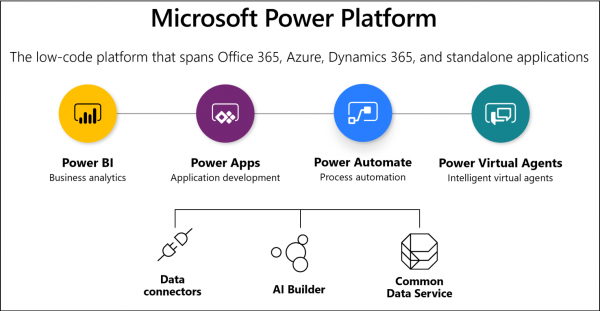
Common Data Service (CDS) is a data storage platform similar to a database. In fact, it is a cloud-based database located within Microsoft 365 and closely integrated with all services of the Microsoft Power Platform. CDS is also accessible via Microsoft Azure and Microsoft Dynamics 365. Data can enter CDS in various ways, one of which is the manual creation of records in CDS, similar to SharePoint. All data in the Common Data Service is stored in tables, called entities. There are a number of basic entities that can be used for your purposes, but you can also create your own entities with your own sets of attributes. Similar to SharePoint, when creating an attribute in Common Data Service, you can specify its type, and there are a vast number of types available. One interesting feature is the ability to create so-called "Option Sets" (analogous to choice field options in SharePoint), which can be reused in any entity field. Additionally, data can be loaded from various supported sources as well as from Power Apps applications and Power Automate flows. In short, CDS is a data storage and retrieval system. The advantage of this system is its close integration with all services of the Microsoft Power Platform, allowing the construction of data structures of varying complexity and easy connection to data through Power BI for reporting. CDS has its own interface for creating entities, attributes, business rules, relationships, views, and dashboards. The interface for working with CDS is located on the site. In the 'Data' section, where all the main capabilities for configuring entities are gathered.
So, let's try to set something up. We'll create a new entity called 'Task' in the Common Data Service:
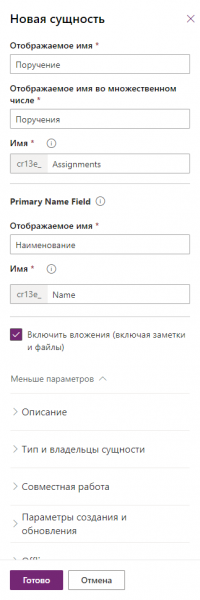
As you may notice, when creating a new entity, it's necessary to specify its name in both singular and plural forms, as well as to define a key field. In our case, this will be the 'Name' field. By the way, you will also see that the internal and display names of entities and fields are specified on the same form, unlike SharePoint, where you first need to create a field in Latin and then rename it to Russian.
Additionally, when creating an entity, there are many different settings you can configure, but we won't be doing that now. We'll create the entity and move on to creating attributes.
Let's create a Status field of type 'Option Set' and define 4 options for this field (New, In Progress, Completed, Rejected):
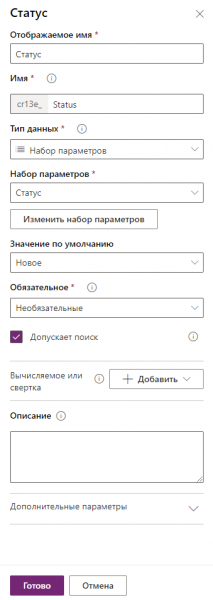
Similarly, we create the other fields that we'll need for the application implementation. By the way, a list of available field types is provided below; agree that there are quite a few?
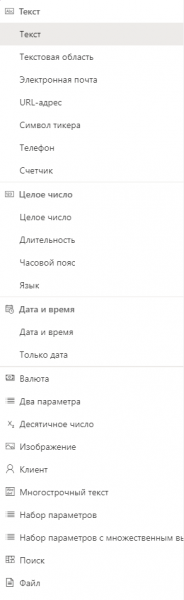
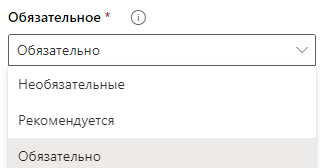
Also, pay attention to the field requirement settings; in addition to 'Required' and 'Optional', there is also the option 'Recommended':
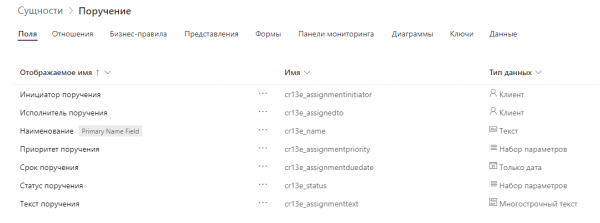
After we have created all the necessary fields, we can view the complete list of fields for the current entity in the corresponding section:
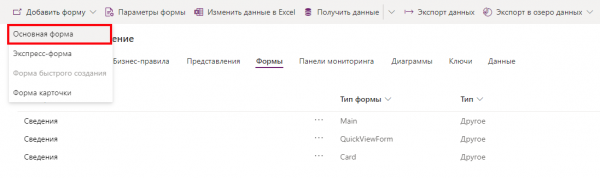
The entity is configured, and now we need to set up the data entry form at the level of the Common Data Service for the current entity. We go to the 'Forms' tab and click 'Add Form' -> 'Main Form':
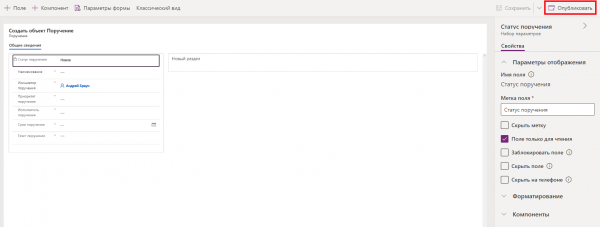
We configure a new form for data entry through the Common Data Service and arrange the fields one after another, after which we click the 'Publish' button:
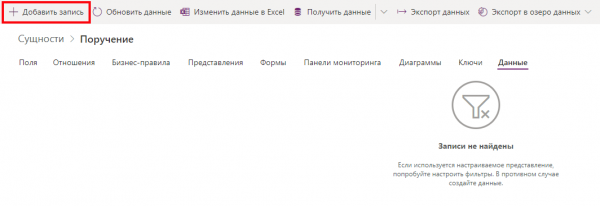
The form is ready; let's check its functionality. We return to the Common Data Service and go to the 'Data' tab, then click 'Add Record':
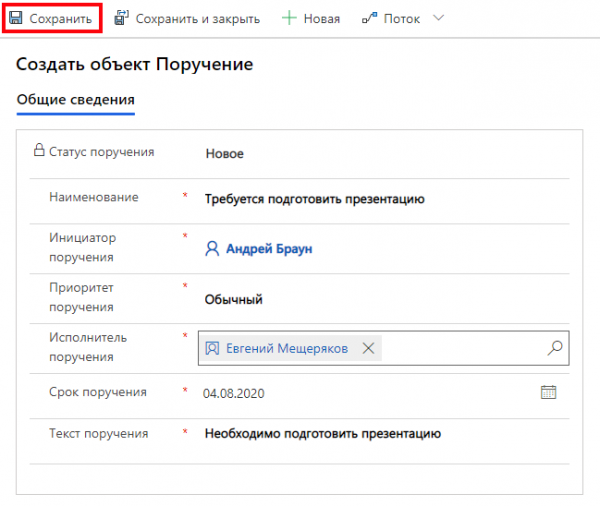
In the opened form window, we enter all the necessary data and click 'Save':
Now in the 'Data' section, we have one record:
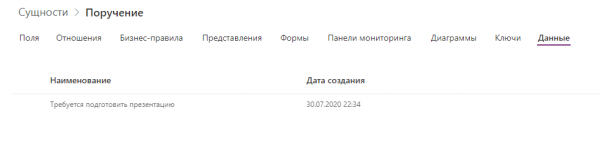
However, few fields are displayed. This can be easily fixed. Go to the 'Views' tab and edit the very first view. Place the necessary fields on the view form and click 'Publish':

Let's check the field composition in the 'Data' section. Everything looks great:

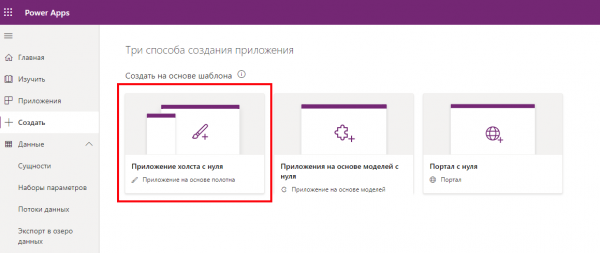
So, on the Common Data Service side, we have prepared the entity, fields, data view, and form for manual data entry directly from CDS. Now let's create a Power Apps canvas application for our new entity. We proceed to create a new Power Apps application:
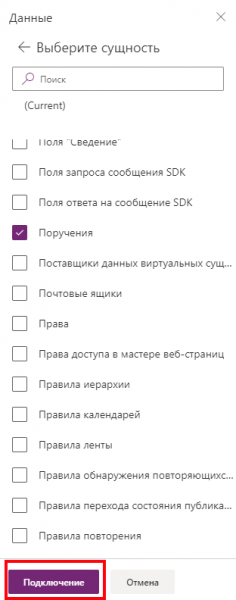
In the new app, we connect to our entity in Common Data Service:
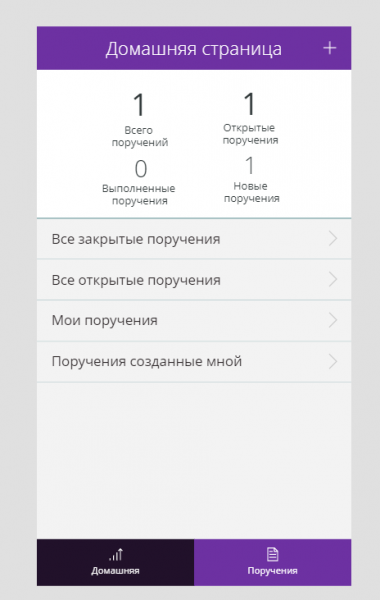
After all connections, we set up several screens for our Power Apps mobile application. We create the first screen with some statistics and transitions between views:
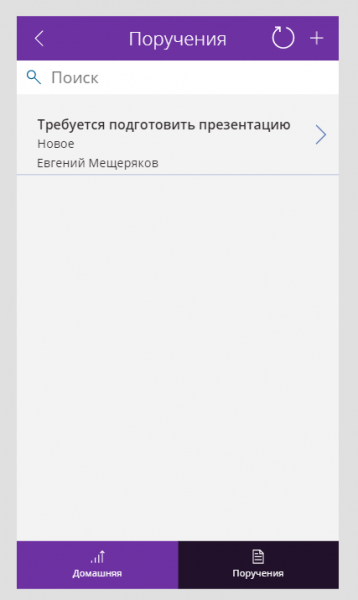
We create the second screen with a list of existing tasks in the CDS entity:
And we create one more screen for creating a task:
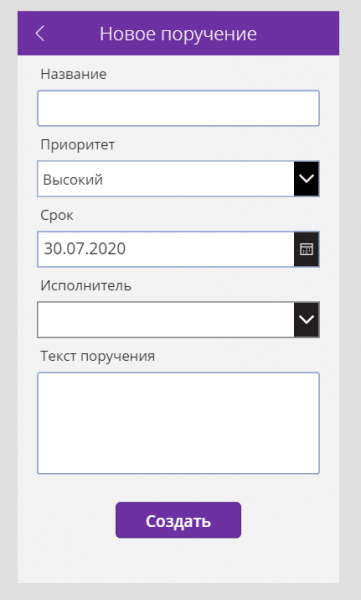
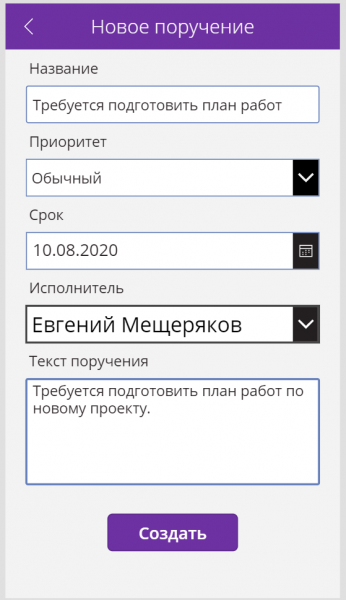
We save and publish the application, after which we run it for testing. We fill in the fields and click the 'Create' button:
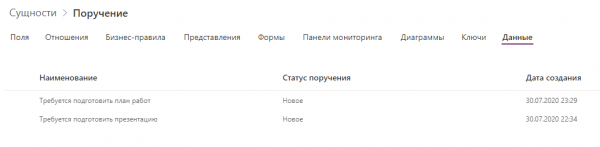
Let's check if a record was created in CDS:
Let's verify the same from the app:
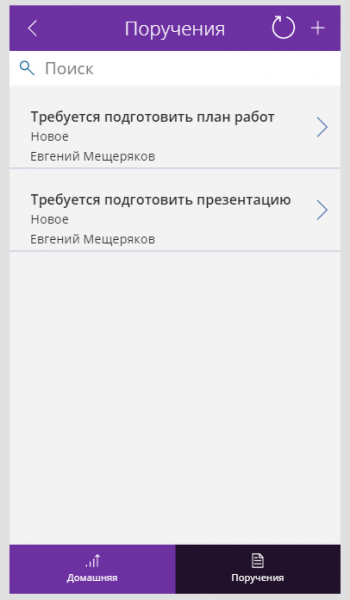
All data is in place. One final touch remains. Let's create a small Power Automate flow that will send a notification to the task executor upon creating a record in the Common Data Service:
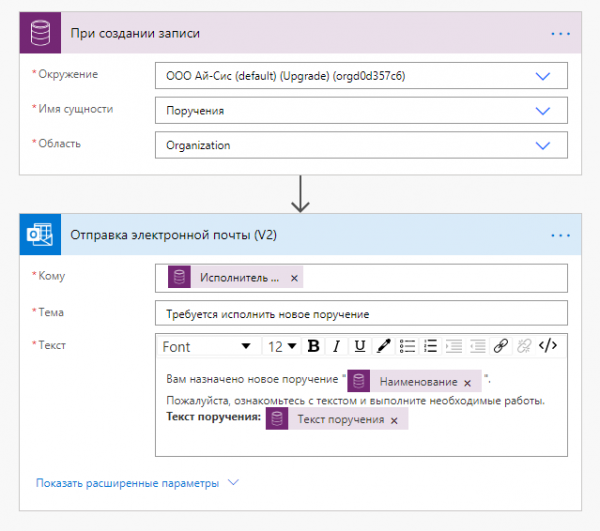
In the end, we have created an entity and form at the level of Common Data Service, a Power Apps application for interacting with CDS data, and a Power Automate flow for automatically sending notifications to executors when a new task is created.
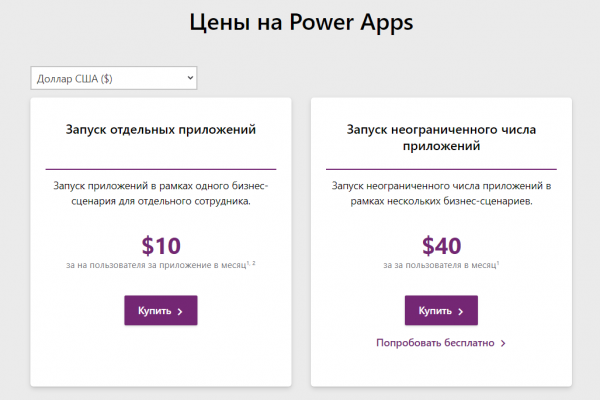
Now about the prices. Common Data Service is not included in Power Apps that comes with an Office 365 subscription. This means that if you have an Office 365 subscription and Power Apps as part of it, then Common Data Service will not be available by default. To access CDS, you need to purchase a separate Power Apps license. Prices for plans and licensing options are listed below and taken from the site :
In the following articles, we will explore even more possibilities of Common Data Service and Microsoft Power Platform. Have a great day!
Source: habr.com
