

One of the common types of attacks is the spawning of a malicious process within the tree of seemingly benign processes. The path to the executable can raise suspicion: malware often utilizes the AppData or Temp folders, which is atypical for legitimate programs. To be fair, some automatic update utilities run in AppData, so merely checking the launch location is insufficient to assert that a program is malicious.
An additional factor of legitimacy is the cryptographic signature: many original programs are signed by the vendor. The absence of a signature can be used as a method to identify suspicious startup elements. However, there is also malware that uses a stolen certificate to sign itself.
You can also check the values of cryptographic hashes MD5 or SHA256, which may correspond to some previously identified malware. Static analysis can be performed by looking for signatures in the program (using Yara rules or antivirus products). There's also dynamic analysis (running the program in a safe environment and tracking its behavior) and reverse engineering.
There can be numerous signs of a malicious process. In this article, we will explain how to enable auditing of relevant events in Windows and discuss the signs that the built-in rule relies on to identify suspicious processes. InTrust is a CLM platform When a program is launched, it loads into the computer's memory. The executable file contains computer instructions and auxiliary libraries (for example, *.dll). Once the process is running, it can create additional threads. Threads allow the process to execute different sets of instructions simultaneously. There are many ways for malicious code to infiltrate memory and be executed; let's explore some of them.
When the program starts, it loads into the computer's memory. The executable file contains computer instructions and auxiliary libraries (for example, *.dll). Once the process is running, it can create additional threads. Threads allow the process to execute different sets of instructions simultaneously. There are many ways for malicious code to infiltrate memory and execute; let's consider some of them.
The simplest way to launch malware is to get the user to run it directly (for example, from an email attachment), and then use the RunOnce key to execute it every time the computer is turned on. This also includes "fileless" malware, which stores PowerShell scripts in registry keys that execute based on a trigger. In this case, the PowerShell script serves as the malicious code.
The problem with explicitly launching malicious software is that it is a well-known approach that is easily detected. Some malware employs more cunning methods, such as using another process to execute in memory. Consequently, this process can create another process by running a specific computer instruction and specifying the executable file (.exe) to launch.
The file can be specified using a full path (e.g., C:Windowssystem32cmd.exe) or a relative path (e.g., cmd.exe). If the originating process is unsafe, it can allow the execution of illegitimate programs. An attack may look like this: the process launches cmd.exe without specifying a full path, and the attacker places their own cmd.exe in a location so that it is executed before the legitimate one. After the malicious program is launched, it can then start a legitimate program (e.g., C:Windowssystem32cmd.exe) to ensure that the original program continues to operate correctly.
A variation of the previous attack is DLL injection into a legitimate process. When a process starts, it finds and loads libraries that extend its functionality. By using DLL injection, an attacker creates a malicious library with the same name and API as the legitimate one. The program loads the malicious library, which in turn loads the legitimate one, and as needed, calls it for operations. The malicious library acts as a proxy for the good library.
Another way to place malicious code into memory is to insert it into an insecure process that is already running. Processes receive input from various sources, reading from networks or files. They typically perform checks to ensure the legitimacy of the input data. However, some processes lack proper protection when executing instructions. In such an attack, there is no library on disk or executable file containing the malicious code. Everything resides in memory along with the exploited process.
Now let's explore the method of enabling the collection of such events in Windows and the rule in InTrust that implements protection against such threats. First, we will activate it through the InTrust management console.
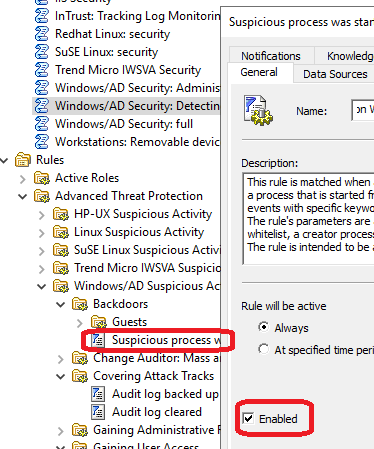
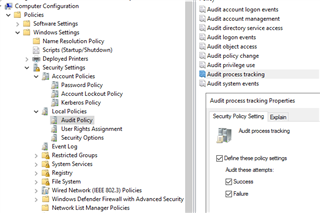
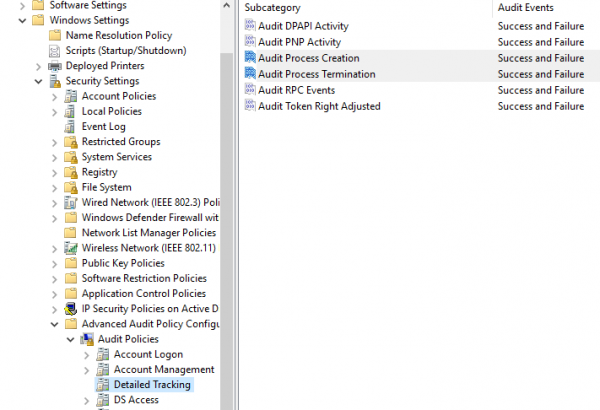
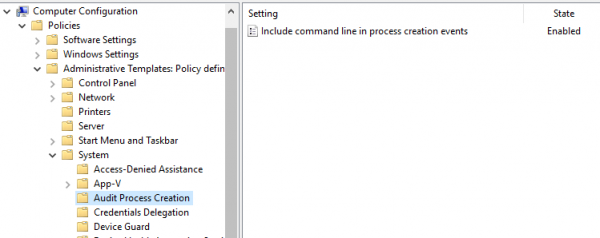
The rule utilizes the process tracking capabilities of the Windows OS. Unfortunately, enabling the collection of such events is far from straightforward. You need to change 3 different group policy settings:
Computer Configuration > Policies > Windows Settings > Security Settings > Local Policies > Audit Policy > Audit process tracking
Computer Configuration > Policies > Windows Settings > Security Settings > Advanced Audit Policy Configuration > Audit Policies > Detailed Tracking > Audit process creation
Computer Configuration > Policies > Administrative Templates > System > Audit Process Creation > Include command line in process creation events
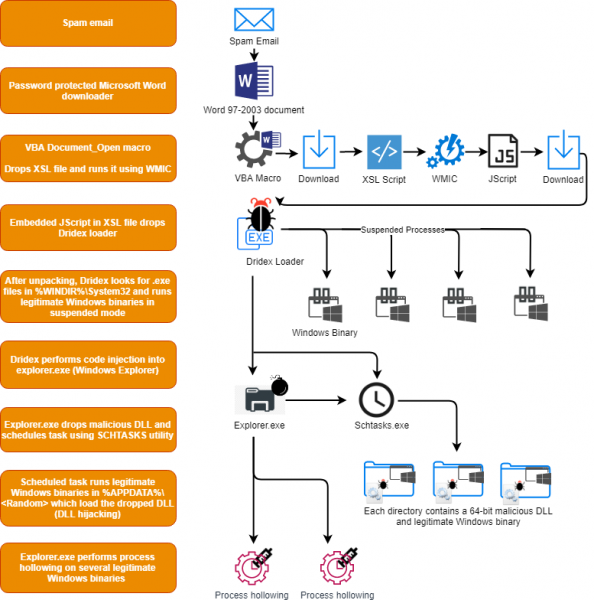
Upon enabling, InTrust rules allow for the detection of previously unknown threats that display suspicious behavior. For example, you can identify Dridex malware. Thanks to the HP Bromium project, we know how such a threat is structured.
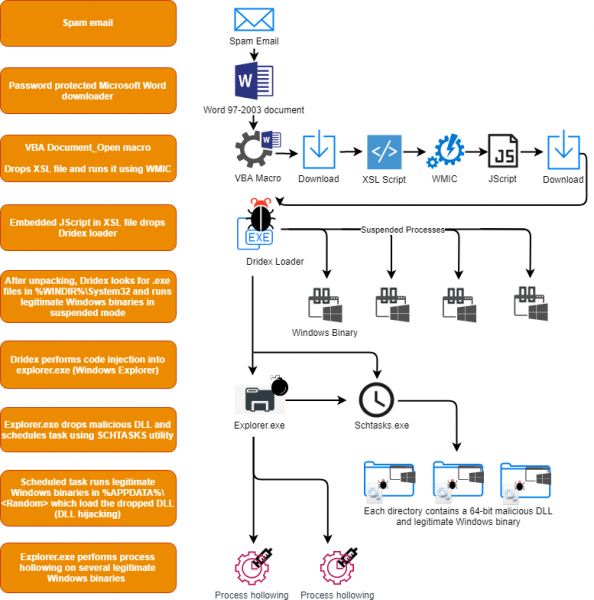
In its sequence of actions, Dridex uses schtasks.exe to create a scheduled task. The use of this particular utility from the command line is considered quite suspicious behavior, similar to the execution of svchost.exe with parameters that point to user folders or with parameters resembling commands like 'net view' or 'whoami'. Here is a fragment of the corresponding :
detection:
    selection1:
        CommandLine: '*svchost.exe C:Users\*Desktop\*'
    selection2:
        ParentImage: '*svchost.exe*'
        CommandLine:
            - '*whoami.exe /all'
            - '*net.exe view'
    condition: 1 of them
In InTrust, all suspicious behaviors are included under one rule because most of these actions are not specific to a particular threat but are rather suspicious as a whole and are aimed at less than noble purposes 99% of the time. Such a list of actions includes, but is not limited to:
- Processes running from unusual locations, such as user temporary folders.
- Well-known system processes with suspicious inheritance—some threats may attempt to use the names of system processes to remain unnoticed.
- Suspicious executions of administrative tools, such as cmd or PsExec, when they use local system credentials or suspicious inheritance.
- Suspicious shadow copy operations—typical behavior of ransomware before encrypting the system, they kill backups:
— Through vssadmin.exe;
— Through WMI. - Registry dumps of whole registry hives.
- Lateral movement of malware through remote process launches using commands like at.exe.
- Suspicious local group operations and domain operations using net.exe.
- Suspicious firewall operations using netsh.exe.
- Suspicious manipulations with ACLs.
- Using BITS for data exfiltration.
- Suspicious manipulations with WMI.
- Suspicious script commands.
- Attempts to dump secure system files.
The combined rule works very well for detecting threats such as RUYK, LockerGoga, and other ransomware, malware, and cybercrime toolkits. The rule has been validated by the vendor in live environments to minimize false positives, and thanks to the SIGMA project, most of these indicators generate minimal noise events.
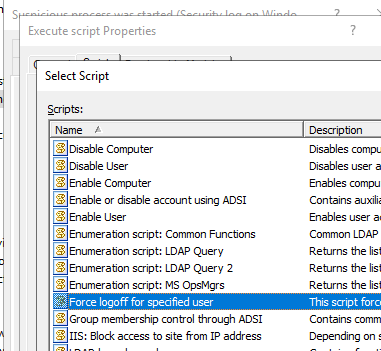
Since this is a monitoring rule in InTrust, you can execute a response script as a reaction to a threat. You can use one of the built-in scripts or create your own, and InTrust will automatically propagate it.
Additionally, you can check all telemetry related to the event: PowerShell scripts, process executions, scheduled tasks manipulations, WMI administrative activities, and use them for post-mortem analysis during security incidents.
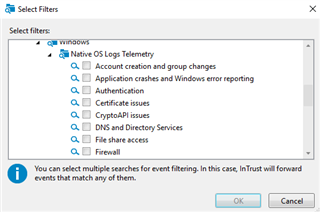
In InTrust, there are hundreds of other rules, some of which include:
- Detection of PowerShell version downgrades—when someone intentionally uses an older version of PowerShell, as auditing was not possible in that older version.
- Detection of logins with high privileges—when accounts that are members of a certain privileged group (for example, domain administrators) interactively log into workstations accidentally or due to security incidents.
InTrust allows for the implementation of best security practices in the form of pre-installed detection and response rules. And if you think something should work differently—you can create your own copy of the rule and configure it as needed. You can submit a request for a pilot program or to obtain distributions with temporary licenses through on our website.
Subscribe to our , where we post brief notes and interesting links.
Read our other articles on information security:
(popular article)
Source: habr.com
