

All Linux distributions come with a functional and customizable terminal emulator. There are plenty of ready-made themes online, and sometimes even in the terminal itself, to make it look nice. However, I spent a lot of time figuring out how to turn the standard terminal (in any DE, any distribution) into something beautiful and at the same time convenient and easy to use. So, how can we make the default terminal comfortable and pleasant to use?
Adding functionality
Command Shell
Most distributions come with a built-in Bash. While you can turn it into whatever you want with addons, it's much easier to achieve that with . Why?
- Advanced command auto-completion mechanics with a press of or . Unlike Bash, you don't need to configure it; everything works at a high level right 'out of the box.'
- A multitude of ready-made themes, modules, plugins, and more. Customization through frameworks (oh-my-zsh, prezto, etc.) that significantly expand the possibilities for customizing and improving the terminal. Again, all of this can also be achieved in Bash, but there is a wealth of ready-made materials available for Zsh. There are significantly fewer for Bash, and some are simply not available.
These are the main reasons why I switched from Bash to Zsh. In addition, Zsh offers many other 'features.'
Configuring Zsh
First, let's install Zsh (if it's already installed, for example in Manjaro, you can skip this step):
sudo apt install zsh When prompted to set Zsh as the default shell, press Y, to confirm.
— a popular and actively developing Zsh framework that allows you to flexibly customize the terminal shell. Let's install it:
sh -c "$(curl -fsSL https://raw.github.com/ohmyzsh/ohmyzsh/master/tools/install.sh)" zsh: command not found: curl
Install curl:
sudo apt install curlSyntax highlighting. It's much easier to navigate the terminal content when different parts of commands are highlighted in different colors. For example, directories will be underlined, and commands will be highlighted in a color different from regular text. Let's install the plugin zsh-syntax-highlighting:
git clone https://github.com/zsh-users/zsh-syntax-highlighting.git $ZSH_CUSTOM/plugins/zsh-syntax-highlighting zsh: command not found: git
Install git:
sudo apt install gitTo make the plugin work, it needs to be connected.
In the file ~/ .zshrc change the line with plugins=:
plugins=(git zsh-syntax-highlighting)If such a line does not exist, add it.
Done! We're getting a convenient and functional terminal. Now let's make it visually appealing.
Customizing the appearance
Installing the theme :
git clone https://github.com/romkatv/powerlevel10k.git $ZSH_CUSTOM/themes/powerlevel10k Downloading and adding the font to the system JetBrains Mono Nerd (with icons):
Choose one of, in the folder font/complete select the font without "Windows Compatible", ending with "Mono".
Connecting the font and theme.
Editing ~/ .zshrc.
If these lines are already in the file, replace them.
ZSH_THEME="powerlevel10k/powerlevel10k"POWERLEVEL9K_MODE="nerdfont-complete"
Colors. An important part of terminal design is the color scheme. I tried many different schemes, edited them, and settled on Monokai Dark. It's easy on the eyes yet pleasant and vibrant. Here’s the color list:
[colors]

# special
foreground      = #e6e6e6
foreground_bold = #e6e6e6
cursor          = #fff
background      = #000

# black
color0  = #75715e
color8  = #272822

# red
color1  = #f92672
color9  = #f92672

# green
color2  = #a6e22e
color10 = #a6e22e

# yellow
color3  = #434648
color11 = #7ea35f

# blue
color4  = #66d9ef
color12 = #66d9ef

# magenta
color5  = #ae81ff
color13 = #ae81ff

# cyan
color6  = #adb3b9
color14 = #62ab9d

# white
color7  = #2AA198
color15 = #2AA198
The color scheme changes differently in various terminals (usually done through terminal settings), but the order of colors remains the same everywhere. You can import this template in Termite format and export it for your terminal via terminal.sexy
Launching the theme configuration: p10k configure.
Customize the theme by selecting the display options you prefer.
Final touch — change the theme config and replace the default colors.
Editing the file ~/ .p10k.zsh.
If these lines are already in the file, replace them. You can get the color codes with the command
for i in {0..255}; do print -Pn "%K{$i} %k%F{$i}${(l:3::0:)i}%f " ${${(M)$((i%6)):#3}:+$'n'}; done- Displaying only the current directory:
typeset -g POWERLEVEL9K_SHORTEN_STRATEGY=truncate_to_last - Background of the directory block:
typeset -g POWERLEVEL9K_DIR_BACKGROUND=33 - Arrow colors:
typeset -g POWERLEVEL9K_PROMPT_CHAR_OK_{VIINS,VICMD,VIVIS,VIOWR}_FOREGROUND=2and
typeset -g POWERLEVEL9K_PROMPT_CHAR_ERROR_{VIINS,VICMD,VIVIS,VIOWR}_FOREGROUND=1 - Background of the Git branch:
typeset -g POWERLEVEL9K_VCS_CLEAN_BACKGROUND=15
Result
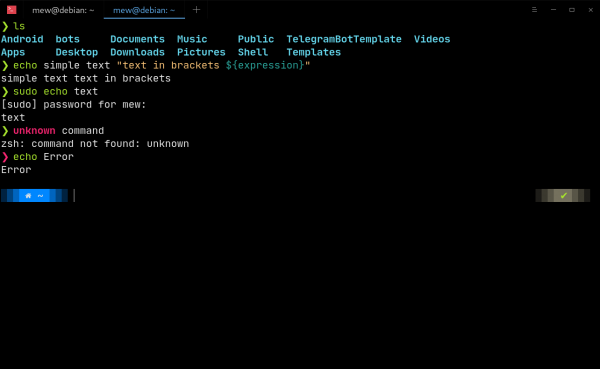
Error:

GIT:

file — continuous reading of events from one or more local files;
Source: habr.com
