

What to do if you want two-factor authentication but have no money for hardware tokens, and are instead advised to just hang in there with a good mood.
This solution isn’t particularly original; rather, it’s a mix of various solutions found online.
So, given that
Domain Active Directory.
Domain users working via VPN, as many do nowadays.
The VPN gateway is represented by Fortigate.
Saving the password for the VPN client is prohibited by the security policy.
The policy Fortinet regarding its own tokens is less than greedy—there are 10 free tokens, with the rest at a very steep price. I have not considered RSASecureID, Duo, or similar, as I prefer open-source solutions.
Preliminary requirements: host *nix with freeradius, sssd — once added to the domain, domain users can authenticate without issue.
Additional packages: shellinabox, figlet, freeradius-ldap, font rebel.tlf from the repository .
In my example, it’s CentOS 7.8.
The logic of operation is as follows: when connecting to the VPN, the user should enter their domain login and OTP instead of a password.
Service configuration
In /etc/raddb/radiusd.conf only the user and group under which it starts are changed freeradius, as the service radiusd must be able to read files in all subdirectories /home/.
user = root
group = root
To be able to use groups in the settings Fortigate, you need to pass Vendor Specific Attribute. For this, in the directory raddb/policy.d I create a file with the following content:
group_authorization {
    if (&LDAP-Group[*] == "CN=vpn_admins,OU=vpn-groups,DC=domain,DC=local") {
            update reply {
                &Fortinet-Group-Name = "vpn_admins" }
            update control {
                &Auth-Type := PAM
                &Reply-Message := "Welcome Admin"
                }
        }
    else {
        update reply {
        &Reply-Message := "Not authorized for vpn"
            }
        reject
        }
}
After installing freeradius-ldap in the directory raddb/mods-available a file is created ldap.
You need to create a symbolic link in the directory raddb/mods-enabled.
ln -s /etc/raddb/mods-available/ldap /etc/raddb/mods-enabled/ldapI adjust its content to look like this:
ldap {
        server = 'domain.local'
        identity = 'CN=freerad_user,OU=users,DC=domain,DC=local'
        password = "SupeSecretP@ssword"
        base_dn = 'dc=domain,dc=local'
        sasl {
        }
        user {
                base_dn = "${..base_dn}"
                filter = "(sAMAccountname=%{%{Stripped-User-Name}:-%{User-Name}})"
                sasl {
                }
                scope = 'sub'
        }
        group {
                base_dn = "${..base_dn}"
                filter = '(objectClass=Group)'
                scope = 'sub'
                name_attribute = cn
                membership_filter = "(|(member=%{control:Ldap-UserDn})(memberUid=%{%{Stripped-User-Name}:-%{User-Name}}))"
                membership_attribute = 'memberOf'
        }
}
In files raddb/sites-enabled/default and raddb/sites-enabled/inner-tunnel in the section authorize I add the name of the policy that will be used — group_authorization. An important point — the name of the policy is defined not by the file name in the directory policy.d, but by the directive inside the file before the curly braces.
In the section authenticate in these same files, you need to uncomment the line pam.
In the file clients.conf we specify the parameters with which it will connect Fortigate:
client fortigate {
    ipaddr = 192.168.1.200
    secret = testing123
    require_message_authenticator = no
    nas_type = other
}
Module configuration pam.d/radiusd:
#%PAM-1.0
auth       sufficient   pam_google_authenticator.so
auth       include      password-auth
account    required     pam_nologin.so
account    include      password-auth
password   include      password-auth
session    include      password-auth
Default configuration options for the bundle freeradius with google authenticator assume user input of credentials in the format: username/password+OTP.
Considering the amount of curses that will befall if the default bundle is used freeradius with Google Authenticator, it was decided to use module configuration pam to validate only the token Google Authenticator.
When a user connects, the following occurs:
- Freeradius checks whether the user exists in the domain and in a specific group, and if successful, the OTP token is verified.
Everything seemed quite successful until I thought, "How do I register OTP for 300+ users?"
The user must log in to the server with freeradius and under their account and run the application Google authenticator, which will generate a QR code for the user. Here, assistance comes from shellinabox in combination with .bash_profile.
[root@freeradius ~]# yum install -y shellinabox
The configuration file of the daemon is located in /etc/sysconfig/shellinabox.
I specify port 443 there and can indicate my own certificate.
[root@freeradius ~]#systemctl enable --now shellinaboxdThe user just needs to follow the link, enter their domain credentials, and obtain a QR code for the application.
The algorithm is as follows:
- The user logs into the machine through a browser.
- It checks if the user is a domain user. If not, no further actions are taken.
- If the user is domain-based, their membership in the administrator group is checked.
- If they are not an admin, it checks if Google Authenticator is configured. If not, a QR code is generated, and the user is logged out.
- If not an admin and Google Authenticator is configured, the user is simply logged out.
- If the user is an admin, the Google Authenticator check occurs again. If not configured, a QR code is generated.
All logic is executed using /etc/skel/.bash_profile.
cat /etc/skel/.bash_profile
# .bash_profile

# Get the aliases and functions
if [ -f ~/.bashrc ]; then
        . ~/.bashrc
fi

# User specific environment and startup programs
# Make several commands available from user shell

if [[ -z $(id $USER | grep "admins") || -z $(cat /etc/passwd | grep $USER) ]]
  then
    [[ ! -d $HOME/bin ]] && mkdir $HOME/bin
    [[ ! -f $HOME/bin/id ]] && ln -s /usr/bin/id $HOME/bin/id
    [[ ! -f $HOME/bin/google-auth ]] && ln -s /usr/bin/google-authenticator $HOME/bin/google-auth
    [[ ! -f $HOME/bin/grep ]] && ln -s /usr/bin/grep $HOME/bin/grep
    [[ ! -f $HOME/bin/figlet ]] && ln -s /usr/bin/figlet $HOME/bin/figlet
    [[ ! -f $HOME/bin/rebel.tlf ]] && ln -s /usr/share/figlet/rebel.tlf $HOME/bin/rebel.tlf
    [[ ! -f $HOME/bin/sleep ]] && ln -s /usr/bin/sleep $HOME/bin/sleep
  # Set PATH env to <home user directory>/bin
    PATH=$HOME/bin
    export PATH
  else
    PATH=PATH=$PATH:$HOME/.local/bin:$HOME/bin
    export PATH
fi


if [[ -n $(id $USER | grep "domain users") ]]
  then
    if [[ ! -e $HOME/.google_authenticator ]]
      then
        if [[ -n $(id $USER | grep "admins") ]]
          then
            figlet -t -f $HOME/bin/rebel.tlf "Welcome to Company GAuth setup portal"
            sleep 1.5
            echo "Please, run any of these software on your device, where you would like to setup OTP:
Google Autheticator:
AppStore - https://apps.apple.com/us/app/google-authenticator/id388497605
Play Market - https://play.google.com/stor/apps/details?id=com.google.android.apps.authenticator2&hl=en
FreeOTP:
AppStore - https://apps.apple.com/us/app/freeotp-authenticator/id872559395
Play Market - https://play.google.com/store/apps/details?id=org.fedorahosted.freeotp&hl=en

And prepare to scan QR code.

"
            sleep 5
            google-auth -f -t -w 3 -r 3 -R 30 -d -e 1
            echo "Congratulations, now you can use an OTP token from application as a password connecting to VPN."
          else
            figlet -t -f $HOME/bin/rebel.tlf "Welcome to Company GAuth setup portal"
            sleep 1.5
            echo "Please, run any of these software on your device, where you would like to setup OTP:
Google Autheticator:
AppStore - https://apps.apple.com/us/app/google-authenticator/id388497605
Play Market - https://play.google.com/store/apps/details?id=com.google.android.apps.authenticator2&hl=en
FreeOTP:
AppStore - https://apps.apple.com/us/app/freeotp-authenticator/id872559395
Play Market - https://play.google.com/store/apps/details?id=org.fedorahosted.freeotp&hl=en

And prepare to scan QR code.

"
            sleep 5
            google-auth -f -t -w 3 -r 3 -R 30 -d -e 1
            echo "Congratulations, now you can use an OTP token from application as a password to VPN."
            logout
        fi
      else
        echo "You have already setup a Google Authenticator"
        if [[ -z $(id $USER | grep "admins") ]]
          then
          logout
        fi
    fi
  else
    echo "You don't need to set up a Google Authenticator"
fi
Fortigate configuration:
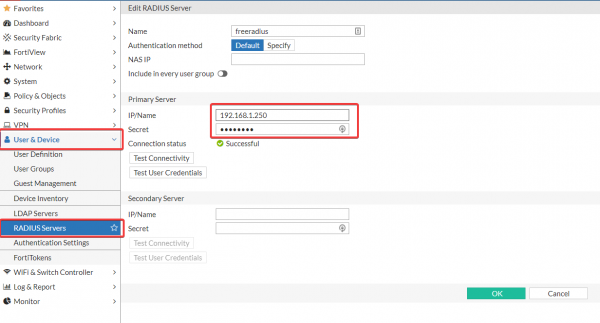
- Creating Radius-server

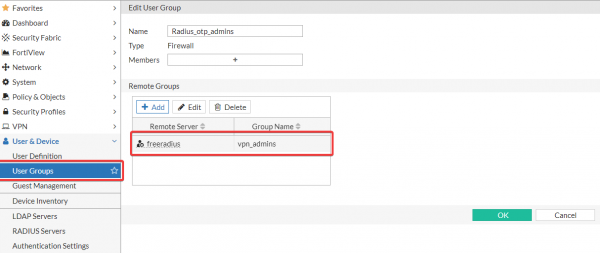
- Create necessary groups, if access segregation by groups is required. The group name in Fortigate must correspond to the group passed in Vendor Specific Attribute Fortinet-Group-Name.

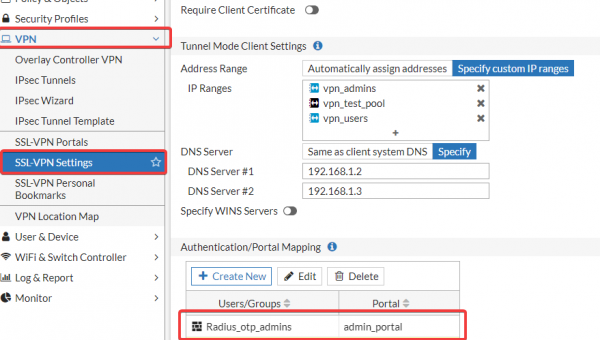
- Edit the necessary SSL-portals.

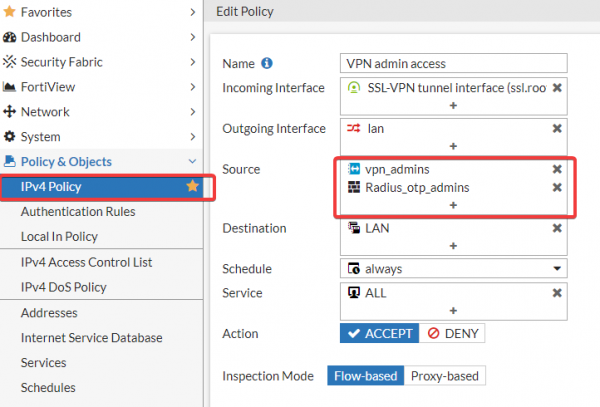
- Add groups to policies.

Advantages of this solution:
- There is an option for OTP authentication on Fortigate an open-source solution.
- The user is exempt from entering the domain password when connecting via VPN, simplifying the connection process. It's easier to enter a 6-digit password than the one set by security policy. Consequently, the number of tickets with the subject: 'Can't connect to VPN' decreases.
P.S. There are plans to enhance this solution to a full two-factor authorization with challenge-response.
Update:
As promised, I indeed enhanced it to the variant with challenge-response.
So:
In the file /etc/raddb/sites-enabled/default section authorize looks as follows:
authorize {
    filter_username
    preprocess
    auth_log
    chap
    mschap
    suffix
    eap {
        ok = return
    }
    files
    -sql
    #-ldap
    expiration
    logintime
    if (!State) {
        if (&User-Password) {
            # If !State and User-Password (PAP), then force LDAP:
            update control {
                Ldap-UserDN := "%{User-Name}"
                Auth-Type := LDAP
            }
        }
        else {
            reject
        }
    }
    else {
        # If State, then proxy request:
        group_authorization
    }
pap
}
Section authenticate now has the following form:
authenticate {
        Auth-Type PAP {
                pap
        }
        Auth-Type CHAP {
                chap
        }
        Auth-Type MS-CHAP {
                mschap
        }
        mschap
        digest
        # Attempt authentication with a direct LDAP bind:
        Auth-Type LDAP {
        ldap
        if (ok) {
            update reply {
                # Create a random State attribute:
                State := "%{randstr:aaaaaaaaaaaaaaaa}"
                Reply-Message := "Please enter OTP"
                }
            # Return Access-Challenge:
            challenge
            }
        }
        pam
        eap
}
Now, user verification occurs according to the following algorithm:
- The user enters their domain credentials in the VPN client.
- Freeradius checks the validity of the account and password.
- If the password is correct, a token request is sent.
- The token is then verified.
- Profit).
Source: habr.com
