

Greetings to our blog readers! We are somewhat acquainted — my English posts have appeared here translated by my dear colleague . This time, I decided to address the Russian-speaking audience directly.
For my debut, I wanted to find a topic interesting to the widest audience possible that requires detailed consideration. Daniel Defoe claimed that every person is awaited by death and taxes. From my side, I can say that every support engineer faces questions about restore point retention policies (or simply put – retention). I began explaining how retention works four years ago, when I was a junior level engineer, and I continue to explain it now, already as a team leader for the Spanish and Italian speaking teams. I am sure that my colleagues at the second and even third support levels regularly answer the same questions.
In this light, I wanted to write a definitive and detailed post that Russian-speaking users could return to again and again as a reference. The moment is suitable — the recently released milestone tenth version added new capabilities to the core functionality that has remained unchanged for years. My post is primarily aimed at this version — although most of what is written applies to previous versions, some of the described functionality simply won’t be found there. Finally, glancing a bit into the future, I will say that some changes are expected in the next version, but we will discuss this when the time comes. So, let’s get started.
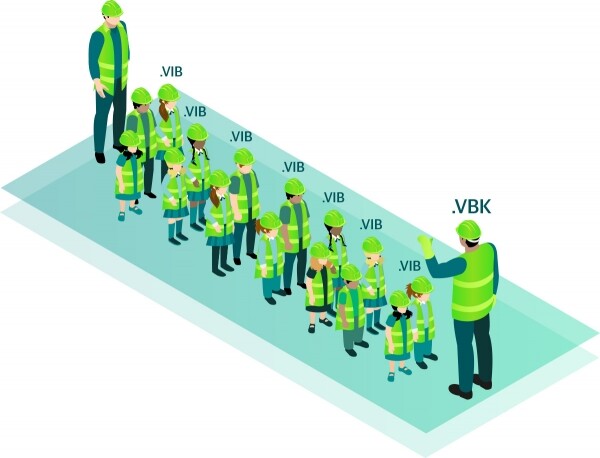
Backup job assignments
To begin, let’s examine the part that has not changed in version 10. The retention policy is determined by several parameters. Let’s open the new job creation window and go to the Storage tab. Here we will see a parameter that defines the desired number of restore points:
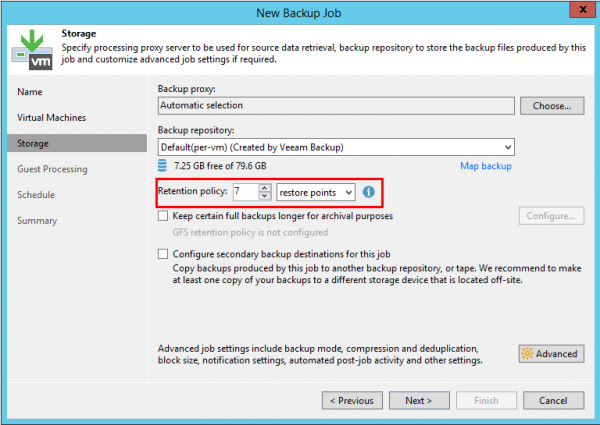
However, this is only part of the equation. The actual number of points is also determined by the backup mode set for the task. To select this parameter, you need to click the Advanced button on the same tab. This will open a new window with a multitude of options. Let’s number them and review them one by one:
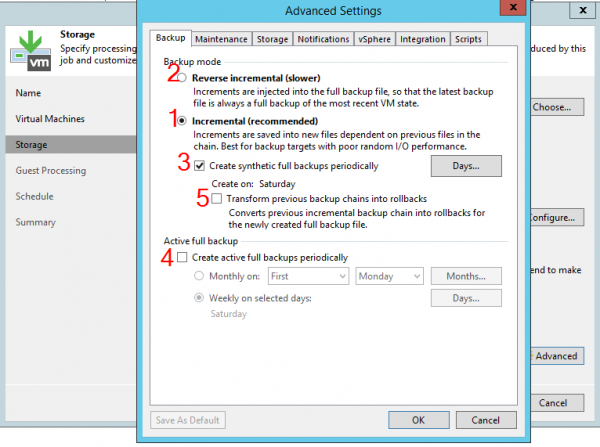
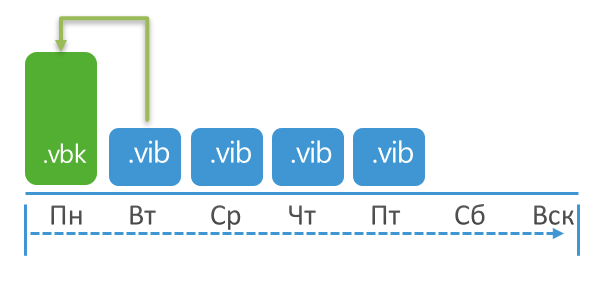
If you enable only option 1, the task will operate in 'forever forward incremental' mode. There are no complications here – the task will store the specified number of restore points from the full backup (file with the .VBK extension) to the latest increment (file with the .VIB extension). When the number of points exceeds the set value, the oldest increment will be merged with the full backup. In other words, if the task is set to store 3 points, immediately after the next session, there will be 4 points in the repository, after which the full backup will be merged with the oldest increment and the total number of points will return to 3.
The retention for 'reverse incremental' mode (option 2) is also extremely simple. In this case, the newest point will be the full backup, followed by a chain of so-called rollbacks (files with the .VRB extension), so to apply retention, it is enough to simply delete the oldest rollback. The situation will be the same: immediately after the session, the number of points will exceed the set amount by 1, after which it will return to the desired value.
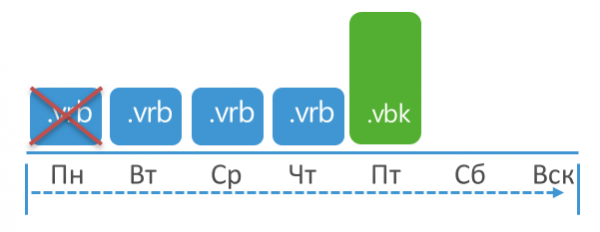
Note that with reverse incremental mode, you can also enable periodic full backups (option 4), but this will not change the essence. Yes, full restore points will appear in the chain, but we will still just be deleting the oldest points one by one.
Finally, we come to the interesting part. If you activate incremental backup and additionally enable options 3 or 4 (or both simultaneously), the task will start creating periodic full backups by an 'active' or synthetic method. The method of creating the full backup does not matter – it will contain the same data, and the incremental chain will be split into 'subchains'. This method is called forward incremental, and it raises a significant number of questions among our clients.
Retention is applied here by removing the oldest part of the chain (from the full backup to the increment). We will not delete just an empty backup or only part of the increments. The entire 'subchain' is removed completely in one go. The meaning of the setting for the number of points also changes – while in other methods this is the maximum allowable number after which retention must be applied, here this setting defines the minimum number. In other words, after removing the oldest 'subchain', the number of points in the remaining part must not fall below this minimum.
I'll try to illustrate this concept graphically. Suppose retention is set to 3 points, and the task runs daily with a full backup on Monday. Retention will be applied when the total number of points reaches 10:
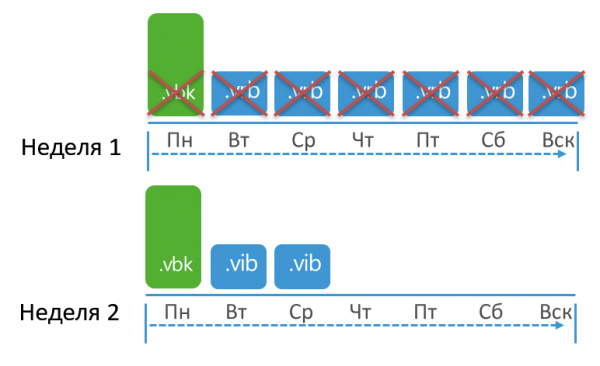
Why 10 when we set 3? A full backup was created on Monday. From Tuesday to Sunday, the task created increments. Finally, another full backup is created the following Monday, and only after 2 increments are created can the entire old part of the chain be deleted, since the remaining number of points will not drop below the established 3.
If the idea is clear, I suggest you try to calculate retention on your own. Let's take these conditions: the task is executed for the first time on Thursday (a full backup will be made). The task is set to create full backups on Wednesdays and Sundays and keep 8 restore points. When will retention be applied for the first time?
To answer this question, I recommend taking a piece of paper, dividing it by days of the week, and writing down which point is created each day. The answer will become obvious.
Answer
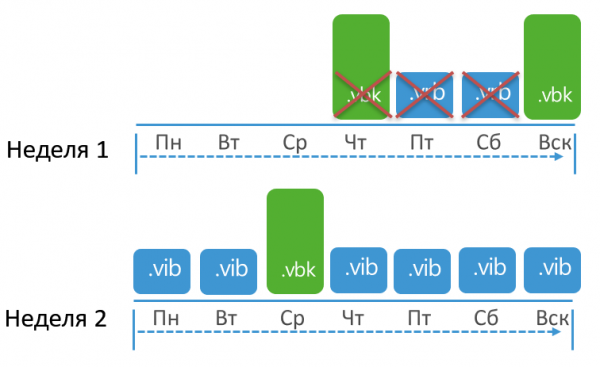
Explanation: to answer, it is enough to ask yourself 'when will retention be applied'? The answer is – when we can delete the first 3 points (VBK, VIB, VIB) and the remaining chain does not fall below the required 8 points. It becomes clear that we can do this when we have a total of 11 points, i.e., on the Sunday of the second week.
Some readers may object: 'why all this, if there is ?». Без сомнения, это очень полезный инструмент, и в некоторых случаях я бы применял именно его, но есть у него и ограничения. Прежде всего, он не позволяет указать начальные условия, а во многих случаях случаев вопрос звучит именно «у нас есть такая цепочка, что будет, если изменить такие-то настройки?». Во-вторых, инструменту все-таки несколько не хватает наглядности. Показывая страничку RPS клиентам, я не находил понимания, а вот расписав ее как в примере (даже используя тот же Paint), день за днем, все становилось ясно.
Finally, we did not discuss the option 'Transform previous backup chains into rollbacks' (marked with the number 5). This option sometimes confuses clients who activate it 'automatically', wanting to include just a synthetic backup. Meanwhile, this option activates a very specific backup mode. Without going into details, let me say right away that at this stage of the product's development, 'Transform previous backup chains into rollbacks' is an outdated option, and I can't think of a single scenario in which it should be used. Its value is so questionable that for a while Anton Gostev himself issued a call on the forum asking for examples of its useful application (if you have any, please share in the comments, I'm very curious). If none are found (I think this will be the case), the option will be removed in future versions.
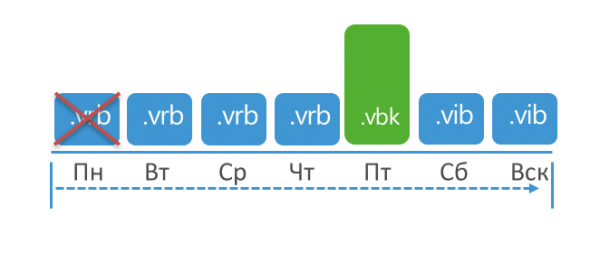
The job will create increments (VIB) until the day a synthetic full backup is scheduled. On that day, a VBK is indeed created, but all points up to this VBK are transformed into rollbacks (VRB). After that, the job will continue creating increments to the full backup until the next synthetic backup. As a result, a volatile mixture of VBK, VBR, and VIB files is created. Retention is applied very simply – by deleting the last VBR:
Issues
Aside from understanding how it works, most problems that arise when using incremental mode are usually related to the full backup. A regular full backup is necessary for this mode; otherwise, the repository will accumulate points until it overflows.
For example, a full backup may be created too rarely. Let's say the task is set to keep 10 points, but a full backup is created once a month. It's clear that the actual number of points here will be significantly higher than set. Or the job is set to run in an infinite incremental mode and keep 50 points. Then someone accidentally created a full backup. From that point on, the job will wait until the full point accumulates 49 increments, after which it will apply retention and return to the infinite full mode.
In other cases, a full backup is scheduled to be created regularly, but for some reason, it is not done. Let me outline the most common reason here. Some clients prefer to use the 'run after' scheduling option and set up jobs to run in a chain. Let's take this example: there are 3 jobs that run every day and create a full backup on Sunday. The first job starts at 10:30 PM, and the others run in sequence. The incremental backup takes 10 minutes, so by 11:00 PM all jobs finish their work. However, the full backup takes an hour, so on Sunday the following happens: the first job runs from 10:30 PM to 11:30 PM. The next one runs from 11:30 PM to 12:30 AM. But the third job starts already on Monday. The full backup is scheduled for Sunday, so in this case, it simply won't happen. The job will wait for the full backup in order to apply retention. So, be careful when using the 'run after' option, or don't use it at all—just set the jobs to start at the same time and let the resource scheduler do its job.
The complex option 'Remove deleted items'
By going through the job settings Storage – Advanced – Maintenance, you may come across the option 'remove deleted items data after', which is calculated in days.
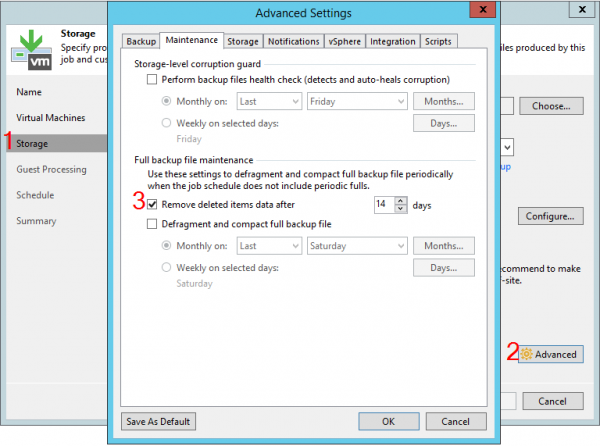
Some clients expect this to be retention. In fact, this is a completely separate option, the misunderstanding of which can lead to unexpected consequences. However, first, it needs to be explained how B&R reacts in situations where only a few machines are successfully backed up during the session.
Let's imagine this scenario: an infinitely incremental job is configured to keep 6 points. The job has 2 machines, one of which is always backed up successfully, while the other sometimes fails. As a result, by the seventh point, the following situation arises:
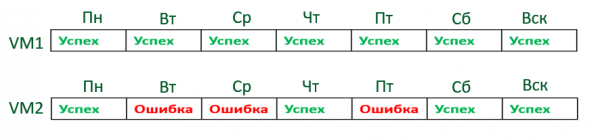
It's time to apply retention, but one machine has 7 points while the other only has 4. Will retention be applied here? The answer is yes, it will. If at least one object was backed up, B&R considers that a point was created.
A similar situation can arise if a machine was simply not included in the task during a particular session. This can happen, for example, when machines are added to the task not individually, but as part of containers (folders, storages), and some machine temporarily migrates to another container. In this case, the task will be considered successful, but in the statistics, you will find a message urging attention that a certain machine is no longer processed by the task.

What will happen if this issue is ignored? In the case of infinitely incremental or reverse incremental modes, the number of restore points for the 'problematic' machine will decrease with each session until it reaches 1, saved in VBK. In other words, even if the machine is not backed up for a long time, one restore point will still remain. The situation is different if periodic full backups are enabled. If signals from B&R are ignored, ultimately the last point may be deleted along with the old part of the chain.
Having understood these details, we can finally consider the option 'Remove deleted items data after'. This will delete all points for a specific machine if that machine has not been backed up for X days. Note that this setting does not react to errors (tried - didn't work). There shouldn't even be an attempt to back up the machine. It might seem that the option is useful and should always be kept enabled. If an administrator has removed a machine from the task, it is logical to clean up unnecessary data and the chain after some time. However, the setting requires discipline and attentiveness.
Here's a practical example: several containers were added to a task, and their composition was quite dynamic. Due to a lack of RAM, the B&R server encountered issues that went unnoticed. The task started and tried to back up machines, except for one that was not present in the container at that time. Since many machines reported errors, by default, B&R must make three additional attempts to back up the 'problematic' machines. Because of ongoing RAM issues, these attempts stretched over several days. There was no retry to back up the absent VM (the absence of the VM is not an error). As a result, during one of the retries, the condition 'Remove deleted items' was met, and all machine points were deleted.
Regarding this, I can say the following: if you have alerts set up for task results, and even better — are using integration with Veeam ONE, then you're unlikely to experience this. However, if you only check the B&R server once a week to ensure everything is working, it's better to forgo options that could potentially lead to backup deletions.
What's new in v.10
What we discussed earlier has existed in B&R for many versions. Having understood these operational principles, let's now look at what has been added in the milestone 'ten'.
Daily retention
Previously, we reviewed the 'classic' retention policy based on the number of points. An alternative approach is to set 'days' in the same menu instead of 'restore points'.
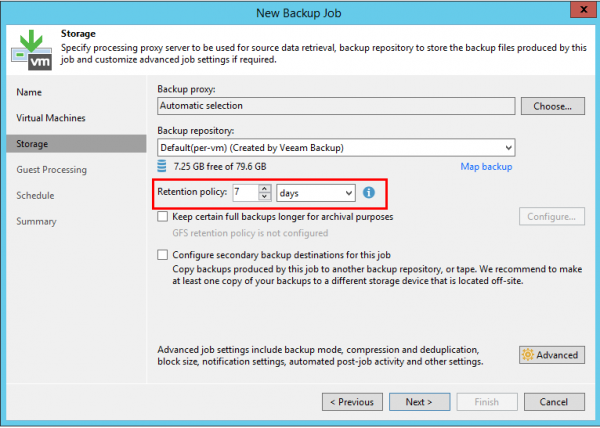
The idea is clear from the name — retention will keep a set number of days, while the number of points on each day does not matter. However, you need to remember the following:
- The current day is not counted in the retention calculation.
- Days when the task did not run at all are also counted. This should be kept in mind to avoid accidentally losing points from tasks that run irregularly.
- A restore point is counted from the day it started being created (i.e., if the task started running on Monday and finished on Tuesday, then this point is from Monday).
The principles of retention application for tasks are still determined by the chosen backup method. Let's try another calculation task, using the same incremental method. Let's say the retention is set to 8 days, and the task runs every 6 hours with a full backup on Wednesday. The task does not run on Sunday. The task starts for the first time on Monday. When will retention be applied?
Answer
As usual, it's best to draw a table. I will simplify the task and not draw all the points created each day since the number of points per day is not significant here. What matters is that on the first Monday and Wednesdays, the first point will be a full backup, while on other days, the task will simply create 4 incremental points.
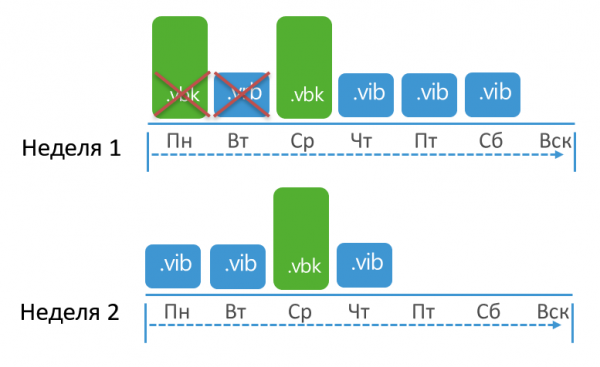
We understand that retention will be applied by deleting the full backup from Monday and its increment. When will this happen? When the remaining part of the chain contains 8 days. Here, we do not count the current day, but we do count Sunday. Therefore, the answer is on the Thursday of the second week.
Archiving using the GFS method for regular tasks
Until v.10, the Grandfather-Father-Son (GFS) storage method was available only for backup copy tasks and tape copy tasks. Now, it is also available for regular backups.
Although this is not related to the current topic, I must mention that the new functionality does not mean a departure from the 3-2-1 strategy. The presence of archive points in the main repository does not affect its reliability. It is implied that GFS will be used alongside a scale-out repository, for offloading these points to S3 and similar storages. If you do not use them, it is better to continue storing primary and archive points in different repositories.
Now let's look at the principles of creating GFS points. In the task settings, on the Storage step, a special button has appeared, bringing up the following menu:
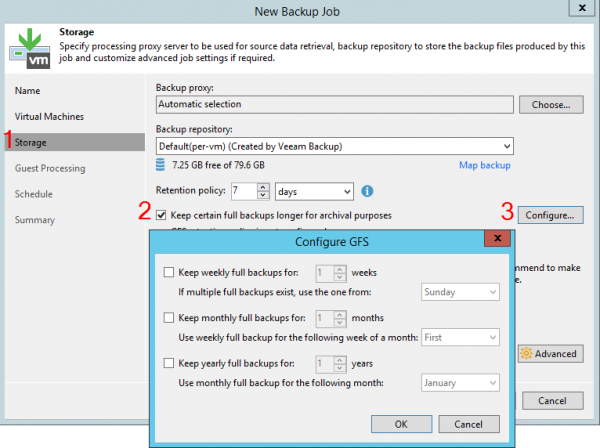
The essence of GFS can be summarized in a few points (note that GFS works differently in other types of tasks, but we'll cover that a bit later):
- The task does not create a separate full backup for the GFS point. Instead, the most suitable full backup from the existing ones will be used. Therefore, the task should operate in incremental mode with periodic full backups, or the full backup must be created by the user manually.
- If only one period is enabled (for example, weekly), then at the beginning of the GFS period, the task will simply wait for a full backup and mark the first suitable one as GFS.
Example: the task is set to keep a weekly GFS, using the backup on Wednesday. The task runs every day, but the full backup is scheduled for Friday. In this case, the GFS period will begin on Wednesday, and the task will start waiting for the appropriate point. It will appear on Friday and be marked with the GFS flag.
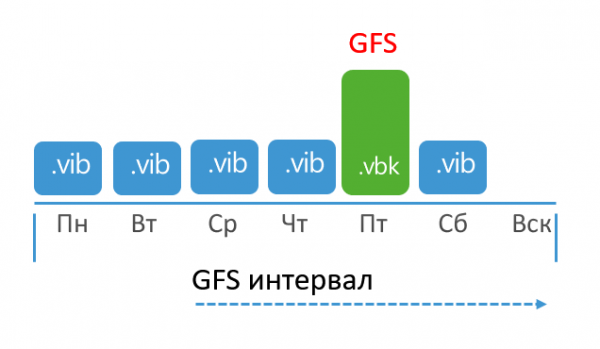
- If several periods are enabled simultaneously (for example, weekly and monthly), then B&R will apply a method that allows using the same point as GFS for multiple intervals (to save space). Flags will be assigned in turn, starting from the least recent.
Example: weekly GFS is set for Wednesday, and the monthly one is set for the last week of the month. The task runs every day and creates full backups on Mondays and Fridays.
For simplicity, let’s start counting from the penultimate week of the month. In this week, a full backup will be created on Monday, but it will be ignored because the weekly GFS interval starts on Wednesday. However, the Friday full backup fully qualifies for the GFS point. This system is already familiar to us.
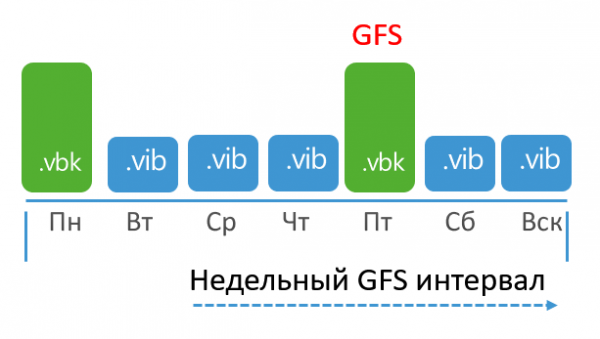
Now let’s see what happens in the last week of the month. The monthly GFS interval will start on Monday, but the Monday VBK will not be marked as GFS because the task strives to mark one VBK as both a monthly and a weekly GFS point. At the same time, the search starts specifically with the weekly one, as it can by definition also serve as monthly.
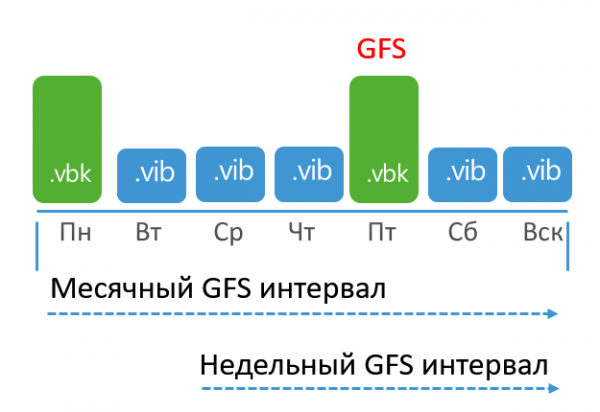
If only the weekly and yearly intervals are enabled, they will operate independently of each other and may mark 2 separate VBKs as corresponding GFS intervals.
Backup copy tasks
Another type of task, often requiring clarification on how it operates. First, let's break down the "classic" method of operation without the innovations from v.10.
Simple retention method
By default, such tasks operate in an infinitely incremental mode. The creation of restore points is determined by two parameters – the copy interval and the desired number of restore points (there is no retention by days here). The copy interval is set on the first tab of the Job when creating the task:
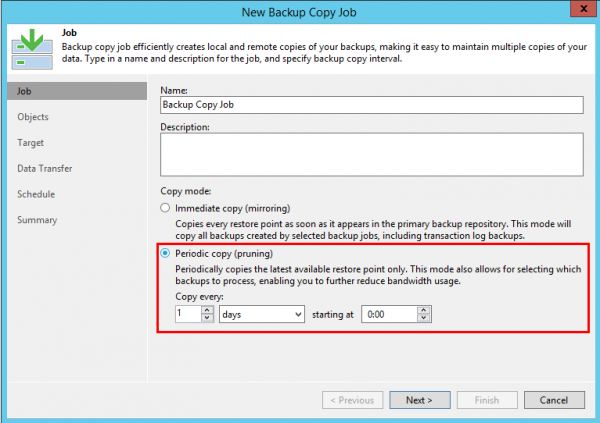
The number of points is determined a bit further on the Target tab.
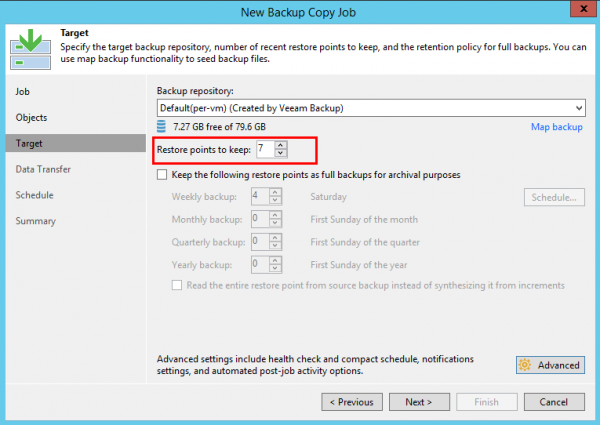
The task creates 1 new point for each interval (the number of points created for the VM by the original tasks does not matter). At the end of the interval, the new point is finalized and, if necessary, retention is applied by merging the VBK and the oldest increment. This mechanism is already familiar to us.
Retention method using GFS
BCJ can also store archive points. This is configured on the same Target tab, a bit below the settings for the number of restore points:
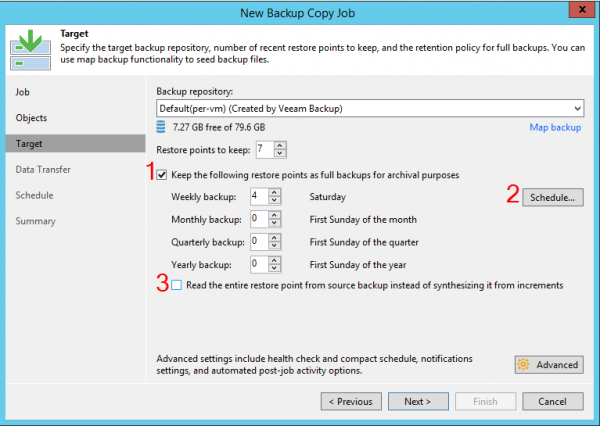
GFS points can be created in two ways – synthetically, using data from the secondary repository, or by simulating a full backup and reading all data from the primary repository (activated by the option marked with number 3). Retention will differ significantly in both cases, so let's consider them separately.
Synthetic GFS
In this case, the GFS point is not created exactly on the designated day. Instead, the GFS point will be created when the VIB of the day on which the creation of the GFS point was designated is merged with the full backup. This sometimes leads to misunderstandings, as time passes but the GFS point is still absent. Only a powerful shaman from tech support can predict on which day the point will finally appear. In reality, no magic is needed – it’s enough to look at the specified number of points and the synchronization interval (how many points are created each day). Try counting for yourself with this example: the task is set to retain 7 points, and the synchronization interval is 12 hours (i.e., 2 points per day). Currently, there are already 7 points in the chain, today is Monday, and the creation of the GFS point is scheduled for today. On which day will it be created?
Answer
It’s better to describe how the chain will change dynamically, day by day:
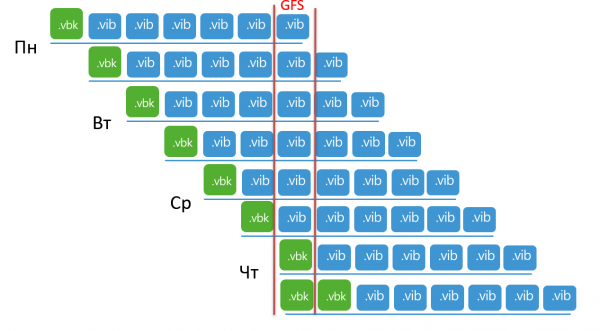
On Monday, the last increment in the chain is marked as GFS, but no other visible changes occur. Each day, the job creates 2 new points, and retention relentlessly moves the chain forward. Finally, on Thursday, it's time to apply retention to that very increment. This session will take longer than usual because the job will 'extract' the necessary blocks from the chain and create a new full point. From this point onward, there will be 8 points in the chain – 7 in the main chain + GFS.
Creating GFS points with the 'Read entire point' option
As I mentioned above, BCJ operates in an infinitely incremental mode. Now we will discuss the only exception to this rule. When the 'Read entire point' option is enabled, a GFS point will be created exactly on the scheduled day. The task itself will still operate in incremental mode with periodic full backups, which we covered earlier. Retention will also be applied by removing the oldest part of the chain. However, in this case, only increments will be removed, and the full backup will be left as a GFS point. Therefore, when calculating retention, GFS-flagged points are not counted.
Suppose the job is set to retain 7 points and create a weekly GFS point on Monday. In this case, every Monday, the job will indeed create a full backup and mark it as GFS. Retention will be applied when, after removing increments from the oldest part, the number of remaining increments does not drop below 7. Here’s how it looks in a diagram:
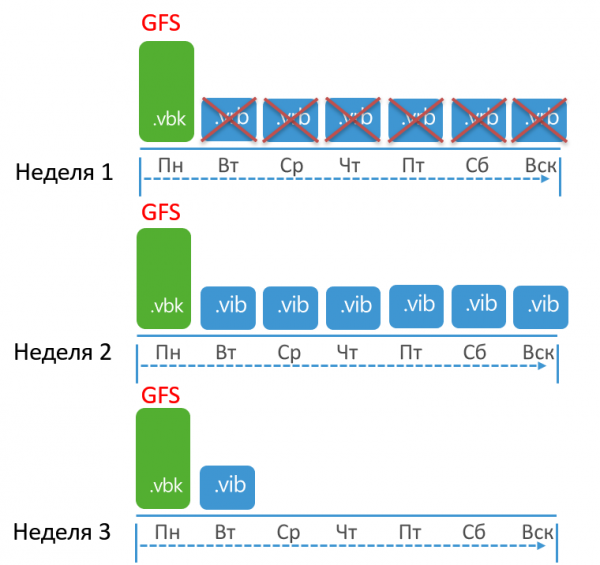
So, by the end of the second week, there are a total of 14 points in the chain. During the second week, the job created 7 points. If this were a simple job, retention would have already been applied. But this is BCJ with GFS retention, so we do not count GFS points, meaning there are only 6. Therefore, we cannot apply retention yet. In the third week, we create another full backup with the GFS flag. Now we have 15 points, but we again do not count this one. Finally, on Tuesday of the third week, we create an increment. Now, if we remove the increments from the first week’s chain, the total number of increments will meet the established retention.
As mentioned above, in this method, it is crucial that full backups are created regularly. For instance, if the primary retention is set to 7 days but only 1 yearly point is kept, it's easy to imagine that increments will accumulate significantly more than 7. In such cases, it’s better to use the synthetic GFS creation method.
Once again, “Remove deleted items”
This option is also present for BCJ:
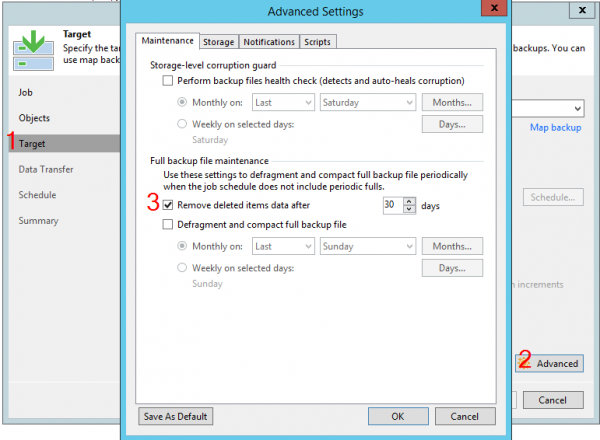
The logic of this option is the same as in regular backup tasks – if the machine has not been processed for the specified number of days, its data will be removed from the chain. However, for BCJ, the usefulness of this option is objectively higher, and here’s why.
In normal mode, BCJ operates in an infinitely incremental mode, so if at some point the machine is removed from the task, the retention will gradually delete all restore points until only one remains – in VBK. Now, let's imagine that the task is still set to create synthetic GFS points. When the time comes, the task will need to create GFS for all machines in the chain. If there are no new points for some machine – well, we will have to use the existing one. And this happens every time. As a result, such a situation may arise:
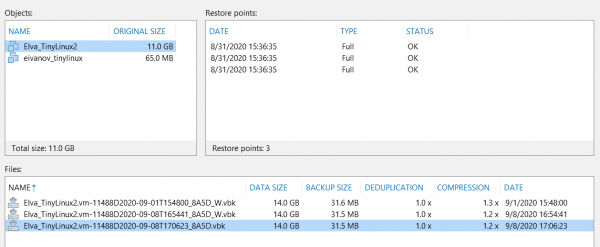
Note the Files section: we have the main VBK and 2 weekly GFS points. And now look at the Restore points section – essentially, these files contain the same machine image. Naturally, there is no point in having such GFS points; they just take up space.
Such a situation is only possible when using synthetic GFS. To avoid this, use the “Remove deleted items” option. Just remember to set it to an appropriate number of days. Support has seen cases where this option was set for fewer days than the synchronization interval – BCJ started to act up and delete points before it had a chance to create them.
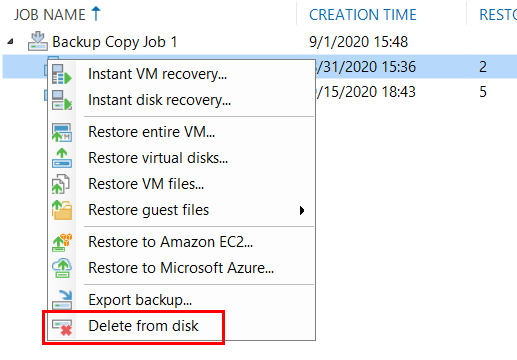
Also, keep in mind that this option does not affect already created GFS points. If you want to clean up the archives, this must be done manually – right-click on the machine and select “Delete from disk” (in the window that appears, remember to check the box “Remove GFS full backup”):
New feature v.10 – immediate copy
Having dealt with the 'classic' functionality, let's move on to the new one. There is one new introduction, but it is very important. This is a new operating mode.
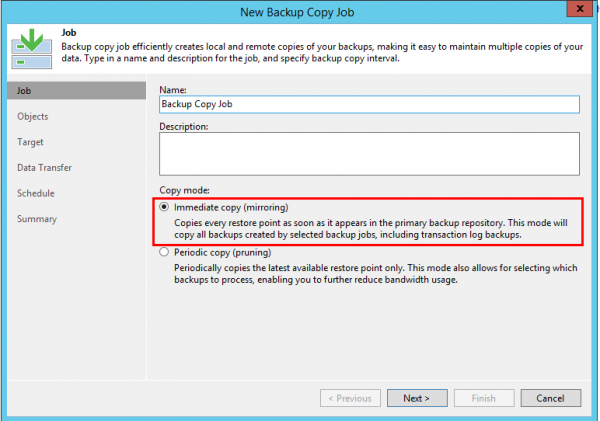
There is no such concept as "synchronization interval" here; the task will continuously monitor for new points and copy all of them, regardless of how many there are. However, the task remains incremental, meaning that even if the main task creates a VBK or VRB, these points will be copied as VIB. Otherwise, there are no surprises in this mode – both standard and GFS retention operate according to the rules described above (though only synthetic GFS is available here).
Disks are rotating. Features of repositories with rotated drives.
The constant threat of ransomware has made it a de facto security standard to have a data copy on a medium that the virus cannot access. One option is to use repositories with rotated drives, where disks are used in succession: while one disk is connected and available for writing, the others are stored safely.
To teach B&R to work with such repositories, you need to go to the repository settings, on the Repository step, click the Advanced button and select the appropriate option:
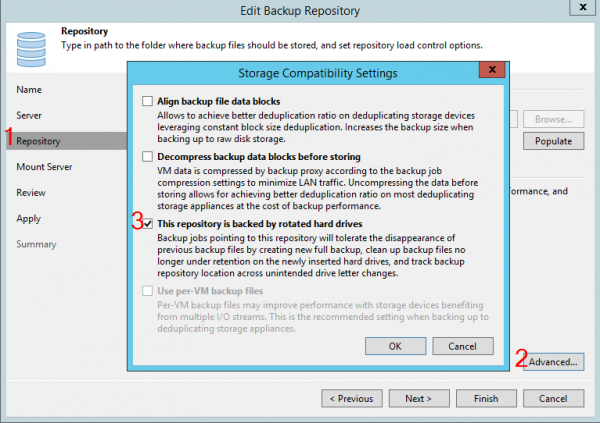
After that, VBR will expect that periodically the existing chain will disappear from the repository, indicating a disk rotation. Depending on the type of repository and the task, B&R will behave differently. This can be illustrated with the following table:
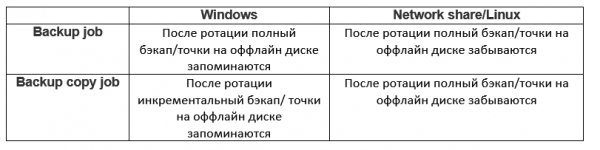
Let's consider each option.
Regular task and Windows repository.
So, we have a task that saves chains to the first disk. When rotating, the created chain essentially disappears, and the task needs to somehow cope with this loss. It finds solace in creating a full backup. Thus, each rotation means a full backup. But what happens to the points on the disconnected disk? They are remembered and accounted for in retention calculation. Therefore, the set number of points in the task is how many points need to be kept across all disks. For example:
The task works in an infinitely incremental mode and is configured to store 3 restore points. But we have a second disk as well, and we rotate it once a week (there may be more disks, which does not change the essence).
In the first week, the task will create points on the first disk and merge the extras. Therefore, the total number of points will be three.

Next, we connect the second disk. When B&R starts, it will notice that the disk has changed. The chain on the first disk will disappear from the interface, but the information will remain in the database. Now the task will keep 3 points on the second disk. The overall situation will be as follows:

Finally, we reconnect the first disk. Before creating a new point, the task will check the retention policy. Remember, the retention is set to keep 3 points. Meanwhile, we have 3 points on disk 2 (which is disconnected and stored safely where B&R cannot access it) and 3 points on disk 1 (which is connected). Therefore, we can safely delete 3 points from disk 1, as they exceed retention. After that, the task creates a full backup again, and our chain will look like this:

If retention is set to keep days instead of the number of points, the logic does not change. Additionally, GFS retention is not supported at all when using repositories with disk rotation.
A standard task and a Linux repository in network storage.
This option is also possible, but overall less recommended due to imposed restrictions. The task will respond to disk rotation and chain disappearance in the same way – by creating a full backup. The limitation is related to the truncated retention mechanism.
Here, during rotation, the entire chain on the disconnected disk is simply deleted from the B&R database. Note – from the database, the files themselves remain on the disk. They can be imported and used for recovery, but it’s easy to guess that sooner or later such forgotten chains will fill the entire repository.
The solution is to add DWORD ForceDeleteBackupFiles as indicated on this page: . After this, the task will simply delete all contents of the task folder or repository folder (depending on the setting) with each rotation.
However, this is not an elegant retention strategy; it is merely a cleanup of all contents. Unfortunately, there have been cases reported to support where the repository was set to just the root directory of the disk, where, alongside the backups, other data existed. All of this was destroyed during rotation.
Additionally, when ForceDeleteBackupFiles is enabled, it works for all repository types, meaning that even repositories on Windows will stop applying retention and start deleting content. In other words, a local disk on Windows is the best choice for such a backup storage system.
Backup copy and Windows repository
With BCJ, it gets even more interesting. Not only is there a full retention feature, but a full backup is not required with each disk change! Here's how it works:
First, B&R starts creating snapshots on the first disk. Let's say we set the retention to 3 snapshots. The task will operate in an infinitely incremental mode and combine everything unnecessary (note that GFS retention is not supported in this case).

Then we connect the second disk. Since there is no chain on it yet, we create a full backup, after which we end up with a second chain of three snapshots:

Finally, it’s time to reconnect the first disk. This is where the magic happens, as the task will not create a full backup, but will simply continue the incremental chain:

After this, each disk will effectively have its own independent chain. Therefore, retention here refers not to the number of snapshots across all disks, but to the number of snapshots on each disk individually.
Backup copy and Linux repository network storage
Once again, all elegance disappears if the repository is not on a local Windows disk. This scenario works similarly to the simple task discussed above. With each rotation, BCJ will create a full backup, and existing snapshots will be forgotten. To avoid running out of space, you need to use DWORD ForceDeleteBackupFiles.
Conclusion
So, as a result of this lengthy text, we have covered two task types. Of course, there are many more tasks, but it's not feasible to cover them all in one article format. If you have any questions after reading, please leave them in the comments; I would be happy to respond personally.
Source: habr.com
