


The time has come to conclude the series of articles on the new generation of SMB Check Point (1500 series). We hope this has been a useful experience for you, and you will continue to join us on the TS Solution blog. The topic for the final article is not widely covered, yet it is equally important – SMB performance tuning. In this article, we will discuss the configuration capabilities of both hardware and software for NGFW, outline the available commands, and describe ways to interact with it.
All articles in the NGFW series for small businesses:
Currently, there aren’t many sources of information on performance tuning for SMB solutions due to the internal OS - Gaia 80.20 Embedded. In our article, we will use a setup with centralized management (dedicated Management Server) — it allows for a greater number of tools when working with NGFW.
Hardware components
Before addressing the architecture of the Check Point SMB family, you can always consult your partner to use the utility Appliance Sizing Tool, to select the optimal solution based on specified characteristics (throughput, expected number of users, etc.).
Important notes when interacting with the hardware part of your NGFW
NGFW solutions from the SMB family do not have the capability of hardware upgrades for system components (CPU, RAM, HDD); depending on the model, there is support for SD cards, which allows you to expand disk capacity, but not significantly.
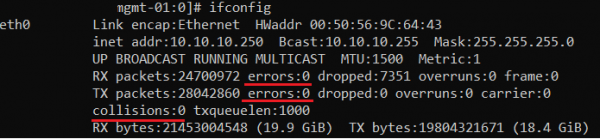
The operation of network interfaces requires monitoring. In Gaia 80.20 Embedded, there aren’t many tools for monitoring, but you can always use the well-known command in CLI through Expert mode
# ifconfig

Note the underlined lines; they will allow you to assess the number of errors on the interface. It is highly recommended to check these parameters during the initial deployment of your NGFW, as well as periodically during operation.
For full Gaia, there is the command:
> show diag
With it, you can obtain information about the temperature of the hardware. Unfortunately, in 80.20 Embedded, this option is not available; let’s specify the most popular SNMP traps:
Title
Description
Interface disconnected
Interface disconnection
VLAN removed
VLAN removal
High memory utilization
High RAM utilization
Low disk space
Low HDD space
High CPU utilization
High CPU utilization
High CPU interrupts rate
High interrupt frequency
High connection rate
High rate of new connections
High concurrent connections
High Level of Competitive Sessions
High Firewall Throughput
High Firewall Bandwidth Capacity
High Accepted Packet Rate
High Packet Reception Rate
Cluster Member State Changed
Cluster State Change
Connection with Log Server Error
Lost Connection with Log-Server
Your gateway's operation requires RAM monitoring. For Gaia (Linux-like OS) this is , when RAM usage reaches 70-80%.
The architecture of SMB solutions does not provide for the use of SWAP memory, unlike older Check Point models. However, a parameter <vm.swappiness> has been observed in Linux system files, suggesting the theoretical possibility to modify the SWAP parameter.
Software Component
At the time of this article's publication, version of Gaia is 80.20.10. You should be aware that there are limitations when working in CLI: in Expert mode, some Linux commands are supported. To assess the performance of NGFW, an evaluation of daemon and service operations is required, which can be found in my colleague's work. We will review possible commands for SMB.
Working with Gaia OS
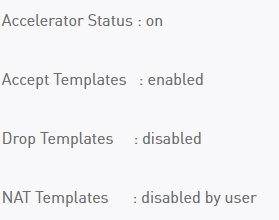
Viewing SecureXL Templates
# fwaccel stat

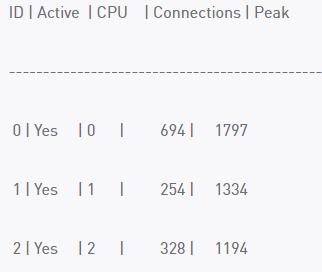
View Load by Cores
# fw ctl multik stat

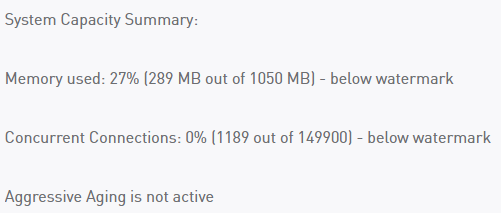
View Number of Sessions (Connections).
# fw ctl pstat

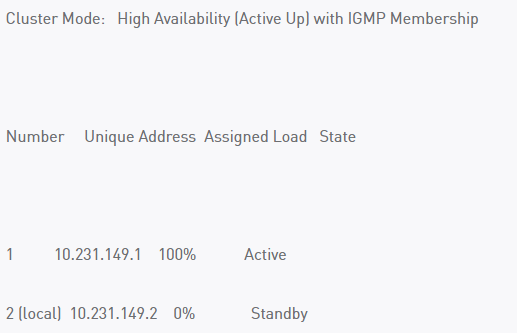
*View Cluster Status
# cphaprob stat

Classic Linux Command TOP
Logging
As you already know, there are three ways to work with NGFW logs (storage, processing): locally, centrally, and in the cloud. The latter two options imply the existence of a Management Server.
Possible Management Schemes for NGFW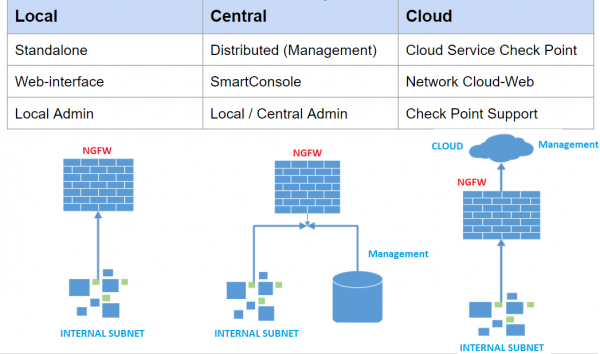
Most Valuable Log Files
System Messages (contains less information than full Gaia)
# tail -f /var/log/messages2

Error Messages from the Blades (a useful file for troubleshooting)
# tail -f /var/log/log/sfwd.elg

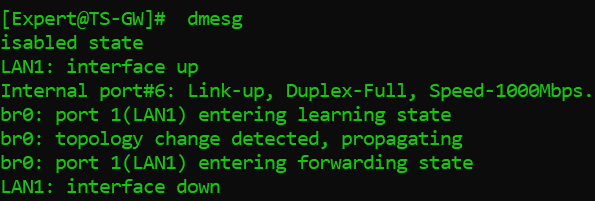
View Messages from Kernel-Level Buffer.
# dmesg



Blade Configuration
This section will not provide full instructions on configuring your Check Point NGFW; it contains our recommendations gathered through experience.
Application Control / URL Filtering
It is recommended to avoid using ANY, ANY conditions in rules (Source, Destination).
When specifying a custom URL resource, it will be more effective to use regular expressions like: (^|..)checkpoint.com
Avoid excessive logging by rules and showing block pages (UserCheck).
Ensure that the “SecureXL”technology is functioning properly. Most of the traffic should pass through accelerated / medium path. Also, remember to filter the rules by the most commonly used (field Hits ).
HTTPS Inspection
It is no secret that 70-80% of user traffic is on HTTPS connections, which requires resources from your gateway's processor. Additionally, HTTPS Inspection participates in the operation of IPS, Antivirus, Antibot.
Starting from version 80.40, it became possible to work with HTTPS rules without the Legacy Dashboard; here is a recommended order of rules:
Bypass for a group of addresses and networks (Destination).
Bypass for a group of URLs.
Bypass for internal IPs and networks with privileged access (Source).
Inspect for necessary networks and users.
Bypass for all others.
* It is always better to manually choose HTTPS services or HTTPS Proxy, and not leave it as Any. Log events according to the Inspect rules.
IPS
The IPS blade may cause an error when installing a policy on your NGFW if too many signatures are used. According to Check Point, the architecture of SMB devices is not designed to run the full recommended IPS settings profile.
To resolve or prevent the issue, follow these steps:
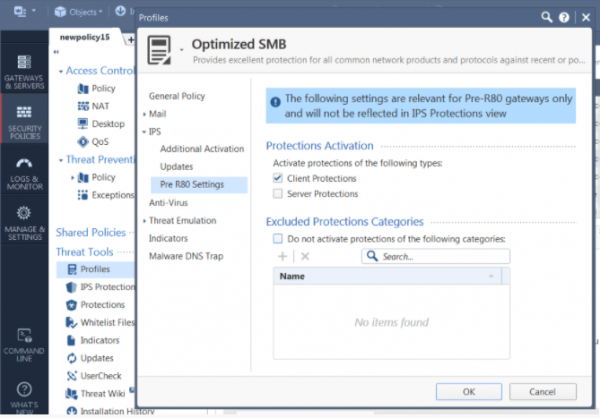
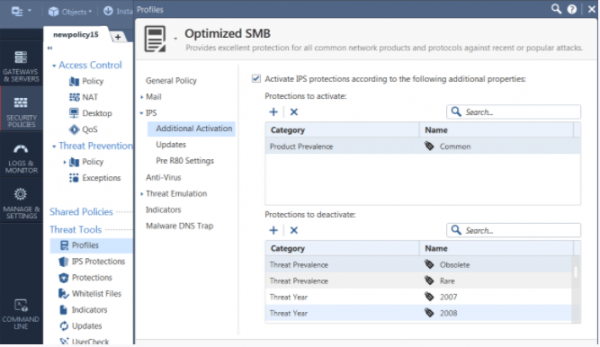
Clone the Optimized profile named 'Optimized SMB' (or another of your choice).
Edit the profile, go to IPS → Pre R80.Settings, and disable Server Protections.

At your discretion, you may deactivate CVEs older than 2010; these vulnerabilities may be rarely found in small offices but impact performance. To disable some of them, go to Profile→ IPS→ Additional Activation → Protections to deactivate list.

In conclusion
In our series of articles on the new generation NGFW in the SMB family (1500), we have tried to highlight the main capabilities of the solution and demonstrated the configuration of important security components on specific examples. We will be happy to answer any questions about the product in the comments. We remain with you, thank you for your attention!
. To not miss new publications, follow updates on our social media (, , , , ).
Source: habr.com
