

Given the number of questions we've been receiving about SD-WAN, it seems that the technology is starting to take root in Russia. Vendors, of course, are not idle and are offering their own concepts, while some brave pioneers are already implementing it in their networks.
We work with almost all vendors, and over the years I've had the chance to explore the architecture of every major developer of software-defined solutions in our lab. SD-WAN from Fortinet stands out a bit, as it has integrated traffic balancing functionality into its firewall software. This solution is more democratic, making it attractive to companies that are not yet ready for major changes but want to use their communication channels more effectively.
In this article, I want to explain how to configure and work with SD-WAN from Fortinet, who this solution is suitable for, and what potential pitfalls one might encounter.
The most notable players in the SD-WAN market can be categorized into one of two types:
1. Startups that have created SD-WAN solutions from scratch. The most successful among these often receive a huge boost when acquired by large companies – this is the story of Cisco/Viptela, VMWare/VeloCloud, Nuage/Nokia.
2. Large network vendors that have developed SD-WAN solutions by enhancing the programmability and manageability of their traditional routers – this includes Juniper and Huawei.
Fortinet has managed to find its own path. Its firewall software includes functionality that allows it to merge interfaces into virtual channels and balance the load between them using complex algorithms compared to conventional routing. This functionality is what is referred to as SD-WAN. Can what Fortinet has done be called SD-WAN? The market is gradually forming an understanding that Software-Defined entails the separation of Control Plane from Data Plane, dedicated controllers, and orchestrators. Fortinet has none of this. Centralized management is optional and is offered via the traditional tool, FortiManager. However, I believe it is unnecessary to seek abstract truths or spend time arguing over terminology. In the real world, any approach has its strengths and weaknesses. The best option is to understand them and be able to choose solutions that align with specific tasks.
I will try to explain, with screenshots in hand, how Fortinet's SD-WAN looks and what it can do.
How Everything Works
Let’s suppose you have two branches connected by two data transmission channels. These data channels are combined into a group, similar to how regular Ethernet interfaces are combined in an LACP Port Channel. Long-time users will recall PPP Multilink – this is also a suitable analogy. The channels can be physical ports, VLAN SVIs as well as VPN or GRE tunnels.
VPN or GRE are typically used to connect the local networks of branches over the Internet. Physical ports are used when there are L2 connections between locations, or for connecting over dedicated MPLS/VPN, if we are fine with communication without Overlay and encryption. Another scenario where physical ports are used within the SD-WAN group is balancing the local exit of users to the Internet.
Our setup has four firewalls and two VPN tunnels operating through two 'service providers'. The diagram looks like this:
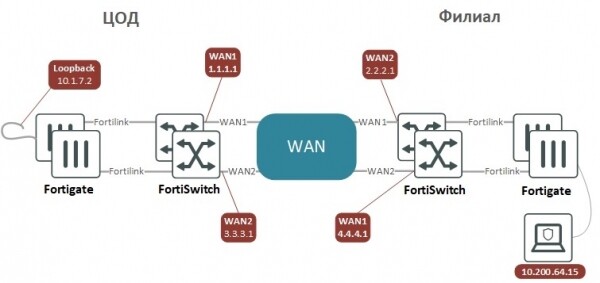
VPN tunnels are configured in interface mode to resemble Point-to-Point connections between devices with IP addresses on P2P interfaces that can be pinged to ensure that the connection through a specific tunnel is working. To encrypt traffic and send it to the other side, it’s enough to route it into the tunnel. An alternative is traffic selection for encryption using subnet lists, which can complicate the administrator's task as the configuration becomes more complex. In a large network, the ADVPN technology can be used to build a VPN; this is similar to Cisco's DMVPN or Huawei's DVPN, which simplifies configuration.
Site-to-Site VPN config for two devices with BGP routing on both sides
"Data Center" (DC)
"Branch" (BRN)
config system interface
edit "WAN1"
set vdom "Internet"
set ip 1.1.1.1 255.255.255.252
set allowaccess ping
set role wan
set interface "DC-BRD"
set vlanid 111
next
edit "WAN2"
set vdom "Internet"
set ip 3.3.3.1 255.255.255.252
set allowaccess ping
set role lan
set interface "DC-BRD"
set vlanid 112
next
edit "BRN-Ph1-1"
set vdom "Internet"
set ip 192.168.254.1 255.255.255.255
set allowaccess ping
set type tunnel
set remote-ip 192.168.254.2 255.255.255.255
set interface "WAN1"
next
edit "BRN-Ph1-2"
set vdom "Internet"
set ip 192.168.254.3 255.255.255.255
set allowaccess ping
set type tunnel
set remote-ip 192.168.254.4 255.255.255.255
set interface "WAN2"
next
end
config vpn ipsec phase1-interface
edit "BRN-Ph1-1"
set interface "WAN1"
set local-gw 1.1.1.1
set peertype any
set net-device disable
set proposal aes128-sha1
set dhgrp 2
set remote-gw 2.2.2.1
set psksecret ***
next
edit "BRN-Ph1-2"
set interface "WAN2"
set local-gw 3.3.3.1
set peertype any
set net-device disable
set proposal aes128-sha1
set dhgrp 2
set remote-gw 4.4.4.1
set psksecret ***
next
end
config vpn ipsec phase2-interface
edit "BRN-Ph2-1"
set phase1name "BRN-Ph1-1"
set proposal aes256-sha256
set dhgrp 2
next
edit "BRN-Ph2-2"
set phase1name "BRN-Ph1-2"
set proposal aes256-sha256
set dhgrp 2
next
end
config router static
edit 1
set gateway 1.1.1.2
set device "WAN1"
next
edit 3
set gateway 3.3.3.2
set device "WAN2"
next
end
config router bgp
set as 65002
set router-id 10.1.7.1
set ebgp-multipath enable
config neighbor
edit "192.168.254.2"
set remote-as 65003
next
edit "192.168.254.4"
set remote-as 65003
next
end
config network
edit 1
set prefix 10.1.0.0 255.255.0.0
next
end
config system interface
edit "WAN1"
set vdom "Internet"
set ip 2.2.2.1 255.255.255.252
set allowaccess ping
set role wan
set interface "BRN-BRD"
set vlanid 111
next
edit "WAN2"
set vdom "Internet"
set ip 4.4.4.1 255.255.255.252
set allowaccess ping
set role wan
set interface "BRN-BRD"
set vlanid 114
next
edit "DC-Ph1-1"
set vdom "Internet"
set ip 192.168.254.2 255.255.255.255
set allowaccess ping
set type tunnel
set remote-ip 192.168.254.1 255.255.255.255
set interface "WAN1"
next
edit "DC-Ph1-2"
set vdom "Internet"
set ip 192.168.254.4 255.255.255.255
set allowaccess ping
set type tunnel
set remote-ip 192.168.254.3 255.255.255.255
set interface "WAN2"
next
end
config vpn ipsec phase1-interface
edit "DC-Ph1-1"
set interface "WAN1"
set local-gw 2.2.2.1
set peertype any
set net-device disable
set proposal aes128-sha1
set dhgrp 2
set remote-gw 1.1.1.1
set psksecret ***
next
edit "DC-Ph1-2"
set interface "WAN2"
set local-gw 4.4.4.1
set peertype any
set net-device disable
set proposal aes128-sha1
set dhgrp 2
set remote-gw 3.3.3.1
set psksecret ***
next
end
config vpn ipsec phase2-interface
edit "DC-Ph2-1"
set phase1name "DC-Ph1-1"
set proposal aes128-sha1
set dhgrp 2
next
edit "DC2-Ph2-2"
set phase1name "DC-Ph1-2"
set proposal aes128-sha1
set dhgrp 2
next
end
config router static
edit 1
set gateway 2.2.2.2
set device "WAN1"
next
edit 3
set gateway 4.4.4.2
set device "WAN2"
next
end
config router bgp
set as 65003
set router-id 10.200.7.1
set ebgp-multipath enable
config neighbor
edit "192.168.254.1"
set remote-as 65002
next
edit "192.168.254.3"
set remote-as 65002
next
end
config network
edit 1
set prefix 10.200.0.0 255.255.0.0
next
end
I am providing the configuration in text format because I believe it is more convenient to configure the VPN this way. Almost all settings are the same on both sides, and they can be copied and pasted in this format. If you do the same in the web interface, it's easy to make mistakes — to forget checkboxes or enter the wrong values.
After we have added interfaces to the bundle

all routes and security policies can refer to it rather than the individual interfaces that are part of it. At the very least, traffic from internal networks to the SD-WAN should be allowed. When creating rules for them, security measures such as IPS, antivirus, and HTTPS inspection can be applied.

For the bundle, SD-WAN Rules are configured. These are rules that define the load balancing algorithm for specific traffic. They are similar to routing policies in Policy-Based Routing, only instead of setting next-hop or a standard outgoing interface as a result of traffic falling under the policy, it specifies the interfaces added to the SD-WAN bundle along with the traffic load balancing algorithm among these interfaces.
Traffic can be distinguished from the general flow based on L3-L4 information, recognized applications, internet services (URL and IP), as well as recognized users of workstations and laptops. After that, one of the following load balancing algorithms can be assigned to the distinguished traffic:
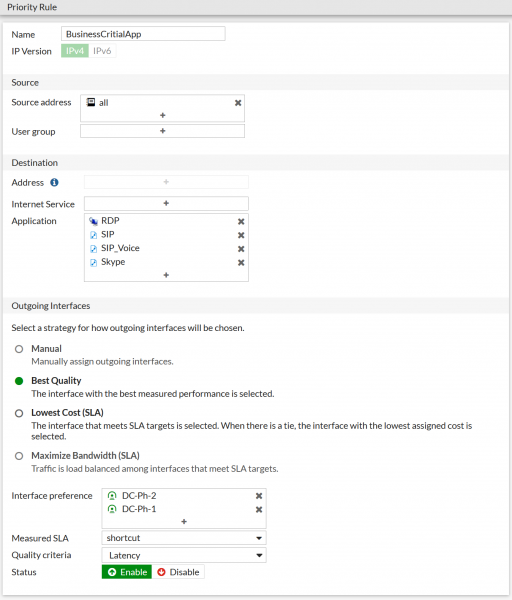
In the Interface Preference list, the interfaces already added to the bundle are selected for servicing this type of traffic. By not adding all interfaces, you can limit the specific channels through which, say, email travels, if you want to avoid burdening expensive channels with high SLA. In FortiOS 6.4.1, it became possible to group interfaces added to the SD-WAN bundle into zones, creating, for example, one zone for communication with remote sites and another for local internet access using NAT. Yes, traffic going to the public internet can also be balanced.
On Load Balancing Algorithms
Regarding how Fortigate (the firewall from Fortinet) can split traffic between channels, there are two interesting options that are not very common in the market:
Lowest Cost (SLA) – from all the interfaces currently satisfying SLA, the one with the lowest cost value as set manually by the administrator is chosen; this mode is suitable for 'bulk' traffic, such as backups and file transfers.
Best Quality (SLA) – this algorithm, in addition to the usual latency, jitter, and packet loss, allows Fortigate to also consider the current load on the channel; this mode is suitable for 'sensitive' traffic, such as VoIP and video conferencing.
For these algorithms, a performance measurement for the communication channel – Performance SLA – needs to be configured. This measurement periodically checks (check interval) the information on SLA compliance: losses (packet loss), latency (latency), and jitter (jitter) in the communication channel, and can 'discard' channels that currently do not meet threshold quality values – losing too many packets or exhibiting excessively high latency. Additionally, the measurement monitors the channel's status and may temporarily remove it from the bundle in case of repeated loss of responses (failures before inactive). Upon recovery, after several consecutive responses (restore link after), the measurement will automatically return the channel to the bundle, and data will once again begin to be transmitted over it.
This is how the 'meter' setup looks:
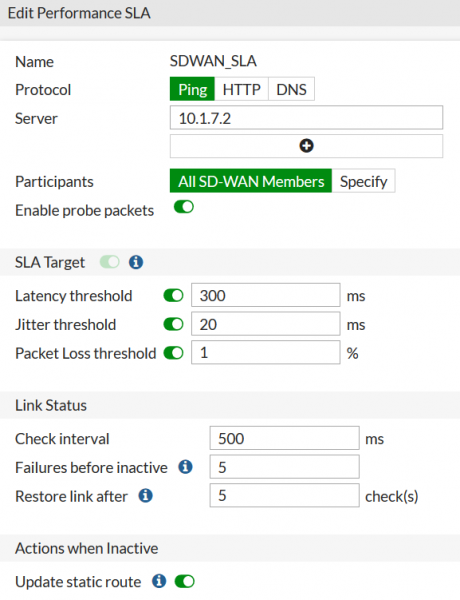
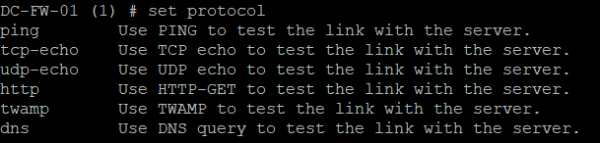
In the web interface, the available protocols for tests include ICMP-Echo-request, HTTP-GET, and DNS request. In the command line, there are a few more options: TCP-echo and UDP-echo are available, as well as a specialized quality measurement protocol — TWAMP.
Measurement results can also be viewed in the web interface:
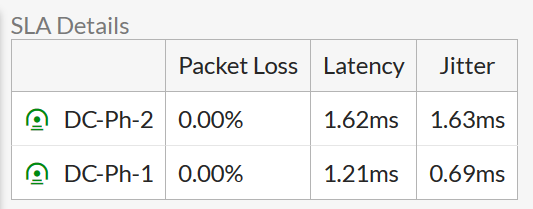
And in the command line:

Troubleshooting
If you created a rule but things aren't working as expected, you should check the Hit Count value in the SD-WAN Rules list. It will show whether the traffic is hitting this rule at all:

On the configuration page of the measurement tool, you can see the channel parameters changing over time. The threshold value of the parameter is marked by a dotted line.
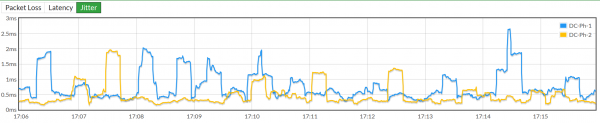
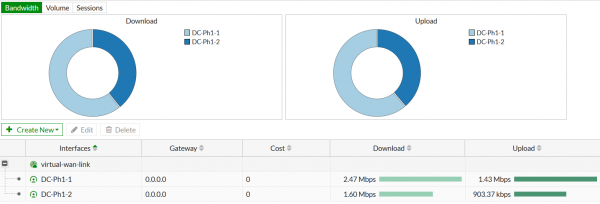
In the web interface, you can see how traffic is distributed in terms of the volume of transmitted/received data and the number of sessions:
In addition to all this, there is a great opportunity to trace packet passage with maximum detail. When operating in a real network, many routing policies, firewall rules, and traffic distribution across SD-WAN ports accumulate in the device configuration. All this interacts in complex ways, and although the vendor provides detailed flowchart diagrams of the packet processing algorithms, it is very important to be able to not just build and verify theories, but to see where the traffic is actually going.
For example, the following command set
diagnose debug flow filter saddr 10.200.64.15
 diagnose debug flow filter daddr 10.1.7.2
 diagnose debug flow show function-name
 diagnose debug enable
 diagnose debug trace 2
Will allow you to trace two packets with the source address 10.200.64.15 and the destination address 10.1.7.2.
Ping 10.7.1.2 from 10.200.64.15 twice and observe the output in the console.
First packet:

Second packet:

Here is the first packet received by the firewall:
id=20085 trace_id=475 func=print_pkt_detail line=5605 msg="vd-Internet:0 received a packet(proto=1, 10.200.64.15:42->10.1.7.2:2048) from DMZ-Office. type=8, code=0, id=42, seq=0."
 VDOM – Internet, Proto=1 (ICMP), DMZ-Office – name of the L3 interface. Type=8 – Echo.
A new session was created for it:
msg="allocate a new session-0006a627"
A match was found in the routing policy settings.
msg="Match policy routing id=2136539137: to 10.1.7.2 via ifindex-110"
It turns out that the packet needs to be sent through one of the VPN tunnels:
"find a route: flag=04000000 gw-192.168.254.1 via DC-Ph1-1"
A permissive rule is found in the firewall policies:
msg="Allowed by Policy-3:"
The packet is encrypted and sent into the VPN tunnel:
func=ipsecdev_hard_start_xmit line=789 msg="enter IPsec interface-DC-Ph1-1"
 func=_ipsecdev_hard_start_xmit line=666 msg="IPsec tunnel-DC-Ph1-1"
 func=esp_output4 line=905 msg="IPsec encrypt/auth"
The encrypted packet is sent to the gateway address for this WAN interface:
msg="send to 2.2.2.2 via intf-WAN1"
For the second packet, everything happens similarly, but it is sent through a different VPN tunnel and exits through a different firewall port:
func=ipsecdev_hard_start_xmit line=789 msg="enter IPsec interface-DC-Ph1-2"
 func=_ipsecdev_hard_start_xmit line=666 msg="IPsec tunnel-DC-Ph1-2"
 func=esp_output4 line=905 msg="IPsec encrypt/auth"
 func=ipsec_output_finish line=622 msg="send to 4.4.4.2 via intf-WAN2"
Benefits of the solution
Reliable functionality and user-friendly interface. The feature set that existed in FortiOS before SD-WAN was fully retained. This means we have not a newly developed software, but a mature system from a trusted firewall vendor, with a traditional set of network functions and an easy-to-learn web interface. How many SD-WAN vendors offer Remote-Access VPN functionality on their end devices, for example?
Level 80 security. FortiGate is among the top solutions for firewalling. There are many resources available online for configuring and administering firewalls, and there are plenty of security professionals in the job market who are already familiar with the vendor's solutions.
Zero cost for SD-WAN functionality. Building an SD-WAN network on FortiGate costs as much as building a regular WAN network on it, since no additional licenses are needed to implement SD-WAN functionality.
Low entry price. Fortigate has a good range of devices for various performance levels. The smallest and most affordable models are quite suitable for setting up an office or point of sale for, say, 3-5 employees. Many vendors simply do not have such low-performance and affordable models.
High performance. Narrowing the SD-WAN functionality to traffic balancing allowed the company to release a specialized SD-WAN ASIC, which ensures that SD-WAN operations do not degrade the overall performance of the firewall.
The ability to implement an entire office on Fortinet equipment. This includes a pair of firewalls, switches, and Wi-Fi access points. Such an office is easy and convenient to manage – switches and access points are registered on the firewalls and managed from there. For example, this is what a switch port may look like from the firewall interface that manages this switch:

No controllers as a single point of failure. The vendor emphasizes this, but it can only be partly seen as a plus because for vendors that do have controllers, ensuring their redundancy is inexpensive, most often in the price of a small amount of computing resources in a virtualized environment.
Things to pay attention to
Absence of separation between Control Plane and Data PlaneThis means that the network needs to be configured either manually or using traditional management tools—FortiManager. For vendors that have implemented such a division, the network assembles itself. The administrator may only need to adjust its topology, perhaps prohibit something here and there, nothing more. However, the advantage of FortiManager is that it can manage not only firewalls but also switches and Wi-Fi access points, essentially managing the entire network.
Conditional growth of manageability. Due to the fact that traditional tools are used for automating network configuration, the manageability of the network with the implementation of SD-WAN increases only slightly. On the other hand, new functionalities become available more quickly, as the vendor first releases them only for the firewall operating system (which immediately allows them to be used), and only later supplements the management system with the necessary interfaces.
Some functionalities may be available from the command line but not from the web interface. It's not that daunting to occasionally access the command line to configure something, but it's concerning when you can't see in the web interface that something has already been configured via the command line. However, this usually pertains to the newest features, and gradually, with updates to FortiOS, the web interface capabilities are enhanced.
Who it's suitable for
Those with not too many branches. Implementing an SD-WAN solution with complex central components for a network of 8-10 branches might not be worth it—you will have to spend money on licenses for SD-WAN devices and system virtualization resources to host central components. Small companies generally have limited computational resources. In Fortinet's case, it's simply enough to purchase firewalls.
Those with a lot of small branches. For many vendors, the minimum price of the solution per branch is quite high and may not be attractive from the end client's business perspective. Fortinet offers small devices at a very appealing price.
Those who are not yet ready to step too far. Implementing SD-WAN with controllers, proprietary routing, and a new approach to network planning and management can be a significant step for some clients. Yes, this implementation will ultimately help optimize the use of communication channels and the work of administrators, but first, a lot of new knowledge will need to be acquired. For those not yet ready to change paradigms but who want to get more out of their communication channels, the solution from Fortinet is exactly what they need.
Source: habr.com
