

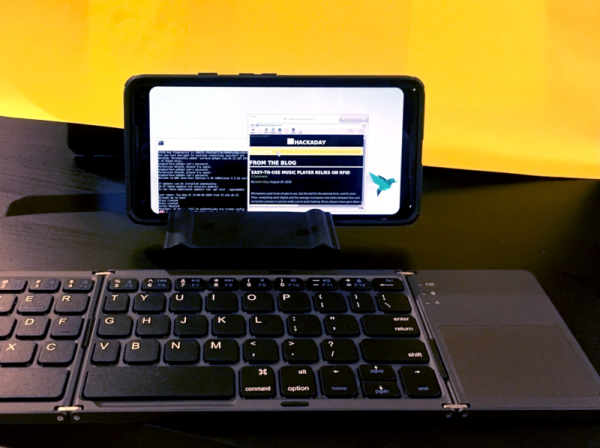
Any phone or tablet running Android is a device managed by an OS based on Linux. Yes, it's a heavily modified OS, but Android's core is Linux. Unfortunately, for most phones, the option to 'wipe Android and install a distribution of your choice' is not available.
Therefore, if you want Linux on your phone, you have to purchase specialized devices like the PinePhone, which we have already mentioned in one of the articles. What is AnLinux?
It is specialized software that
allows you to use Linux on your phone by mounting an image containing the root file system of any of the distributions, including Ubuntu, Kali, Fedora, CentOS, OpenSuse, Arch, Alpine, and many others. The installer uses PRoot to emulate root access. AnLinux is a small program. But that's enough since its sole purpose is to install system images and run scripts that set up the user environment. Once everything is done, the user gets a Linux PC instead of a smartphone, while Android continues to run in the background. You can connect to the device using a VNC viewer or terminal and start working.
Of course, this is not the ideal way to 'bring' Linux to a smartphone, but it is quite functional.
The main requirement is an Android smartphone with an OS version of at least Lollipop. It can also be a 32-bit or 64-bit ARM or x86 device. Additionally, a substantial amount of free storage space is required. You can use a memory card or simply a device with a large amount of internal storage.
Furthermore, you will need:
Where to start?
AnLinux (here's the link
to Google Play
- Termux (again ).
- VNC Client ( ).
- — a good option). is a good option).
- Bluetooth keyboard (optional).
- Bluetooth mouse (optional).
- HDMI cable for mobile phone (optional).
Termux and VNC are needed to access your "Linux computer". The last three items are only required to ensure comfortable use with the phone and the installer. The HDMI cable is necessary only if the user prefers to work with a larger screen rather than squinting at the phone display.
Well, let's get started
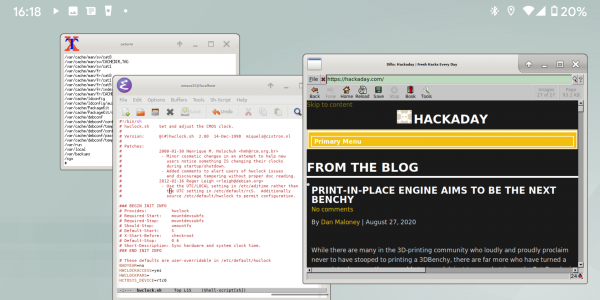
Once Termux is installed, you get a fully functional console. Yes, there is no root access (if the phone is not rooted), but that's not a problem. The next step is to install the image for the Linux distribution.
Now you need to open AnLinux and then select Dashboard from the menu. There are three buttons total, but only one can be chosen, the first one. After this, a distribution selection menu appears. You can choose not just one, but several distributions, but in this case, you'll need a large amount of free storage space.
After selecting the distribution, the other two buttons become active. The second allows you to copy the commands necessary for downloading and installing Linux to the clipboard. Usually, this includes pkg, wget commands, and a script to execute them.
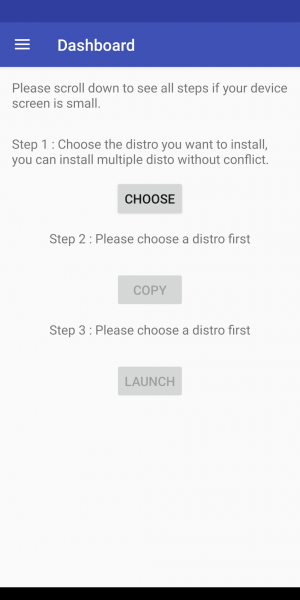
The third button launches Termux, so the commands can be pasted into the console. Once everything is done, a script is executed to download the distribution environment. To call the distribution, you need to run the script each time, but the installation is done only once.
What about the graphical interface?
If it's needed, you just need to select the menu for the desktop environment and use more buttons—there will be more than just three. In addition to the distribution itself, you also need to choose a shell, such as Xfce4, Mate, LXQt, or LXDE. Overall, it’s not complicated.
Then, besides the script that launches the distribution, another one will be needed—it activates the VNC server. In general, the whole process is straightforward and understandable; it is unlikely to pose difficulties.
After launching the VNC server, we connect from the client-side using a viewer. It is necessary to know the port and localhost. The script provides all this information. If everything is done correctly, the user gains access to their virtual Linux system. The performance of modern phones is excellent, so there shouldn't be any significant issues. Certainly, a smartphone is unlikely to fully replace a desktop, but overall, it all works.
This method may come in handy if you suddenly need to connect to a server while you're in a car, without a laptop (of course, all the operations with AnLinux mentioned above should have been completed beforehand). The virtual Linux machine allows you to connect to your work or home server. And if a display and wireless keyboard happen to be in the car for some reason, you can quickly set up a workplace in the cabin.
Source: habr.com
