

Introduction
This article is intended for system administrators preparing standard workstations on computers running Windows 10, including for software developers.
It should be noted that there is a specific issue regarding the inability to integrate software obtained from the Microsoft Store for use in a user image of Windows 10. Without going into details, I would clarify that this issue is related to the fact that programs installed from the Microsoft Store are linked to the service account Administrator, and errors arise when the user image is completed using the utility sysprep due to this circumstance.
The method discussed in this article allows avoiding such a problem when preparing a Windows 10 OS image with a pre-configured WSL2 subsystem, as well as a previously prepared and configured Ubuntu 20.04 OS image with KDE Plasma GUI, which in turn can have its own set of user software.
There are numerous examples and guides available online for configuring the WSL subsystem (i.e. WSL1 and the relatively new WSL2), including the configuration of GUI interfaces for Linux systems based on OS starting from version Ubuntu 16.04 to Ubuntu 20.04, but mostly they concerned desktops based on the so-called 'lightweight' xfce4, which have understandable limitations in user settings. However, regarding KDE Plasma GUI for Ubuntu 20.04, there was no significant information found online. Yet this option offers end users virtually unlimited customization options for both system appearance and hardware settings, of course, taking into account the current capabilities of Linux systems integrated into the WSL2 subsystem.
Installation of the required software package and WSL2 setup
We check the current Windows version by entering the command in the Windows search bar winver and we get something like the following:
It is important that the OS has version 1903 or 1909 (these specified versions must have the cumulative update KB4566116 installed), or 2004 (build number at least 19041), other information does not matter. If the version number is lower, it is recommended to update to the latest version of Windows to correctly replicate the results outlined in this article.
For ease of further actions, we will install the free Windows Terminal using the Microsoft Store (it is also possible to download from other sources):
We will install the X Server X410 through the same Microsoft Store; this software is paid but has a free trial period of 15 days, which is quite sufficient for conducting various tests.
As a free alternative to X410 and install the X server VcXsrv.
In any convenient location on the disk, we create a directory where we will store our files. For example, let’s create a directory C:wsl.
and install the offline installer for Ubuntu 20.04, unpack the downloaded file using an archiver (for example, 7-zip). We rename the unpacked directory with the long name Ubuntu_2004.2020.424.0_x64 to something more convenient, for example Ubuntu-20.04 and copy it to the directory C:wsl (hereafter simply referred to as wsl).
and unpack it into the directory wsl cross-platform sound server PulseAudio v.1.1, and also make corrections to its configuration files.
In the file wslpulseaudio-1.1etcpulsedefault.pa in the section Load audio drivers statically we edit the line:
load-module module-waveout sink_name=output source_name=input record=0
and in the section Network access we edit the line:
load-module module-native-protocol-tcp auth-ip-acl=127.0.0.1 auth-anonymous=1
In the file wslpulseaudio-1.1etcpulsedaemon.conf we uncomment and change the line
exit-idle-time = -1
We configure the WSL2 subsystem according to Microsoft. One note — we have already downloaded the Ubuntu distribution, and we will install it in the next step. Generally, the configuration involves enabling additional components "Windows Subsystem for Linux" and "Virtual Machine Platform," followed by a restart to apply the changes in the computer settings:
If necessary we install the Linux kernel update package for WSL2.
We launch Windows Terminal and select Command Prompt mode by pressing the keys Ctrl+Shift+2.
First, we set WSL2 mode, for this we enter the command:
wsl --set-default-version 2
We move to the directory with the offline loader for Ubuntu 20.04; in my case, it is wslUbuntu-20.04 and launching the file ubuntu2004.exe. When prompted for a username, enter the name engineer (you can enter any other name), enter your password and confirm the entered password for the specified account:
The terminal prompt line appeared, the Ubuntu 20.04 kernel is installed. Let's check the configuration of WSL2 mode, for this in Windows Terminal select the Windows PowerShell tab and enter the command:
wsl -l -v
the output should be as follows:
Configuring the Microsoft Defender firewall, i.e., disabling it for the public network:
Setting up Ubuntu 20.04
In Windows Terminal, again select the Command Prompt tab and install updates for Ubuntu 20.04. To do this, in the command line enter:
sudo apt update && sudo apt upgrade -y
Installing the KDE Plasma desktop:
sudo apt install kubuntu-desktop -y
the installation takes up to 30 minutes depending on the computer's performance and the Internet connection speed, confirm the installer's prompt when it appears OK.
Installing the Russian localization and dictionaries for Ubuntu 20.04. To do this, in the command line enter:
sudo apt install language-pack-ru language-pack-kde-ru -y
sudo apt install libreoffice-l10n-ru libreoffice-help-ru -y
sudo apt install hunspell-ru mueller7-dict -y
sudo update-locale LANG=ru_RU.UTF-8
sudo dpkg-reconfigure locales # Note: choose ru_RU.UTF-8 UTF-8, see screenshots below.
sudo apt-get install --reinstall locales
Adding the latest version of the KDE Plasma desktop:
sudo add-apt-repository ppa:kubuntu-ppa/backports
sudo apt update && sudo apt full-upgrade -y
Adding your own set of console applications, for example mc and neofetch:
sudo apt install mc neofetch -y
Let's check what we've got, enter in the command line neofetch, see the screenshot:
Editing the WSL configuration file /etc/wsl.conf:
sudo nano /etc/wsl.conf
in the opened empty window of the text editor, copy the text:
[automount]
enabled = true
root = /mnt
options = "metadata,umask=22,fmask=11"
mountFsTab = true
[network]
generateHosts = true
generateResolvConf = true
[interop]
enabled = true
appendWindowsPath = true
save the changes (Ctrl+O), confirm the operation and exit the text editor (Ctrl+X).
Exporting the configured Ubuntu-20.04 image to the directory we created wsl. To do this, in Windows Terminal, again select the Windows PowerShell tab and enter the command:
wsl --export Ubuntu-20.04 c:wslUbuntu-plasma-desktop
the created image will help us automate the startup/reinstallation operations of the configured Ubuntu 20.04, and if needed, allow easy transfer to another computer.
Preparing bat files and shortcuts on the Windows desktop
Using the Notepad++ editor, we create bat files (make sure to use the OEM-866 encoding for proper display of Cyrillic characters):
File Install-Ubuntu-20.04-plasma-desktop.bat is intended for automating the initial installation of the created Ubuntu 20.04 image on a computer already configured with the WSL2 subsystem and an X server. If the username and password differ from those indicated in the example, the corresponding changes need to be made in this bat file:
@echo off
wsl --set-default-version 2
cls
echo Please wait for the installation of the Ubuntu-20.04 distribution to complete...
wsl --import Ubuntu-20.04 c:wsl c:wslUbuntu-plasma-desktop
wsl -s Ubuntu-20.04
cls
echo The Ubuntu-20.04 distribution has been successfully installed!
echo Don’t forget to change the default account from "root" to an existing user account,
echo or use the pre-installed account "engineer", password: "password".
pause
File Reinstall-Ubuntu-20.04-plasma-desktop.bat is intended for reinstalling the prepared Ubuntu 20.04 image on a computer.
@echo off
wsl --unregister Ubuntu-20.04
wsl --set-default-version 2
cls
echo Please wait for the reinstallation of the Ubuntu-20.04 distribution to complete...
wsl --import Ubuntu-20.04 c:wsl c:wslUbuntu-plasma-desktop
wsl -s Ubuntu-20.04
cls
echo The Ubuntu-20.04 distribution has been successfully reinstalled!
pause
File Set-default-user.bat is for setting the "default" user.
@echo off
set /p answer=Enter existing username in Ubuntu (engineer):
c:wslUbuntu-20.04ubuntu2004.exe config --default-user %answer%
cls
echo User account %answer% in Ubuntu-20.04 has been set as default!
pause
File Start-Ubuntu-20.04-plasma-desktop.bat is used to launch the KDE Plasma desktop.
@echo off
echo ===================================== Attention! ============================================
echo For proper operation of the Ubuntu 20.04 GUI in WSL2, it is necessary to use an X Server.
echo Note: If using VcXsrv Windows X Server, you need to uncomment
echo the lines in the Start-Ubuntu-20.04-plasma-desktop.bat file that contain "config.xlaunch" and
echo "vcxsrv.exe", and comment out all lines containing "x410".
echo ============================================================================================
rem start "" /B "c:wslvcxsrvconfig.xlaunch" > nul
start "" /B x410.exe /wm /public > nul
start "" /B "c:wslpulseaudio-1.1binpulseaudio.exe" --use-pid-file=false -D > nul
c:wslUbuntu-20.04Ubuntu2004.exe run "if [ -z "$(pidof plasmashell)" ]; then cd ~ ; export DISPLAY=$(awk '/nameserver / {print $2; exit}' /etc/resolv.conf 2>/dev/null):0 ; setxkbmap us,ru -option grp:ctrl_shift_toggle ; export LIBGL_ALWAYS_INDIRECT=1 ; export PULSE_SERVER=tcp:$(grep nameserver /etc/resolv.conf | awk '{print $2}') ; sudo /etc/init.d/dbus start >& /dev/null ; sudo service ssh start ; sudo service xrdp start ; plasmashell ; pkill '(gpg|ssh)-agent' ; fi;"
rem taskkill.exe /F /T /IM vcxsrv.exe > nul
taskkill.exe /F /T /IM x410.exe > nul
taskkill.exe /F /IM pulseaudio.exe > nul
File Start-Ubuntu-20.04-terminal.bat — launch the graphical terminal without the KDE Plasma desktop.
@echo off
echo ===================================== Attention! ============================================
echo  For proper operation of the Ubuntu 20.04 GUI in WSL2, an X Server must be used.
echo  Note: If using VcXsrv Windows X Server, uncomment
echo  the lines in the Start-Ubuntu-20.04-plasma-desktop.bat file that contain "config.xlaunch" and
echo  "vcxsrv.exe", and comment out all lines that contain "x410".
echo ============================================================================================
rem start "" \/B "c:wslvcxsrvconfig.xlaunch" > nul
start "" \/B x410.exe \/wm \/public > nul
start "" \/B "c:wslpulseaudio-1.1binpulseaudio.exe" --use-pid-file=false -D > nul
c:wslUbuntu-20.04Ubuntu2004.exe run "cd ~ ; export DISPLAY=$(awk '\/nameserver \/ {print $2; exit}' \/etc\/resolv.conf 2>\/dev\/null):0 ; export LIBGL_ALWAYS_INDIRECT=1 ; setxkbmap us,ru -option grp:ctrl_shift_toggle ; export PULSE_SERVER=tcp:$(grep nameserver \/etc\/resolv.conf | awk '{print $2}') ; sudo \/etc\/init.d\/dbus start &> \/dev\/null ; sudo service ssh start ; sudo service xrdp start ; konsole ; pkill '(gpg|ssh)-agent' ;"
taskkill.exe \/F \/T \/IM x410.exe > nul
rem taskkill.exe \/F \/T \/IM vcxsrv.exe > nul
taskkill.exe \/F \/IM pulseaudio.exe > nul
Additionally, for ease of use, we prepare shortcuts in the directory wsl pointing to the corresponding bat files. After that, the contents of the directory wsl looks as follows:
Launching the KDE Plasma desktop
We check that all preparatory actions have been completed and try to launch the shortcut Plasma-desktop. A password prompt appears, enter the password for the account and… the window closes. This is normal the first time. We try again — and see the familiar KDE Plasma taskbar. We adjust the required appearance of the taskbar; for convenience, the taskbar is moved to the right side of the screen and centered. We check the localization settings, adding the Russian language if necessary:
If necessary, we place shortcuts for installed Linux applications on the KDE Plasma taskbar.
If Ubuntu 20.04 requires you to log out of the user account to apply changes in settings, or you need to restart the OS, enter the command in Windows Terminal:
wsl -d Ubuntu20.04 --shutdown
Using the shortcut Plasma-desktop or Konsole you can launch the GUI KDE Plasma Ubuntu 20.04. For example, we will install using Konsole the graphic editor GIMP:
After the installation is complete, we launch from Konsole the graphic editor GIMP:
GIMP is working, which is what needed to be verified.
Here is how various Linux applications work in KDE Plasma in WSL2:
the configured KDE Plasma taskbar is on the right side of the screen, and video in the Firefox window plays with sound.
If necessary, you can configure access to Ubuntu 20.04 via SSH and RDP, for this, you need to install the corresponding services with the command:
sudo apt install ssh xrdp -y
note: to enable password access via SSH you need to edit the file /etc/ssh/sshd_config, specifically the parameter PasswordAuthentication no must be set to PasswordAuthentication yes, save the changes and restart Ubuntu 20.04.
Each time Ubuntu 20.04 starts, the internal IP address changes, so before configuring remote access, you need to clarify the current IP address using the command ip a:
Consequently, this IP address needs to be entered in the session settings SSH and RDP before starting.
This is what remote access via SSH looks like using MobaXterm:
And this is what remote access via RDP:
Using the X server vcxsrv instead of x410
We launch and configure vcxsrv, carefully checking the appropriate boxes:
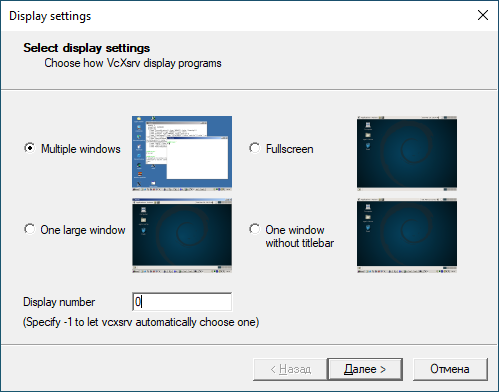
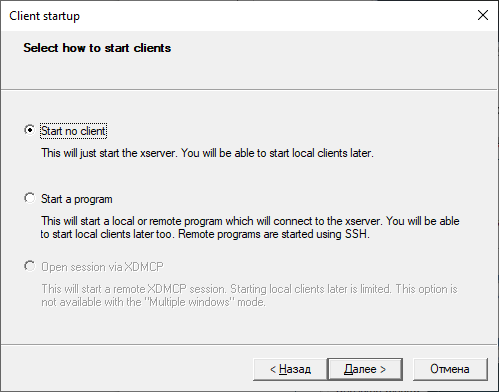
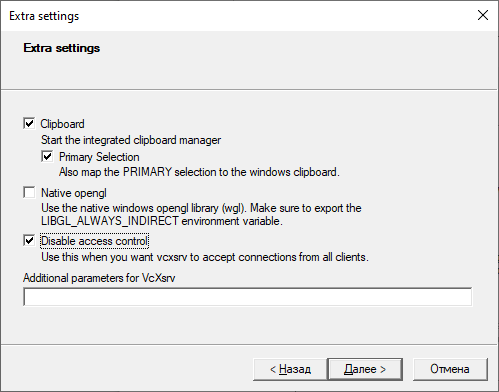
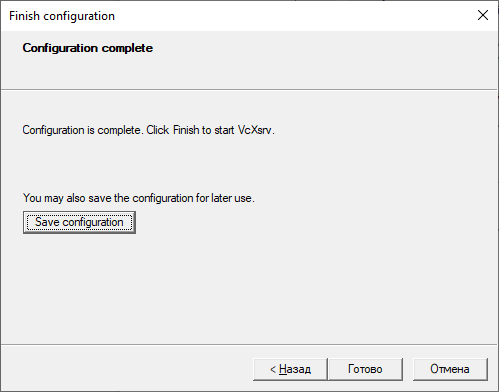
We save the configured configuration in the directory wslvcxsrv with the standard name config.xlaunch.
We edit batch files Start-Ubuntu-20.04-plasma-desktop.bat and Start-Ubuntu-20.04-terminal.bat according to the instructions provided in them.
We launch the shortcut Plasma-desktop, and here’s what we get:
The KDE Plasma desktop completely covers the Windows desktop, to switch between Linux and Windows applications, we use the well-known key combination Alt+Tab, which is not very convenient.
Moreover, an unpleasant feature of the X server was discovered — it "crashes" when launching certain applications, in particular, GIMP or LibreOffice Writer. It might be worth waiting for the developers to fix the noticed "bugs," but that’s uncertain… So, for acceptable results, it’s better to use the X Server Microsoft x410. vcxsrv Still, we must give credit to Microsoft, the WSL2 product turned out to be quite functional, and from my untrained perspective — quite successful. And as far as I know, the developers continue to actively refine it, and perhaps — in a year or two, this subsystem will present itself in all its functional completeness.
Conclusion
Linux kernel release 5.9
Source: habr.com
